Overview
This article is for educators and other recommenders who need to upload a letter of recommendation for a student. It covers how to find your pending requests and upload your letter, whether or not you have an Overgrad account.
If you are a student and you need to request a letter of recommendation, see this article.
TABLE OF CONTENTS
Accessing Your Recommendations
After a student submits a recommendation request, you'll receive an email notification.
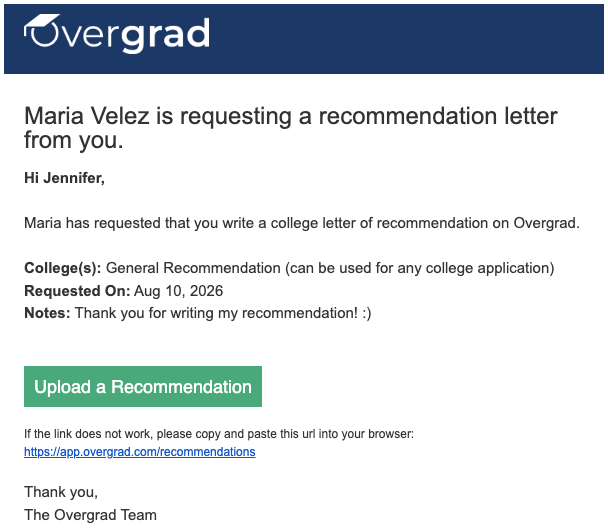
Click the link in the email to go directly to your recommendations page.
If you have an Overgrad account, you can also access your recommendations at any time by logging in and selecting Application Manager > My Recommendations from the top navigation bar.
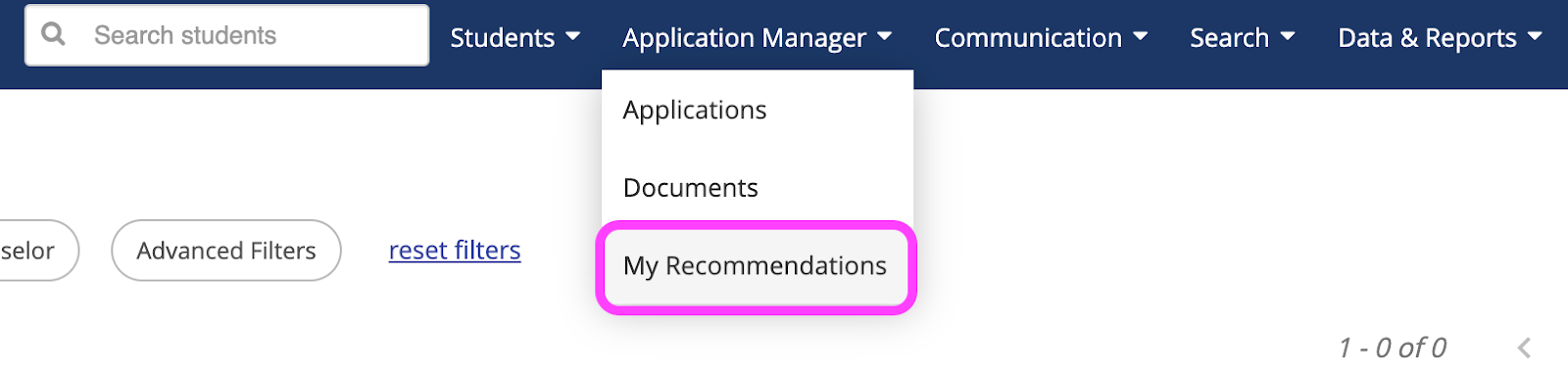
From the recommendations page, you'll see all pending requests. You can also view completed and canceled requests by selecting the corresponding tabs.

Uploading a Letter
Click Complete on a pending request to open the details. This will open the Academic Recommendation Form, which shows you any notes and files (such as brag sheets) that the student included with their request.
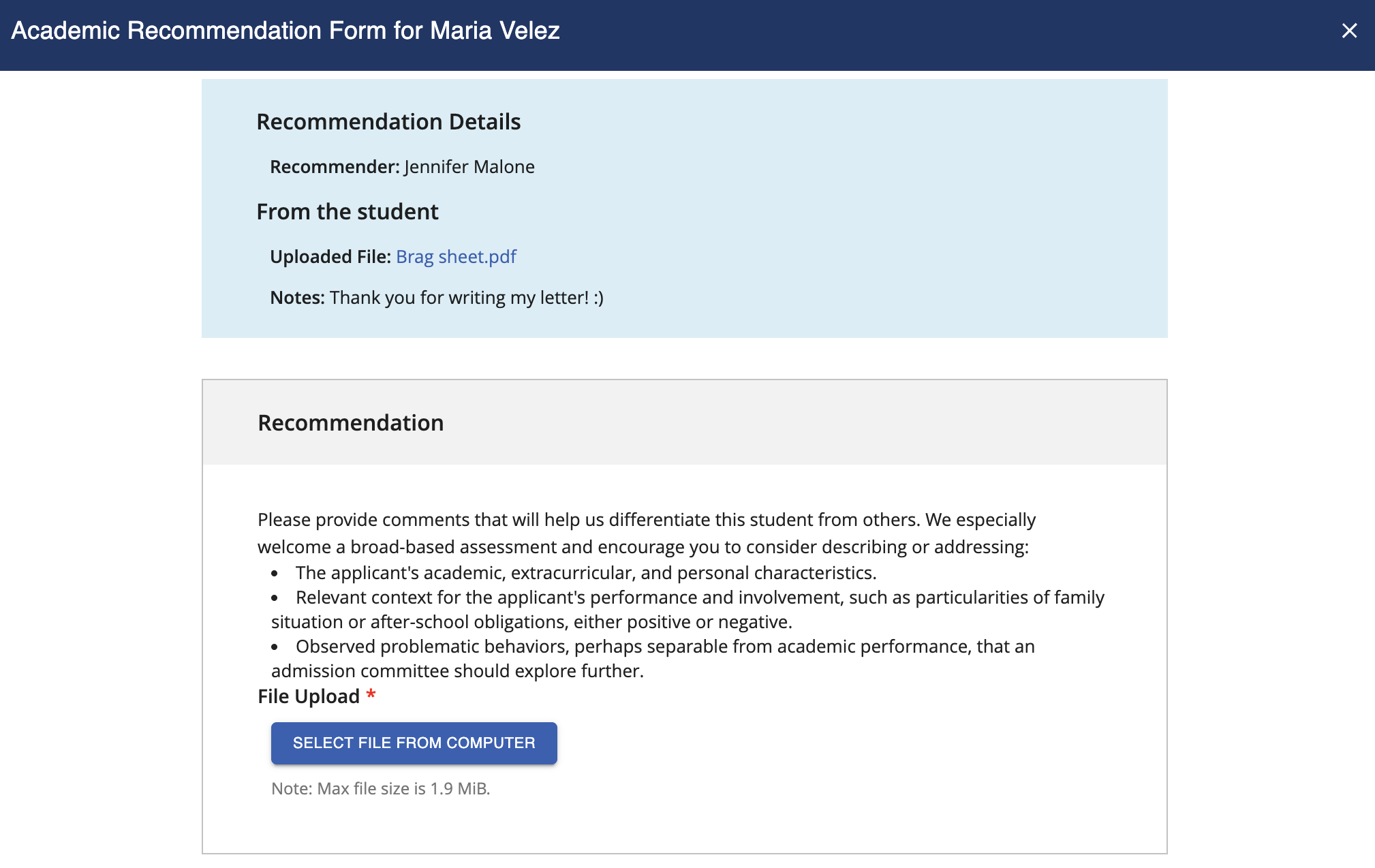
Select File From Computer and choose a file to upload. Make sure that it is a PDF with a maximum size of 1.9 MiB. Then click Save to submit your letter. The request will be marked as complete.
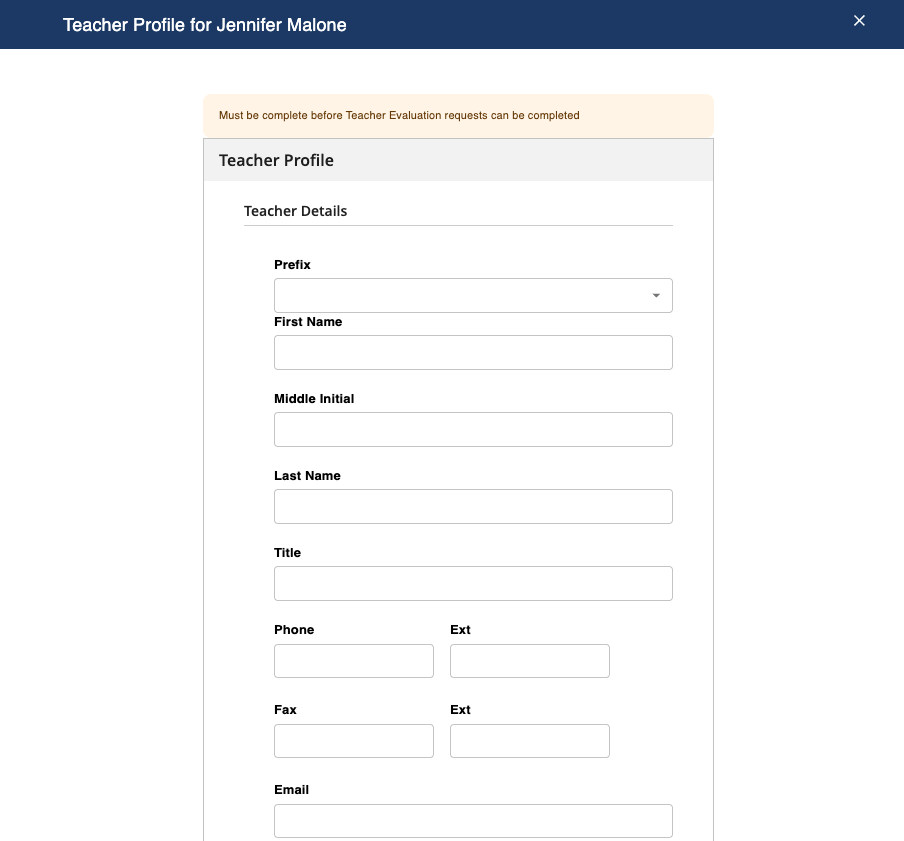
Note: If the student applied through Common App, the full recommendation process (including any required Common App forms) takes place entirely within Overgrad. Educators should not create a separate Common App account. If you haven't completed your teacher profile yet, you'll be prompted to fill one out first. This step captures your contact information, school, and additional context about your relationship with the student.
Was this article helpful?
That’s Great!
Thank you for your feedback
Sorry! We couldn't be helpful
Thank you for your feedback
Feedback sent
We appreciate your effort and will try to fix the article