This feature is only available to Overgrad Pro customers with AI Features enabled. Please connect with an Overgrad rep if you are interested in learning more.
Educators can upload single award letters or multiple award letters using the Aid Letter Import Feature. To use this feature, you will need to have the award letter(s) in PDF, PNG, or JPG format.
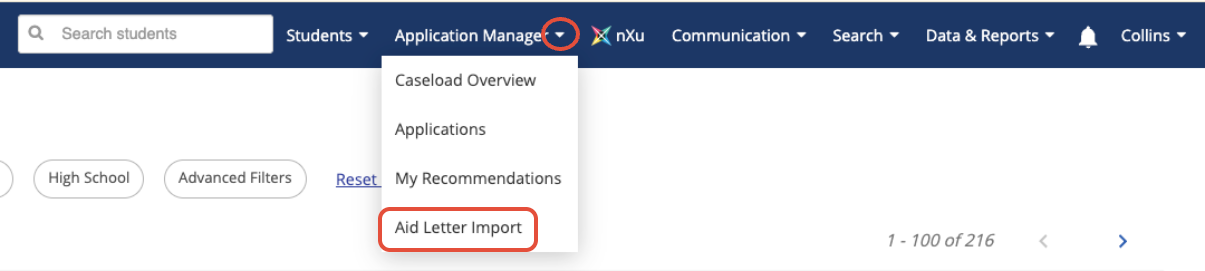
From the Application Manager dropdown, select Aid Letter Import
 Next, click Start New Import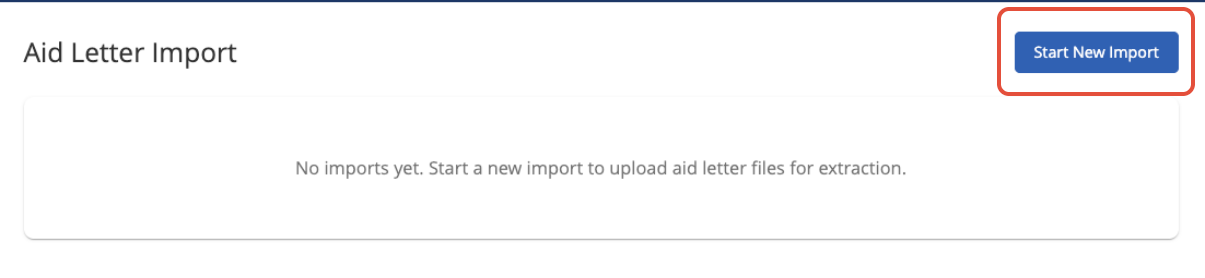
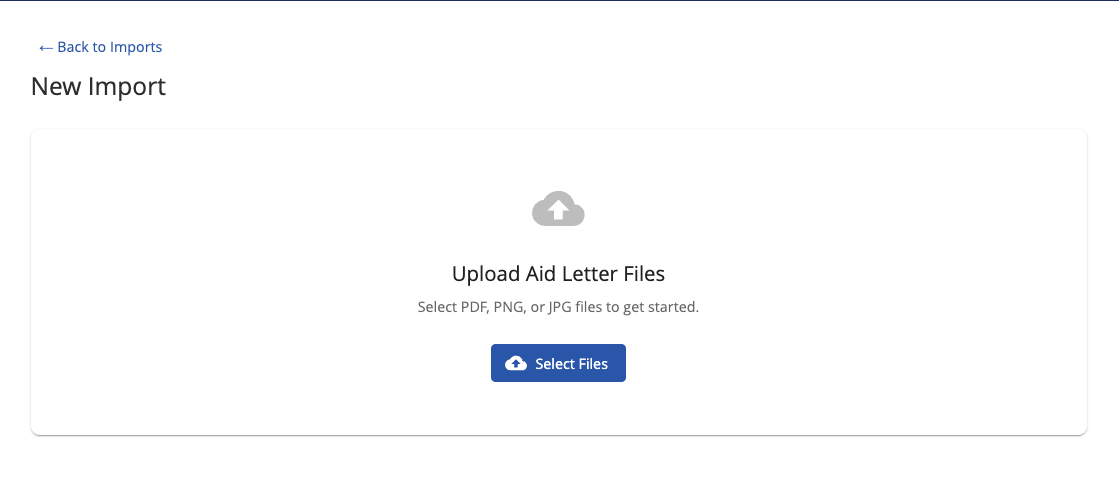
Select the file or files from your computer. You can add multiple award letters to the same file, or select multiple files at once using the Command key
Click Process Documents once you have selected all of the aid letters you want to import
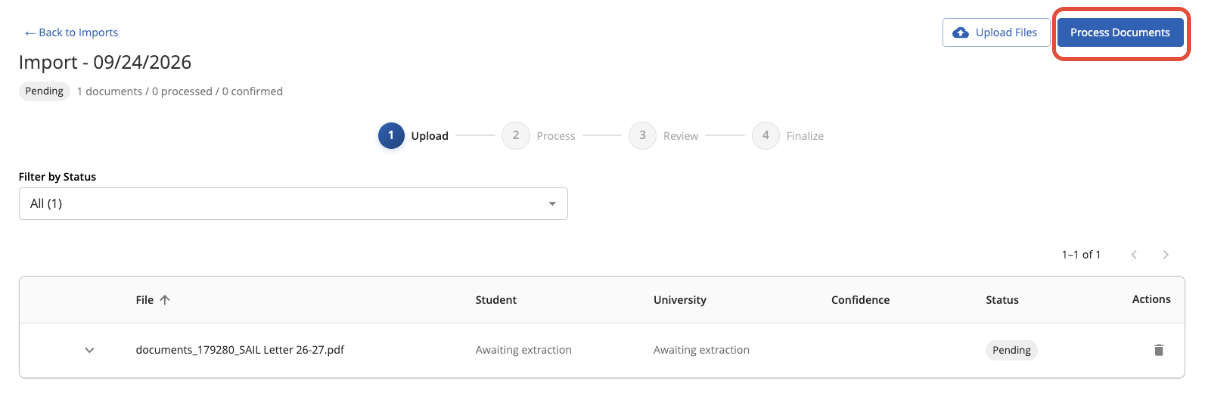
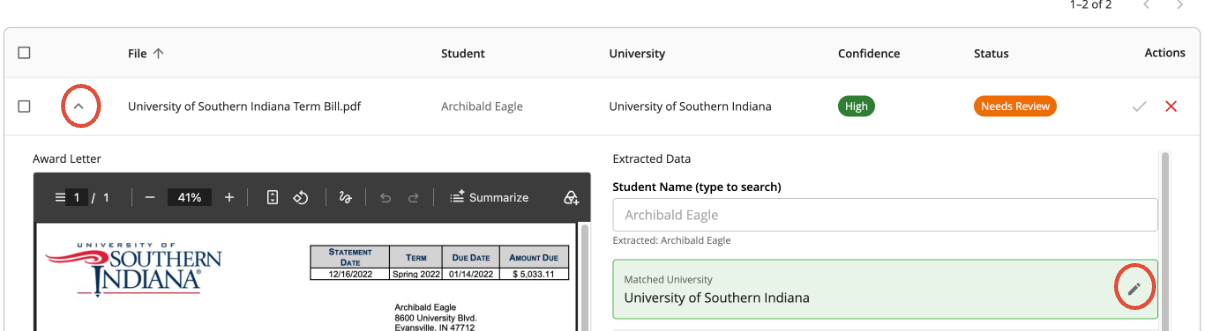
Once processed, you'll see a overview table displaying the student and university names from the import

Click on the carat to expand the row and use the grey pencil icon to manually edit extracted fields
If the fields are correct, click the open box to the left of the file name, then click the blue button that says Confirm Selected

If you do not want to upload the file, click the red X at the far right of the table

Once you have confirmed and reviewed the information, click the blue Finalize Import button

Was this article helpful?
That’s Great!
Thank you for your feedback
Sorry! We couldn't be helpful
Thank you for your feedback
Feedback sent
We appreciate your effort and will try to fix the article