The Financial Aid page in Overgrad helps you keep track of your financial aid applications (like the FAFSA and CSS Profile) and, once you're accepted, compare your award letters side by side so you can see what each college will really cost you. Here's what to do, step by step.
Before you start: If you've already submitted your FAFSA, have your FAFSA Submission Summary (FSS) handy. Log in at studentaid.gov, select your FAFSA form under "My Activity," and click "FAFSA Submission Summary." You'll need it to answer some of the questions below.
TABLE OF CONTENTS
- Step 1: Open your Financial Aid page
- Step 2: Tell us about your FAFSA
- Step 3: Add your family contribution
- Step 4: Check whether you need the CSS Profile
- Step 5: Keep an eye on your scholarships
- Step 6: Enter your award letters
- Step 7: Compare your offers
Step 1: Open your Financial Aid page
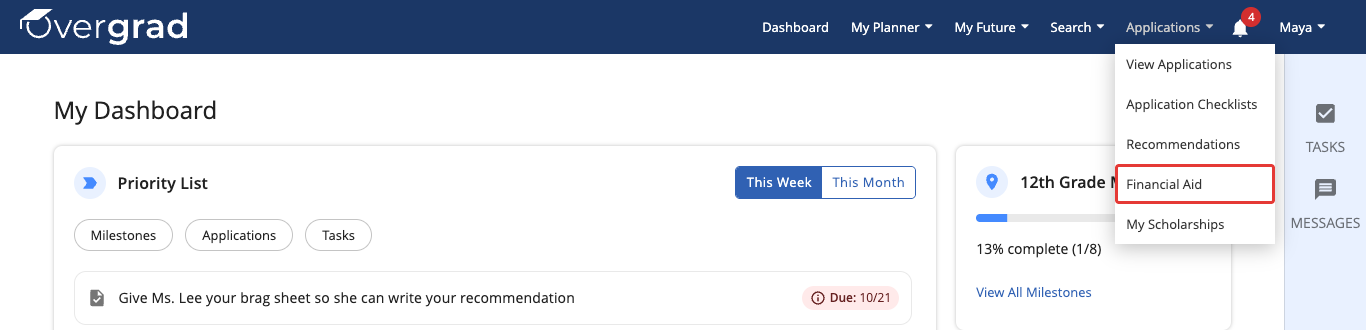
In the menu at the top of Overgrad, click Applications, then Financial Aid.
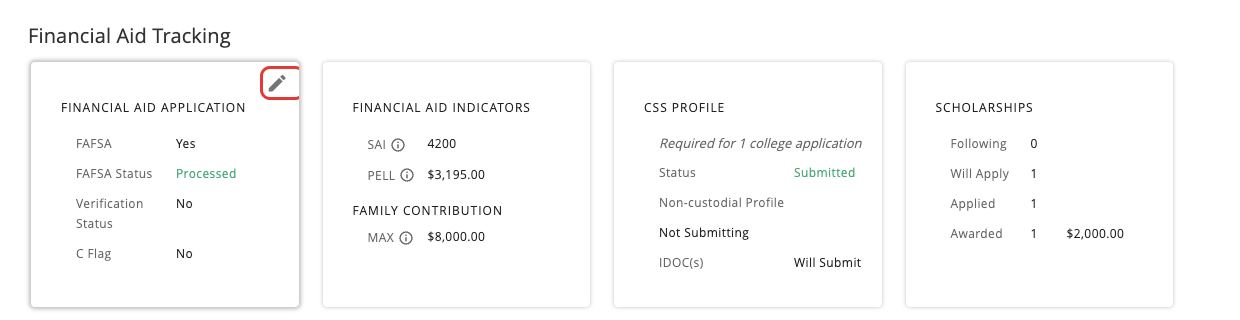
At the top of the page, you'll see four cards under Financial Aid Tracking: Financial Aid Application, Financial Aid Indicators, CSS Profile, and Scholarships. Below them is the Financial Aid Analysis, where you'll compare award letters later.
Step 2: Tell us about your FAFSA
- Hover over the Financial Aid Application card and click the pencil icon in the top-right corner.
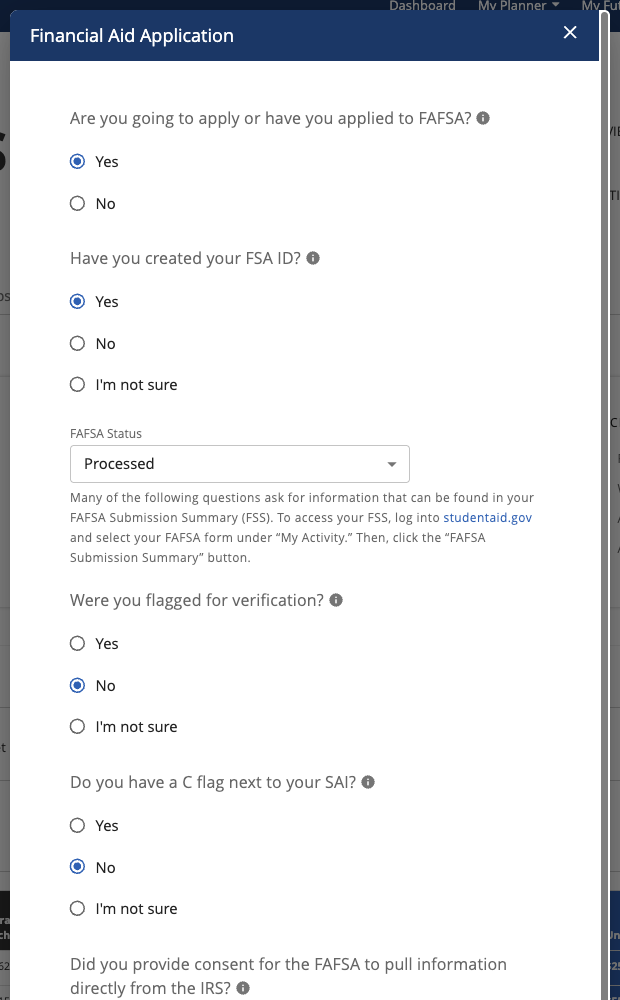
- Answer "Are you going to apply or have you applied to FAFSA?"More questions will appear based on your answers.
- Choose your FAFSA Status: Will Submit, Submitted, or Processed.
- Once your FAFSA is Submitted or Processed, you'll be asked a few questions you can answer from your FSS, like whether you were flagged for verification and your dependency status.
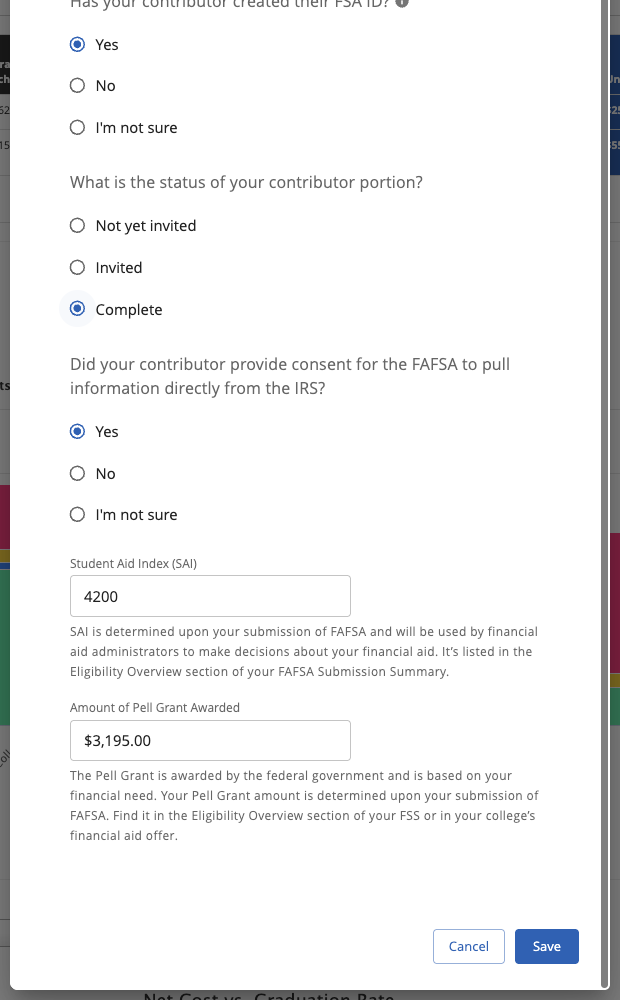
- At the bottom, enter your Student Aid Index (SAI) and your Amount of Pell Grant Awarded. You'll find both in the Eligibility Overview section of your FSS. Then click Save.
Not filling out the FAFSA? Choose No and pick the reason. If you're submitting a state aid application instead, you can track its status here too.
Tip: Come back and update this card whenever your status changes (for example, from Submitted to Processed).
Step 3: Add your family contribution
Hover over the Financial Aid Indicators card and click the pencil. Your SAI and Pell Grant carry over from Step 2.
Under Family Contribution, enter your Maximum Family Contribution: the most your family can realistically pay each year toward college. Talk with your family about this number, then click Save.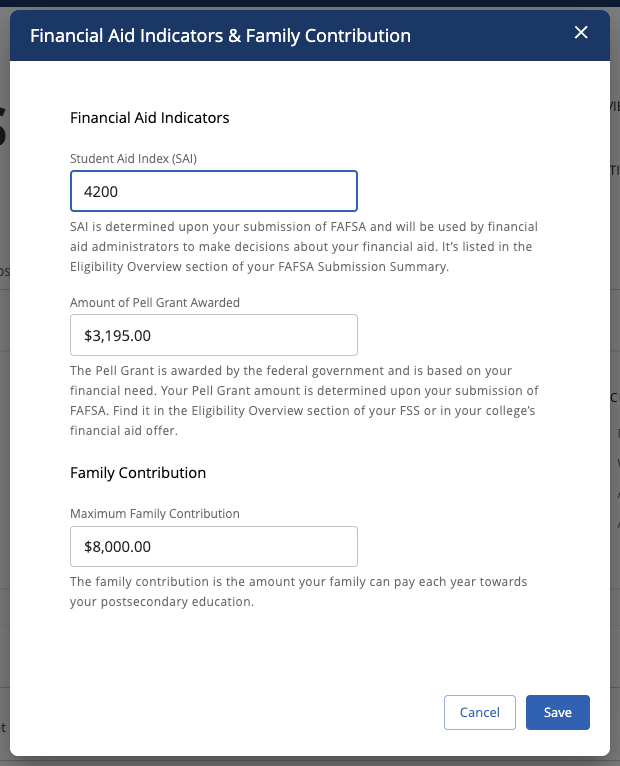
Step 4: Check whether you need the CSS Profile
Some colleges ask for the CSS Profile in addition to the FAFSA. The CSS Profile card tells you how many colleges on your Applications list require it.
Click the pencil on the CSS Profile card to see exactly which colleges need the CSS Profile, the Non-custodial Profile, or IDOC. This list comes from the College Board, so double-check each college's website, since requirements can change. Then update the status of each one (Will Submit, Submitted, Processed, or Not Submitting) and click Save.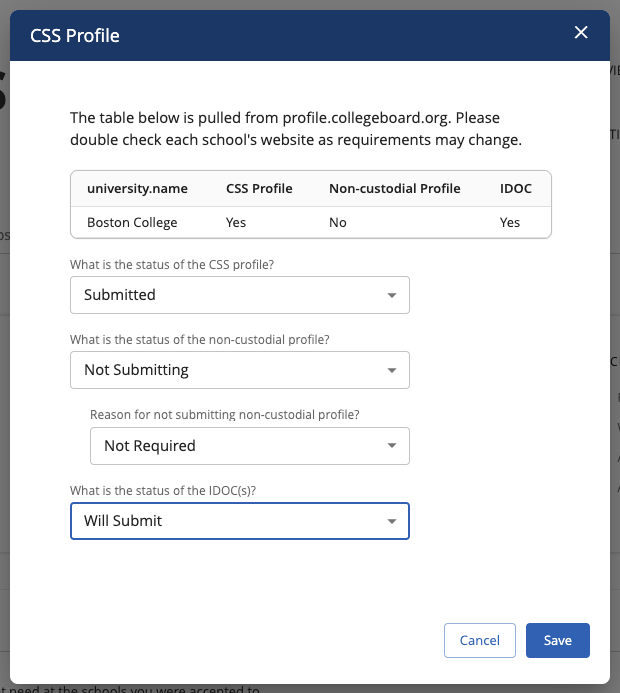
Once you've filled everything in, your cards give you a quick snapshot of where things stand: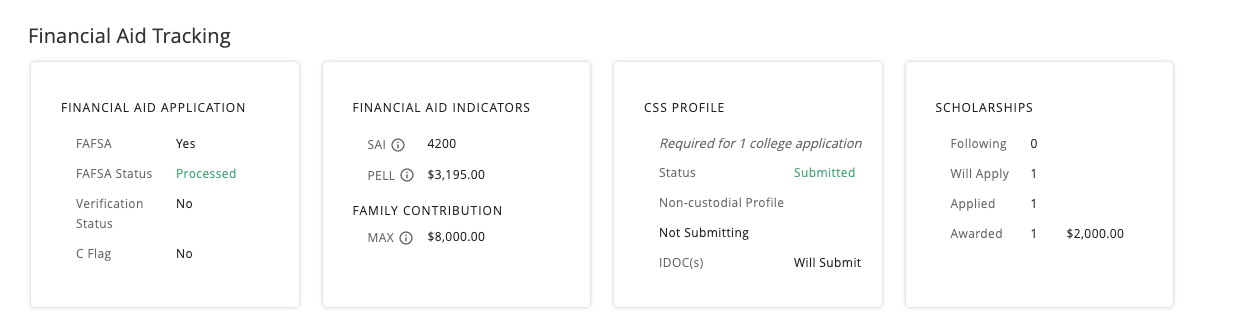
Step 5: Keep an eye on your scholarships
The Scholarships card shows how many scholarships you're following, plan to apply to, have applied to, and have been awarded (plus the total amount awarded). Hover over the card and click the arrow to go to My Scholarships and update them. For more, see Search, follow, and track scholarships.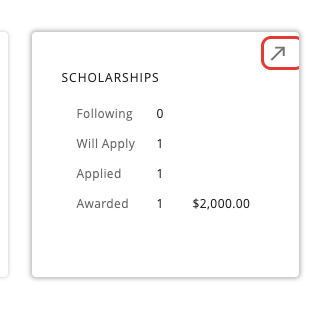
Step 6: Enter your award letters
When a college accepts you, it will send you a financial aid offer, also called an award letter. Entering it in Overgrad lets you compare your offers.
Important: Only colleges marked Accepted (or Enrolled) show up in the Financial Aid Analysis. If a college is missing, update its status first. See How to change the status of a college application.
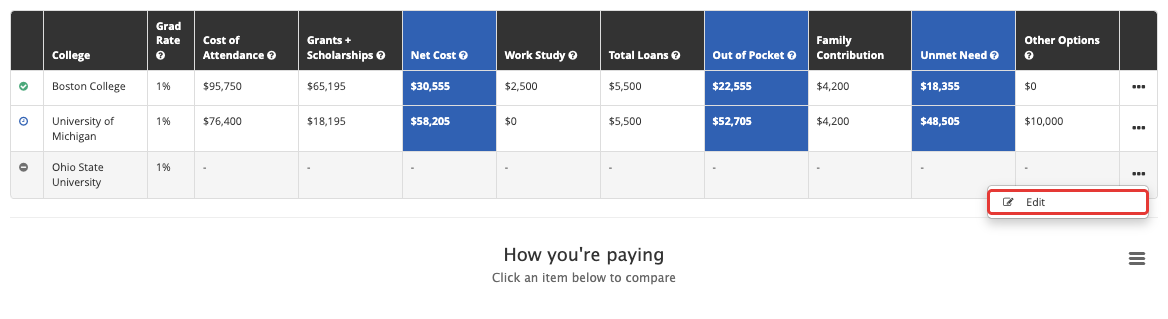
- Scroll down to Financial Aid Analysis. Find the college in the table, click the three dots (...) at the end of its row, and click Edit.
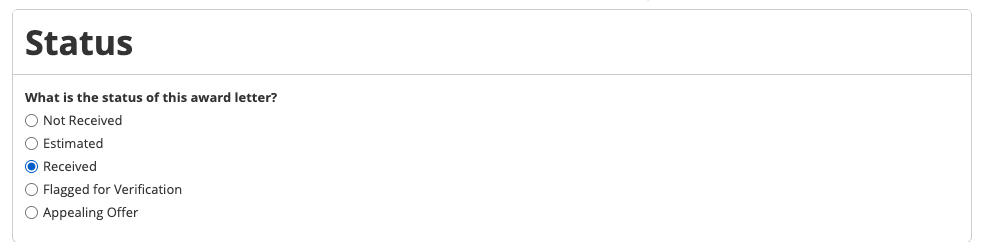
- Choose the status of your award letter. Use Received for an official offer, or Estimated if you're working from an estimate (like a college's net price calculator).
- Under First year costs, enter the costs from your award letter: tuition, fees, housing, meal plan, and so on.

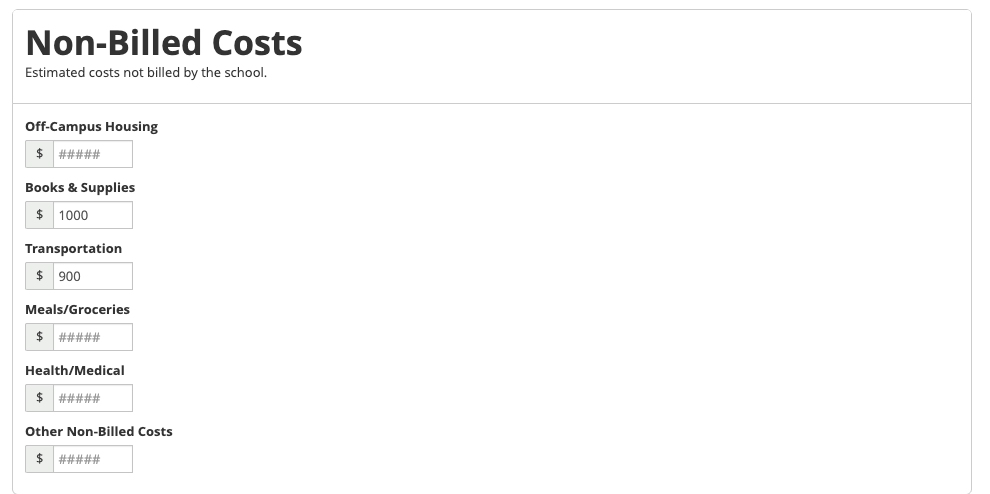
- Under Non-Billed Costs, add costs you'll pay that the college doesn't bill you for, like books and transportation.
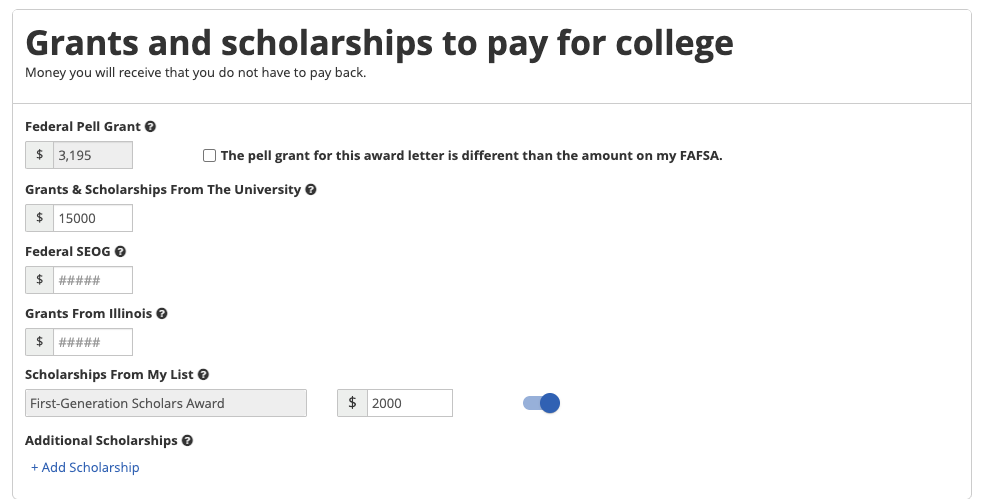
- Under Grants and scholarships to pay for college, enter the grants and scholarships from the letter. This is money you don't have to pay back. Your Pell Grant fills in automatically from Step 2, and scholarships you've been awarded from My Scholarshipsshow up here too.
- Enter any Work Study and Loan options from the letter, plus anything under Other options for covering the costs(like a Parent PLUS Loan).
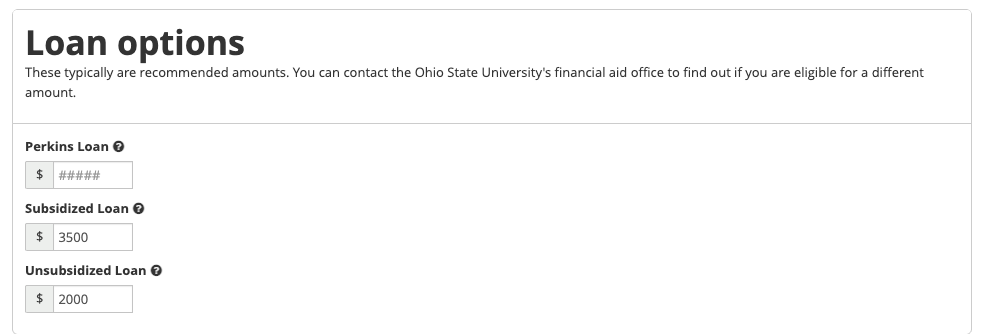
- Click Save.
Repeat for each college that accepts you. For more detail, see How to add financial aid letter data to Overgrad.
Step 7: Compare your offers
Back on the Financial Aid page, the table compares every college you've entered an award letter for: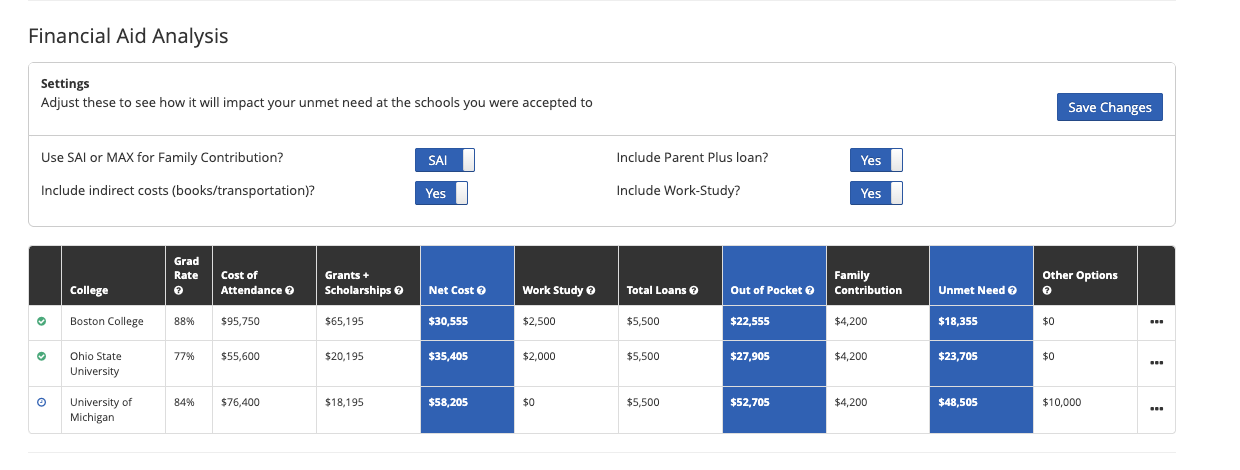
- Cost of Attendance: the total cost for one year.
- Grants + Scholarships: free money you don't pay back.
- Net Cost: what's left after grants and scholarships.
- Out of Pocket: what's left after work study and loans too.
- Unmet Need: what's still left after your family contribution. This is the gap you'd need to find a way to cover.
- Grad Rate: how many students like you graduate from that college.
Use the Settings box above the table to see how the numbers change, for example using your MAX family contribution instead of your SAI, or leaving out Parent PLUS loans. Click Save Changes to update the table.
Below the table, the How you're paying chart shows how each college's cost breaks down, and the second chart lets you compare colleges on things like Net Cost vs. Graduation Rate.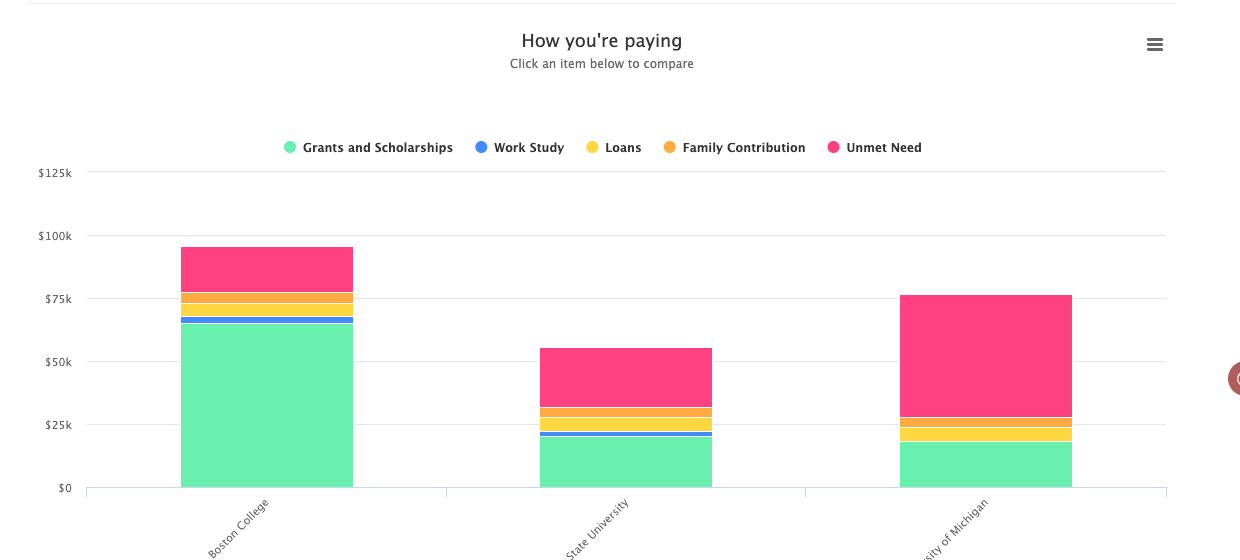
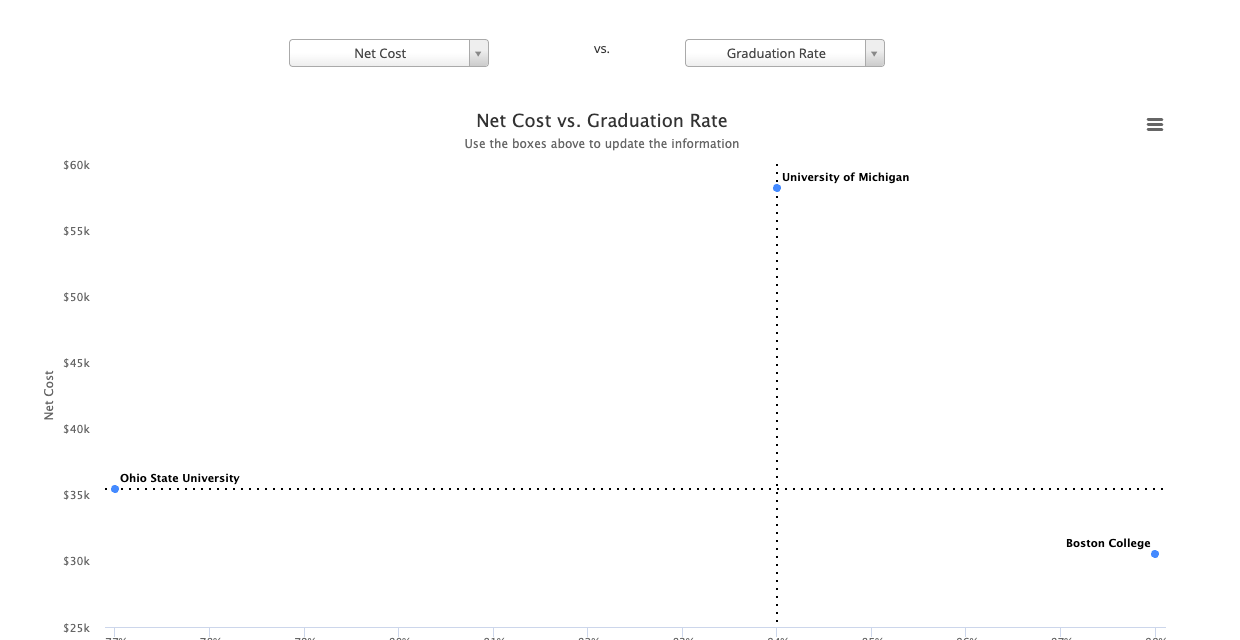
For more on reading these numbers, see Comparing financial aid award letters.
Next step: Bring this page to your counselor to talk through your offers, especially any college with a large unmet need. If you plan to ask a college to reconsider its offer, you can mark that award letter as Appealing Offer.
Was this article helpful?
That’s Great!
Thank you for your feedback
Sorry! We couldn't be helpful
Thank you for your feedback
Feedback sent
We appreciate your effort and will try to fix the article