TABLE OF CONTENTS
- Getting Started
- Requesting a Counselor Recommendation
- Requesting an Academic (Teacher) Recommendation
- Checking the Status of Your Requests
- Requesting Other Recommendations
- Attaching Recommendations to College Applications
- Swapping a Recommender on a Specific Application
- Canceling a Recommendation Request Entirely
Getting Started
Navigate to Applications in the top menu and select Recommendations from the dropdown.
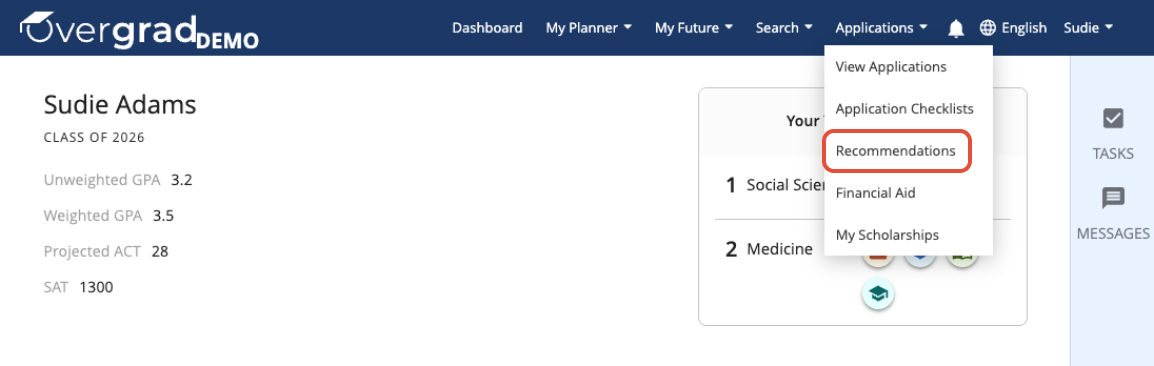
This opens your Recommendations page, where you can view and manage all of your requests.
Requesting a Counselor Recommendation
- On the Recommendations page, find the Counselor Recommendations section.
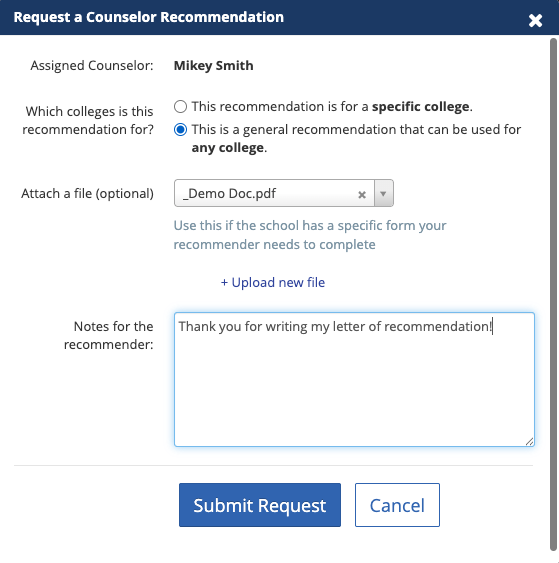
- Click the blue + Add Counselor Recommendation button.

- Your assigned counselor's name will appear automatically. If the name shown is incorrect, contact your counselor to have it updated in Overgrad before submitting.
- Choose whether this recommendation is for a specific college or a general recommendation (usable for any school). The general option is recommended in most cases so one letter can cover multiple applications.
- Optionally, click Upload new file to attach a brag sheet, resume, or other supporting document.
- Use the Notes for the recommender field to provide any helpful context or a personal message for your counselor.
- Click Submit Request.
Requesting an Academic (Teacher) Recommendation
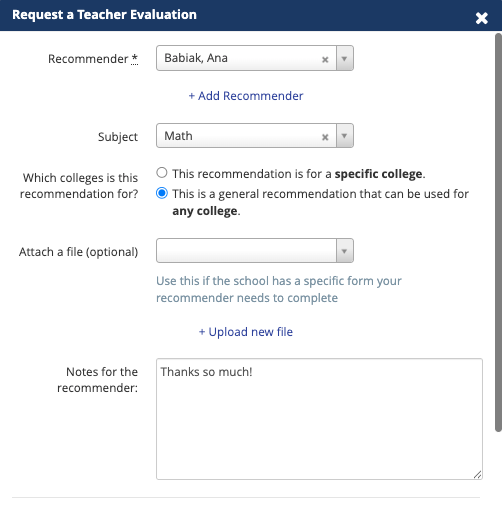
- Scroll to the Academic Recommendations section and click Add Academic / Teacher Evaluation.

- If your teacher has an Overgrad account: Their name will appear in the dropdown — simply select them.
- If your teacher is not in the list: Click Add Recommender and enter their email address and name. Double-check the spelling carefully, as this is how the request will be delivered.
- Select the Subject that best matches the class they taught you.
- Optionally attach a file (e.g., a brag sheet) and add a note for your teacher.
- Click Submit Request.
Checking the Status of Your Requests
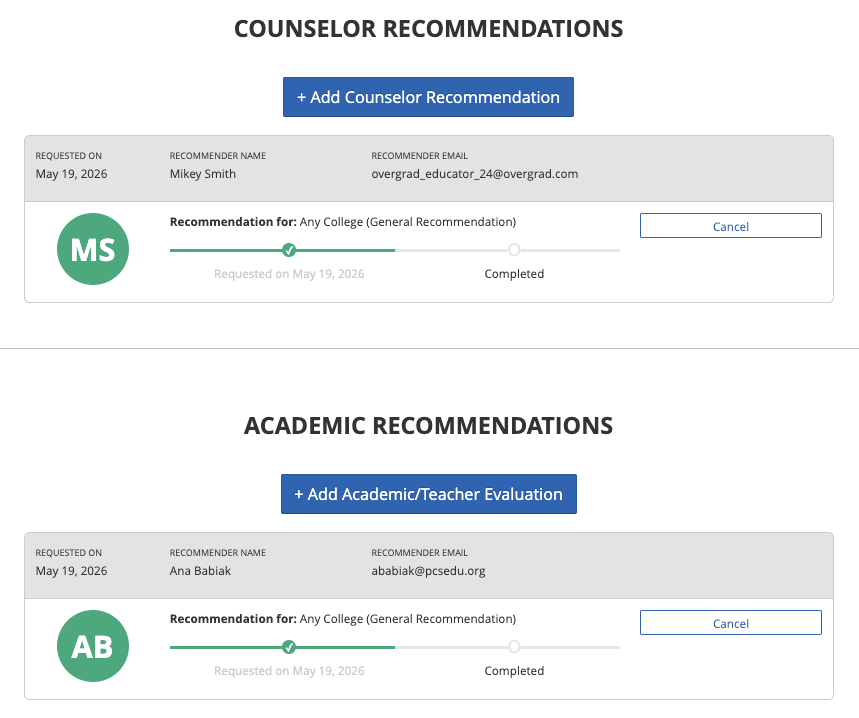
After submitting, you can return to the Recommendations page at any time to check the status of each request. Once your recommender uploads their letter, the recommendation will be marked as Completed.
Requesting Other Recommendations
The Other Recommendations section allows you to request a letter from someone who is not your counselor or a teacher (e.g., a coach or employer). Keep in mind:
- Other Recommendations cannotbe submitted via Overgrad to schools you're applying to through Common App.
- If you are applying via Common App and you want to request an Other Recommendation, you must do so directly through Common App.
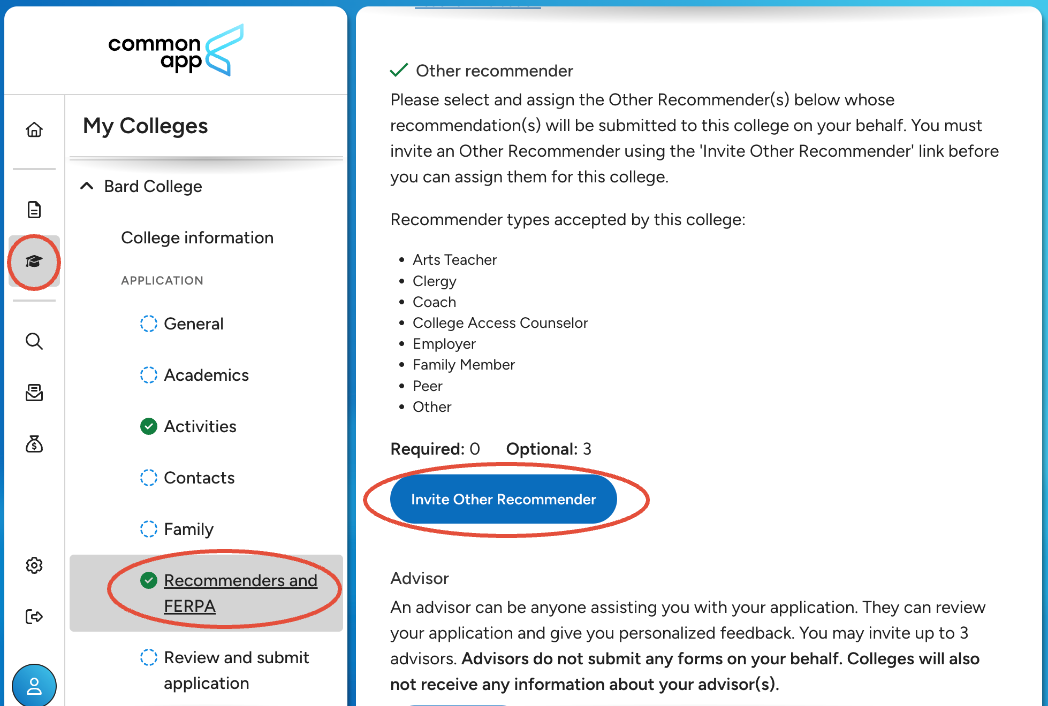
- Some college do not accept Other Recommenders at all. This option will not appear in Common App for schools that do not accept them.
- If you are applying via Common App and you want to request an Other Recommendation, you must do so directly through Common App.
- Many schools require letters only from a counselor or teacher — check each school's requirements before using this option.
Attaching Recommendations to College Applications
- Go to Applications and click into one of your colleges.
- Click Attach a Document.
- Select the document type, then click Attach or Request.
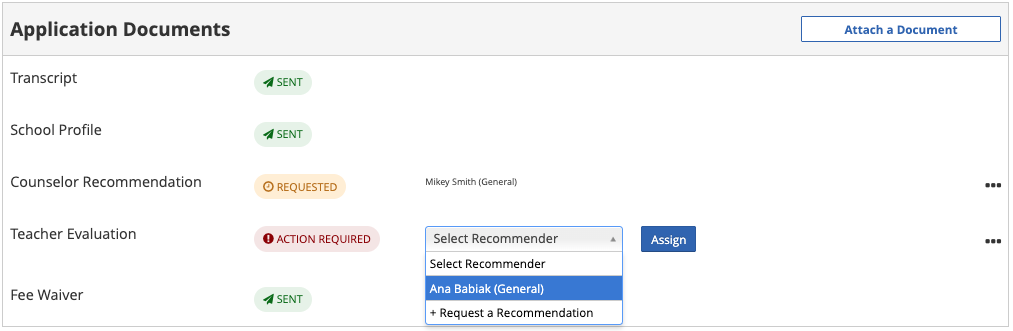
- Click the Select Recommender dropdown — this shows everyone you've already requested a letter from.
- Select the person you want to assign, then click the blue Assign button.
If the recommender you need isn't on the list yet, select + Request a Recommendation from the same dropdown to submit a new request without leaving the page.
Swapping a Recommender on a Specific Application
- Go to Applications and click into the college you want to update.
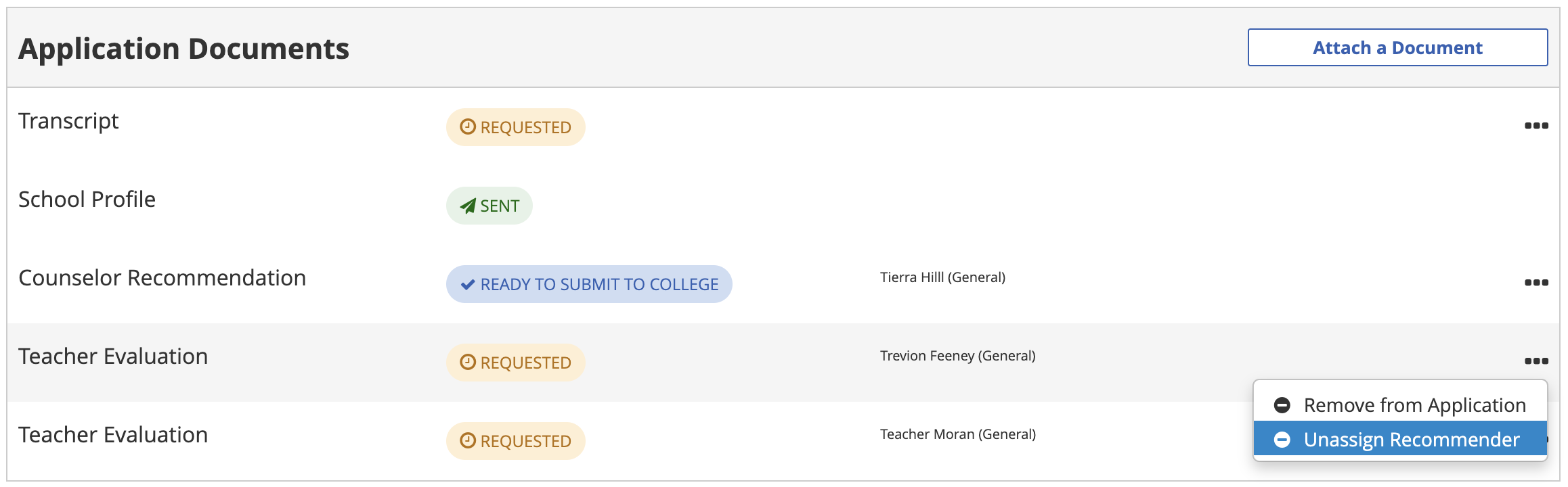
- Find the document row for the recommendation you want to change (e.g., Teacher Evaluation).
- Click the ••• menu at the end of that row and select Unassign Recommender.
- The row will return to needing a recommender. Click Assign, then choose the new recommender from the Select Recommender dropdown (or select + Request a Recommendation if they haven't been added yet).
- Click Assign to confirm.
Note: Unassigning doesn't cancel the original request — that recommender's letter is still active and can be used on your other applications. You're only changing which recommender is linked to this application.
A few things that can block this:
- Counselor Recommendations can't be swapped this way. The Unassign Recommender option won't appear for a Counselor Recommendation row. If your assigned counselor is wrong, contact your school to have it corrected in Overgrad.
- For Common App schools, only Teacher Evaluations can be reassigned. Other recommendation types are locked once a recommender is linked.
- Once a document has been sent, it's locked. If the status shows Sent (or the letter has already been downloaded by the school), you won't see an unassign option at all.
Canceling a Recommendation Request Entirely
- Go to Applications > Recommendations.
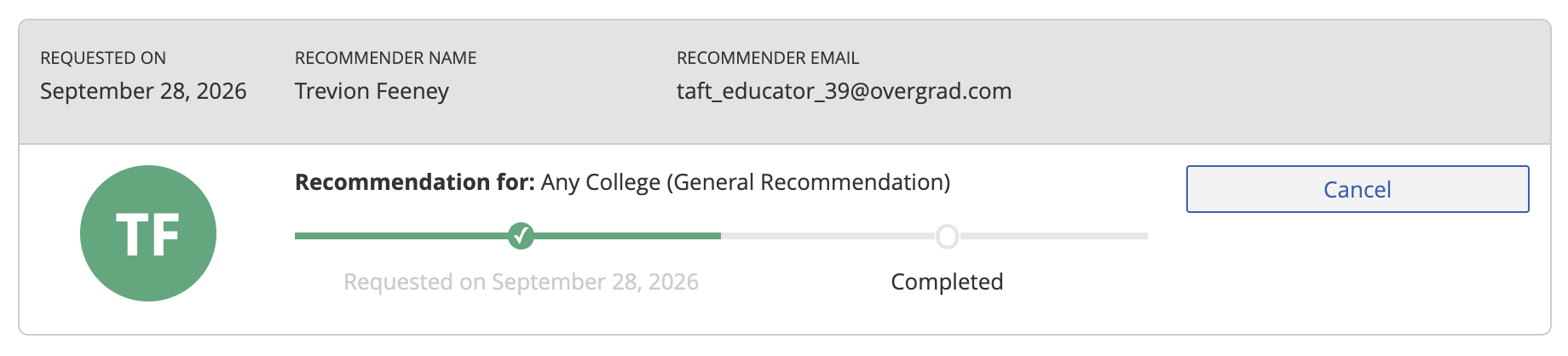
- Find the request and click Cancel.
- Confirm when prompted. Canceling removes the request from all of your applications, not just one — and your recommender will no longer be able to submit a letter for it.
Note: A completed recommendation can't be canceled. Once your recommender has submitted their letter, the Cancel button will no longer be available for that request.
This feature is only available to Overgrad Pro customers that have Recommendations enabled. Please connect with an Overgrad rep if you are interested in learning more.
Was this article helpful?
That’s Great!
Thank you for your feedback
Sorry! We couldn't be helpful
Thank you for your feedback
Feedback sent
We appreciate your effort and will try to fix the article