This feature is only available to Overgrad Pro customers. Please connect with an Overgrad rep if you are interested in learning more.
The Applications page is the central hub for managing a student's college applications in Overgrad. During application season, this is where students and counselors will spend most of their time — tracking application statuses, managing document requests, submitting recommendation requests, etc. Both students and educators (with the appropriate access level) can view and interact with this page.
Getting to the Applications page
For educators: From a student's profile, click the Application Manager tab.
For students: Go to Applications in the top right and select View Applications.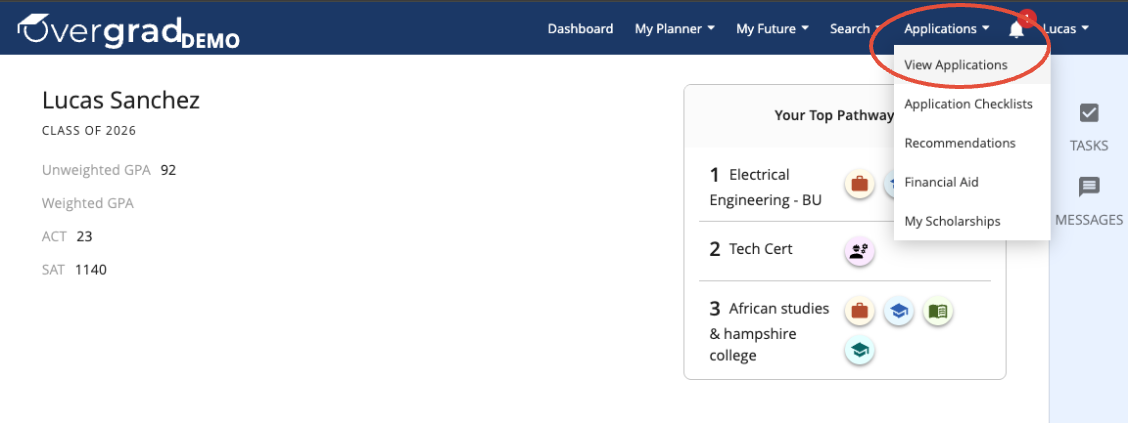
(My) Applications
This section has a summary for each of the student's college applications, including: college name, academic fit (likely, reach, etc.), application type (Early Decision, Regular Decision, etc.), due date, application status, and associated documents.
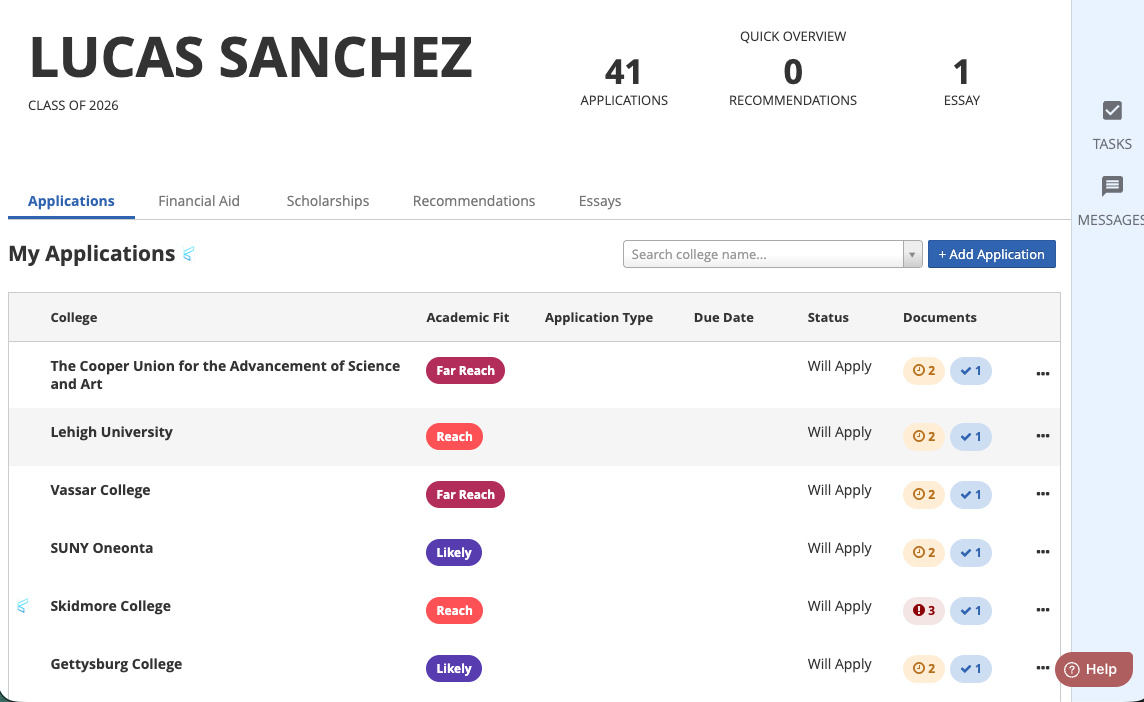
If a college has the Common App logo next to its name, it means the student is applying to that school through Common App. Clicking the college name will take you to the Application Center for that school, where you can manage the full details of that application.
- For more information about linking Common App to Overgrad, see this article.
- Note: Students and educators cannot update Common App application statuses from the Application Center. The status will reflect the actual application status in Common App.
Each individual application has its own Application Documents section, visible when you click into a specific college application and click Application Details. This shows the document requests attached to that particular application. Both students and educators can view the status of each document here.
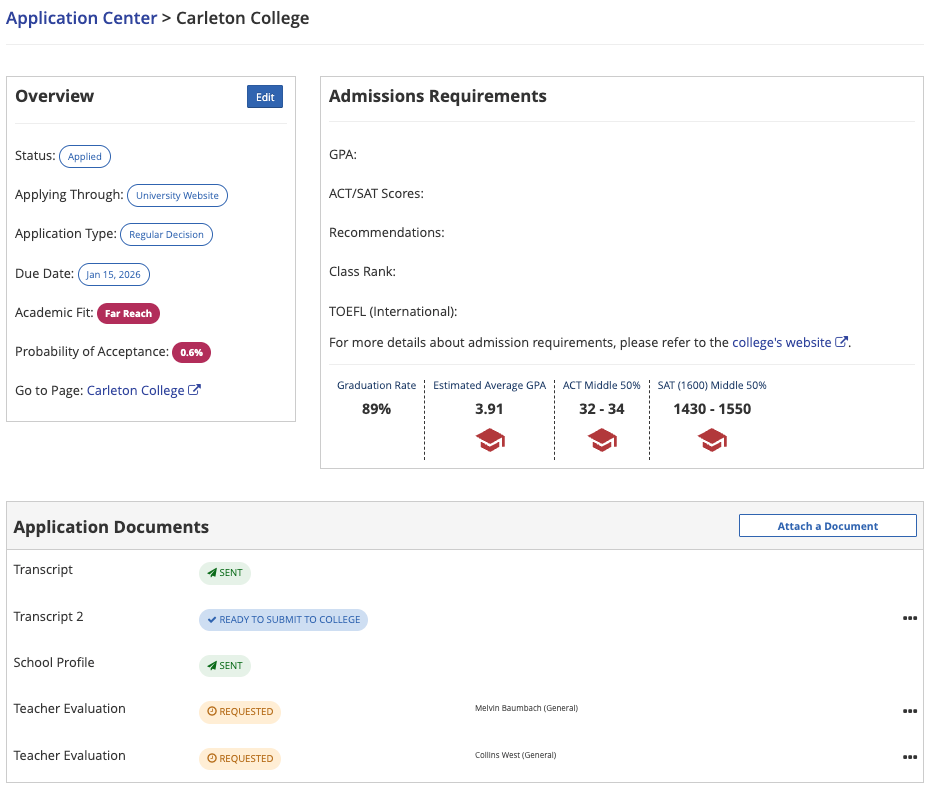
Here, counselors and counselors can attach (or request) a document for a specific application:
- Click Attach a Document
- In the pop-up window, select the type of document you need
- Click Attach or Request to submit
Application Documents
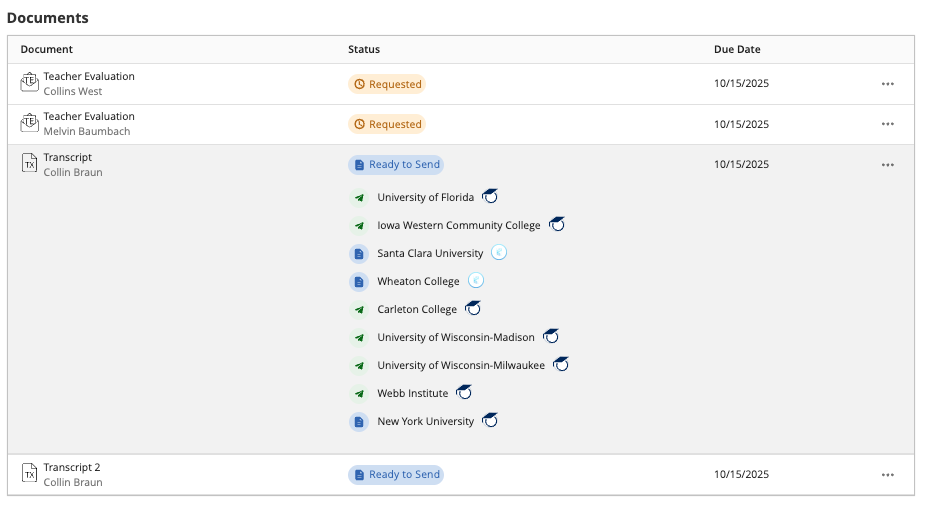
At the bottom of the Application Manager on a student's profile, there is a separate Documents section that gives a broader picture across all of a student's applications. Rather than showing documents one application at a time, this section is organized by document type (such as School Report, Counselor Recommendation, or Teacher Recommendation) and shows the status of each document type for every application at once.
This is especially useful for educators who need to quickly see whether a student's documents have been sent across all their schools, without having to click into each application individually.
Recommendations
The Recommendations section displays all teacher and counselor recommendation requests. From a student's account, go to Applications in the top right and select Recommendations.
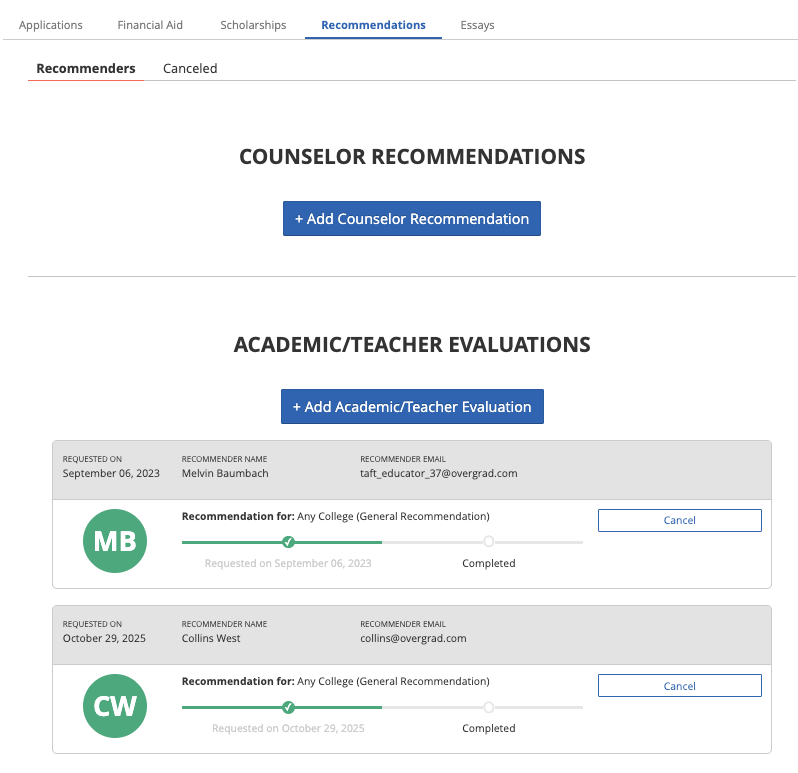
Students can initiate new recommendation requests directly from this page. A few things to know:
- Recommendations can be school-specific (tied to one application) or general (used across multiple applications)
- Recommendation requirements vary by college — make sure you know what each school on the student's list actually needs. You can find each college's recommendation requirements in the college's profile on Overgrad.
- Recommenders do not need an Overgrad account to complete their recommendation. They'll receive an email with a link to submit it directly.
Was this article helpful?
That’s Great!
Thank you for your feedback
Sorry! We couldn't be helpful
Thank you for your feedback
Feedback sent
We appreciate your effort and will try to fix the article