This guide is for educators who want to use students' accounts in Overgrad, a process known as "ghosting as a student."
First, log into your educator account. From here, you can either type a student's name directly into the search bar or the Students drop down to view a student list and select the student whose account you want to use.

From the student's profile, you'll see a dropdown menu that says: Use Student's Account.
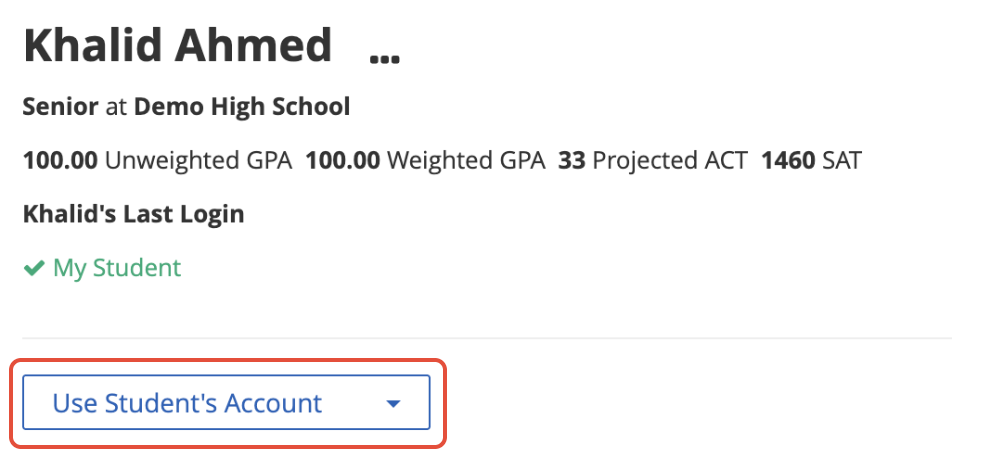
Clicking on any of the options from the dropdown menu will allow you to use the account as this student. Once you're in the student's account, you'll see a yellow header just below your top navigation:

While ghosting as a student, you can perform many actions including adding or updating an application, following colleges or careers, requesting letters of recommendation, or entering financial aid award information. Please note that you will not be able to complete the career survey from a student's account; they will need to complete this on their own.
Was this article helpful?
That’s Great!
Thank you for your feedback
Sorry! We couldn't be helpful
Thank you for your feedback
Feedback sent
We appreciate your effort and will try to fix the article