Overview
This article is for students and educators who want to search Overgrad's college database. It covers how to use the search filters to find schools and what to expect on an individual college's profile page. Once you find a college you're interested in, you can follow it to save it to your list — see Following Colleges.
TABLE OF CONTENTS
- Overview
- Using Search and Filters
- Open the Search dropdown in the top navigation bar and select Colleges.
- Exploring a College's Profile Page
Using Search and Filters
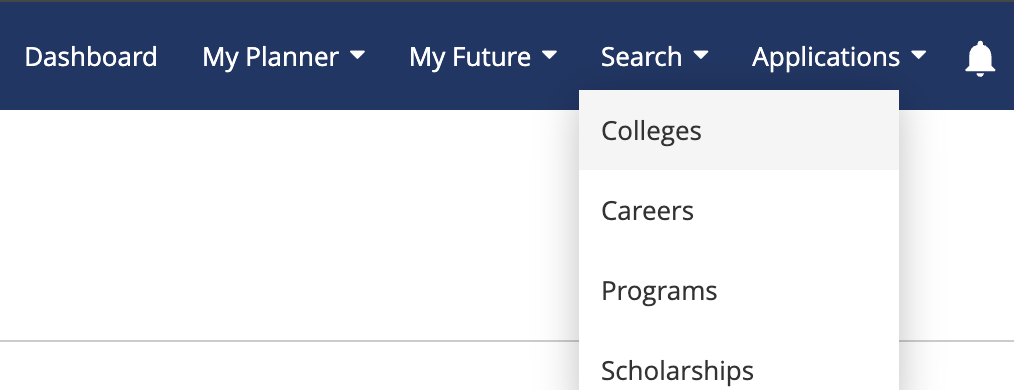
Open the Search dropdown in the top navigation bar and select Colleges.
Use the filters on the left side of the screen to narrow results by the criteria that matter most. Applying multiple filters makes the search more specific. Once you've made your selections, click Search to update results. To remove a specific filter, deselect it or click Clear next to that filter. To start over, click Clear Filters at the top.
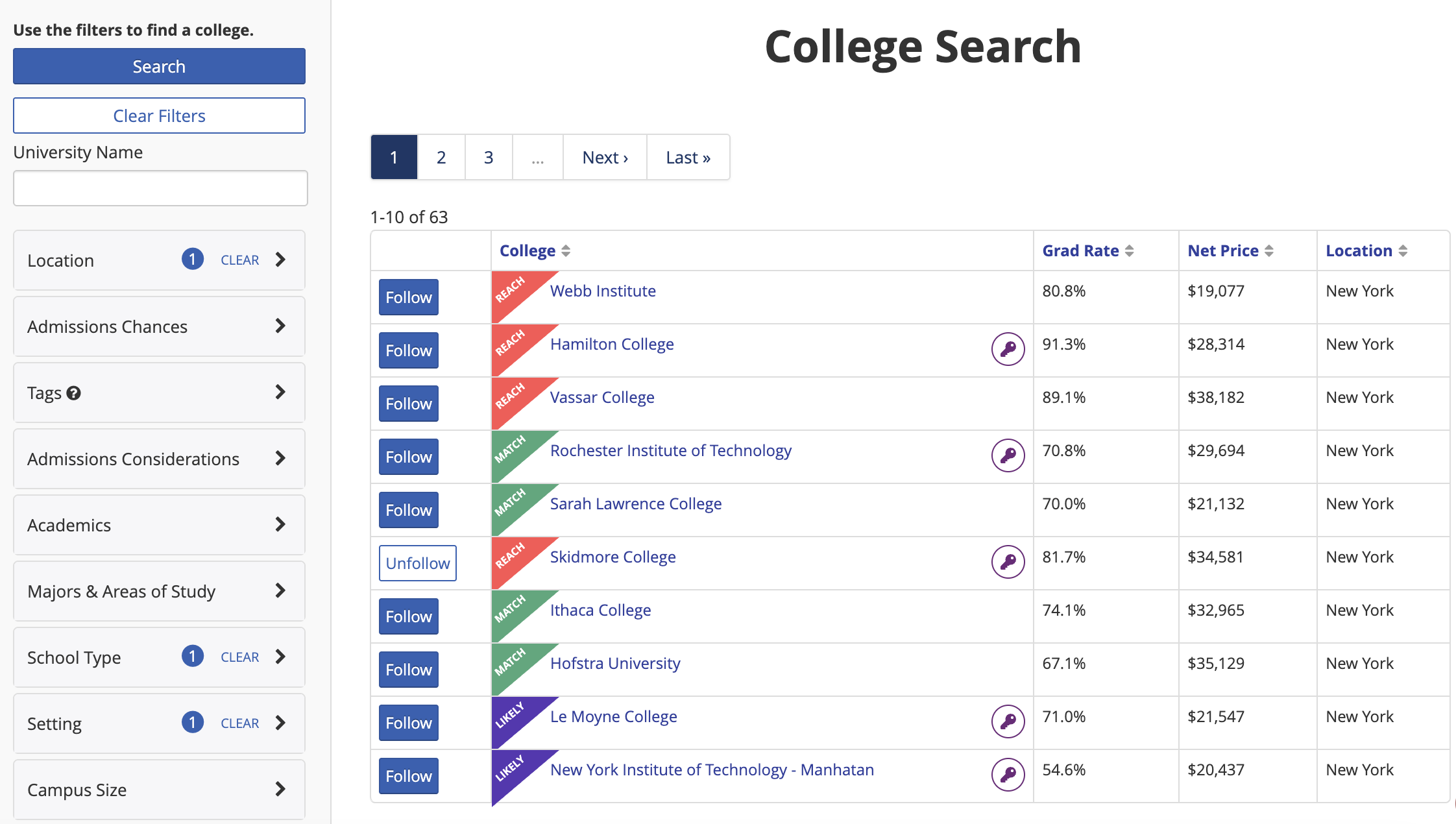
Understanding Filters
- Location — Filter by state(s) or by distance from an address or zip code.
- Admissions Chances — Compares a student's GPA and test scores against the median statistics of admitted students to estimate likelihood of admission (Likely, Match, Reach, etc.)
- Tags — Tags are added to schools by your district or school's account managers to flag institutions with specific characteristics. Click into the Tags field to see what's available.
- Admissions Considerations — Filter by what a school requires or recommends: recommendations, ACT/SAT scores, GPA, or TOEFL scores (relevant for international students).
- Academics — Filter by the average GPA, ACT, or SAT scores of admitted students using a sliding scale to set a minimum and maximum range.
- Majors & Areas of Study — Search by broad areas of study or specific majors. Selecting multiple options returns schools that offer at least one of them.
- School Type — Filter by public, private, or for-profit, and by program level (certificate, 2-year, or 4-year). Multiple selections return schools matching at least one option.
- Setting — Filter by campus setting: city, suburb, town, or rural.
- Campus Size — Filter by small, medium, or large enrollment.
- Net Price — Filter by a maximum net price. Note: net price for public institutions is calculated using in-state tuition, so out-of-state students may see higher actual costs.
- Graduation Rate — Filter by a minimum graduation rate. If a student has entered their ethnicity, graduation rates specific to students of that ethnicity will appear where available.
- HBCUs & Women's Colleges — Filter specifically for HBCUs, women's colleges, or both.
- Programs & Supports — Filter for schools with Opportunity Programs. Note: this filter is only available to New York users.
- Ways to Apply — Filter by Common App or Coalition App.
Exploring a College's Profile Page
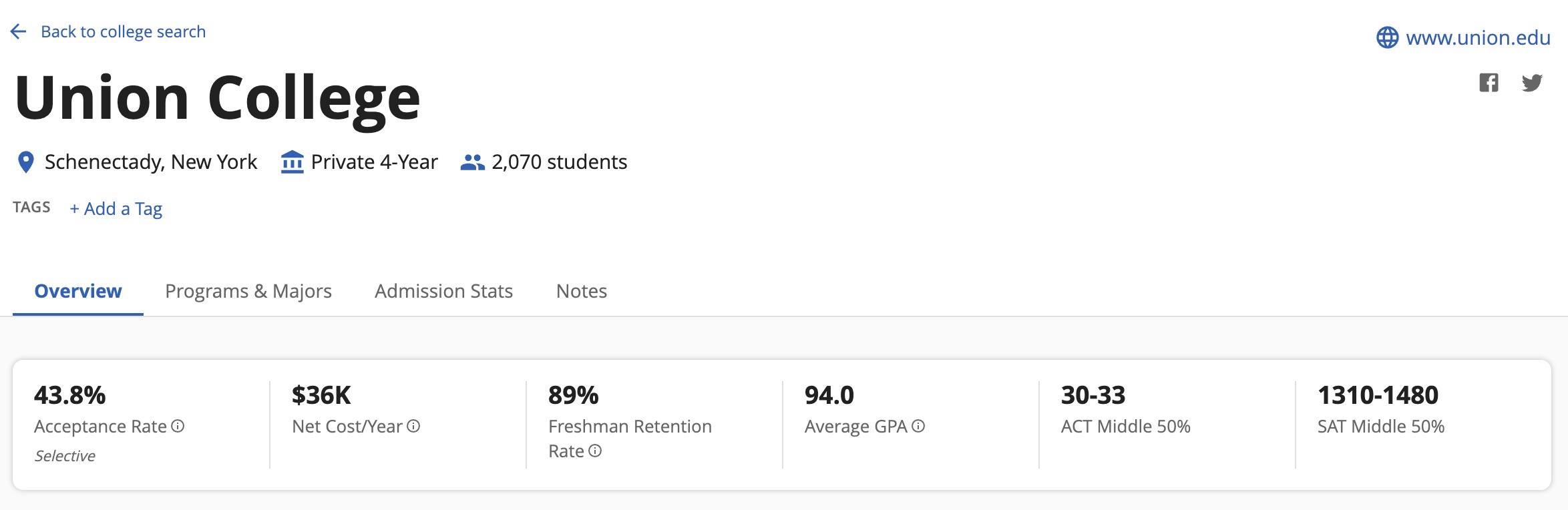
Clicking on any college in the search results opens its profile page, where you can get a summary of that school, and links to resources to learn more. Each profile includes data across a few key areas:
- Overview — A quick snapshot of key information
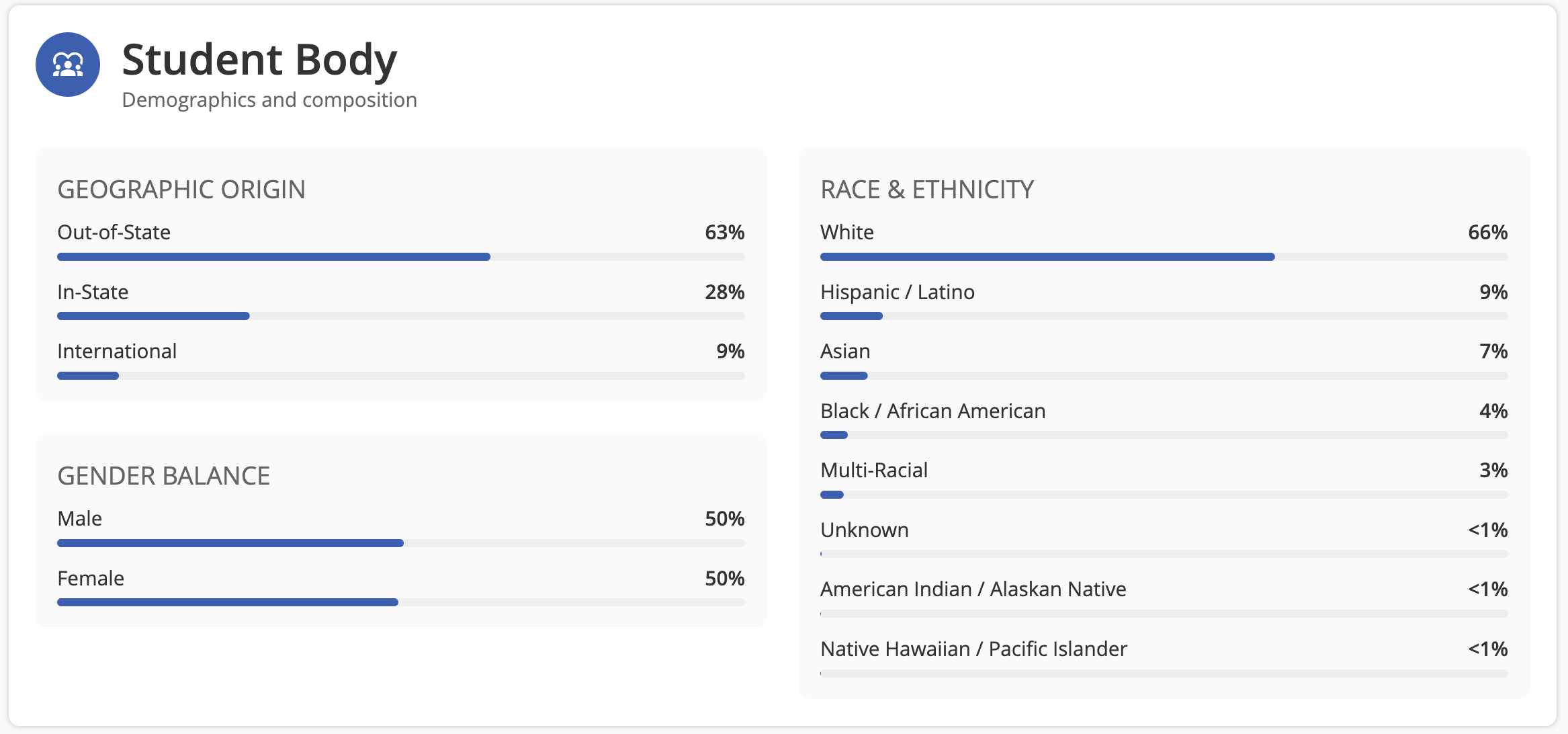
- Student Body — Demographics and composition
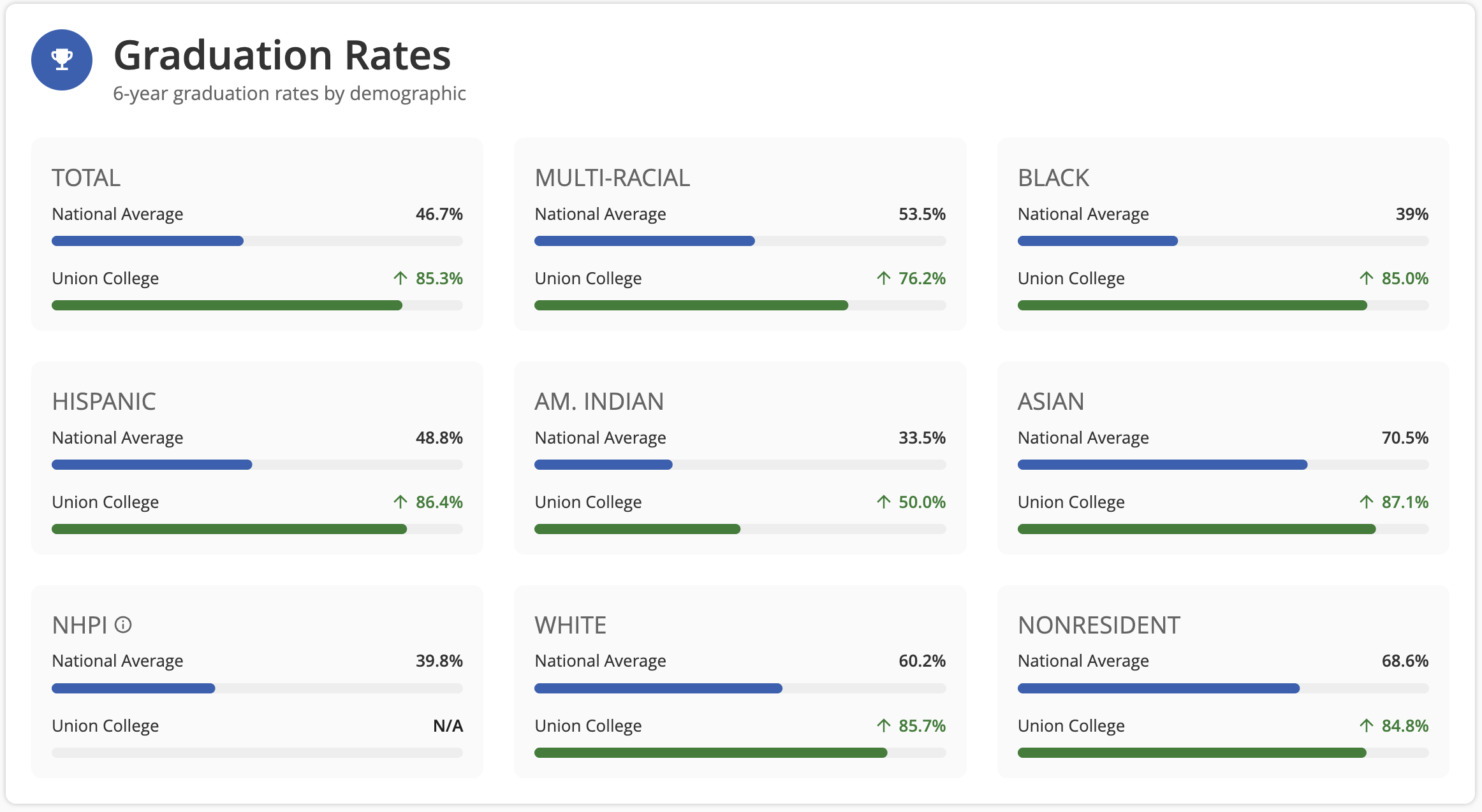
- Graduation Rates — 6-year graduation rates by demographic
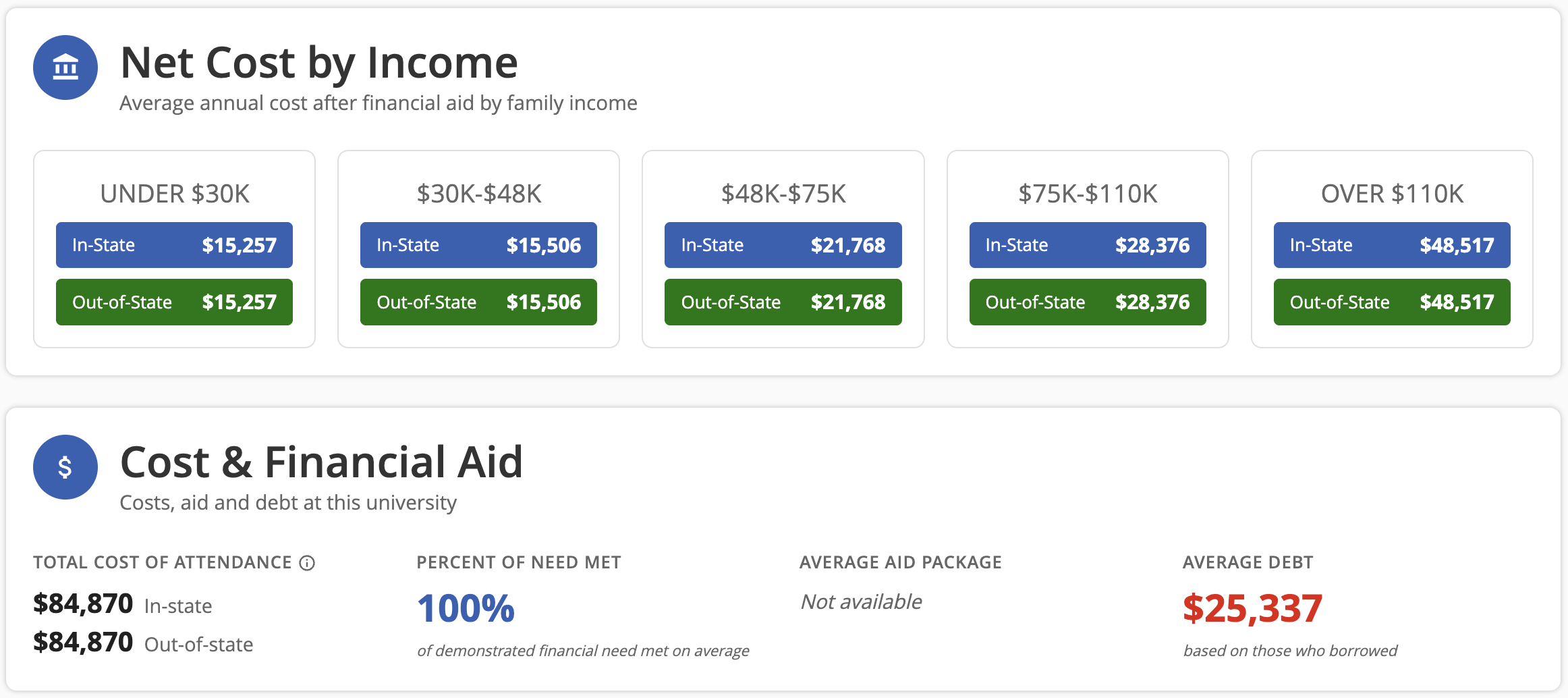
- Finances — cost of attendance, % of need met, net price, average financial aid, etc.
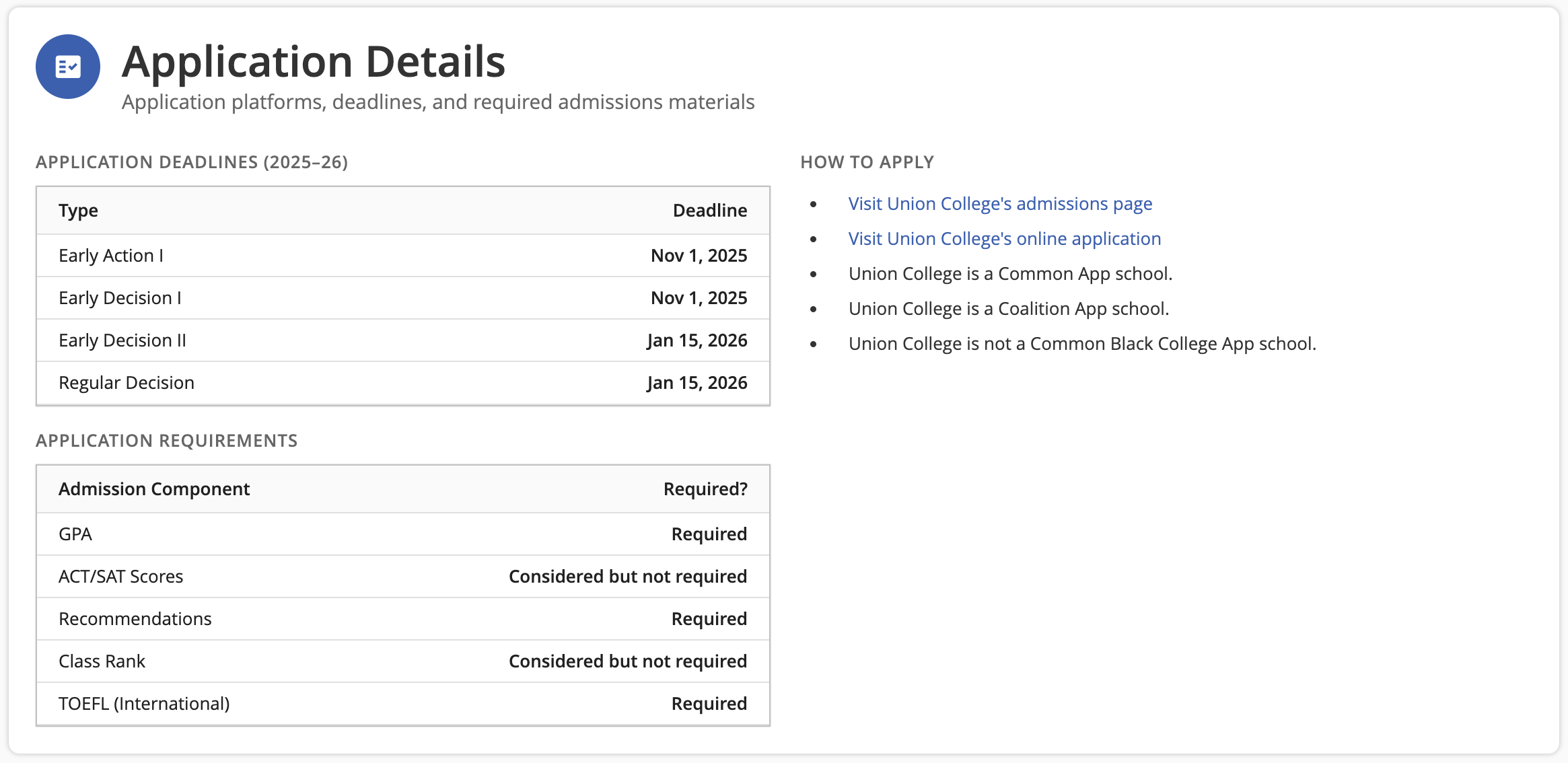
- Application Details — Application platforms, deadlines, and required admissions materials
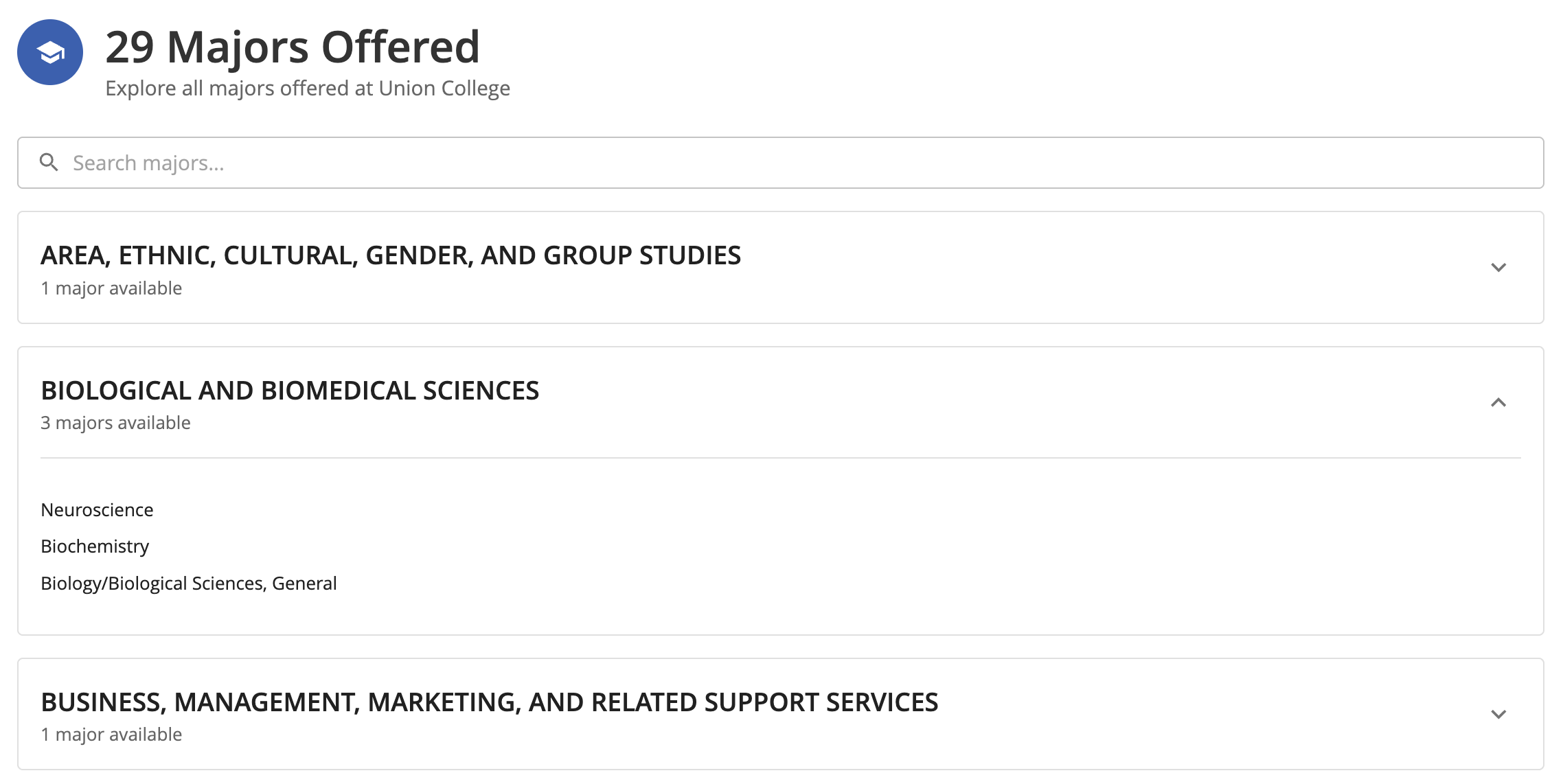
- Majors — Available fields of study and programs offered
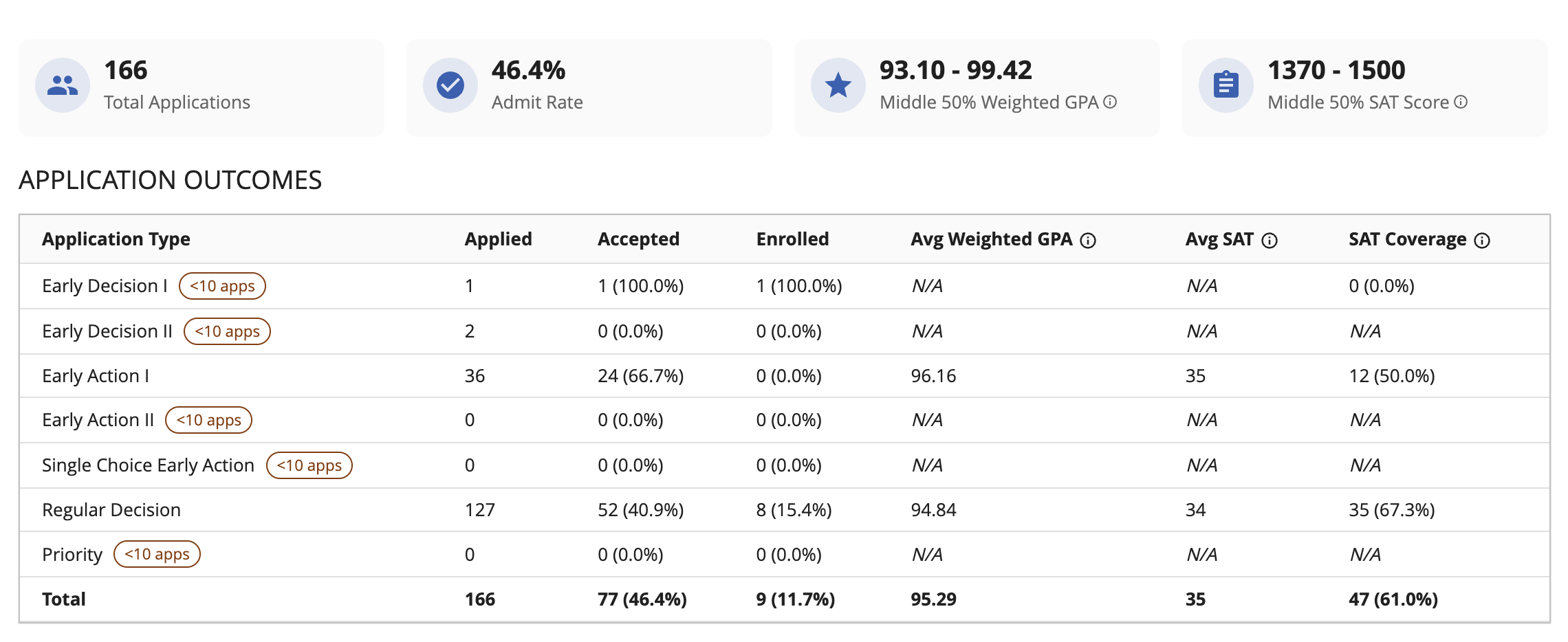
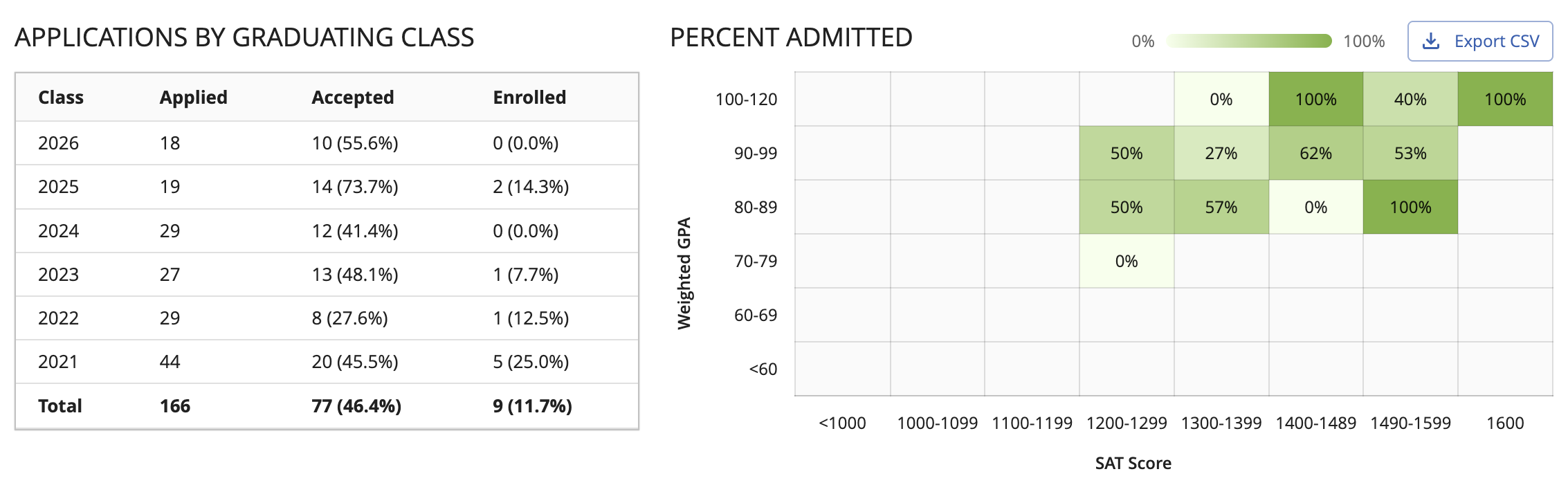
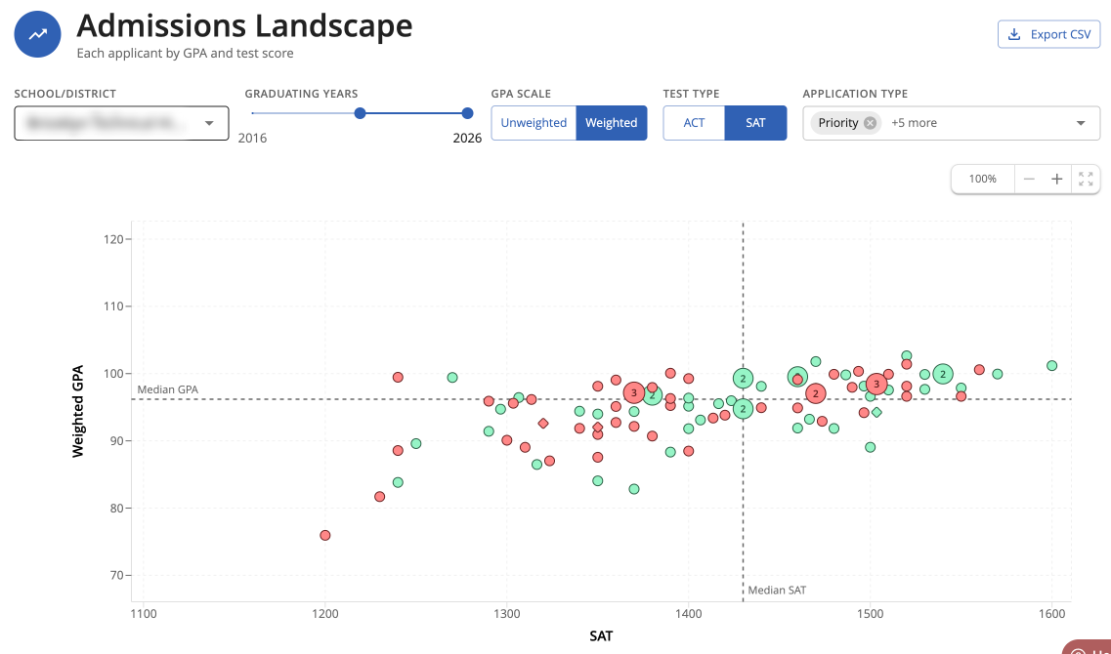
- Admissions Stats — If your high school has data available, the Admissions Stats section shows outcomes from students at your school who previously applied to that college, giving you a more grounded picture of your chances than national averages alone.
Was this article helpful?
That’s Great!
Thank you for your feedback
Sorry! We couldn't be helpful
Thank you for your feedback
Feedback sent
We appreciate your effort and will try to fix the article