Your nXu assessment asks you to reflect on how you have changed and grown since the beginning of the school year. It’s a chance to recognize the skills you’ve built, see how far you’ve come, and think about what you want to keep working on.
There are no right or wrong answers. The most important thing is to answer each question honestly based on your own experience. Below are the steps you can take to complete your nXu assessment in Overgrad.
Step 1: Log in to Overgrad
Log in to your Overgrad student account. Use this article if you need help logging into your account.
Step 2: Open Your nXu Assessment
Once logged in, there are three ways to get to the survey:
1. On the My Dashboard page, you’ll see your Priority List, with a new survey listed:
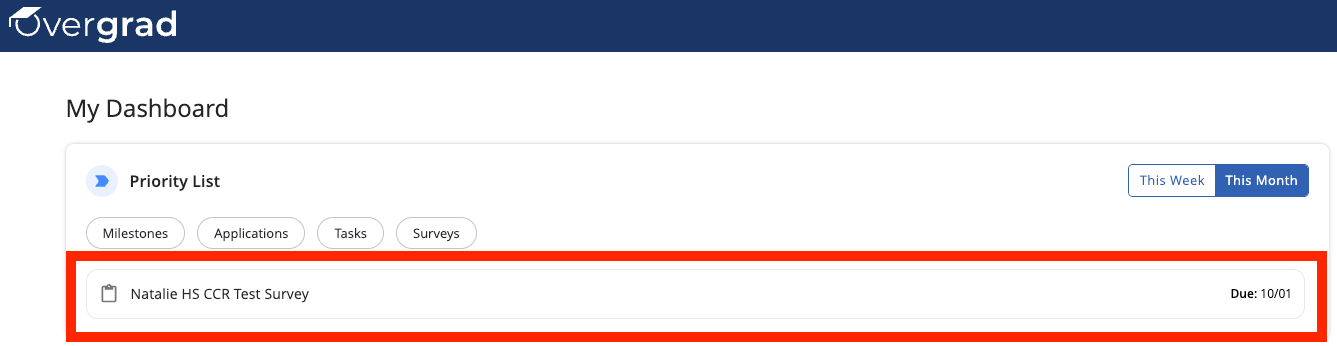
2. Click “Dashboard” in the top navigation bar, where you'll then see your Priority List, with a new survey showing:

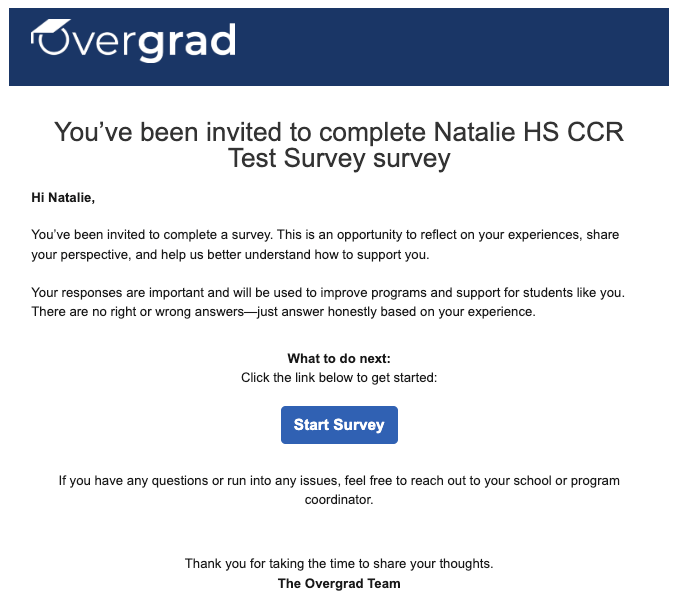
3. You may also receive an email from your teacher with the direct survey link. It will come from notifications@overgrad.com, will have a subject line that begins with, “You’re invited to complete: [survey name]”, and may look something like this:
Step 2: Open Your nXu Assessment
Click on the nXu assessment assigned to you by your school or educator.
Before you begin, make sure you have enough time to thoughtfully complete the entire assessment.
Step 3: Respond to Each Question
Each nXu assessment question asks you to think about how you have changed since the beginning of the school year.
For each statement:
Read the statement carefully.
Think about yourself at the beginning of the school year compared with yourself today.
Select the response that best represents how you have changed.
Continue until you have answered all of the questions.
Here is a sample question:
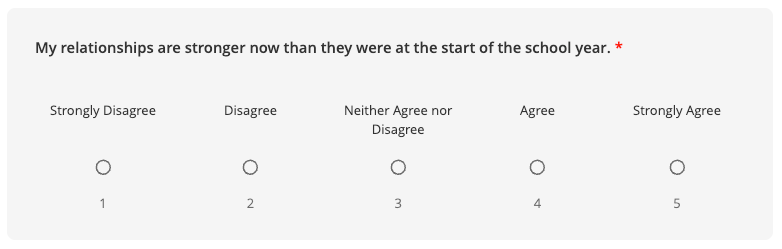
As you answer the questions, the Progress Bar at the top of the screen will show how much you’ve completed and how many questions you have left. Make sure you answer every question before you finish!

Remember
This assessment is about your experience and your growth. There isn't a "best" answer or an answer your teacher is looking for.
Take your time, think honestly about your experience, and select the response that feels most accurate to you.
Step 4: Submit Your Assessment
Once you have responded to all of the questions, review your responses, scroll to the bottom of the page, and submit your assessment by clicking the “Submit” button:

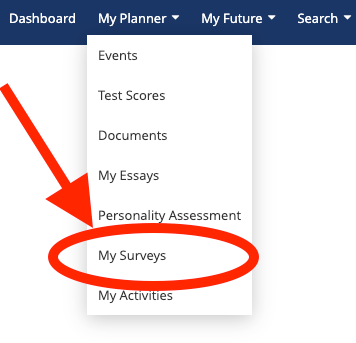
Once you've submitted your assessment, you're all done! You won’t be able to edit your responses, but you can see the responses you chose by clicking the “My Planner” dropdown in the top right navigation bar, then clicking “My Surveys,” then clicking into the survey you’d like to review.
Need Help?
If you have trouble accessing or completing your assessment, ask your teacher or another educator at your school for help.
Was this article helpful?
That’s Great!
Thank you for your feedback
Sorry! We couldn't be helpful
Thank you for your feedback
Feedback sent
We appreciate your effort and will try to fix the article