This article will walk you through how to use the Rep Visits feature in Overgrad from the university side. Rep Visits lets representatives from colleges and universities search for high schools that are accepting rep visits, book available time slots, and manage their upcoming bookings - all in one place.
If you are a high school counselor looking for information on how to configure Rep Visits for your school, please see this support guide.
Accessing Rep Visits
Once your university account has been set up in Overgrad, sign in and click Visit Schools in the top navigation bar to open the Rep Visits page. The page has two tabs: Browse Schools and My Visits. Use Browse Schools to find high schools accepting rep visits and book time slots, and use My Visits to review and manage the visits you have already scheduled.
Note: If a high school has shared their booking link with you directly, you do not need to create an account and you can book directly using their link. If you would like to search for availability for any high schools using Overgrad to manage Rep Visits, then creating an account will allow you to search and book.

Browse Schools
The Browse Schools tab is where you discover high schools that are accepting rep visits. At the top of the page you will find tools to narrow down the directory, a map view of matching schools, and a list of results below.
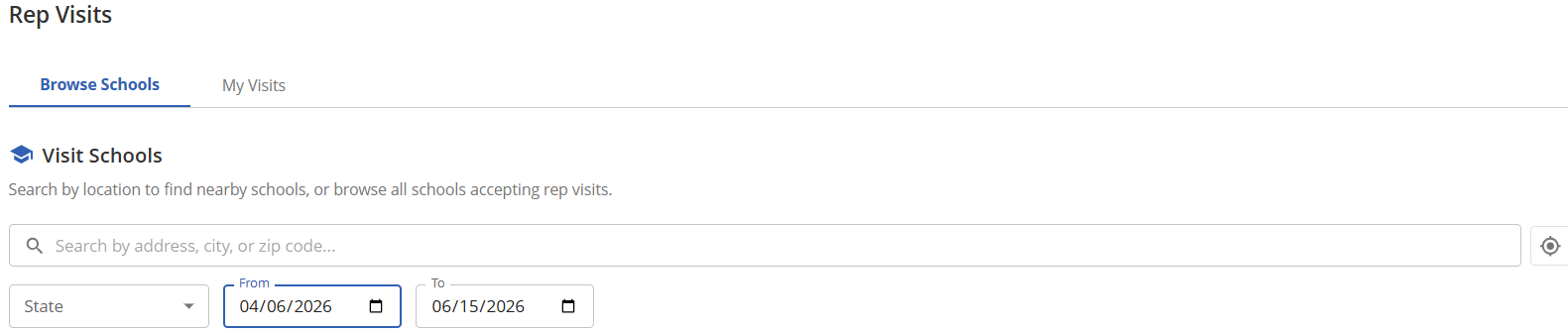
Use the filters at the top of the page to find schools that match your travel plans:
Search by address, city, or zip code: type any location into the search bar to find schools near that place. You can also click the location icon on the right side of the search bar to use your current location.
State: choose a state from the dropdown to limit results to schools within that state.
From and To: set a date range to only see schools with availability during those dates. The range defaults to roughly the next two months.
As you adjust the filters, the map and the list of matching schools update automatically. The map shows a pin for each school in the results, and the counter above the list tells you how many schools currently match.
Each school card in the results shows the school name and location along with quick-reference badges that describe how that school hosts rep visits:
In-Person and Virtual indicate which visit formats the school accepts. A school may accept one or both.
Approval Required means the school reviews each booking before it is confirmed. If this badge is not shown, bookings are confirmed automatically as long as the time slot is open.
The date listed is the next available day on that school’s calendar, followed by the number of open slots and the length of each slot (for example, 99 slots · 30 min).
When you find a school you would like to visit, click Book Visit on the right side of the school card to open that school’s booking page in a new tab.

Booking a Visit
The booking page for each school is split into two sections: Select a Date & Time on the left and Your Details on the right. Any logistics information the school wants you to know (such as parking instructions or check-in steps) appears in a highlighted banner above the form.
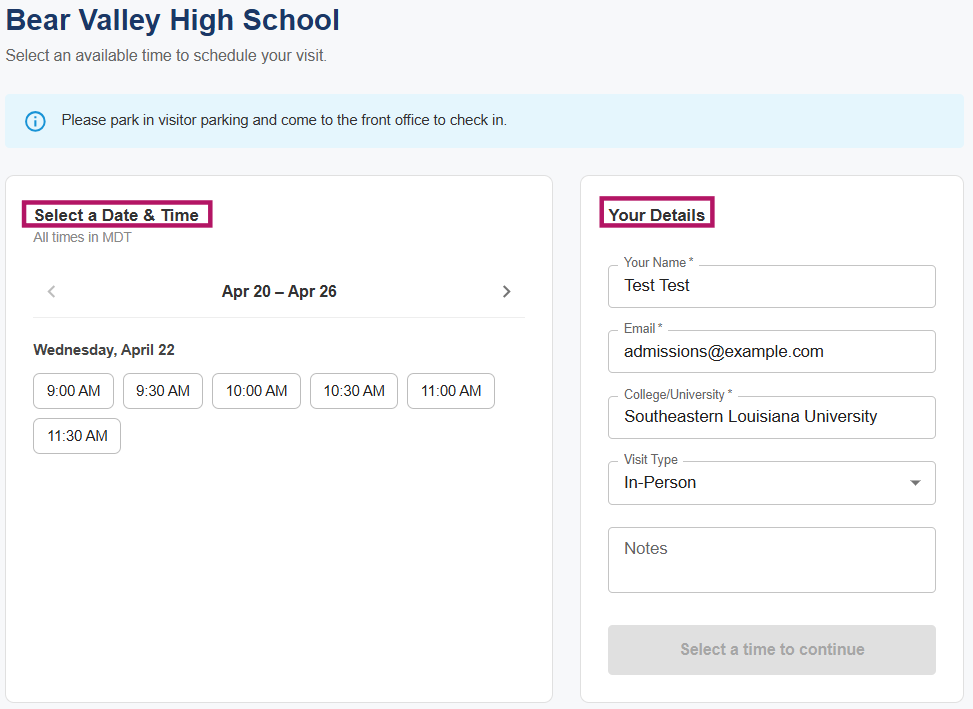
On the left, use the arrows above the calendar to move between weeks. Each available day shows a list of open time slots - click a slot to select it. All times are displayed in the school’s local time zone, which is noted just below the Select a Date & Time heading.
On the right, fill out Your Details so the school knows who is visiting:
Your Name: the representative attending the visit.
Email: the address where the school should send confirmations and updates.
College/University: the institution you are representing.
Visit Type: choose In-Person or Virtual. Only the visit types the school has enabled will be available in this dropdown.
Notes: an optional field for anything you would like to share with the school ahead of your visit.
Once you have chosen a time slot and completed Your Details, the button on the bottom right of the form changes from Select a time to continue to a confirmation button you can click to submit the booking. If the school has the Approval Required badge, your booking will be held as pending until a counselor at that school reviews and approves the request. Otherwise, your visit is confirmed immediately. Either way, a confirmation email will be sent to the email address you provided.
My Visits
The My Visits tab gives you a single place to review every rep visit you have booked through Overgrad, including visits that are confirmed and visits that are still awaiting approval. If you have not booked any visits yet, Overgrad will prompt you to head back to Browse Schools to get started.

Use My Visits to keep track of your upcoming travel and to confirm the status, date, time, and location of each visit before you go. If any details need to change after booking, contact the school directly using the information listed on the visit.
If you have questions about a specific school’s calendar or upcoming rep visit, please contact that school directly. If you have questions or run into an issue while booking a visit, reach out to Overgrad support at support@overgrad.com and we will be happy to help.
Was this article helpful?
That’s Great!
Thank you for your feedback
Sorry! We couldn't be helpful
Thank you for your feedback
Feedback sent
We appreciate your effort and will try to fix the article