Overview
This article is for high school counselors who would like to use Overgrad to book and manage college rep visits. The Rep Visits feature allows you to manage college representative visits to your school — from identifying which colleges to invite, to configuring your availability, to reviewing upcoming bookings. If you’d like to provide guidance to college representatives about how to sign up for rep visits, you can send them this support guide.
TABLE OF CONTENTS
Accessing Rep Visits
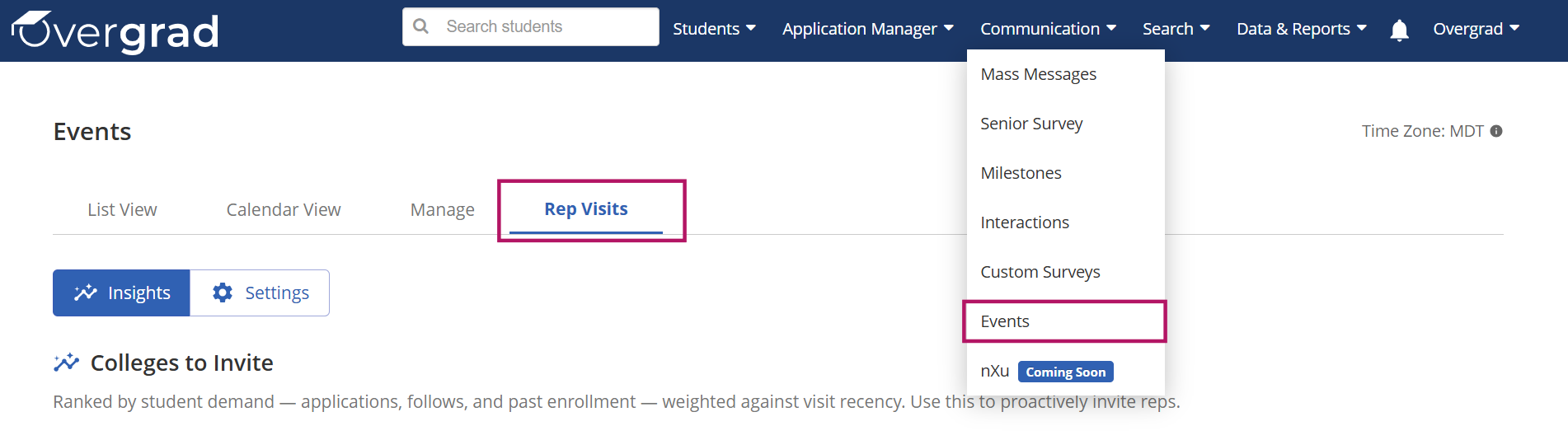
To access Rep Visits, select the Communication > Events from the top navigation bar. Once in the Events feature, select the Rep Visits tab at the top of the page. The Rep Visits tab has two sub-views: Insights and Settings.
Insights: Identifying Colleges to Invite
The Insights view helps you identify which colleges to proactively invite for a rep visit. Colleges are ranked by student demand based on applications, follows, and past enrollment, and weighted against visit recency so you can prioritize outreach to the schools most relevant to your students. For example, schools that students show the most interest in, where previous students have enrolled, and who have not yet visited will have the highest scores.
At the top of the Insights view, three summary cards give you a quick overview:
Colleges to Invite: the total number of colleges surfaced for potential outreach
Student Applications: the total number of student applications to colleges in this list
Never Visited: the number of colleges that have never sent a rep to your school
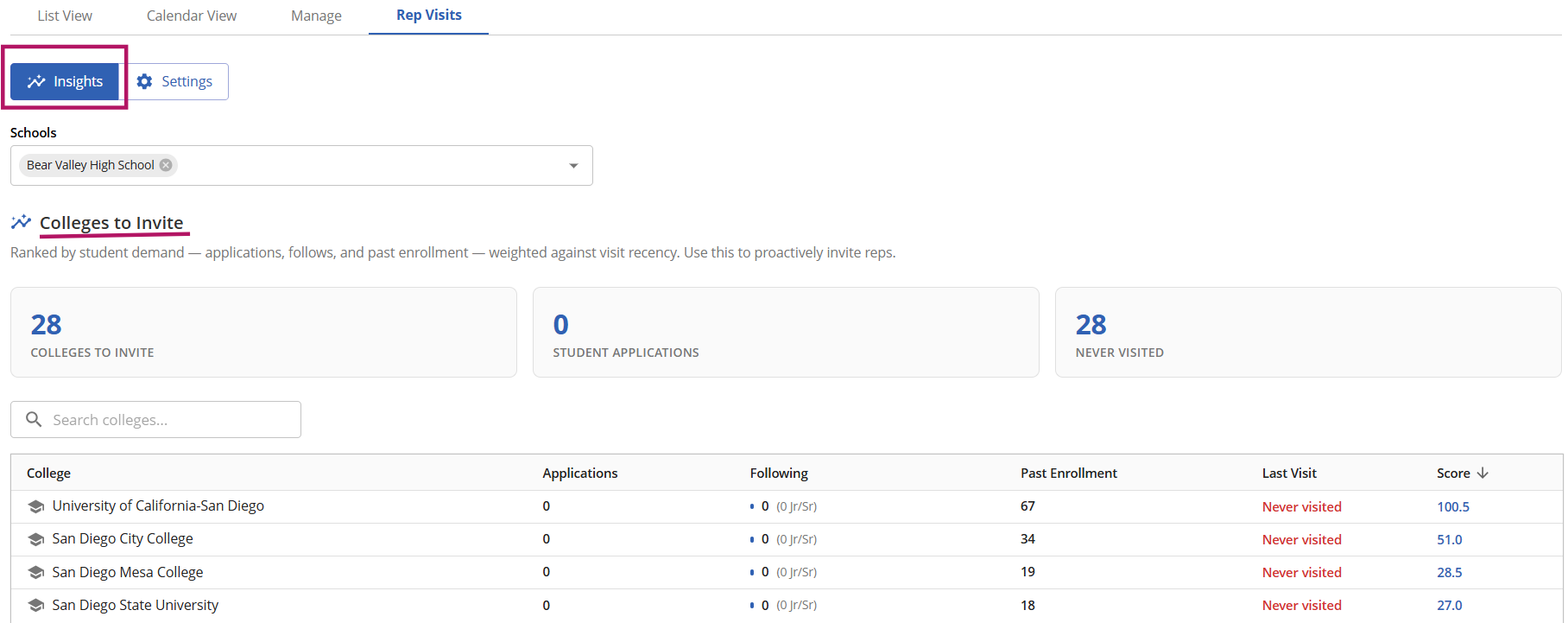
Below the summary cards, a sortable table lists colleges ranked by a Score that reflects overall student demand and visit recency. The table includes the following columns:
College: the name of the institution
Applications: number of student applications to that college
Following: number of students following that college, with a breakdown of Juniors and Seniors
Past Enrollment: historical number of your students who enrolled at that college
Last Visit: date of the most recent rep visit from that college, or “Never visited” if none on record
Score: a calculated priority score — higher scores indicate stronger student demand and/or a longer time since the last visit. Click any column header to re-sort the table.
Use the Search colleges search bar to filter the list by college name. This is helpful when you want to quickly check the data for a specific institution you are already considering inviting.
Settings
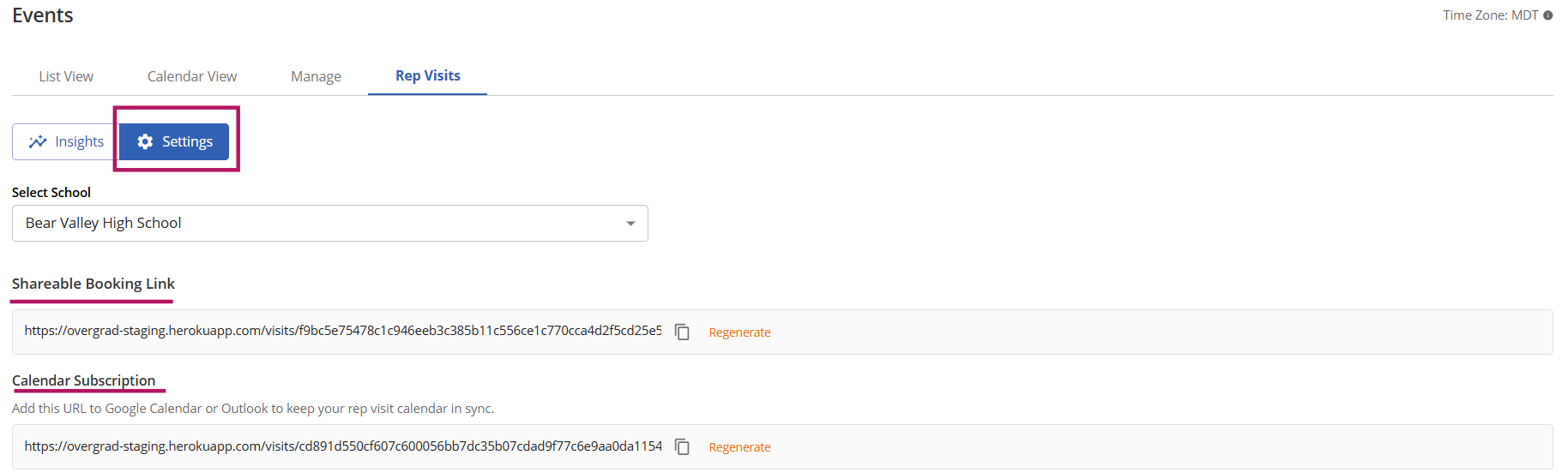
The Settings view is where you configure how college reps can book visits to your school. Settings are organized into three areas:
Shareable Booking Link & Calendar Subscription
Shareable Booking Link: a unique URL you can share directly with college reps so they can book a visit at your school. Use the copy icon to copy it to your clipboard. If you need to invalidate the existing link, click Regenerate to create a new URL.
Calendar Subscription: a separate URL you can subscribe to in Google Calendar or Outlook to automatically sync your rep visit calendar. Copy the URL and paste it as a new calendar subscription. Like the booking link, this can also be regenerated if needed.
Visit Configuration
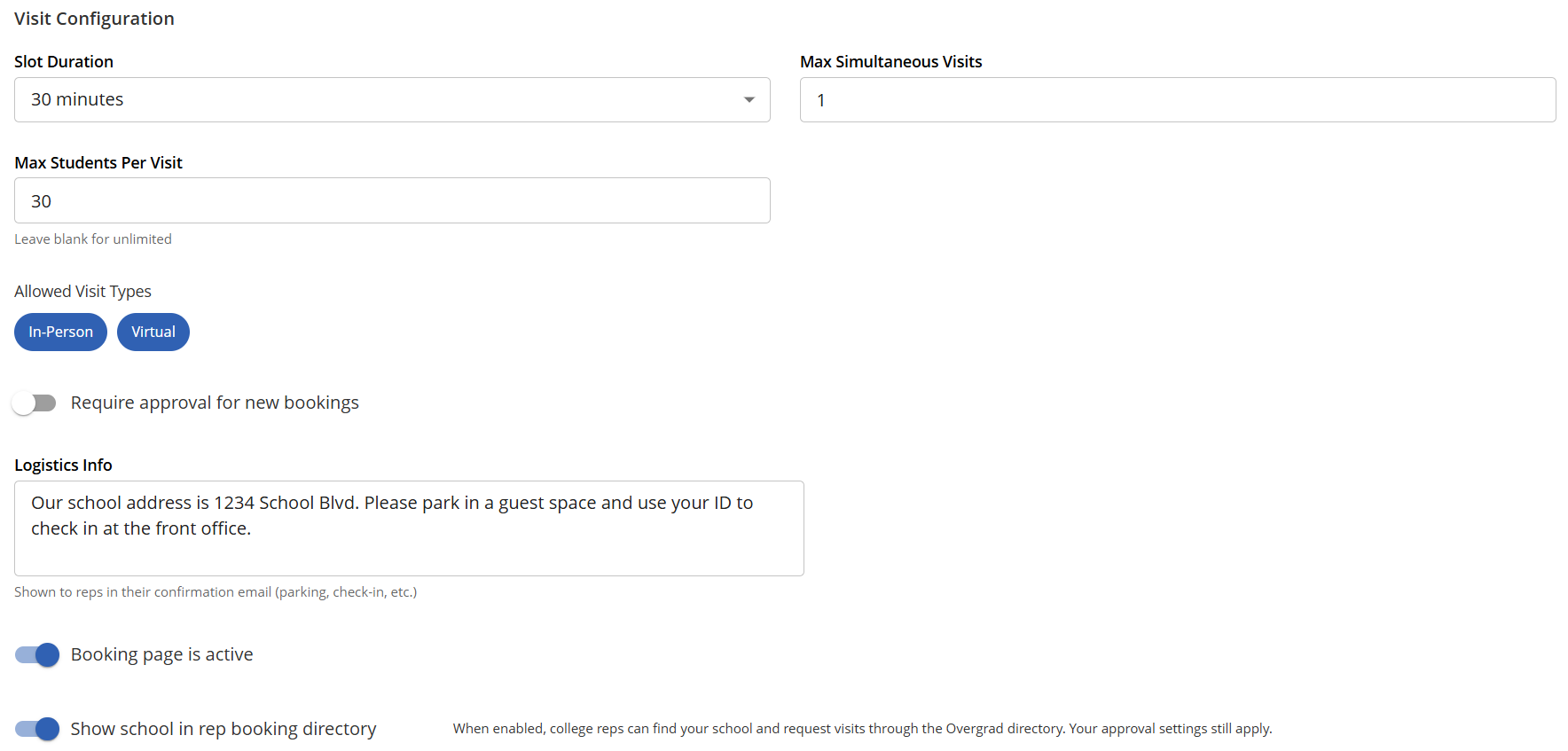
This section controls the rules for how rep visits are booked and conducted at your school:
Slot Duration: set the length of each visit slot (30, 45, or 60 minutes). All bookable time slots will use this duration.
Max Simultaneous Visits: the maximum number of rep visits that can be scheduled at the same time. Increase this if you have multiple spaces for visits; lower it to limit visits to one at a time.
Max Students Per Visit: cap the number of students who can attend a single rep visit. Leave blank to allow unlimited student attendance.
Allowed Visit Types: select whether your school accepts In-Person visits, Virtual visits, or both. Active visit types are highlighted in blue.
Require approval for new bookings: toggle ON to manually review and approve all rep visit booking requests before they are confirmed. When toggled OFF, bookings are automatically confirmed.
Logistics Info: enter any logistical details you want reps to receive in their confirmation email, such as parking instructions, check-in procedures, or room location.
Booking page is active: controls whether your booking page is accessible to reps. Toggle OFF to temporarily pause new booking requests without losing any of your settings.
Show school in rep booking directory: when enabled, college reps can find your school in the Overgrad directory and request visits on their own. All of your approval settings still apply if reps are signing up this way.
When you have finished configuring the settings, click Save Settings at the bottom of the page.
Setting Availability
Availability Windows
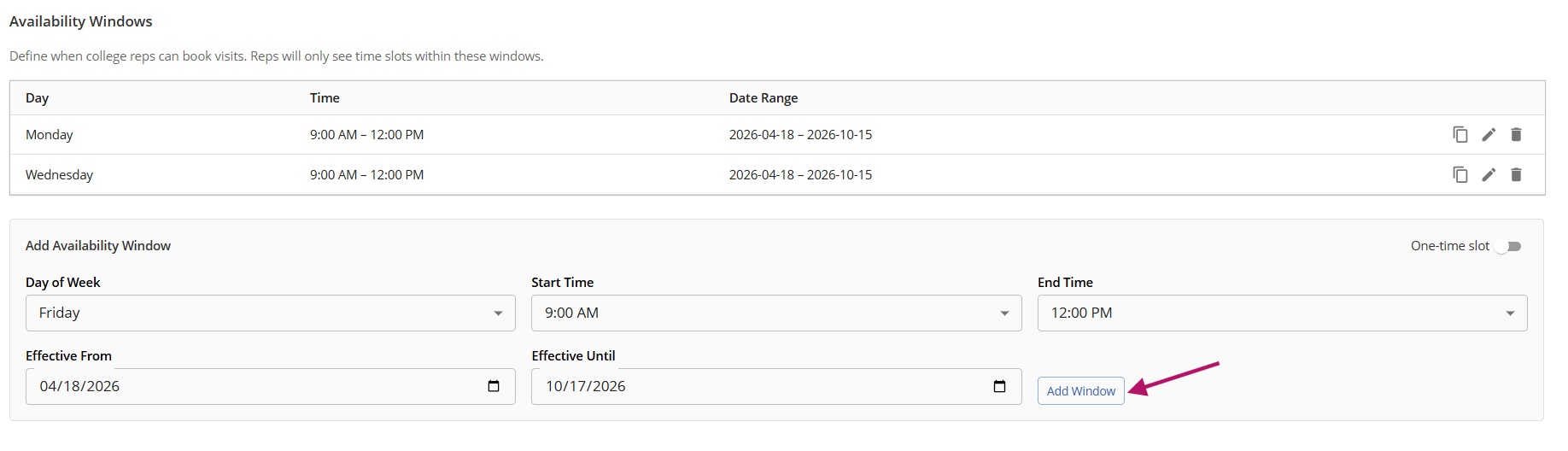
Availability Windows define the recurring days and times during which college reps are allowed to book visits. Reps will only see time slots that fall within an active window when they access your booking page. You can set up multiple windows to reflect your school’s schedule for hosting visits.
To add a new availability window your visit configurations must be saved first. Then fill in the Add Availability Window form and click Add Window. Each window requires the following fields:
Day of Week: the recurring day on which visits are available
Start Time and End Time: the time range during which visits can be booked on that day
Effective From and Effective Until: the date range during which this window is active. This lets you set seasonal availability (e.g., fall semester only).
One-time slot: toggle ON to create a single, non-recurring availability slot on a specific date rather than a recurring weekly window
Existing availability windows are listed in a table showing each window’s day, time range, and date range. You can copy, edit, or delete any window using the icons on the right side of each row.
Blackout Dates
Blackout Dates allow you to block specific dates or date ranges when rep visits are not available; for example, school holidays, testing days, or professional development days. Reps will not see any available time slots on blackout dates, even if those dates fall within an active availability window.
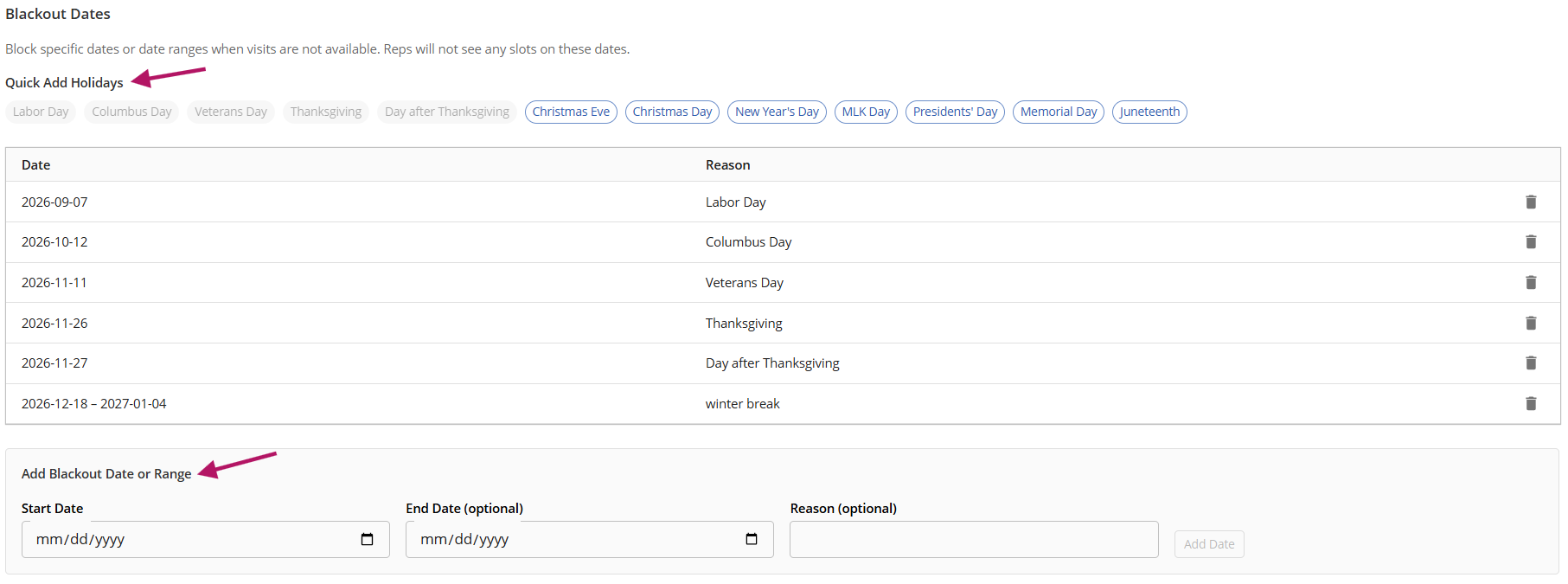
To quickly add standard U.S. holidays, use the Quick Add Holidays buttons — click any holiday name to add it as a blackout date instantly. For custom blackout dates, use the Add Blackout Date or Range form. Enter a Start Date, an optional End Date for multi-day blackouts, and an optional Reason for your own reference, then click Add Date. Added blackout dates appear in the table above the form and can be removed at any time using the trash icon.
Remember to click Save Settings after making any changes to your availability windows or blackout dates to ensure they take effect on your booking page.
Was this article helpful?
That’s Great!
Thank you for your feedback
Sorry! We couldn't be helpful
Thank you for your feedback
Feedback sent
We appreciate your effort and will try to fix the article