Overview
This article is for counselors who would like to create an Event in Overgrad. We recommend that you review all components of Events before publishing a new Event. If you'd like more information on Event Forms see this article, and if you'd like more information on Registration & Attendance for Events see this article.
TABLE OF CONTENTS
- Overview
- Creating a New Event
- Event Details
- Eligibility & Registration
- Event Schedule
- Notifications
- Event Management Access
Creating a New Event
To create a new event, select the Communication menu from the top navigation bar and then select Events. Once in the Events feature, select the Manage tab in the top left. Then click the blue + New Event button on the top right.
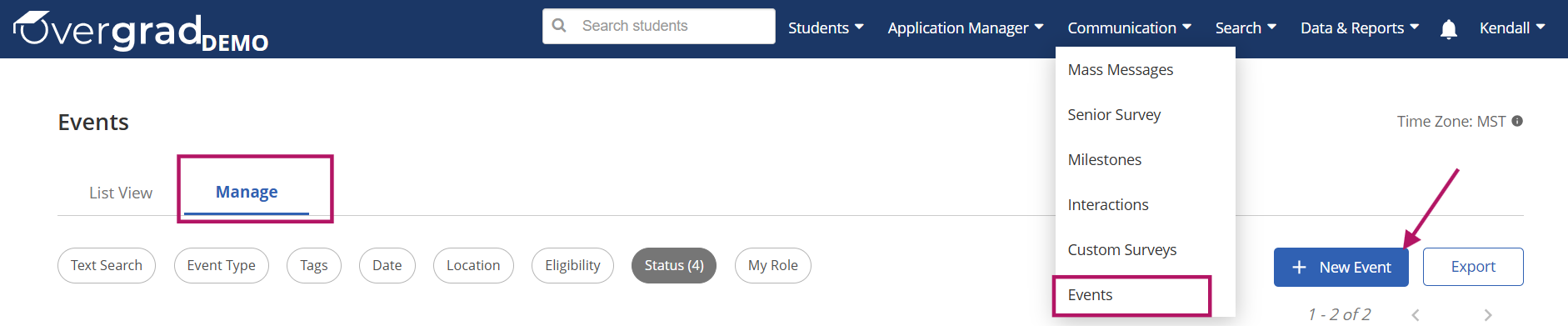
The Event Setup form is organized into five sections: Event Details, Eligibility & Registration, Event Schedule, Notifications, and Event Management Access. Fields marked with a red asterisk (*) are required - all other fields are optional based on your event and your preferences. Your event will not be visible to students until it is published.
Event Details
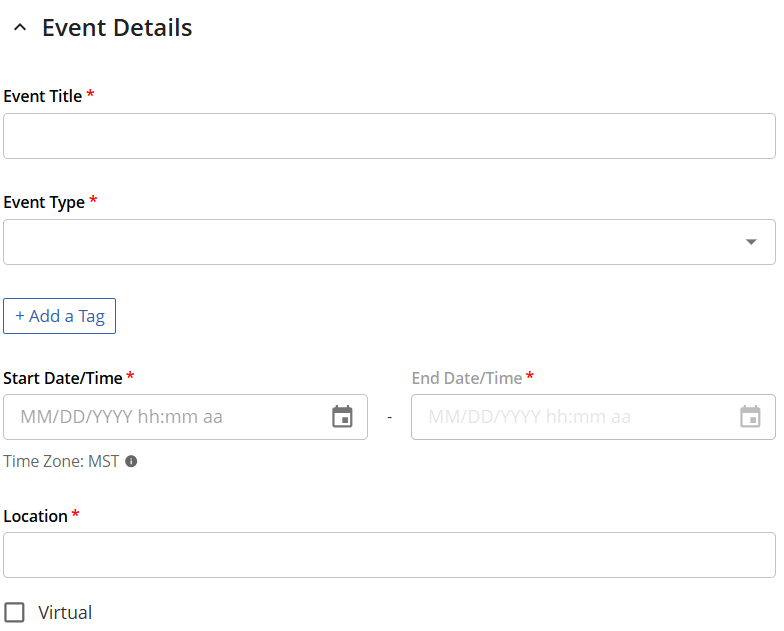
This section captures the core information about your event. Key details will be included on the List View as users search for events.
- Event Title* : include a clear, descriptive title
- Event Type* : categorizes the event (e.g., College Visit, Workshop, Fundraiser)
- + Add a Tag is an optional way to help organize and filter events based on organizational preferences
- Start Date/Time* and End Date/Time* : set for when the event takes place
- Times reflect your account's time zone, shown just below the date fields
- Location* : enter the venue name or address. If the event is online, check the Virtual box
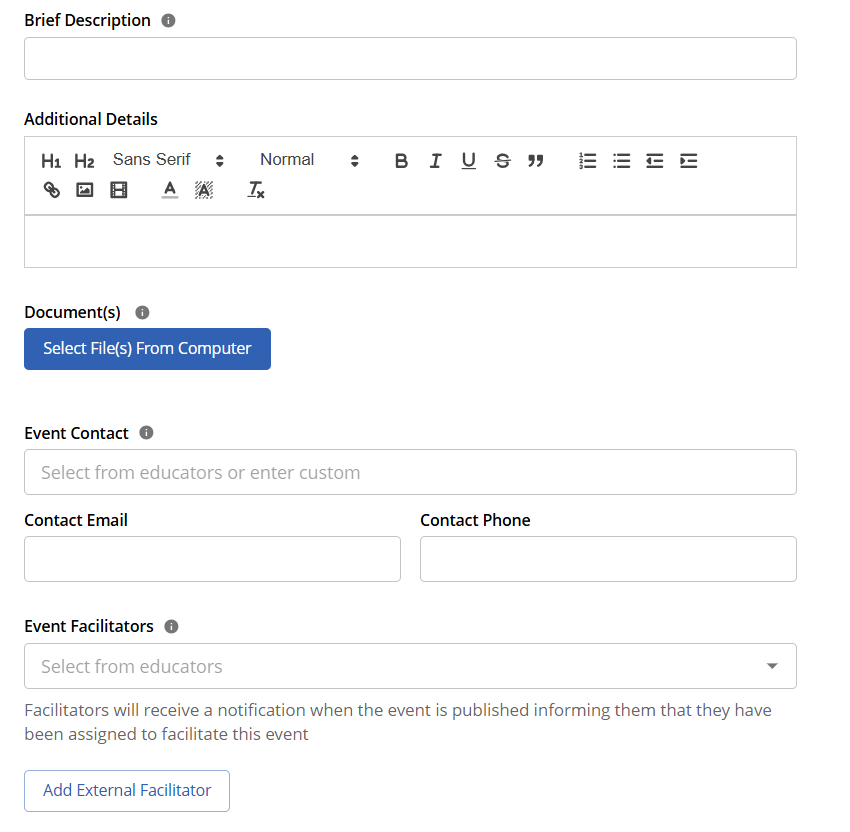
- Brief Description: provide a short summary that will appear in event listings and previews
- Additional Details: rich-text field for more in-depth content like agendas, instructions, or links
- Document(s): attach files (flyers, permission slips, etc.) to the event details
- Event Contact: the person students/parents should contact if they have any questions about the event. This field lets you select an educator from your team or enter a custom name, along with a contact email and phone number.
- Event Facilitators: Assign educators from your school who will help run the event - they will automatically receive a notification when the event is published
- Add External Facilitator: You can also add external facilitators who are not in the Overgrad system. This is so your team and event attendees know who is facilitating, but communication will not be sent to external facilitators.
Eligibility & Registration
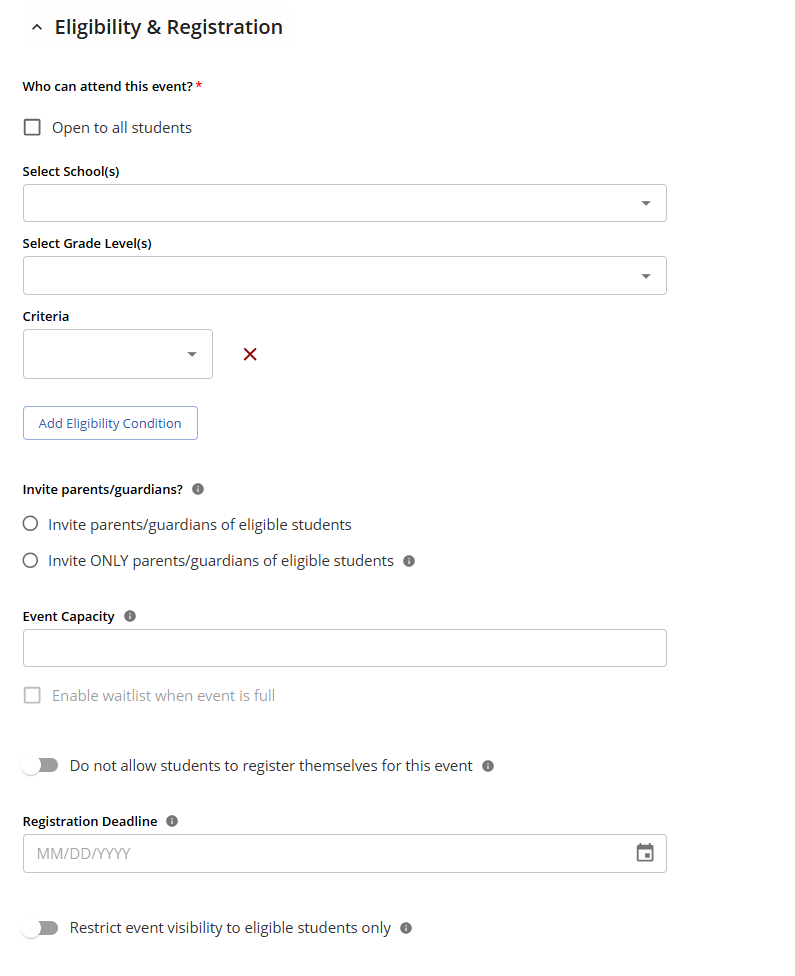
This section controls who can attend the event and how registration is managed. You must either select Open to all students OR include more specific eligibility such as schools, grade-levels or advanced criteria:
- Open to all students: Selecting this option will make this event viewable to all students at your school or in your network (depending on your account permissions)
- Add Eligibility Condition: This allows you to limit eligibility to students using a specific criteria. These options are the same as the filtering options in your student list so you can create eligibility for your event based on GPA, test scores, college list, enrollment, etc.
- Invite parents/guardians?: If parents/guardians have been added as contacts on student Overgrad accounts, you can also choose to invite them — either alongside eligible students, or instead of them as a parent-only invite
- Event Capacity: creates a cap on the number of people that can register for an event
- Enable a waitlist: If a capacity is set, you can choose to have a waitlist for those who register after it fills. If selected, you will then have the option for students to either automatically move from the waitlist if space opens up or to manually move students from the waitlist to the registered list.
- Enable a waitlist: If a capacity is set, you can choose to have a waitlist for those who register after it fills. If selected, you will then have the option for students to either automatically move from the waitlist if space opens up or to manually move students from the waitlist to the registered list.
- Do not allow students to register themselves: Toggle ON if you want registration to be staff-managed only. This can be changed after the event has been published if you want to pause or stop student registrations.
- Registration Deadline: can also be set to close registration on a specific date
- Restrict event visibility to eligible students only: Toggle ON if you want this event to be viewable only by eligible students
Event Schedule
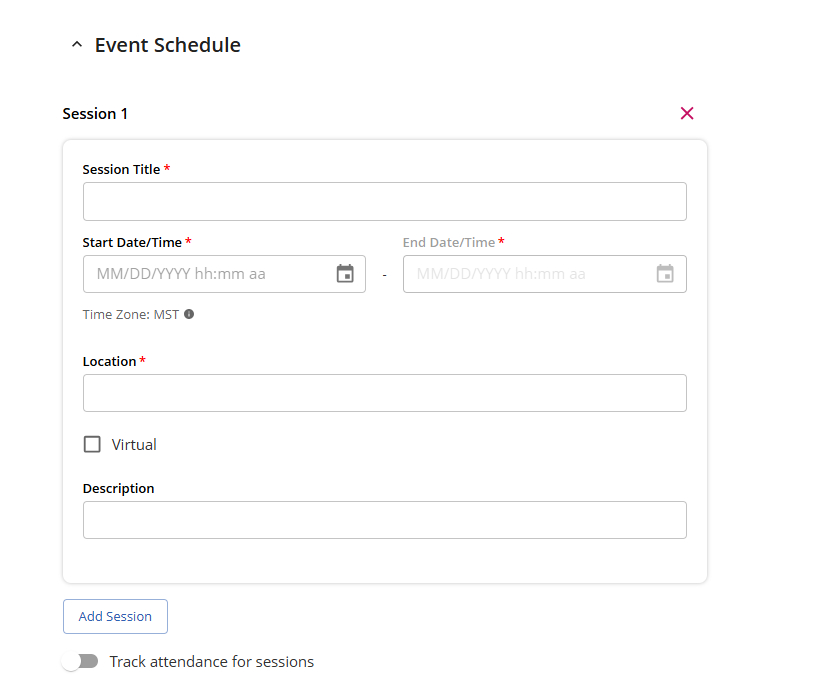
This is an optional section to use if your event has multiple sessions or breakout segments. Click Add Session to get started. Similar to your main Event Details, each session has its own Session Title, Start and End Date/Time, and Location (with a Virtual checkbox option). An optional Description field is also available for session-specific notes. You can add as many sessions as needed.
- Track attendance for sessions: toggle ON to record attendance at the individual session level
Notifications
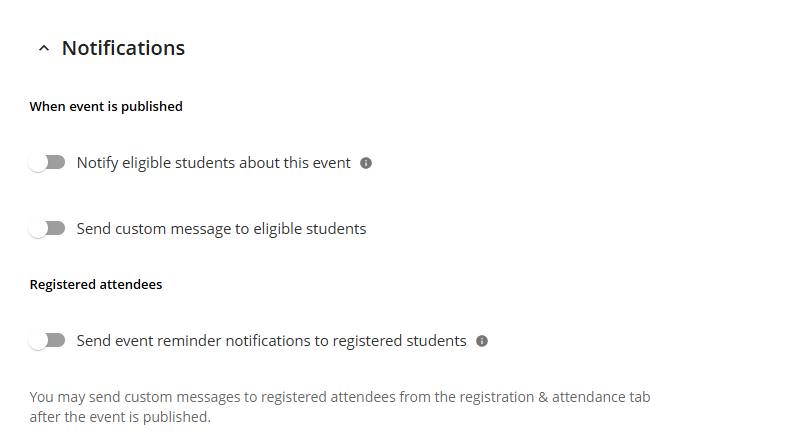
Use this section to configure notifications for your event. You can keep any of these notifications off or toggle them ON to do the following:
- When event is published
- Notify eligible students about this event: Toggle on to automatically alert eligible students when the event is published through an Overgrad notification and/or an email (based on student notification preferences)
- Send custom message to eligible students: If you toggle this option on, a blue "Configure Message" box will pop up allowing you to customize the message sent to eligible students when the event is published
- Registered attendees
- Send event reminder notifications to registered students: Toggle on to send a reminder one week and one day ahead of the event.
- Once the event is published, custom messages can also be sent to registered attendees from the Registration & Attendance tab
- Send event reminder notifications to registered students: Toggle on to send a reminder one week and one day ahead of the event.
- Note: If you have selected to invite parents/guardians, additional parent/guardian notification options will populate
Event Management Access
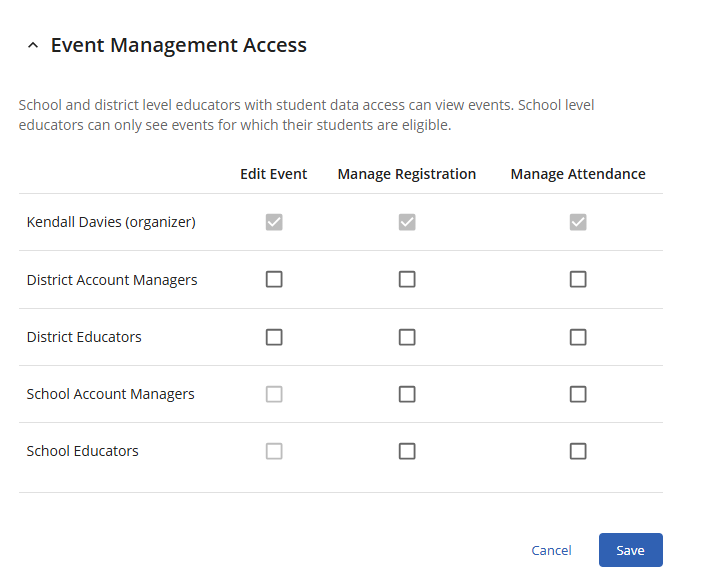
This section determines which educator level can edit and manage the event. All school and district-level educators with access to student data can view events — school level educators will only see events for which their students are eligible.
The Overgrad Educator who created the event (the organizer) is automatically granted all three permissions and cannot be removed. Use the checkboxes to grant District Account Managers, District Educators, School Account Managers, and School Educators permission to do the following:
- Edit Event: Users with this access will have the ability to edit the event details at any time before the event has ended. After an event has ended, edits cannot be made to event details. Users who have edit access will automatically have access for managing registration and attendance.
- Manage Registration: Users with this access will have the add and/or remove students from event registration. If a user can manage registration they will automatically have access to manage attendance.
- Manage Attendance: Users with this access will have the ability to take attendance for the event.
Select Save to keep the event in draft form where it is NOT viewable by anyone outside of your team. If you plan to add an Event Form for students to complete during registration, you must save the draft of the event and create the form before the event is published.
Once all required fields are complete and final, click the blue Publish Event button on the top left to make the event visible to students and/or parents.

Was this article helpful?
That’s Great!
Thank you for your feedback
Sorry! We couldn't be helpful
Thank you for your feedback
Feedback sent
We appreciate your effort and will try to fix the article