Overview
This article is for educators who need to manage registration and attendance for a published Event in Overgrad. It covers:
- Viewing real-time registration stats and summaries
- Registering, filtering, and managing student registrations
- Taking and updating attendance individually or in bulk
- Managing the waitlist and parent/guardian attendees
- Exporting registration data and adding event notes
If you’d like more information on creating an Event, see this article.
TABLE OF CONTENTS
- Overview
- Accessing Event Registration & Attendance
- Managing Student Registration
- Filtering & Viewing Registrations
- Taking Attendance
- Bulk Actions
- The Student Waitlist
- Parent-Included Events
- Exporting Registration Data
- Event Notes
Accessing Event Registration & Attendance
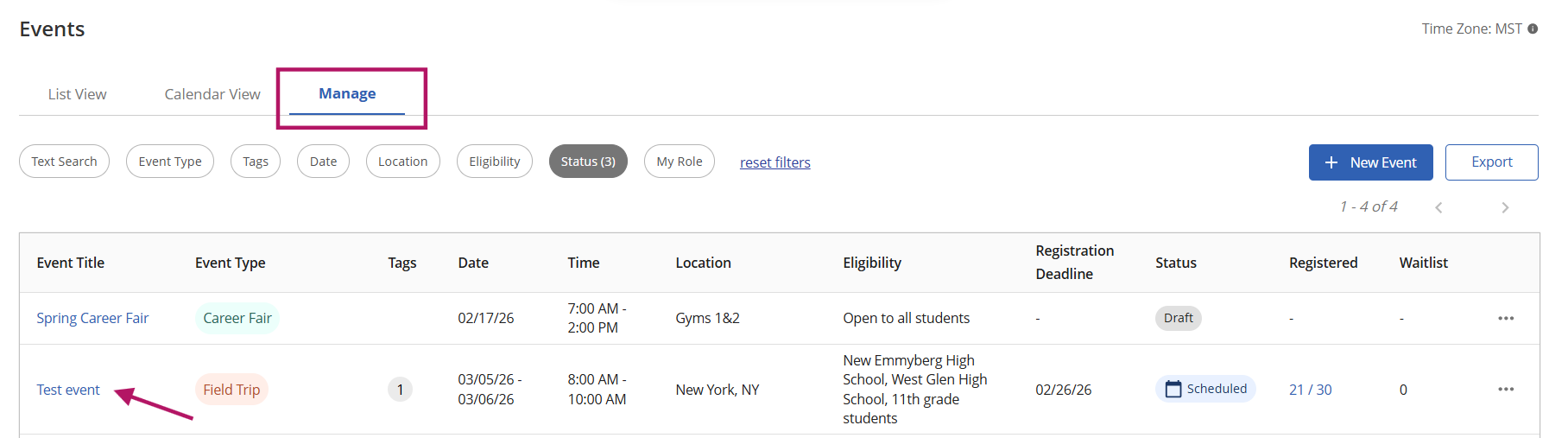
To access the Registration & Attendance tab for a published event, select the Communication menu from the top navigation bar and then select Events. From the Manage tab, click on any published event, then select the Registration & Attendance tab at the top of the event page.
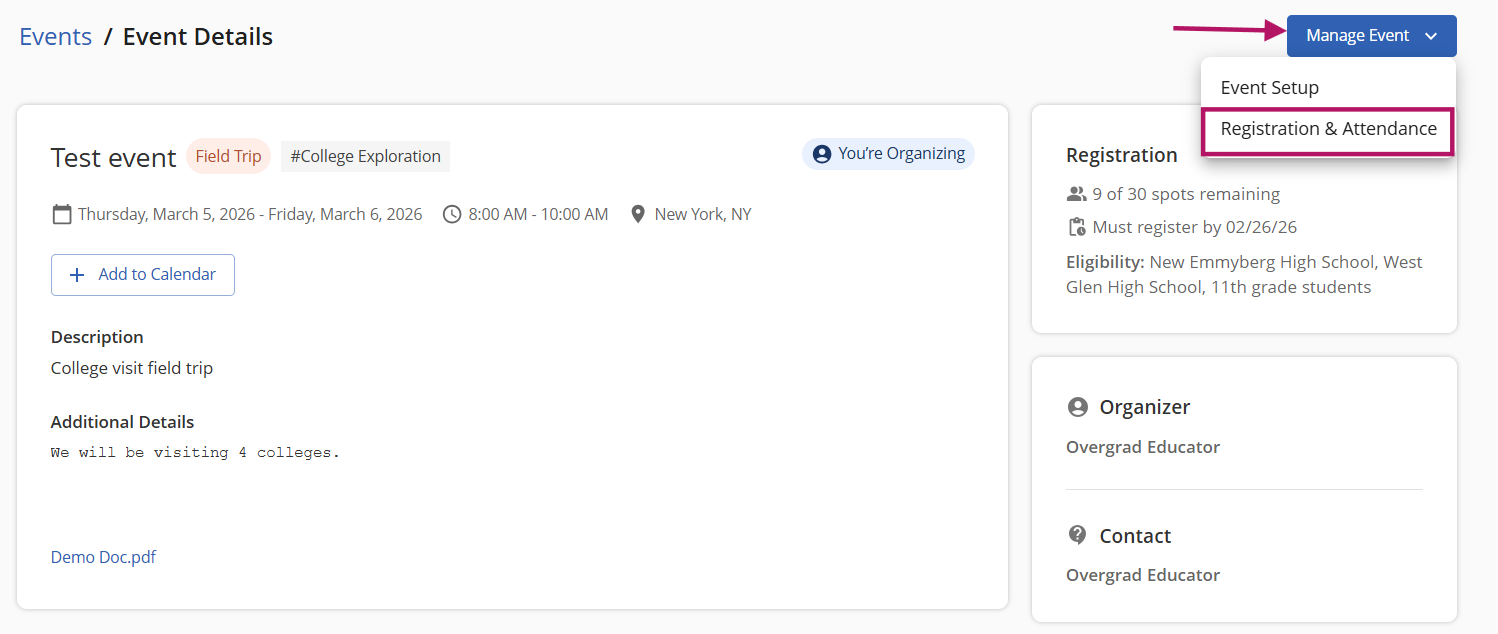
If navigating to events from the List View or Calendar View, you will select an event and then select Manage Event > Registration & Attendance.
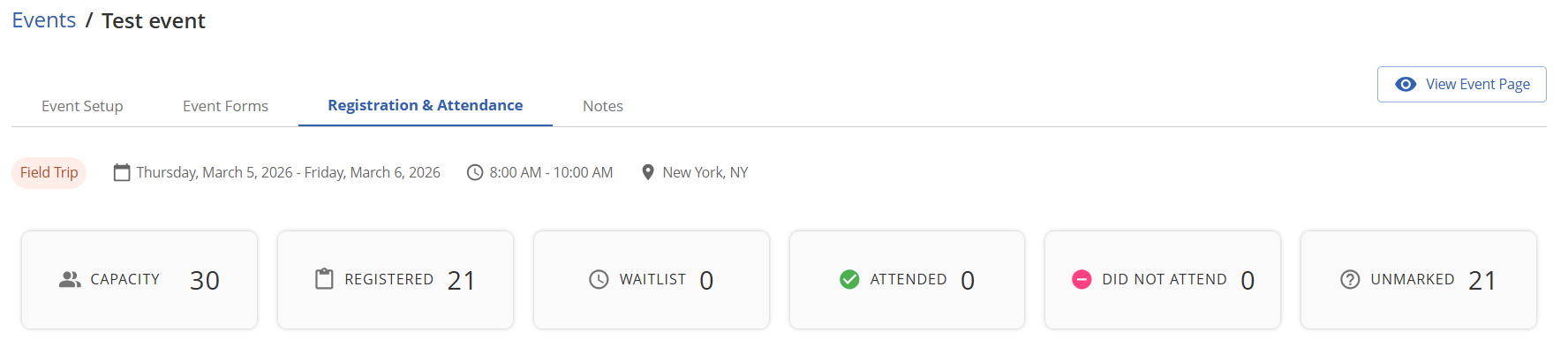
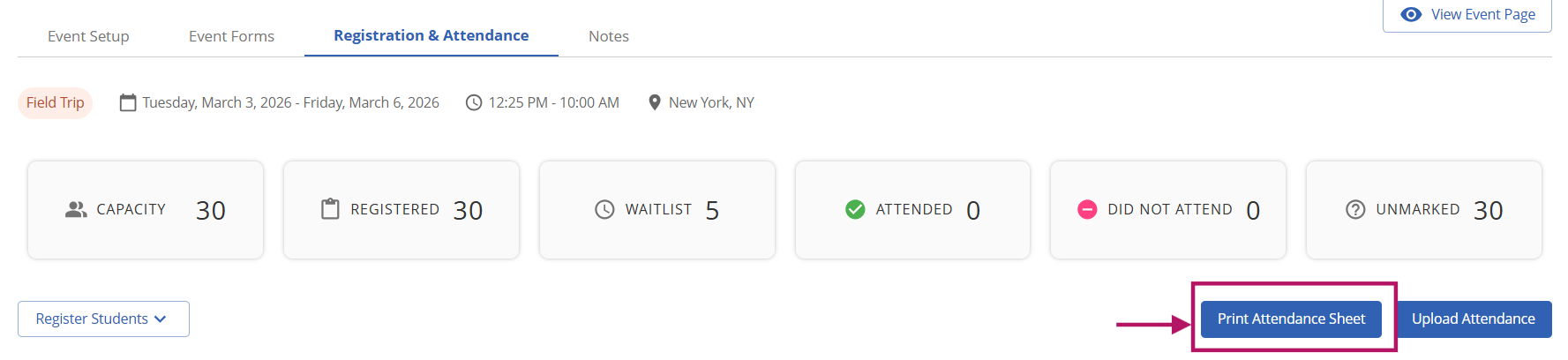
At the top of the Registration & Attendance tab, you will find a row of summary cards that give you a real-time snapshot of your event’s registration status. These counters update automatically as students register, are moved, or have their attendance marked.
Capacity: the maximum number of students that can be registered for the event (set during event creation)
Registered: the total number of students currently registered for the event
Waitlist: the number of students on the waitlist (only appears when a capacity limit and waitlist have been enabled)
Attended: the number of registered students who have been marked as attended
Did Not Attend: the number of students who were registered but did not attend
Unmarked: the number of registered students whose attendance has not yet been recorded
Managing Student Registration
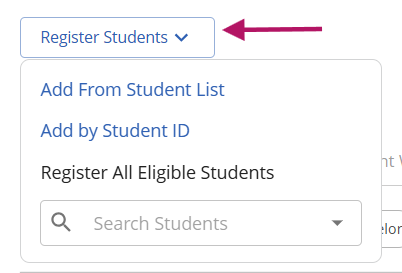
Staff can register students manually at any time using the Register Students dropdown button, located on the left of the page just below the stats summary. There are three ways to add students:
Add From Student List: search for and select one or more students from your student list to register for the event
Add by Student ID: quickly register a student by entering their student ID directly
Register All Eligible Students: registers all students who meet the event’s eligibility criteria in one step. This is useful for events where all eligible students should be automatically enrolled
Filtering & Viewing Registrations
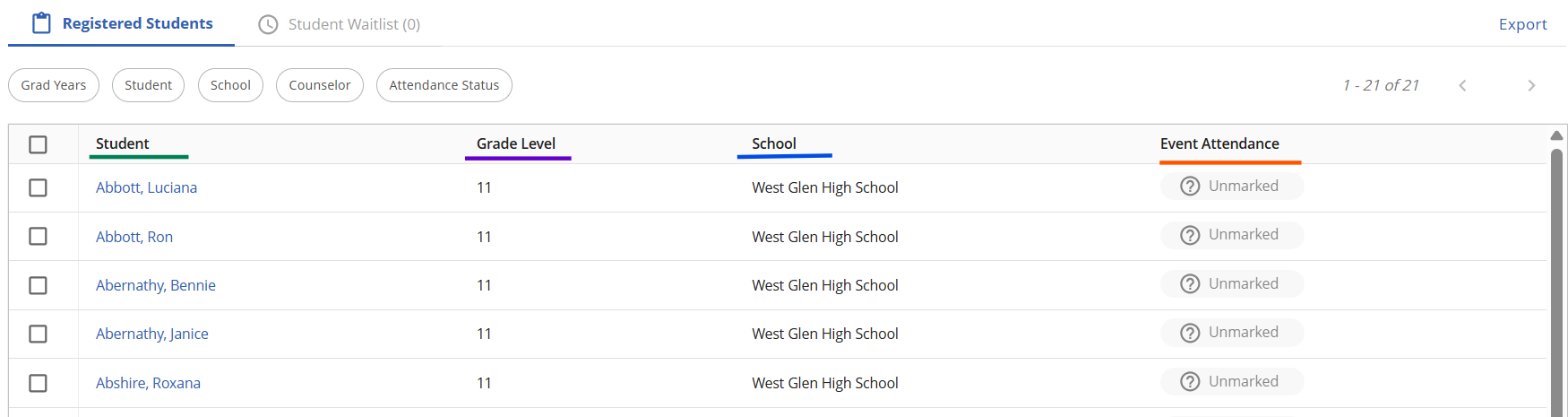
The Registered Students list displays key information for each student, including their grade level, school, and their current attendance status. Use the filter buttons above the student list to narrow down the view by:
Grad Years: filter by student graduation year
Student: search for a specific student by name
School: filter by the student’s school
Counselor: filter by the student’s assigned counselor
Attendance Status: filter by Attended, Did Not Attend, or Unmarked
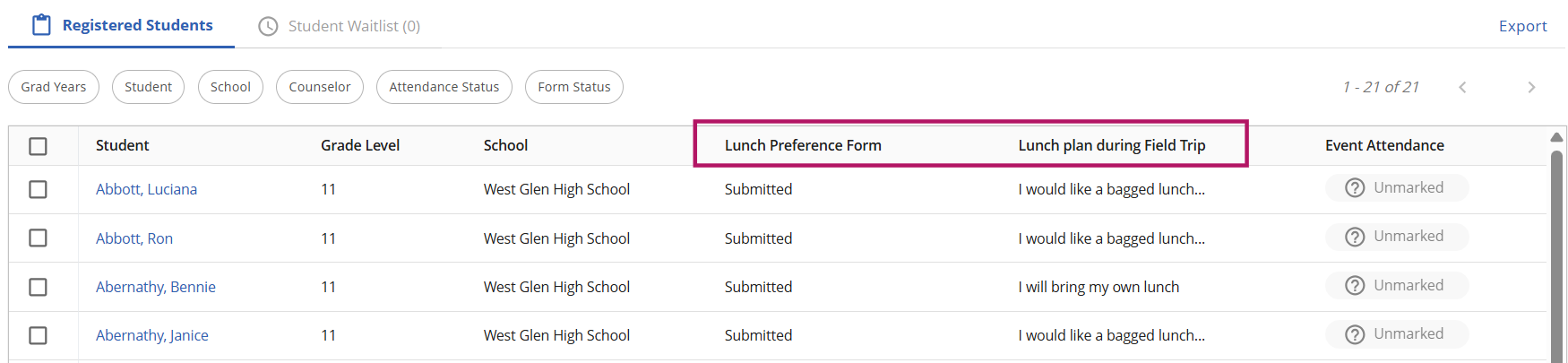
If an event has an associated form and its settings are configured to display the completion status or form responses in the registration table, those form responses will also be included. An additional filter will also be included to filter registrants by form status. As a reminder, if you want students to complete a form during registration, that form must be added BEFORE any registrations (see additional guidance in Adding Forms to Events support article).
Taking Attendance
Attendance tracking becomes active on the day of the event. Until the event date, the attendance controls in the student list will be disabled and will display a note that attendance is enabled the day of the event. On the day of the event, there are two ways to take attendance:
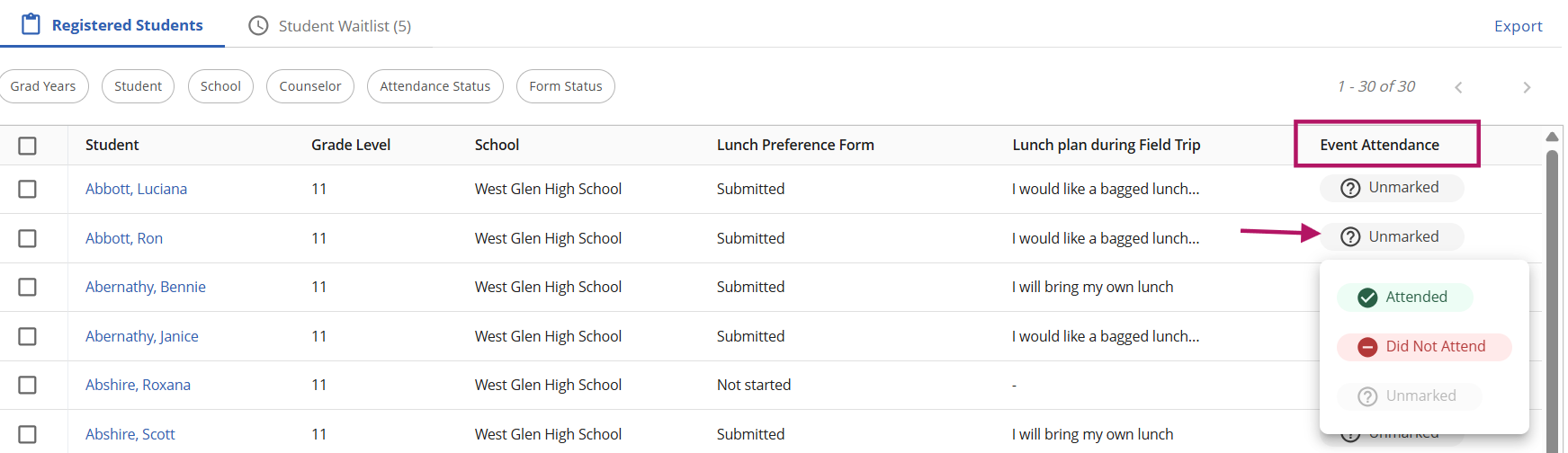
Directly in the student list: Under the Event Attendance status in the rightmost column of the student list, select a student’s status to update an individual student as Attended or Did Not Attend
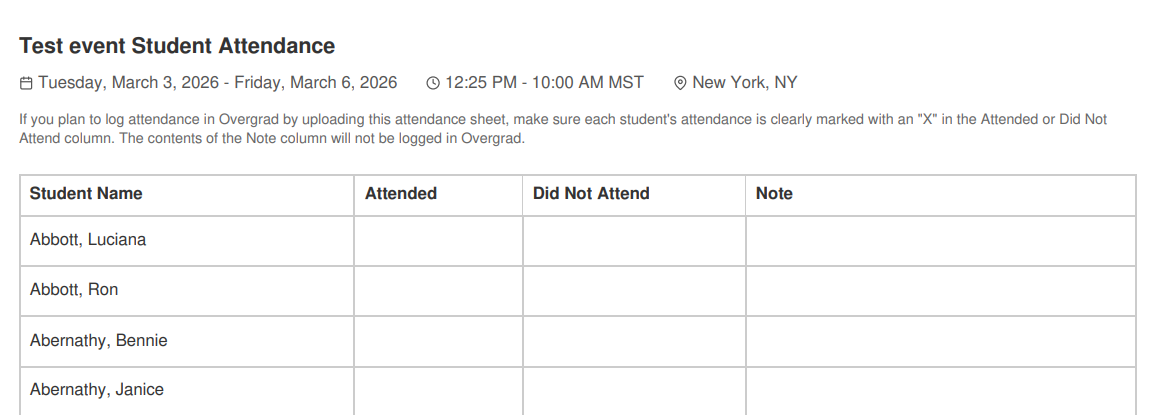
Using a printed attendance sheet: click Print Attendance Sheet in the top right to generate a printable roster of all registered students.
Sample Attendance Sheet PDF:
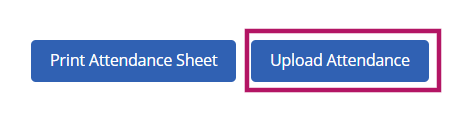
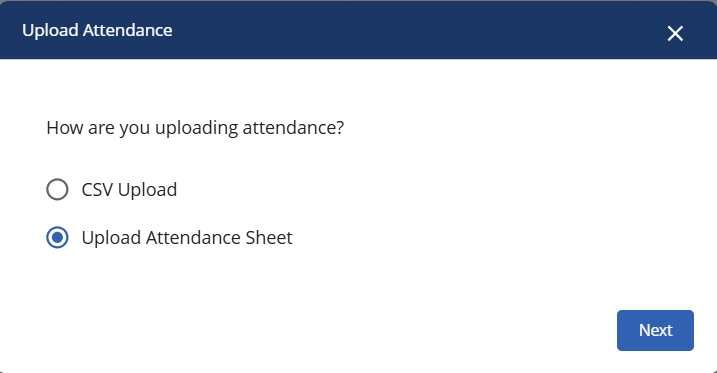
After the event, click Upload Attendance to upload a completed attendance file and sync the results back into Overgrad. Uploading attendance can be done either with a CSV file or by using a picture or scan of the printed attendance sheet.
Update Attendance in Bulk (see below)
Bulk Actions
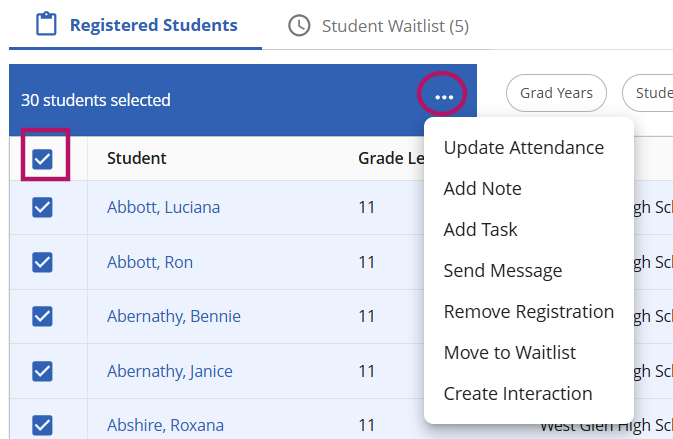
You can take action on multiple students at once by selecting the checkboxes next to their names, or select all students using the checkbox in the top left. Once one or more students are selected, a blue action bar will appear at the top of the list showing the number of students selected. Click the … menu button in this bar to access the following bulk actions:
Update Attendance: mark all selected students as Attended, Did Not Attend, or reset them to Unmarked (available on the day of the event)
Add Note: add a note to the selected students’ profiles
Add Task: assign a task to the selected students
Send Message: send a direct message to the selected students
Remove Registration: unregister the selected students from the event
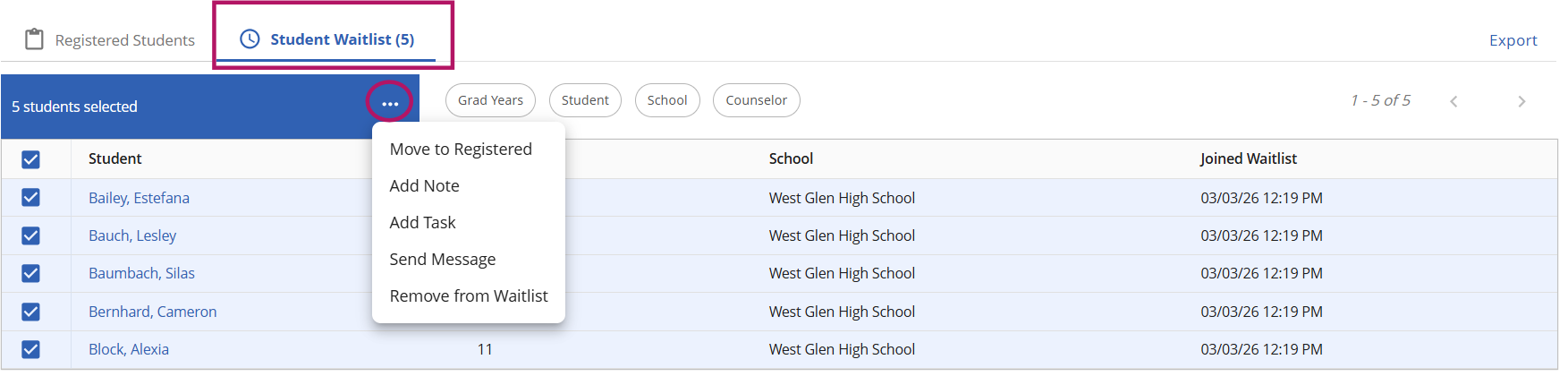
Move to Waitlist: move selected students from the registered list to the waitlist (or, from the Student Waitlist tab, move waitlisted students to the registered list)
Create Interaction: log an interaction record for the selected students
The Student Waitlist
If a capacity limit and waitlist were enabled when the event was created, students who attempt to register after the event reaches capacity will be placed on the waitlist. You can view and manage waitlisted students by clicking the Student Waitlist tab next to the Registered Students tab. From the waitlist, you can select students and use the bulk action menu to move them to the registered list when space becomes available. If you have enabled automatic waitlist promotion in the event setup, students will be moved from the waitlist to the registered list automatically when a spot opens up.
Parent-Included Events
If parents/guardians of eligible students were included as eligible attendees during Event Setup, additional options will be available to register and track attendance. As a reminder, parents must have a linked Overgrad account in order to be included in Event invitations, registration, and attendance.
Register Parents/Guardians: parents can be registered via the student list, using the student ID, by searching for the student or parent name, or by selecting all eligible parents for registration.
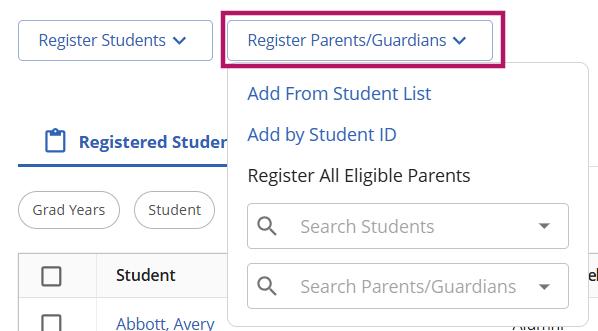
- Managing Attendance for Parents/Guardians: if parents/guardians are included in an event, a separate table will appear to manage their registration and attendance. If printing or uploading attendance sheets, parent/guardian attendance must be handled separately from student attendance.

Exporting Registration Data
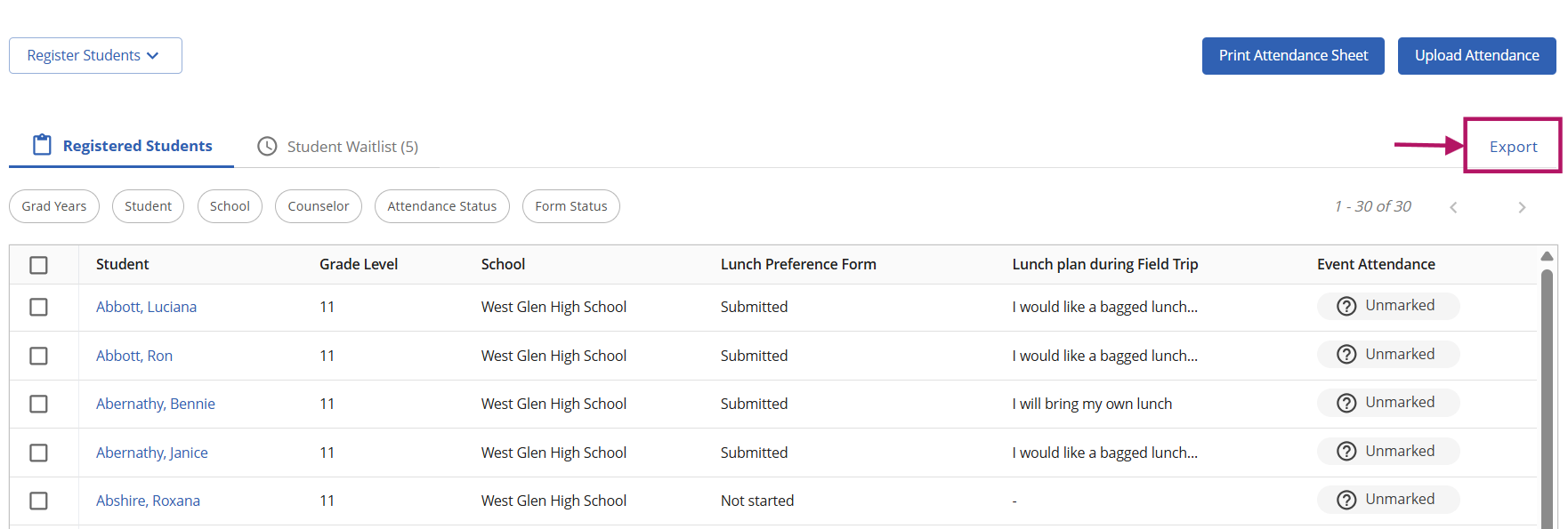
To download a copy of the registration data, click the Export button located in the top right of the student list. This will download a spreadsheet containing student registration details, form submission data, attendance status, and any other columns visible in the current list view. If you have applied filters before exporting, only the filtered results will be included in the download.
Event Notes
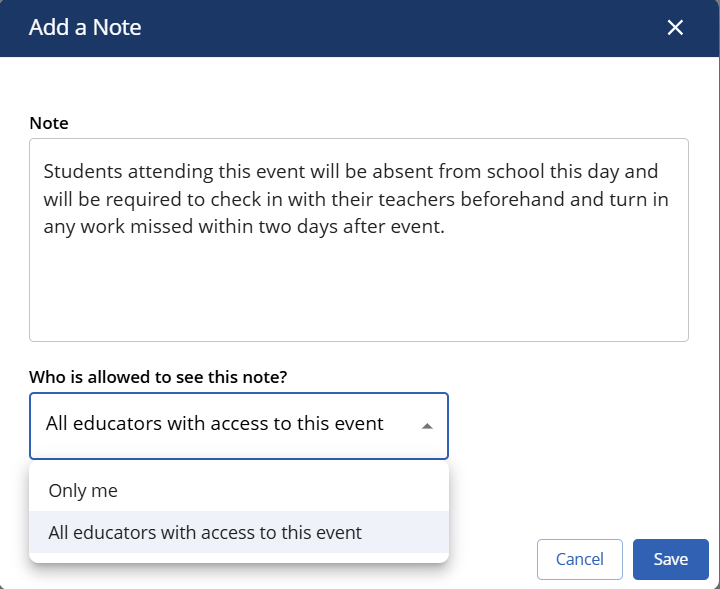
If you’d like to add any notes to an event, navigate to the final Notes tab. Select the blue + Add Notes button and insert any important information. You can then select if this note is visible only to you or to all educators with access to the event. Click Save when complete.

Was this article helpful?
That’s Great!
Thank you for your feedback
Sorry! We couldn't be helpful
Thank you for your feedback
Feedback sent
We appreciate your effort and will try to fix the article