Overview
This article covers how to edit, cancel, and delete events in Overgrad after they've been created, and explains how Event Management Access controls who can make changes. For instructions on creating an event, see this article.
TABLE OF CONTENTS
Editing an Event
1. From the top navigation, go to Communication > Events. Then click the Manage tab
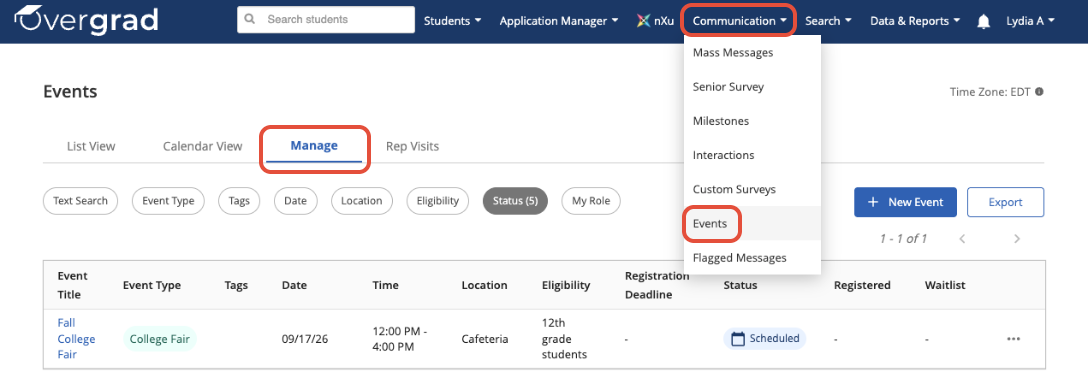
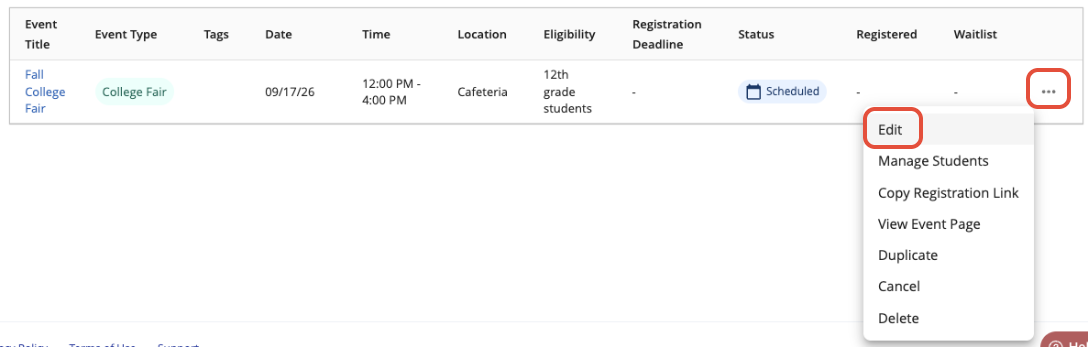
2. Find the event, click the ... menu, and select Edit
3. Make your changes across any of the event sections — Event Details, Eligibility & Registration, Event Schedule, Notifications, or Event Management Access.
4. Click Save to save as a draft, or Publish Event if the event is not yet published.
Canceling or Deleting an Event
To cancel or delete an event, open the Manage tab, find the event, and click the ... menu.
- Cancel marks the event as canceled. Registered students are notified. The event remains visible in your records.
- Delete permanently removes the event. Use this for drafts or events created in error.
Event Management Access
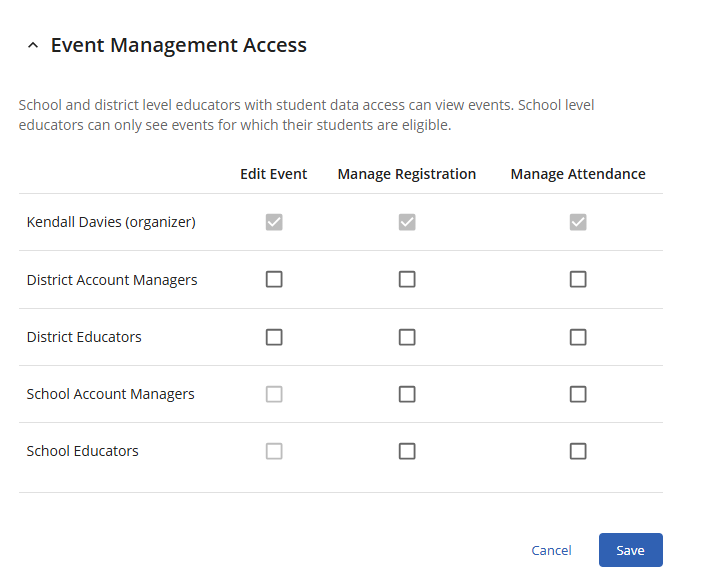
When creating or editing an event, use the checkboxes under Event Management Access to grant District Account Managers, District Educators, School Account Managers, and School Educators certain permissions. The Overgrad Educator who created the event (the organizer) is automatically granted all three permissions and cannot be removed.
- Edit Event: Users with this access will have the ability to edit the event details at any time before the event has ended. After an event has ended, edits cannot be made to event details. Users who have edit access will automatically have access for managing registration and attendance.
- Manage Registration: Users with this access will have the add and/or remove students from event registration. If a user can manage registration they will automatically have access to manage attendance.
- Manage Attendance: Users with this access will have the ability to take attendance for the event.
Was this article helpful?
That’s Great!
Thank you for your feedback
Sorry! We couldn't be helpful
Thank you for your feedback
Feedback sent
We appreciate your effort and will try to fix the article