Overview
This article is for counselors who would like to add forms to an Event in Overgrad. Forms allow you to collect information from students either during or after event registration. If you’d like more information on creating events see this article.
TABLE OF CONTENTS
Accessing Event Forms
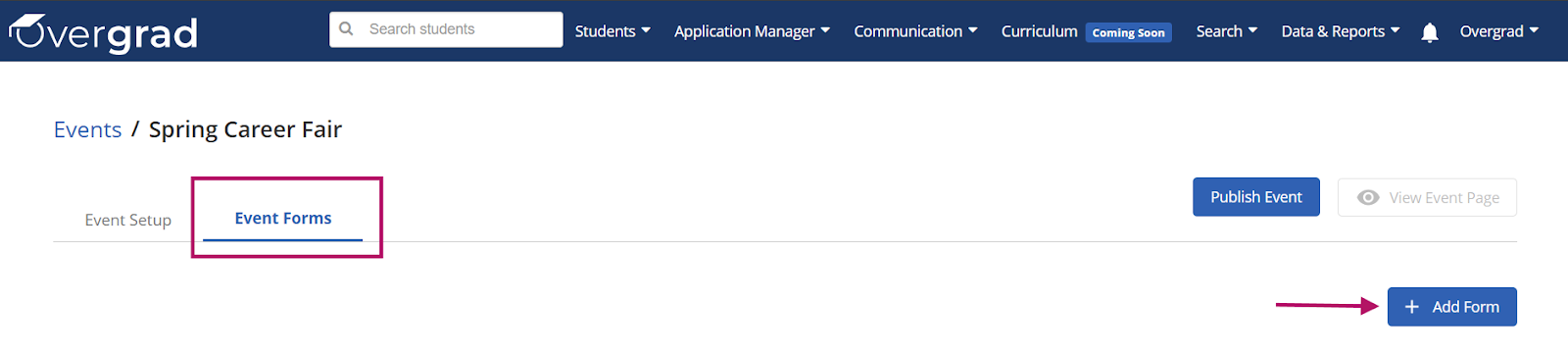
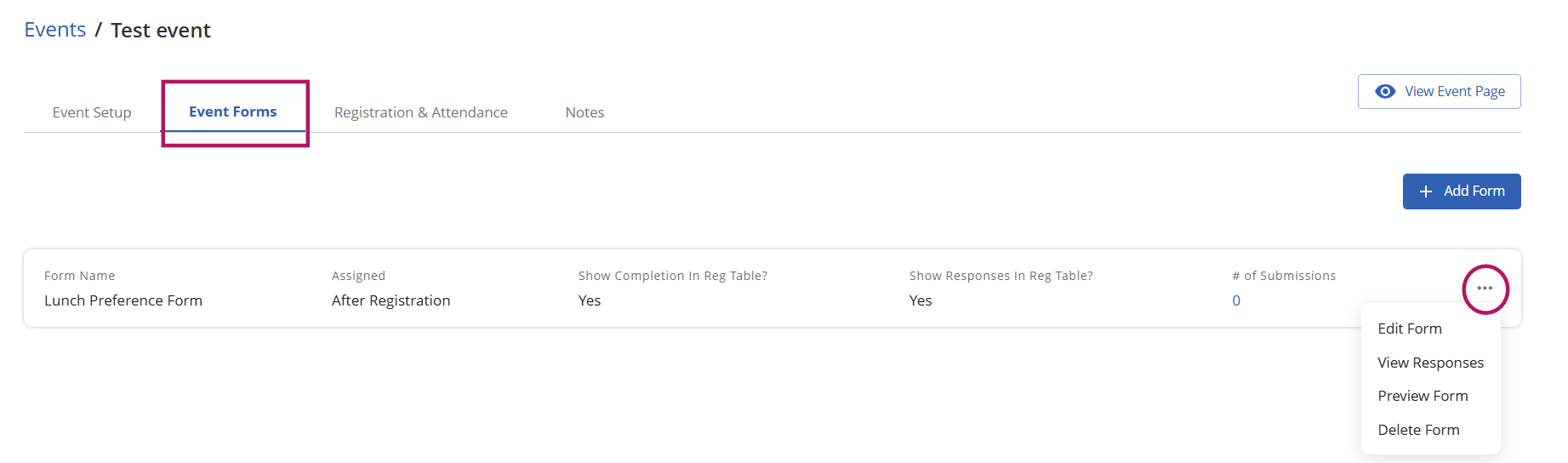
To access Event Forms, navigate to an event that has already been created and select the Event Forms tab at the top of the page. If you are working on a new Event, once you have completed the Event Setup and selected “Save” the Event Forms tab will automatically populate.
To create a form click the blue + Add Form button in the top right. This opens a modal where you can configure the form’s details, settings, and questions.
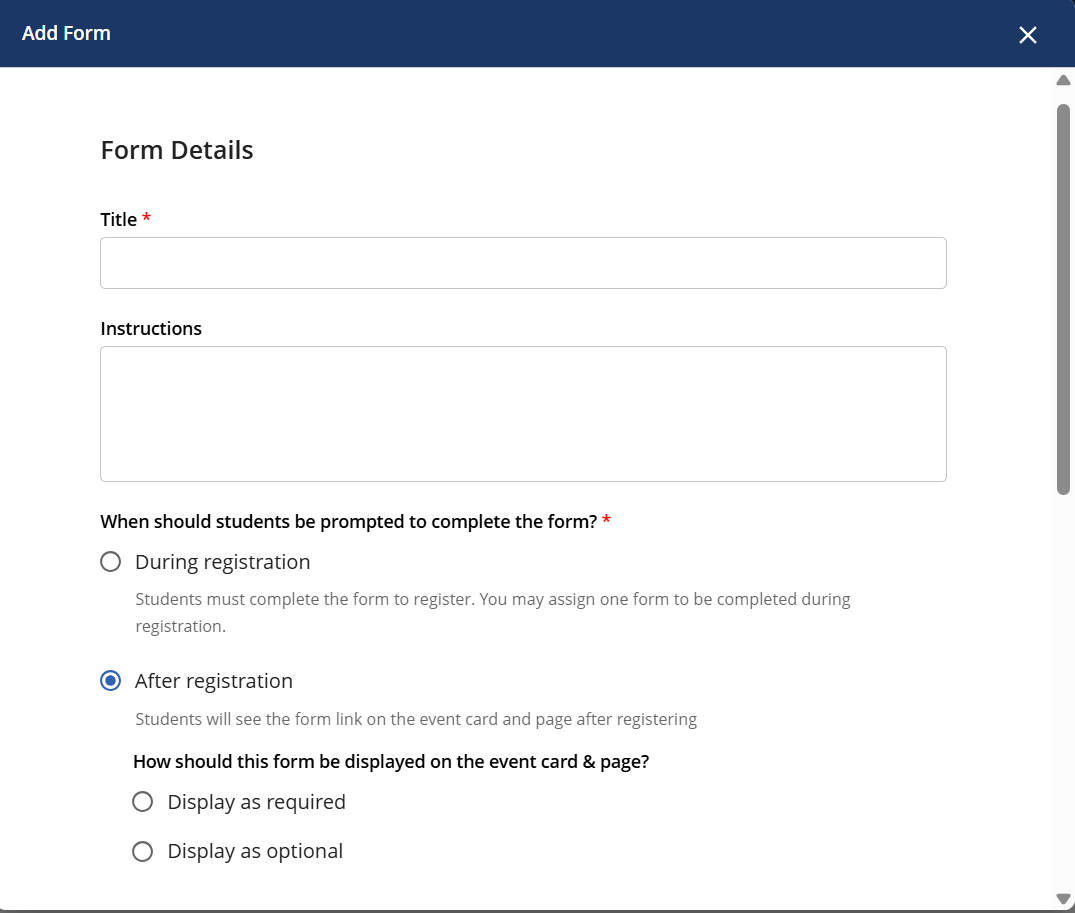
Form Details
This section captures the basic information about the form. Fields marked with a red asterisk (*) are required.
Title*: give the form a clear, descriptive name that will help students understand its purpose (e.g., “Pre-Event Survey” or “College Visit Interest Form”)
Instructions: optional text shown to students at the top of the form, providing any context or directions they need before completing it
When should students be prompted to complete the form?*:
- During registration: students must complete the form to register. Only one “During registration” form can be assigned and it must be created before anyone has registered for an event.
Best practice for this form type is to add it before publishing the event. If anyone has registered, you will NOT be able to add this type of form to an event.
If you have already published the event you can add an after registration form, or go to Event Setup and toggle ON the setting "Do not allow students to register themselves for this event" (see the Eligibility & Registration section in Creating an Event) until the form has been added.
After registration: students will see the form link on the event card and page after they have registered. Educators can choose to have this form be required or optional.
- During registration: students must complete the form to register. Only one “During registration” form can be assigned and it must be created before anyone has registered for an event.
Form Settings
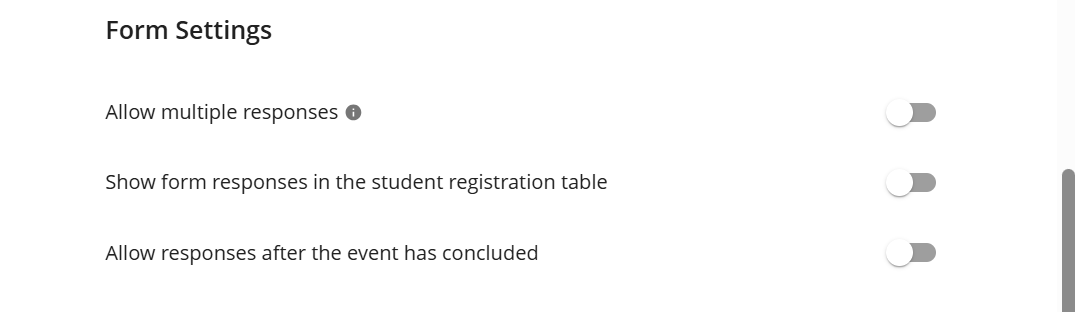
Use the toggle switches in the Form Settings section to control how the form behaves:
Allow multiple responses: when toggled ON, students can submit the form more than once — each submission is saved as a unique response. If responses are shown in the registration table, only the most recent submission will display
Show form responses in the student registration table: when toggled ON, student form responses will appear as columns in the event’s student registration table, making it easy to review answers directly from the event management view (See more info about registration and attendance for events in this article)
Allow responses after the event has concluded: when toggled ON, students can still submit the form after the event’s end date has passed. This is useful for post-event surveys or feedback forms
Questions
Click + Add Question to add a question to the form.

Each question requires a Question Type and a Question (required text). You can toggle a question as Required so students must answer it before submitting. Use the drag handle on the left to reorder questions, and the copy or delete icons on the right to duplicate or remove a question.
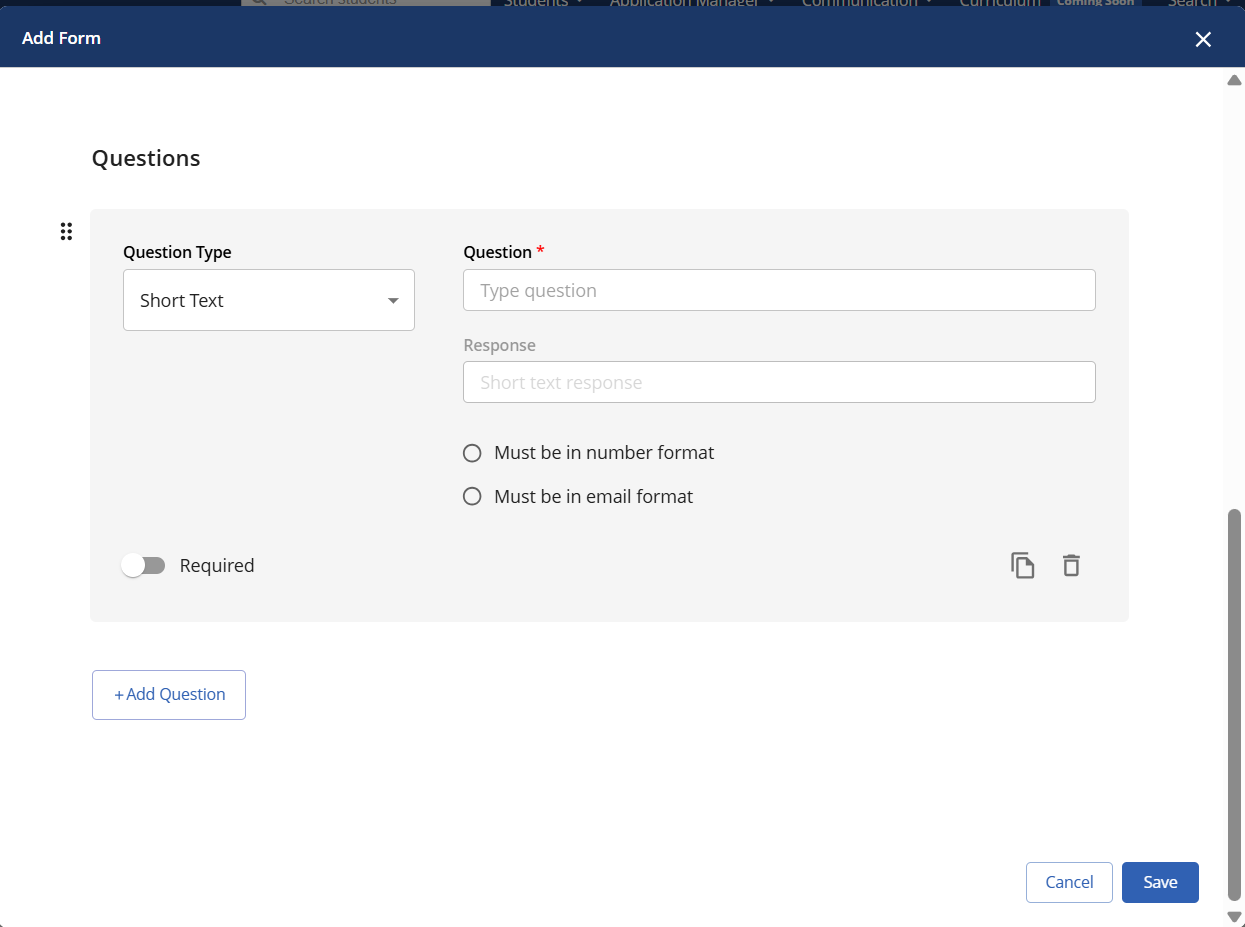
The following question types are available:
Short Text: a single-line text field for brief answers. You can optionally require the response to be in number format or email format
Long Text: a multi-line text area for longer, open-ended answers
Multiple Choice (Single-Select): provide multiple answer options where students select exactly one answer
Checkbox (Multi-Select): provide multiple checkbox options where students can select one or more answers
Dropdown: a dropdown menu where students select one option from a list — useful when there are many possible answers
Rating: a numeric scale for students to rate something (e.g., interest level or event satisfaction)
Date: a date picker for students to select a specific date
File Upload: allows students to upload a file as their response (e.g., a permission slip or written work)
Once you have filled in the form details, configured the settings, and added all questions, click Save to attach the form to the event. The form will appear in the Event Forms tab. Forms are only visible to students after the event has been published.
Managing Existing Forms
Saved forms appear in the Event Forms tab. From there you can:
Edit a form to update its title, instructions, settings, or questions
View form responses
Add additional forms - you can have multiple post-registration forms per event
Delete a form to remove it from the event
Note: If a form is set to be completed “During registration,” students are required to complete it before they can register. Only one form may be assigned to complete during registration at a time.
Was this article helpful?
That’s Great!
Thank you for your feedback
Sorry! We couldn't be helpful
Thank you for your feedback
Feedback sent
We appreciate your effort and will try to fix the article