Overview
This article is for account managers who need to manage educator accounts at their school or district in Overgrad. It covers how to add new educators and configure their permissions, how to update an existing educator's permissions, and how to remove an educator from your organization.
TABLE OF CONTENTS
- Overview
- Adding Educators to Your School, District, or Organization
- Making Changes to an Educator Account
- Deleting an Educator Account
Adding Educators to Your School, District, or Organization
When your school or district begins using Overgrad, one person is designated as the educator account manager — typically the first person to create an account, though this can be changed at any time. Account managers can add, remove, and manage all educators associated with the organization.
Adding Educators in Bulk
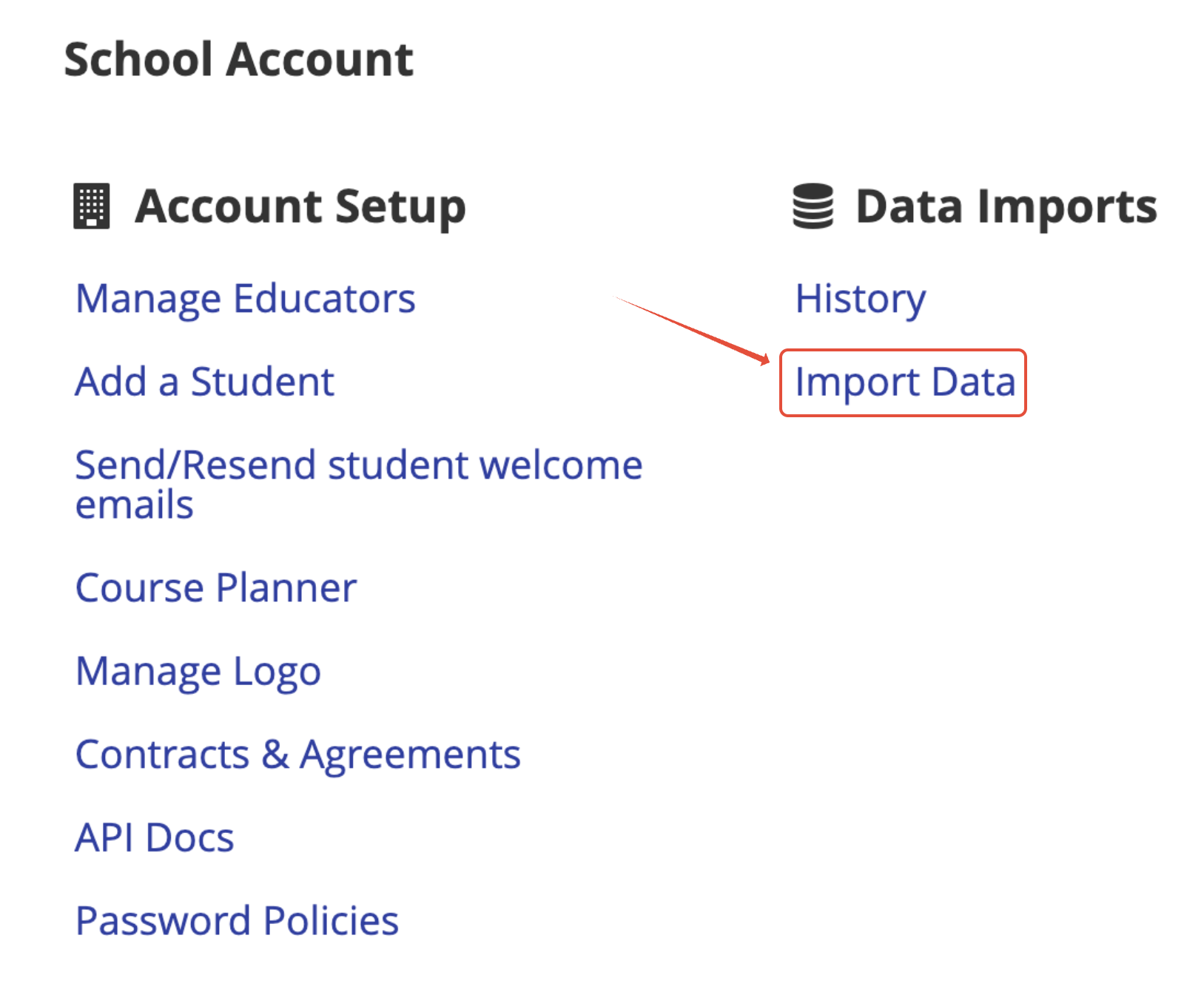
- Open your profile dropdown and select School Account.

- Click Import Data in the Data Imports section.
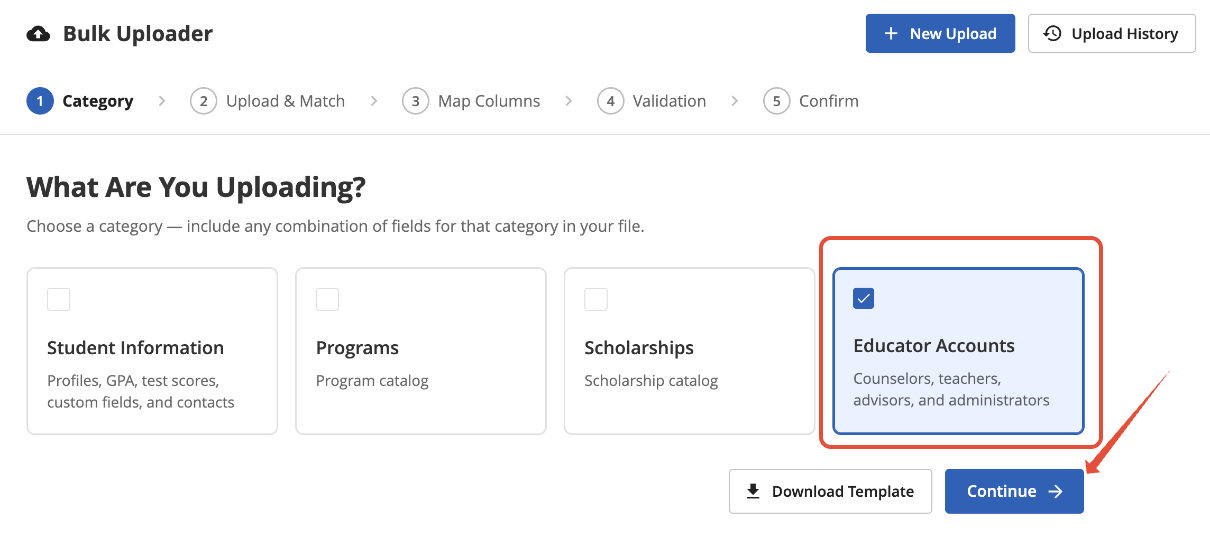
- Click Educator Accounts and click Continue.
- Upload or drag and drop your csv file
- Match the columns in your spreadsheet to the fields in Overgrad.
- Review mapping.
Every column in your file is matched to an Overgrad field automatically. Each match carries a confidence label:
Label What it means Strong match We're confident — either your district has mapped this column the same way before, or the header and values clearly match a field. Weak match Reasonably confident, but your district has mapped this column differently in the past, or the match is less certain. Worth a glance. Needs review We couldn't confidently suggest a field — map this one yourself. Skipped This column won't be imported. Use the filter chips above the table to jump straight to columns that need attention, ignoring strong matches because they pre-accepted and don't require any action.
- Run and review pre-upload validation.
- Confirm and submit.
Adding Educators Individually
- Open your profile dropdown and select School Account.
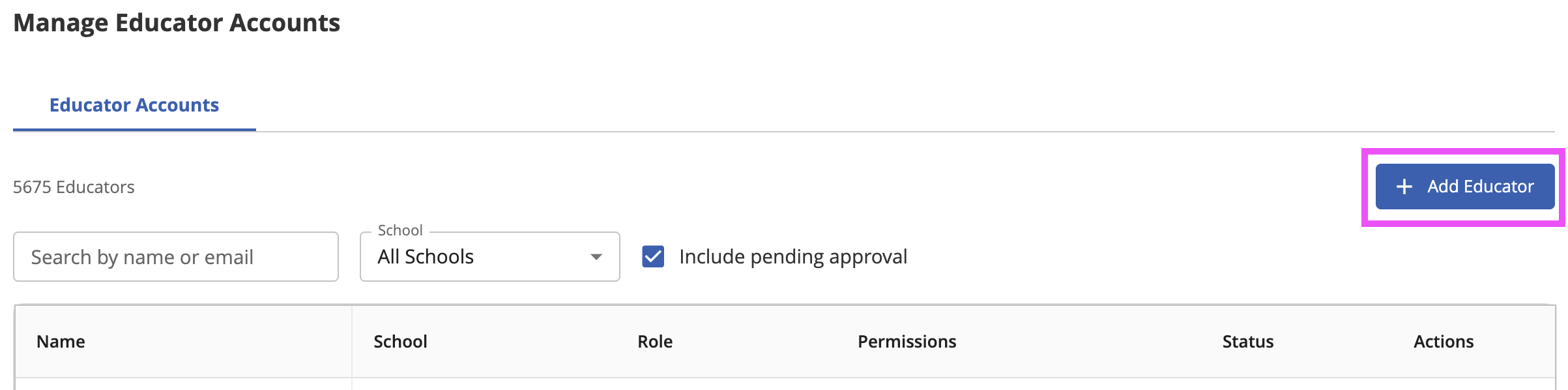
- Click Manage Educators in the Account Setup section.

- Click +Add Educator.
- Enter the educator's name, email address, school, and role.
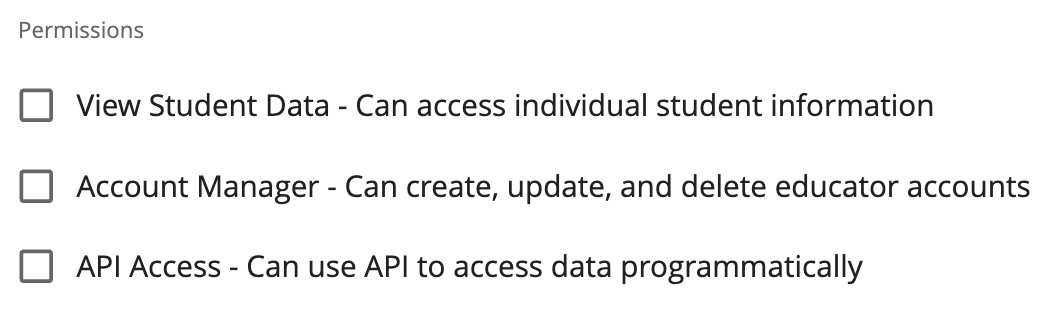
- Configure the educator's permissions.
- Click Create Educator. The educator will automatically receive an email with instructions to log into their new account
Making Changes to an Educator Account
To update an existing educator's account, open your profile dropdown, select School Account, and click Manage Educators. Find the educator and click the three dots to edit their account. From there you can update any of the following:
- First and Last Name
- Role
- Access to Student Data — controls whether this educator can view individual student records or only school-wide trends
- Account Manager — grants or removes the ability to create, update, and delete educator accounts
- API Access — for educators managing an integration with an external tool (districts with API enabled only)
Note: You cannot change an educator's email address after their account has been created. If this information needs to be updated, please contact support@overgrad.com.
Deleting an Educator Account
To delete an educator from your organization, open your profile dropdown, select School Account, and click Manage Educators. Find the educator and click the three dots to delete their account. They will immediately lose access to Overgrad.
Note: Deleting an educator's account does not affect any students assigned to them. If the educator you are removing is an Assigned Counselor, you may want to reassign their students first. See this article for instructions.
Was this article helpful?
That’s Great!
Thank you for your feedback
Sorry! We couldn't be helpful
Thank you for your feedback
Feedback sent
We appreciate your effort and will try to fix the article