This report shows every career a student has followed, and lets you see which careers and career clusters are most popular across your students using the Data Summary feature.
Step 1: Open the Custom Reporting
Report: Custom Report — Career Lists (new)
How to find it:
- From any page in Overgrad, click Data & Reports in the top navigation bar.
- Select Custom Reports from the dropdown menu.
- Click the Career Lists tab (it defaults to the Students tab).
- Click the ⋯ (options) menu next to the Saved Reports dropdown and select Create a new report.

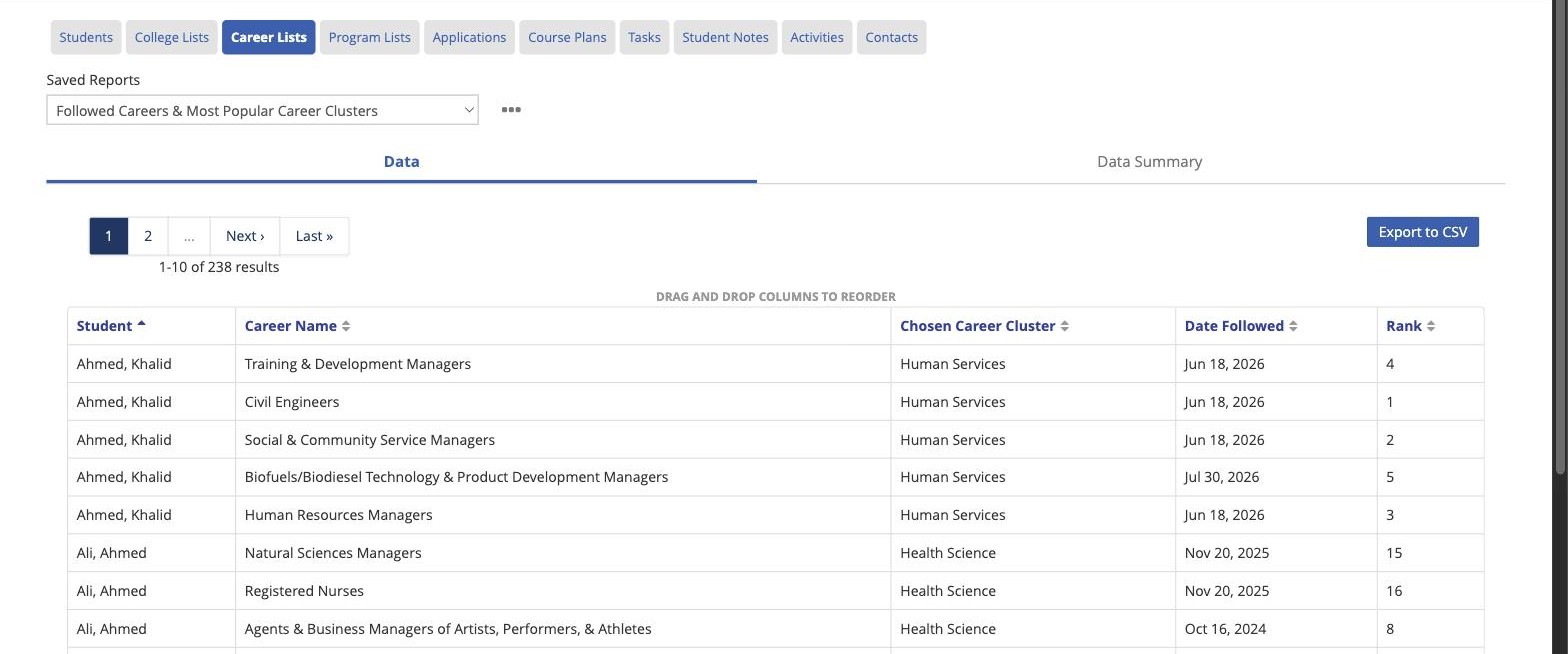
This creates one row per student per followed career — so a student who follows 3 careers will appear 3 times.
Step 2: Choose Your Fields and Filters
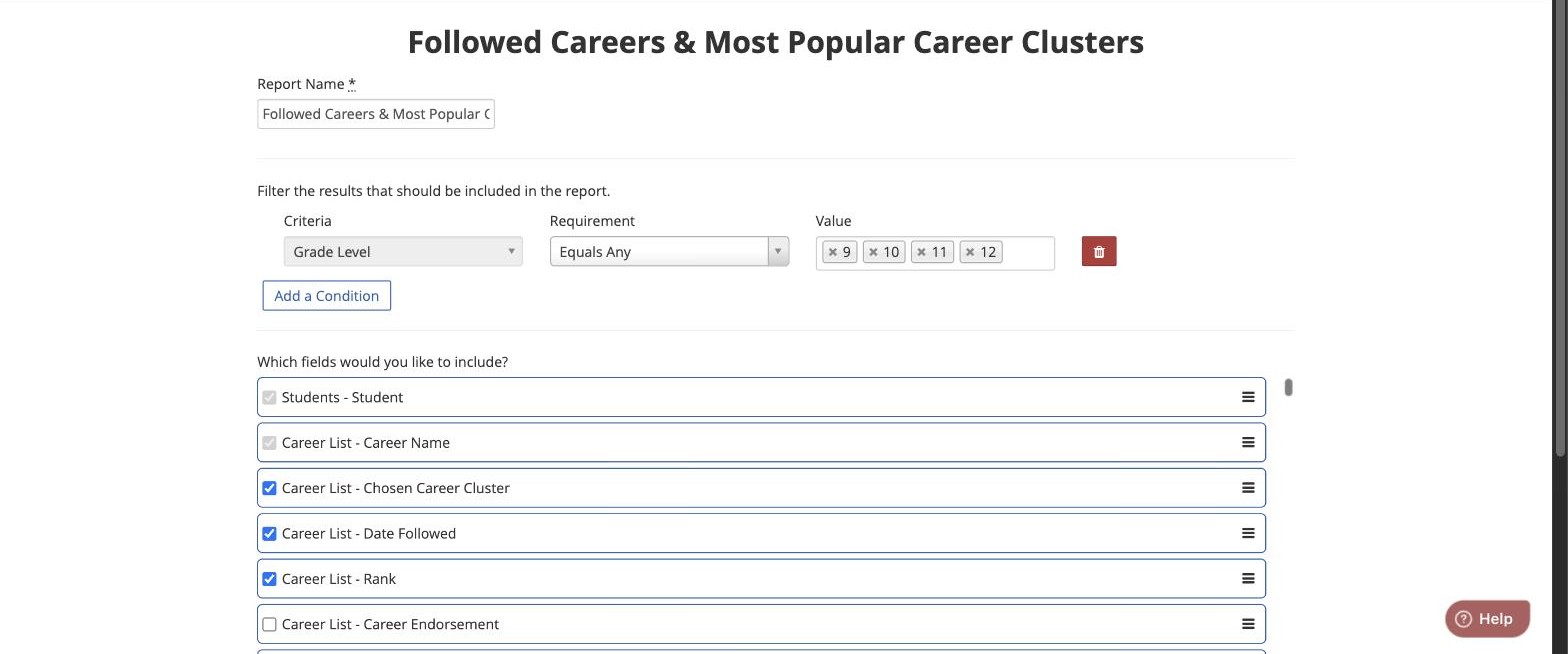
- Give it a clear Report Name (e.g., "Followed Careers & Most Popular Career Clusters").
- Under "Which fields would you like to include?", Student – Student and Career List – Career Name are checked by default and can't be removed. Also check: Career List – Chosen Career Cluster, Career List – Date Followed, and Career List – Rank (useful if you want to know a student's top-choice career).
- (Optional) Click Add a Condition to filter to a specific group. For example, to focus on grades 9–12: set Criteria to Grade Level, Requirement to Equals Any, then select 9, 10, 11, and 12 as the values.
- Check Save Report so you can run it again later.
- Click Run Report.
Step 3: See the Most-Followed Careers
- On the report results page, click the ⋯ menu and select Add a data summary.
- A new Data Summary tab will appear next to Data — click it.
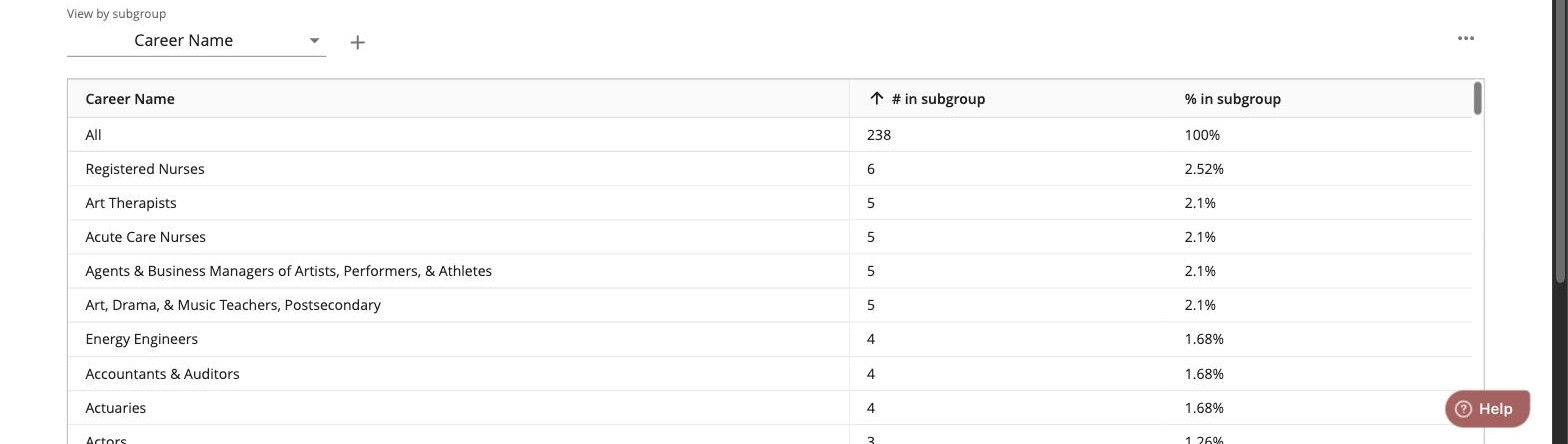
- Click Configure Subgroups and select Career Name as the subgroup field (it's listed under "Suggested").
- The table will show one row per unique career with # in subgroup and % in subgroup columns.
- Click the # in subgroup column header to sort descending — the careers at the top are the most followed.

Step 4: See the Most Popular Career Clusters
- Still on the Data Summary tab, click Configure Subgroups again.
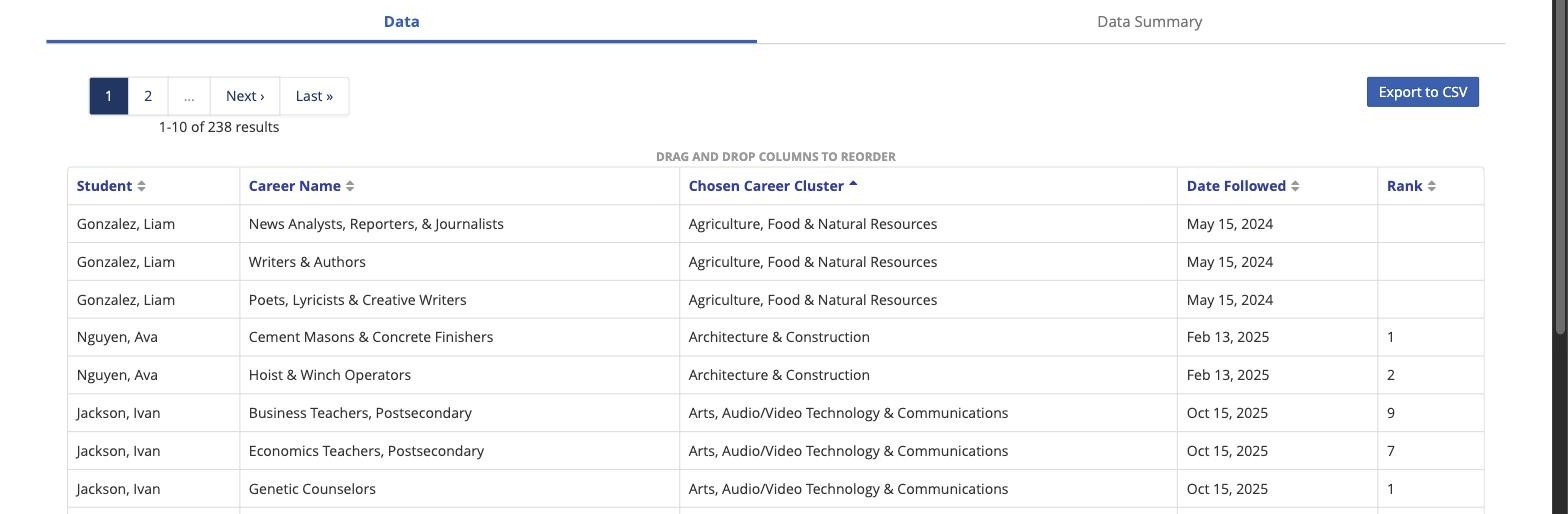
- Add Chosen Career Cluster as a subgroup (found under "All").
- Sort by # in subgroup descending to see which clusters students select most often.
Tips
- Since a saved report keeps its filters and fields, you can duplicate this report and adjust the conditions (e.g., by counselor or graduation year) to compare popularity across groups.
- The Data Summary always reflects the current filtered data in the report — narrowing your conditions (e.g., to one grade band) updates the subgroup counts accordingly.
- Chosen Career Cluster is set once per student on their Career Survey, not per followed career. A student who follows 5 careers will show that same cluster 5 times in this report's raw data — that repetition reflects rows, not additional students choosing the cluster.
Was this article helpful?
That’s Great!
Thank you for your feedback
Sorry! We couldn't be helpful
Thank you for your feedback
Feedback sent
We appreciate your effort and will try to fix the article