Using Your Downloaded Scope & Sequence
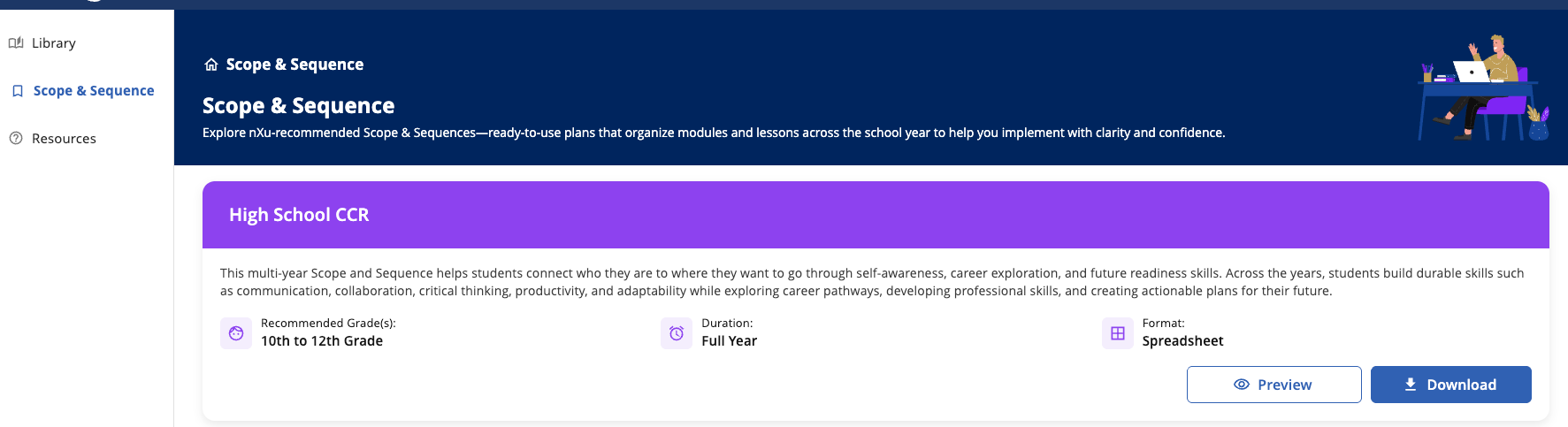
nXu provides scope & sequence templates that you can choose from and adapt based on your student population and goals. There are two ways to access these templates. The Selecting nXu Lesson guide will walk through your goals and school vision to identify a Scope and Sequence or you may choose a Scope and Sequence from the Scope and Sequence menu.
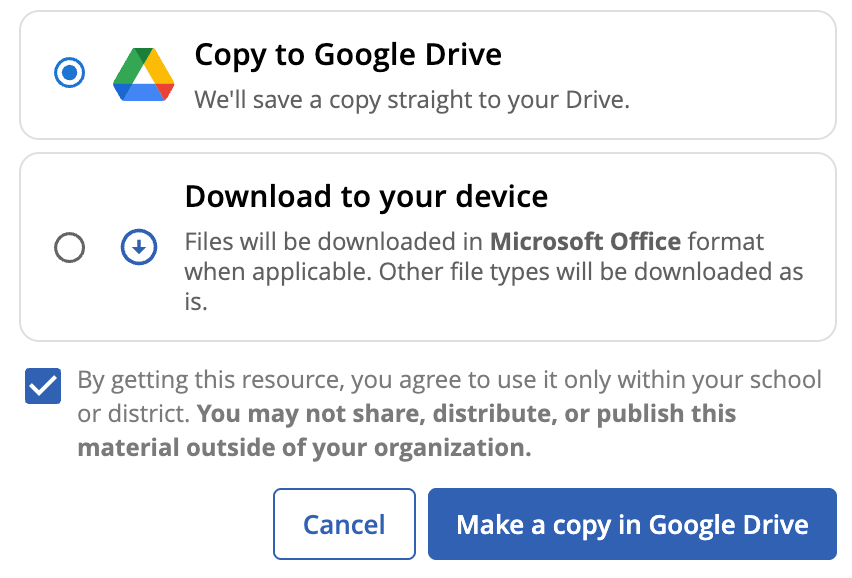
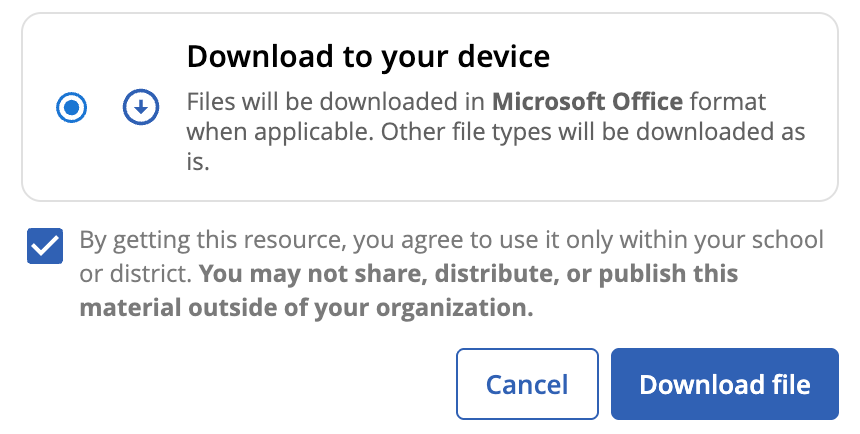
After selecting a template, you'll have the option to either create a forced copy of the Google Sheet or download an Excel workbook to customize for your implementation.
Choosing the Google Drive forced copy option creates your own editable copy of the Google Sheet, which will be saved to your My Drive in Google Drive. From there, you can move it to another folder, share it with colleagues, and make any changes you need without affecting the original template.
Choosing the Download to your device option creates an Excel workbook that you can save to your Microsoft 365 cloud storage (such as OneDrive) or to your computer's hard drive.
This workbook is designed to help you plan your school year, stay organized, and track lesson completion.
Scope and Sequence Workbook Overview
Your Scope & Sequence workbook contains multiple tabs.
1. Overview by Year
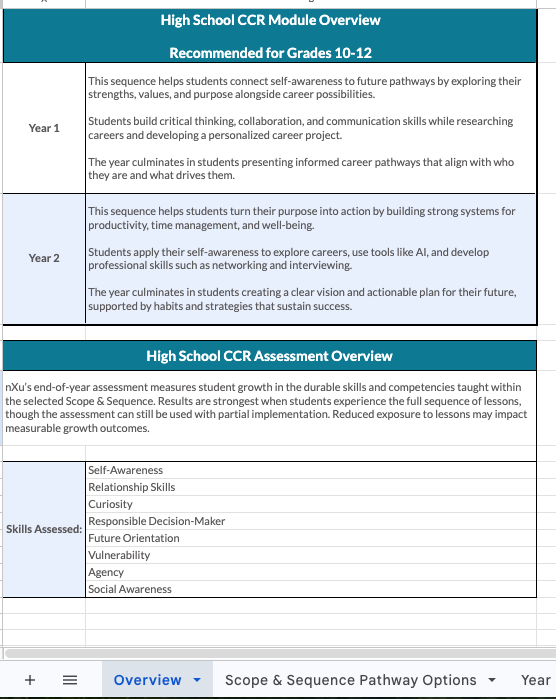
This tab provides an overview of the Scope & Sequence, including:
The purpose of the sequence
The learning progression students will experience throughout the year
The skills and competencies emphasized across the lessons
We recommend reviewing this tab first to understand how the lessons fit together before planning your calendar.
2. Scope & Sequence Pathway Options
The second tab explains the pathway you selected and how the lessons were curated. It also describes the differences between the All, Core, and Must Have lesson pathways so you can decide whether you'd like to teach the full recommended sequence or prioritize only the essential lessons if instructional time is limited.
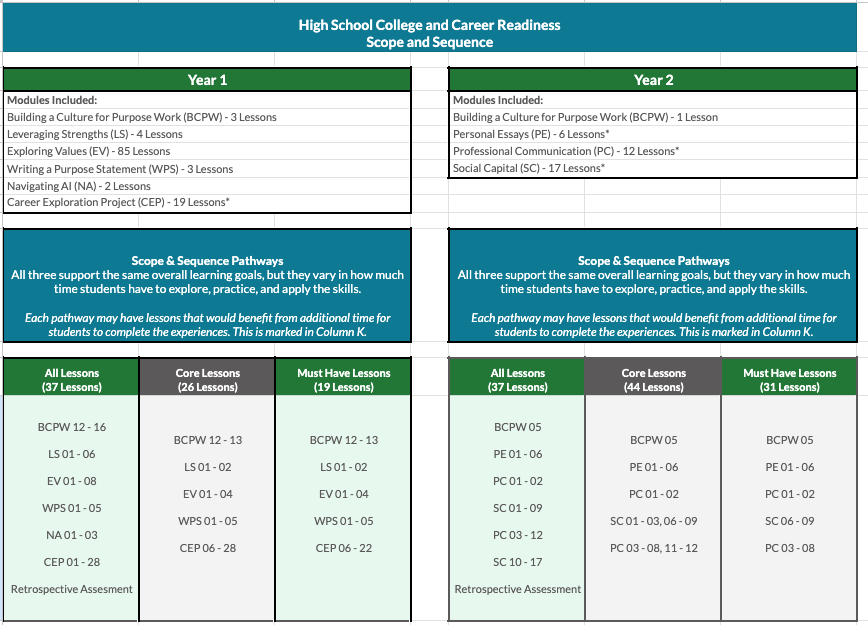
3. Scope & Sequence Tabs
The remaining tabs are the planning tabs you'll use throughout the school year. There is 1 tab for each year of the sequence.
Each row represents one lesson in the recommended order.

Customizing Your Schedule
Implementation Date
Enter the date you plan to teach each lesson.
The dates are intentionally left blank so you can align the Scope & Sequence with your school calendar, holidays, testing windows, and other scheduling needs.
We recommend filling in all planned lesson dates before instruction begins, then updating them as needed throughout the year.
Lesson Name & Objective
Click on the hyperlink to access the lesson materials. This link is connected to the lesson page on the Overgrad Platform. From the page, you will have an option to access the lessons as a Google Document or Microsoft Word. You will be able to edit these documents for your individual use. Find out more here.
Completed?
After teaching a lesson, check the Completed? box.
This provides an easy way to:
Track which lessons have been taught
Monitor pacing throughout the year
Quickly identify remaining lessons
Understanding the Planning Columns
The remaining columns provide planning information to help you decide which lessons to prioritize and what you'll need before teaching them.
Core Lessons
A checkmark indicates the lesson is included in the recommended Core Scope & Sequence.
Teach these lessons if you're following the complete recommended pathway.
Must Have Lessons
A checkmark indicates the lesson is considered essential if you have limited instructional time.
If you need to shorten your implementation, prioritize these lessons first.
Computer Required (Students)
A checkmark means students will need access to a computer or device during the lesson.
This can help you plan ahead for technology availability.
Project
A checkmark indicates the lesson is part of a larger project or multi-lesson experience.
These lessons are most impactful when taught together as part of the complete project sequence.
Additional Class Time Helpful
A checkmark means the lesson may benefit from additional instructional time.
While the lesson can be completed within the scheduled timeframe, having extra time allows for richer discussion, reflection, or practice.
Materials From Previous Lessons Needed
A checkmark indicates students will use materials they created in an earlier lesson or earlier module.
Review previous lessons before teaching to ensure students have the necessary materials available.
Required Previous Lessons/Module
If a lesson builds directly on prior learning, this column identifies the lesson(s) or module that should be completed first.
Teaching these prerequisite lessons helps ensure students have the background knowledge needed for success.
Tips for Success
Begin by adding your instructional dates in the Implementation Date column.
If you have additional instructional time, add in rows for lessons you’ll add to the templated Scope and Sequences.
If you need to eliminate lessons to fit into available instructional time, consider deleting or hiding rows to keep Scope and Sequence organized.
Check off lessons in the Completed? column as they're taught.
Use the planning columns to anticipate technology needs, project lessons, and required materials.
If your schedule changes during the year, simply update the implementation dates—the workbook is designed to be flexible.
If instructional time becomes limited, use the Must Have column to identify the highest-priority lessons while maintaining a coherent student experience.
If you have questions about accessing the Overgrad platform or other technology-related issues, please contact support@overgrad.com.
If you have questions about the nXu curriculum, assessments, training, or implementation, please contact support@nxueducation.org.
Was this article helpful?
That’s Great!
Thank you for your feedback
Sorry! We couldn't be helpful
Thank you for your feedback
Feedback sent
We appreciate your effort and will try to fix the article