Overview
This article is for 12th grade students who need to complete the Overgrad Senior Survey. It covers what the survey is, how to find it, and how to complete it.
TABLE OF CONTENTS
- Overview
- What is the Senior Survey?
- Finding the Senior Survey
- Completing the Senior Survey
- Making Changes After You Submit
What is the Senior Survey?
The Senior Survey is a milestone built into every 12th grade student's Overgrad account. It's how you tell your school what happened with all of your college applications — where you got in, where you didn't, and most importantly, where you're actually going.
Once you submit the survey, your application list updates automatically to reflect the statuses you selected. You don't need to update each application one by one.
Finding the Senior Survey
There are two ways to get to the survey:
- From your Dashboard — scroll down to your 12th grade milestones, find Complete the Overgrad Senior Survey, and click Complete Milestone.
- From the top navigation — click My Planner, then select Senior Survey.
Completing the Senior Survey
Every college and program on your Overgrad list will already be there — all you need to do is fill in the status for each one.
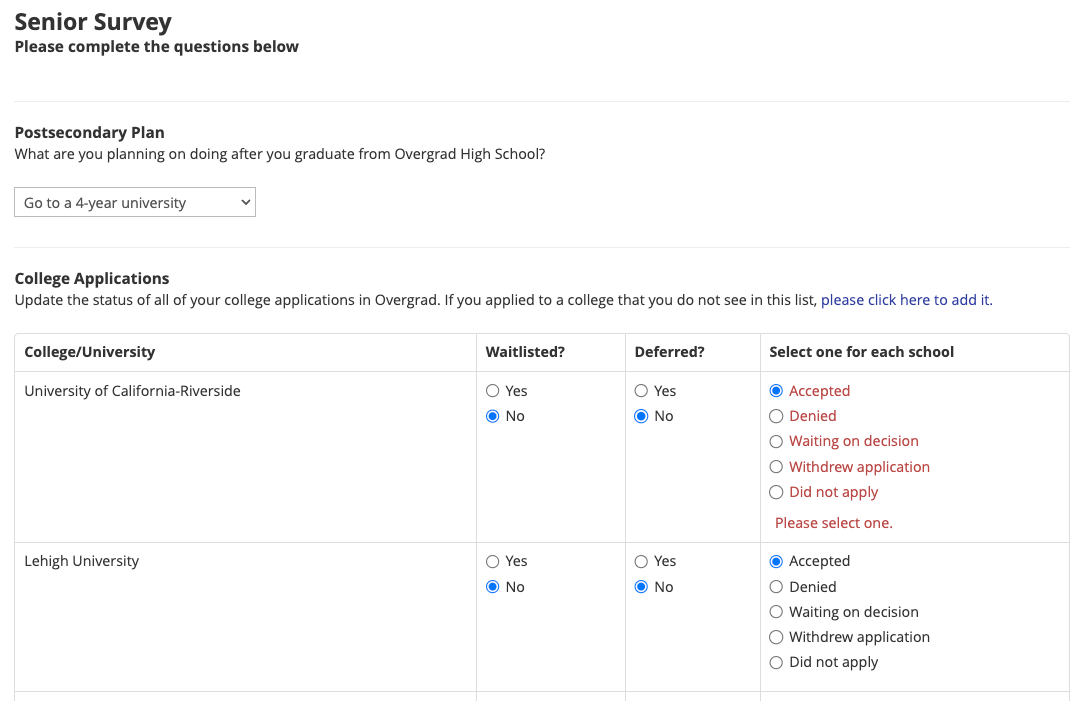
- Select your postsecondary plan at the top. Options include both college and non-college paths, so choose whatever best describes your plan after graduation.
- For each college or program on your list, select a decision status — for example, Accepted, Denied, or Waiting on Decision.
- Under I will be attending, select the college or program you're enrolling in. (This will automatically generate a final transcript request for that college.)
- Click Save.
Not sure yet where you're enrolling? Select the school you're most likely to attend and submit — you can always update it later if something changes, like getting off a waitlist.
Note: If a college is missing from your list, you'll need to add it before completing the survey. See this article for instructions.
Making Changes After You Submit
You can still update individual application statuses after submitting your senior survey by going to Applications → View Applications.
From your application list, click the three dots next to the application you'd like to update and select Edit Application Info.From there, you can update the Status.
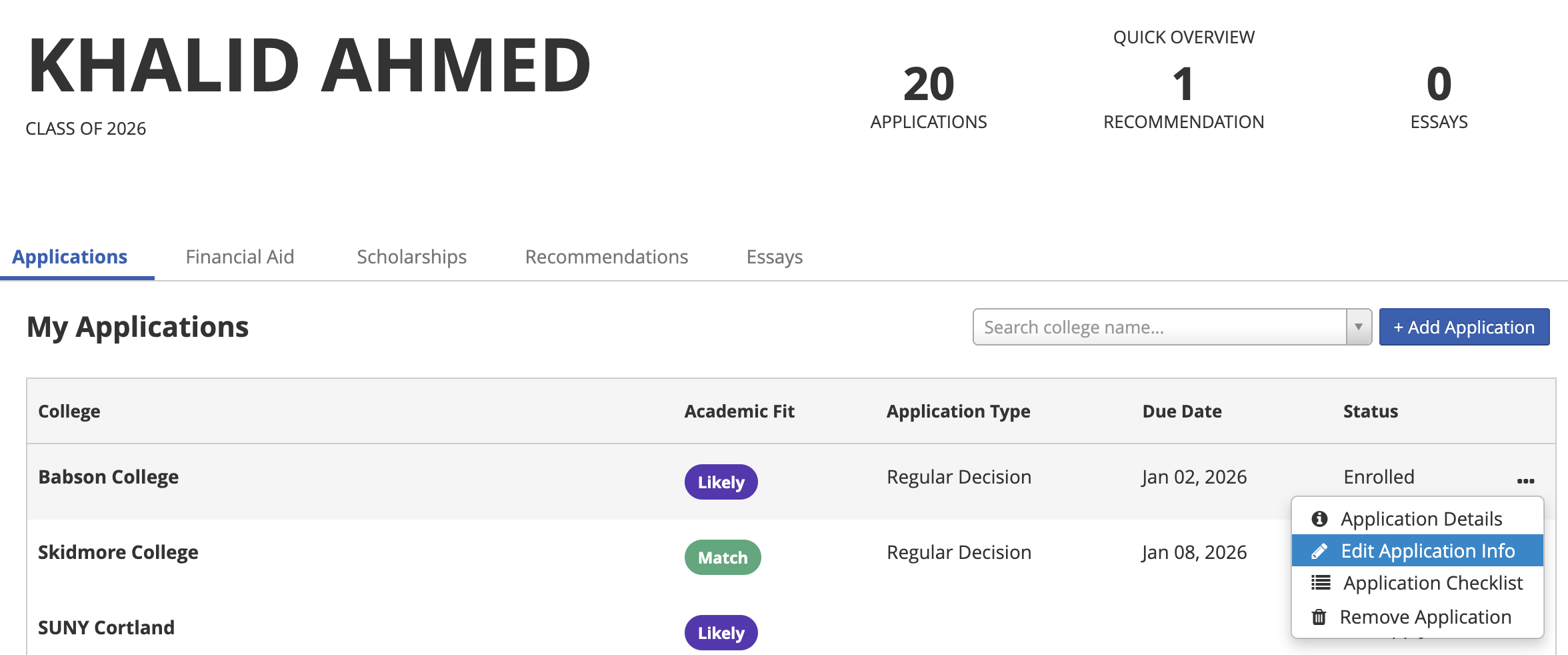
To change which college you're enrolling in, you'll first need to update the currently Enrolled school's status to Accepted, then mark the new school as Enrolled.
Was this article helpful?
That’s Great!
Thank you for your feedback
Sorry! We couldn't be helpful
Thank you for your feedback
Feedback sent
We appreciate your effort and will try to fix the article