This article is for students who want to view, track, and complete their Milestones in Overgrad. Milestones help you take ownership of your postsecondary plan, from exploring careers to building and managing your college list.
TABLE OF CONTENTS
- Finding Your Milestones
- Viewing All of Your Milestones
- Understanding Milestone Details
- Completing a Milestone
Finding Your Milestones
When you log in to Overgrad, you land on My Dashboard. Two areas on your Dashboard show your Milestones.
Priority List
The Priority List shows what is coming up soon, including Milestones, applications, tasks, and surveys.
Click This Week or This Month to change the time frame.
Click Milestones to show only your Milestones. Click reset to clear the filter.
Click any Milestone to open its details.
Note: Overdue Milestones are marked with a red Due date.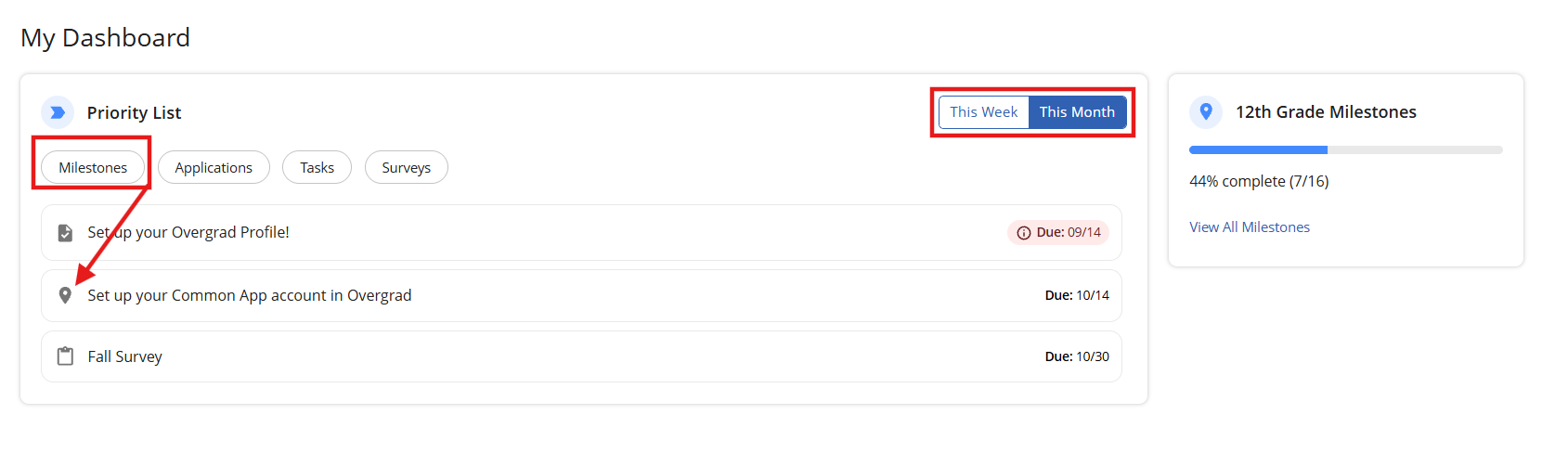
Milestones progress card
The Milestones card next to your Priority List shows how many of your current grade's Milestones you have completed (for example, 12th Grade Milestones, 31% complete). Click View All Milestones to see your full list.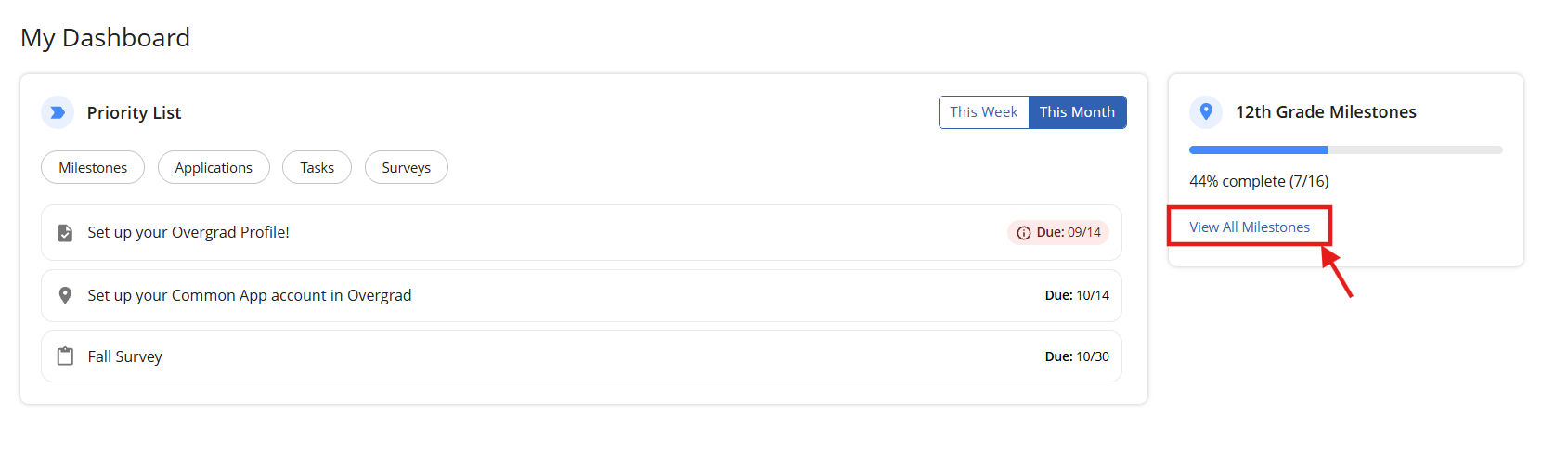
Viewing All of Your Milestones
The My Milestones page groups your Milestones by grade level, with a progress bar for each grade. Your current grade is expanded automatically. Click the arrow next to any grade to expand or collapse it and access previous or future milestones.
The Milestones you see depend on your grade level and may be customized by your school or district.
Use the status filters to narrow your list:
Overdue: past the due date and not yet complete
Incomplete: not yet complete
Complete: marked complete by you or tracked automatically
Not Completing: Milestones you have chosen not to complete
Click reset to show all Milestones again.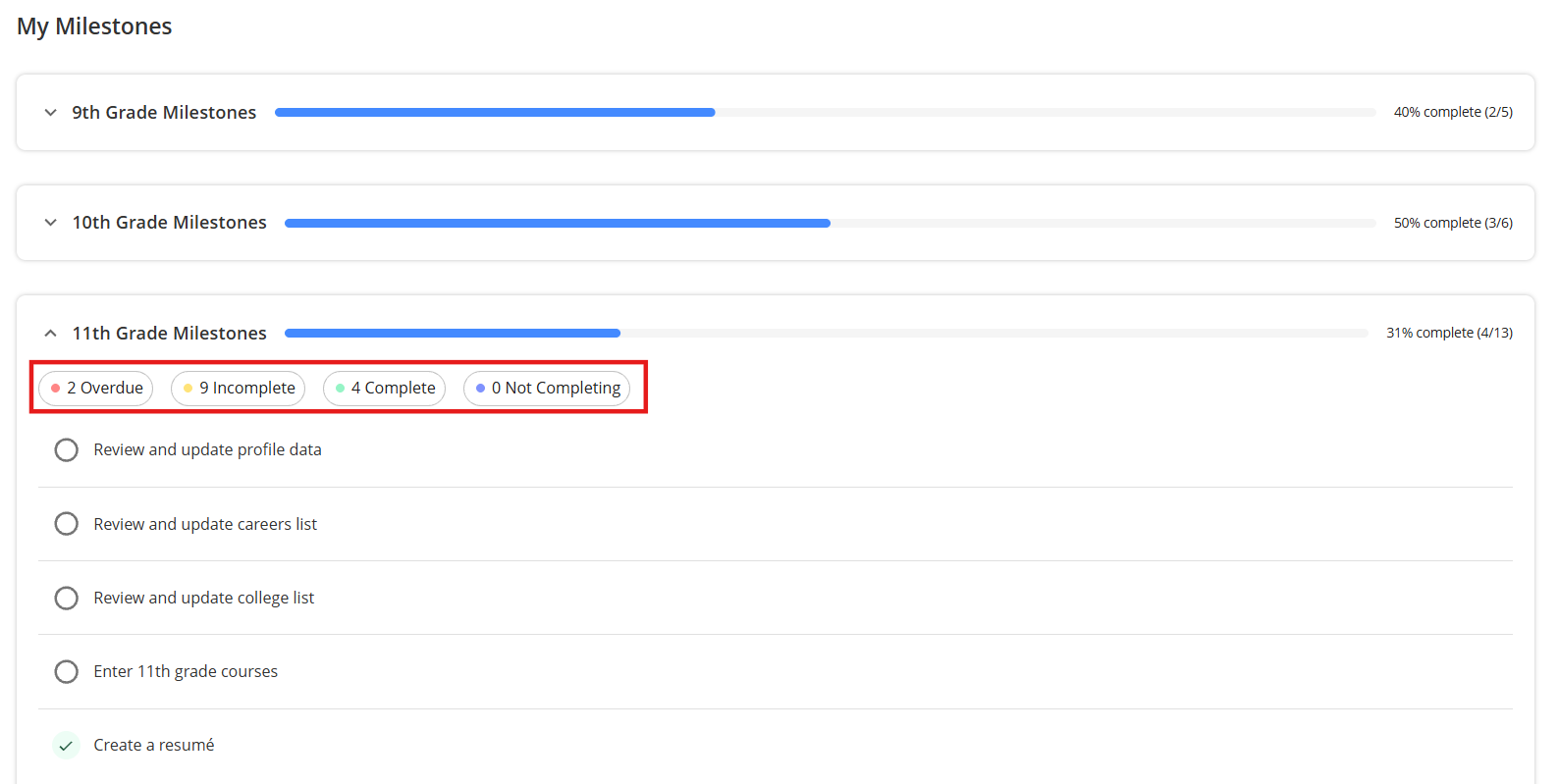
Understanding Milestone Details
Click any Milestone to open its details in a panel on the right side of the screen. Depending on the Milestone, you may see:
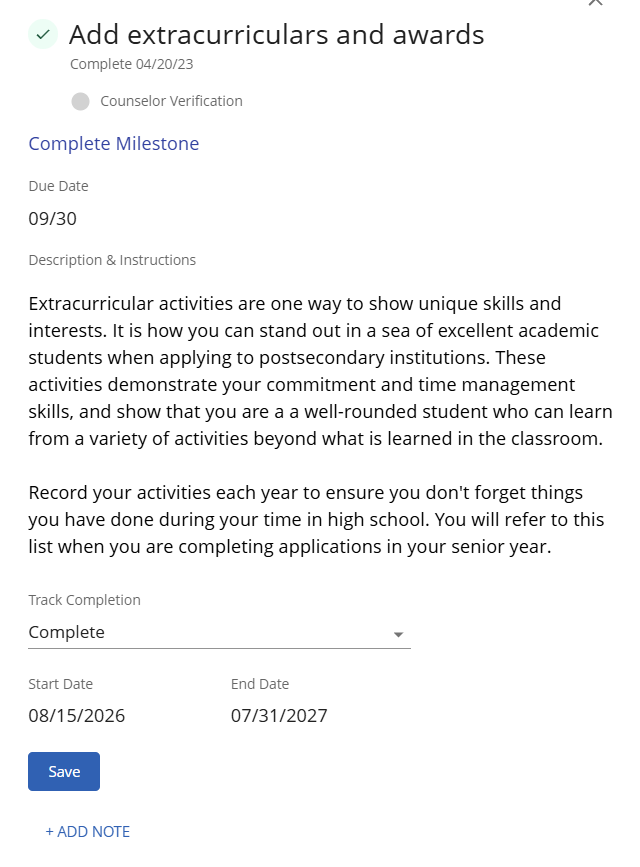 |
|
Completing a Milestone
There are two ways a Milestone is tracked: by you, or automatically by Overgrad.
Tracking a Milestone yourself
Open the Milestone from your Dashboard or the My Milestones page.
Click Complete Milestone and finish the steps in the description.
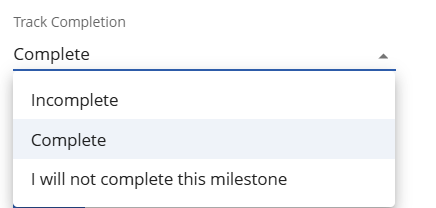
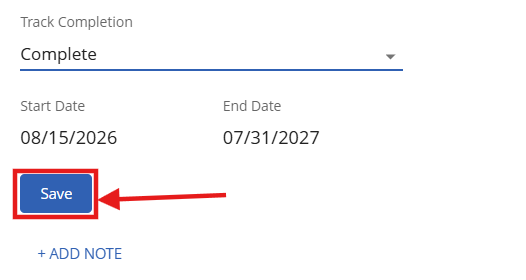
Return to the Milestone and select a status from the Track Completion drop-down:
Incomplete
Complete
I will not complete this milestone
Click Save.
 |  |
Automatically tracked Milestones
Some Milestones are tracked automatically, usually when they use information from your Overgrad profile (for example, adding college applications). Under Track Completion, you see This milestone is automatically tracked. You cannot change the status yourself. It updates when you complete the work in Overgrad.
If you will not complete an automatically tracked Milestone:
Click Not completing this milestone?
Check I will not complete this milestone.
Click Save.
Note: Check in with your counselor before choosing not to complete a Milestone.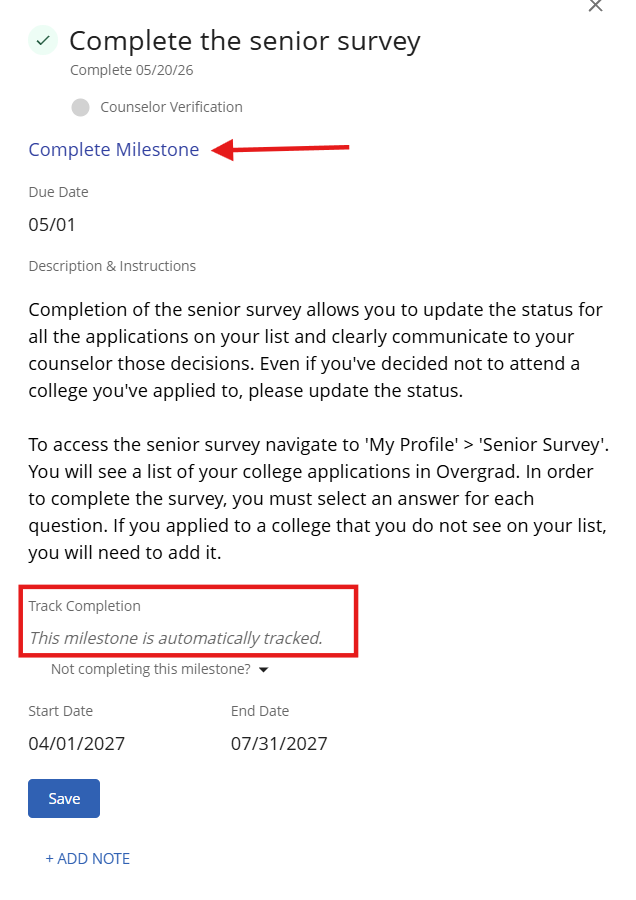
Adding a note
Click + Add Note, type your note in the Note field, and click Save.
Still need help?
Contact the Overgrad support team at support@overgrad.com.
Was this article helpful?
That’s Great!
Thank you for your feedback
Sorry! We couldn't be helpful
Thank you for your feedback
Feedback sent
We appreciate your effort and will try to fix the article