This feature is only available to Overgrad Pro customers. Please connect with an Overgrad rep if you are interested in learning more.
Messages are now sent from the student list.
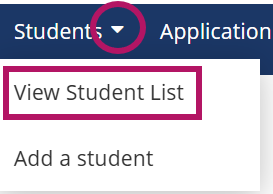
- Log in to your Overgrad account and select View Student List from the Students dropdown menu
- You can either use a default student list, or add filters to the student list to select the students to whom you want to send the message.
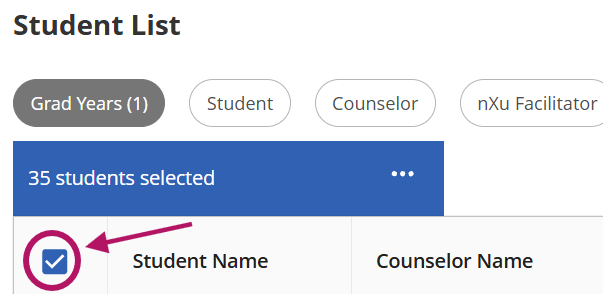
Once you have filtered the student list, click on the open check box next to Student at the top left corner of the student table
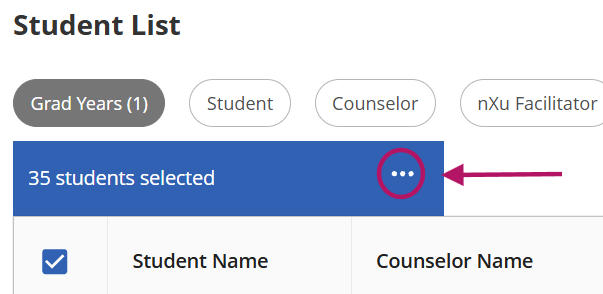
Next, click on the ... menu
and select Send Message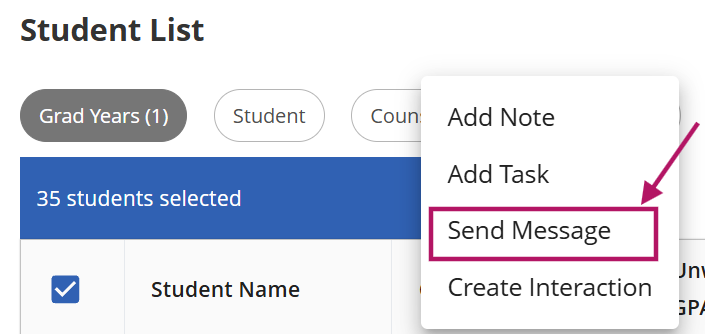
5. Complete the body of the message in the popup window. Select how you want to send the message - you can choose to only have the message as an in-app notification or also email students your message. Click Save. If you've added parent/guardians to student accounts and enabled messaging for them you can also include parents/guardians in contacts. 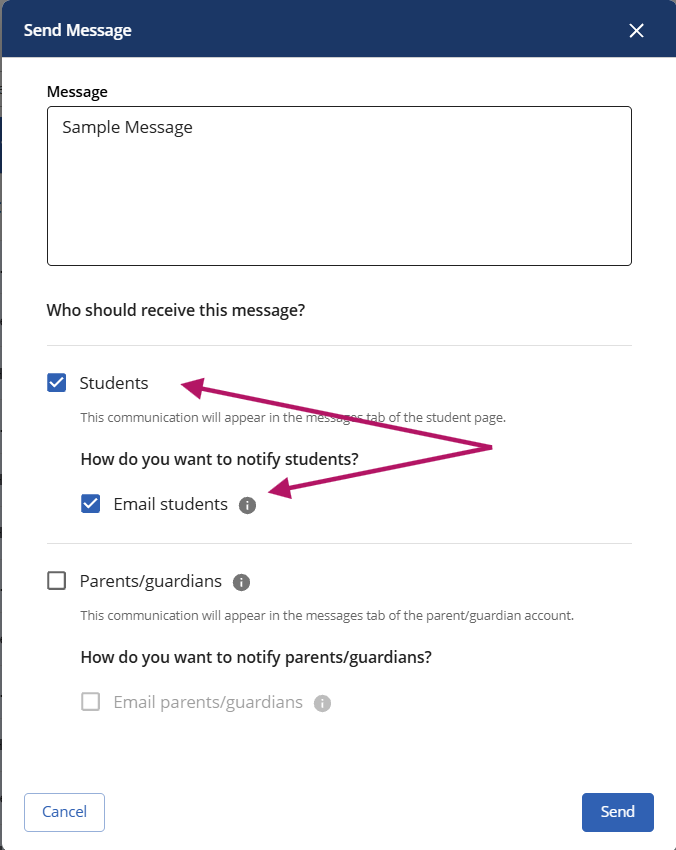
From the student perspective, the message will be sent to all students selected from the list as an in-app notification and/or an email to the student.
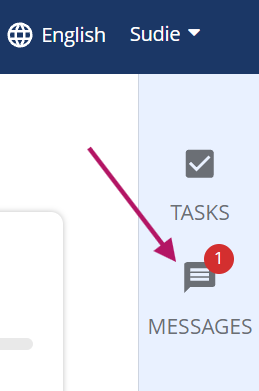 | 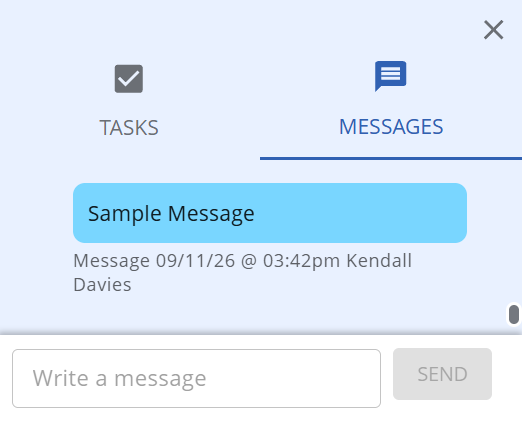 |

Was this article helpful?
That’s Great!
Thank you for your feedback
Sorry! We couldn't be helpful
Thank you for your feedback
Feedback sent
We appreciate your effort and will try to fix the article