Overview
This article is for students who need to add or manage college applications in Overgrad. It covers how to add an application, fill in your application details, and edit or remove an application from your list.
TABLE OF CONTENTS
- Getting Started
- Adding an Application
- Filling in Application Details
- Editing or Removing an Application
Getting Started
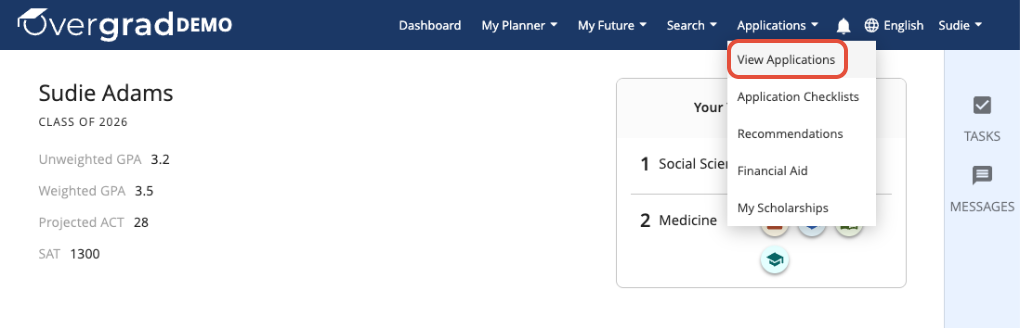
Navigate to Applications in the top menu and select View Applications from the dropdown.
Adding an Application
There are two ways to add an application to your list:
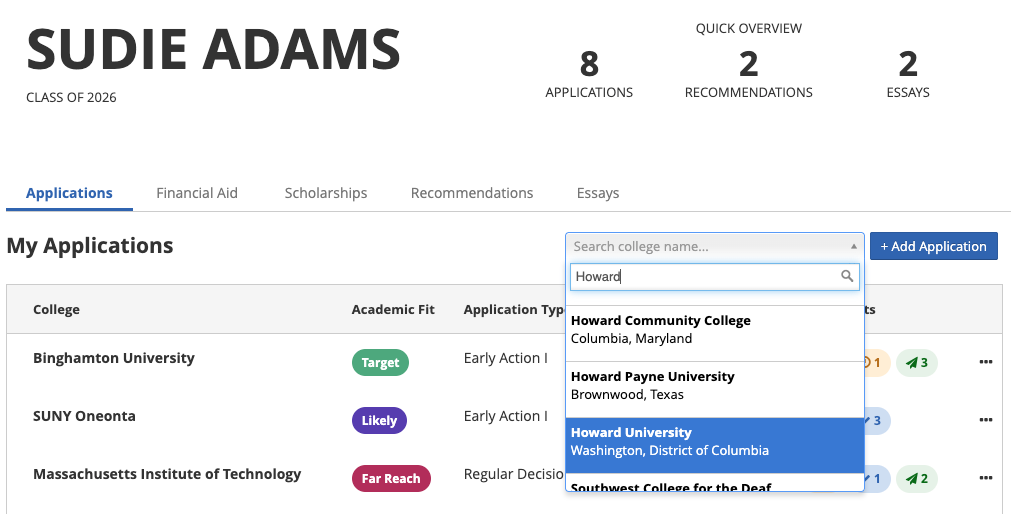
- Option 1 — Search for any school: Use the Search college name... box to find any college. Select the correct school from the dropdown results, then click + Add Application. This will also add that school to your following list.
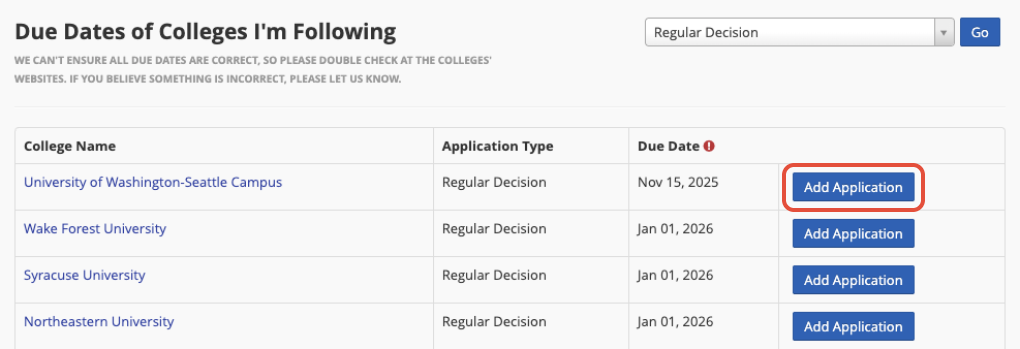
- Option 2 — From your following list: Schools you're already following will appear under the Due Dates of Colleges I'm Following section. Click the blue Add Application button next to any school to add it to your application list.
Filling in Application Details
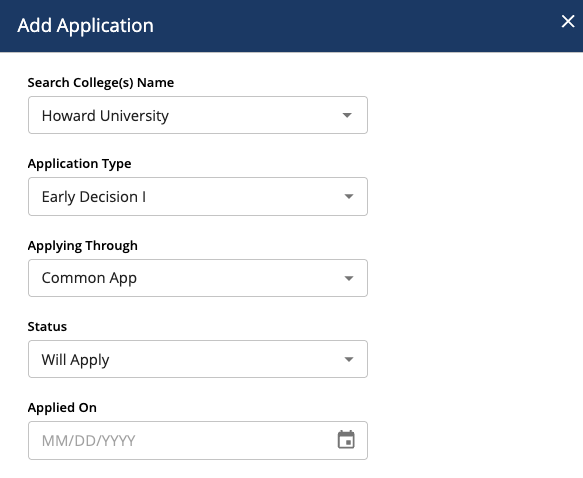
Once you click Add Application, a form will appear. Complete the following fields:
- Application Type: Select the round you plan to apply in. Options vary by school and may include Regular Decision, Early Decision I, Early Decision II, Early Action, etc.
- Applying Through: Choose how you plan to submit your application. Options vary by school and may include: School's website (direct), Common App, Coalition App, Common Black College App, etc.
- Status: If you haven't submitted yet, leave the status set to Will Apply and leave the applied-on date blank. You can update this later once you've submitted.
When you're done, click Save.
Editing or Removing an Application
To make changes or remove an application:
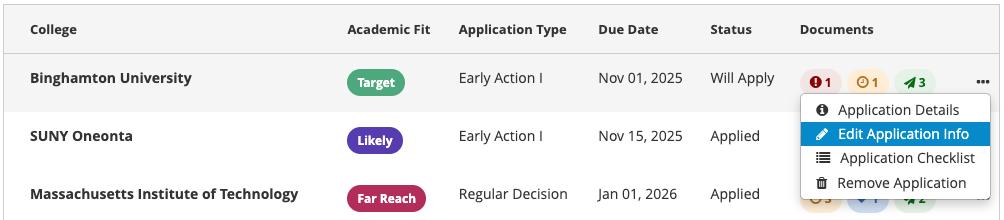
- Find the school in your application list.
- Click the three-dot menu icon (⋯) next to that application.
- Select Edit Application Info to update any application details, or Remove Application to delete it from your list.
Using Common App? If you selected Common App as your submission method and have linked your Overgrad account to Common App, your application list in Overgrad will automatically reflect your Common App data. This means any changes — such as adding, removing, or updating a school — need to be made in Common App first. Your Overgrad list will update to match.
Was this article helpful?
That’s Great!
Thank you for your feedback
Sorry! We couldn't be helpful
Thank you for your feedback
Feedback sent
We appreciate your effort and will try to fix the article