Overview
Tasks are to-do list items you assign to students. Each task has a description (up to 250 characters) and an optional due date. You can assign a task to one student or to many students at once. Students see their tasks on their Dashboard, right next to their Application deadlines and Milestones, and get a notification when a new one is assigned.
TABLE OF CONTENTS
Add a task to one student
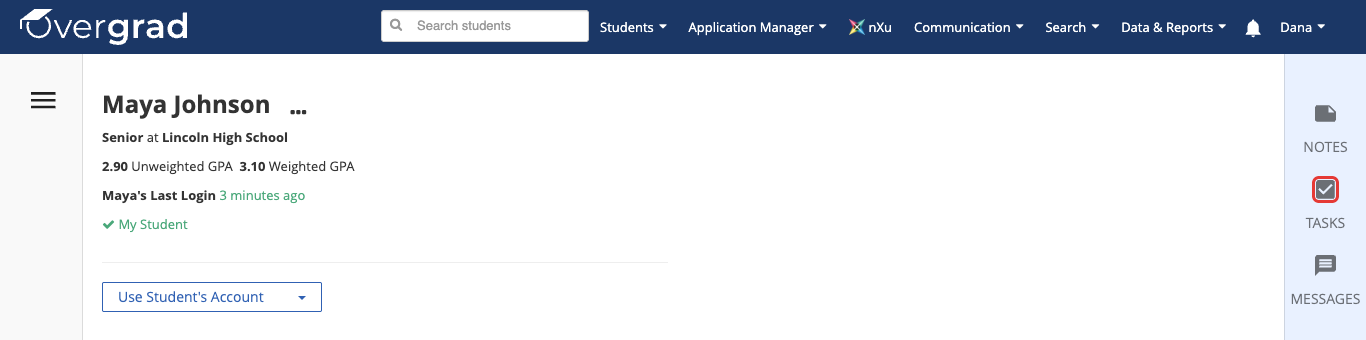
- Go to the student's profile, then click TASKSin the panel on the right side of the page.
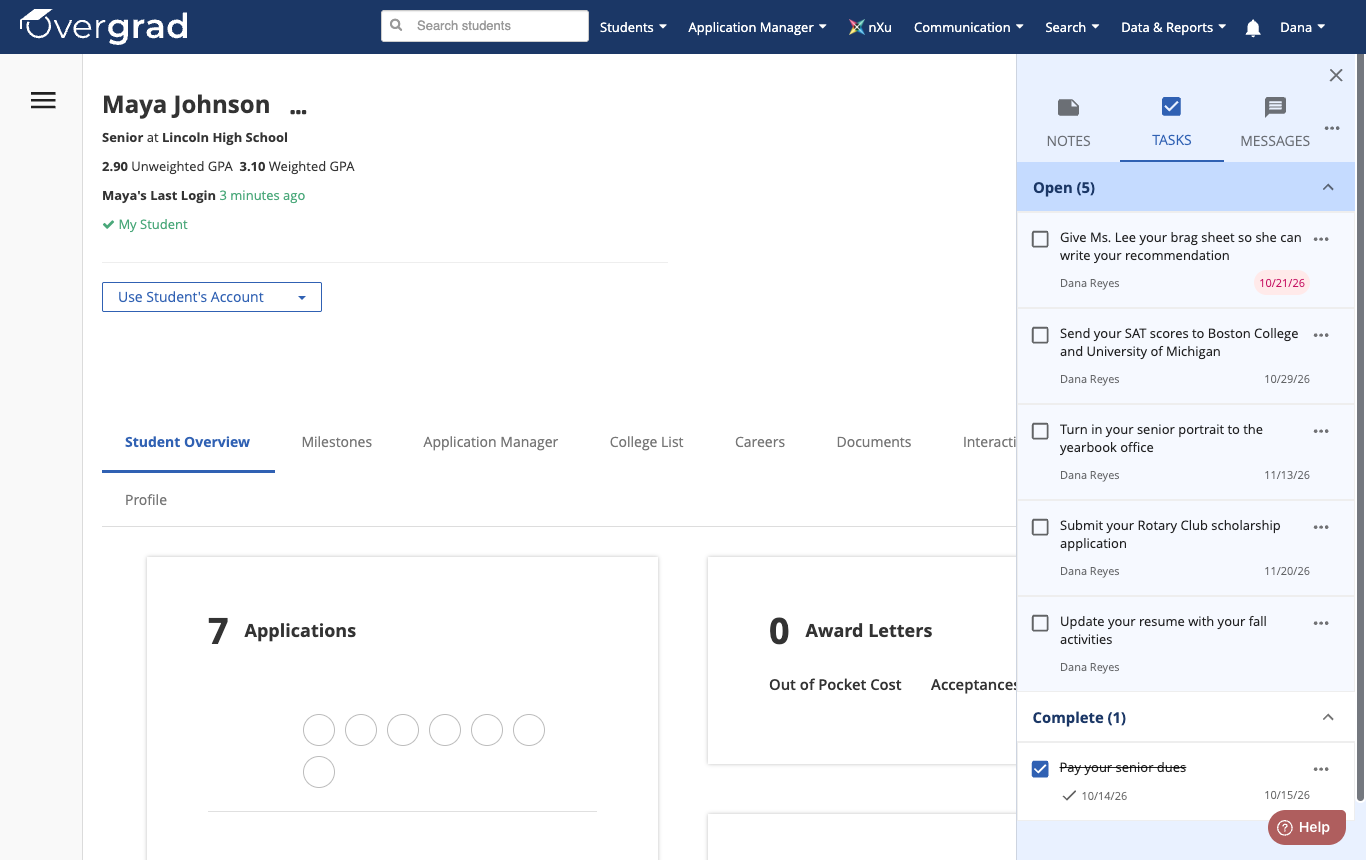
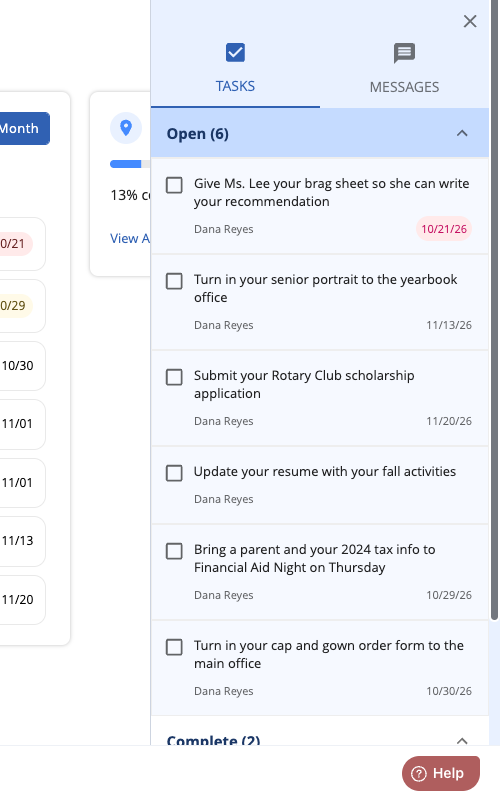
- The Tasks panel opens, with the student's tasks sorted into Open and Complete. Overdue due dates are shown in red.
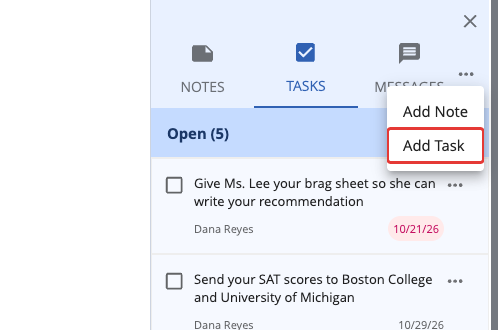
- Click the three dots (...) at the top of the panel, then click Add Task.
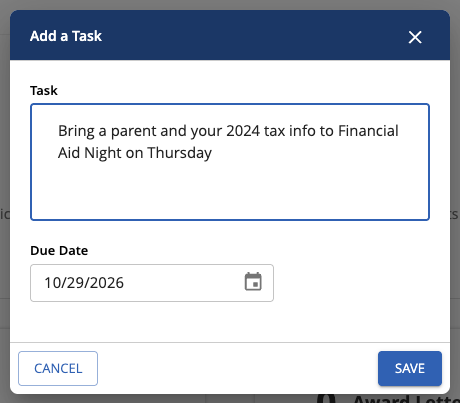
- Type the task in the Task box and add a Due Date (optional, but see the tip below). Then click Save.
- You'll see Task successfully created.The task now appears in the student's Open tasks.
Tip: Add a due date whenever you can. Only tasks with a due date appear on the student's Priority List (see What students see below). Tasks without one only show in the student's Tasks panel.
Edit, complete, or delete a task
In the student's Tasks panel, click the three dots (...) next to a task to Mark complete (or Mark incomplete), Edit, or Delete it.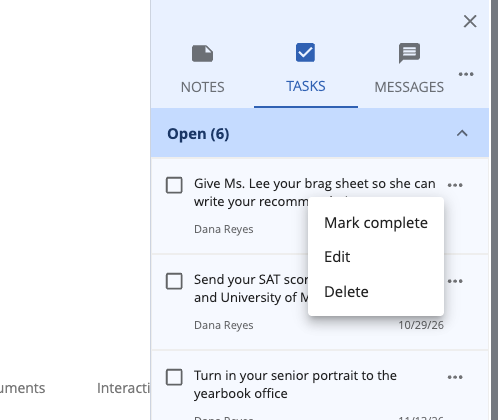
Add a task to many students at once
Use a student list to give the same task to a whole group, like every senior.
- Click Students in the top menu, then View Student List. You can use All Students or any of your custom lists, and filter the list however you like (for example, by Grad Years).
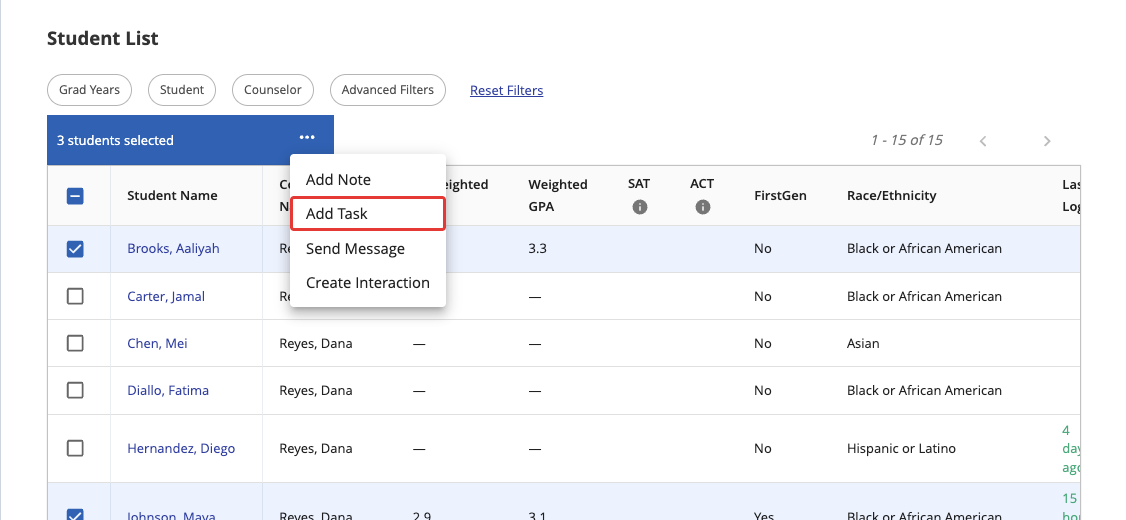
- Check the box next to each student you want to assign the task to. To select everyone in the list, check the box at the top of the column.
- In the blue students selected bar, click the three dots (...), then click Add Task.
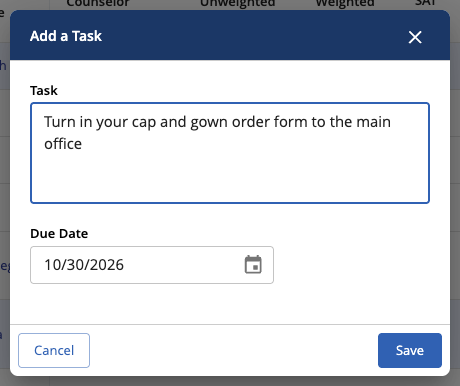
- Enter the task and a due date, then click Save.
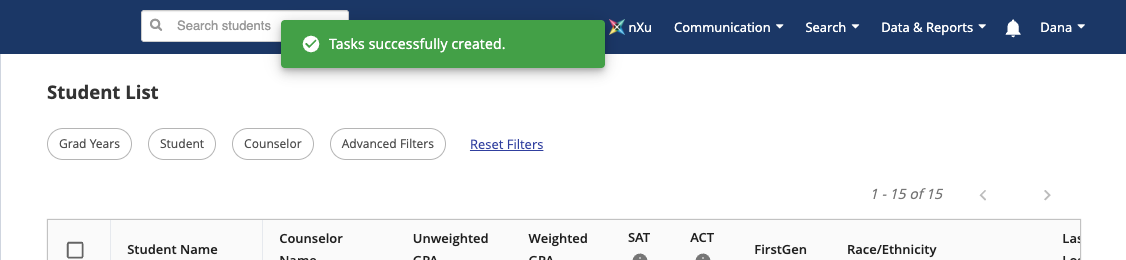
- You'll see Tasks successfully created.Each selected student now has their own copy of the task, which they can complete on their own.
If you selected every student in a large list, you may see "Bulk task creation has been queued and will be processed shortly." instead. The tasks will show up on students' accounts within a few minutes. Tasks are only added for students you have access to.
Other places you can add tasks: The same Add Task option appears when you select students on a milestone track's Students tab, in a custom survey's student list, and in an event's registration list. In the Advising Hub, you can also choose Assign a task for a student in your queue.
What students see
Notifications
When you assign a task, the student gets an Overgrad notification ("New task assigned by [your name]") and an email. Students can turn task emails off under Tasks in their email settings.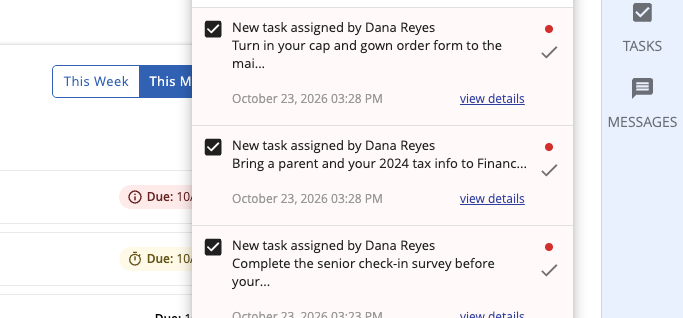
The Priority List on the student dashboard
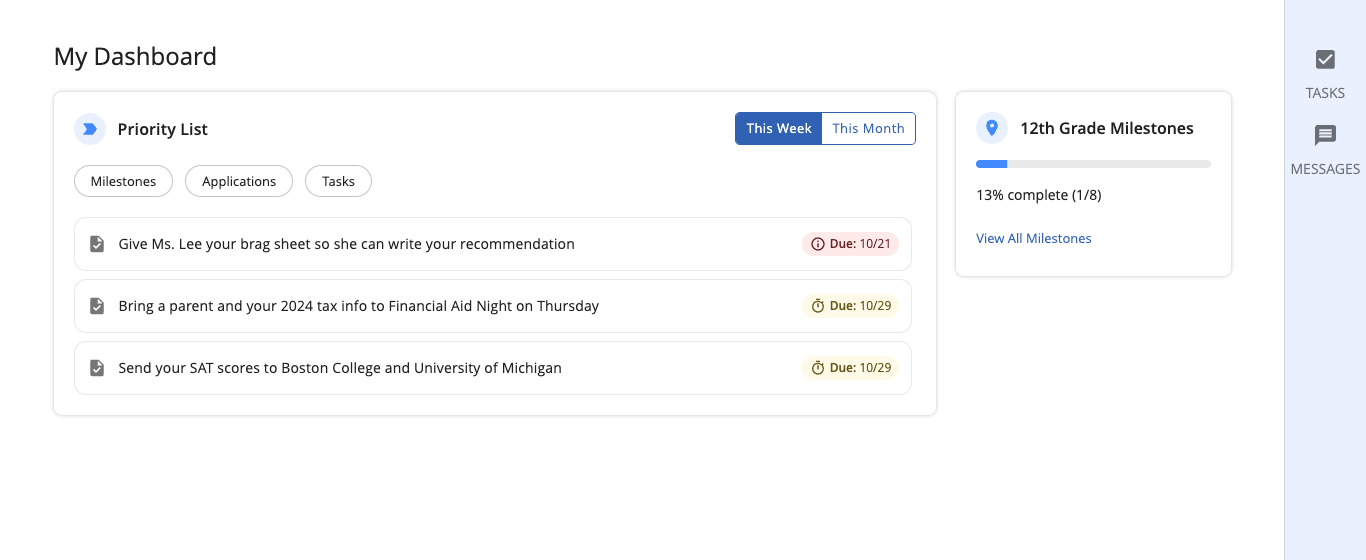
Tasks with a due date show up in the Priority List on the student's dashboard, sorted by date together with their application deadlines and milestones. That way students see everything that's coming up in one place.
Students can switch between This Week and This Month:
- Overdue items always appear at the top, with a red due date.
- Items due in the next 7 days have a yellow due date.
- Everything else shows its due date in plain text.
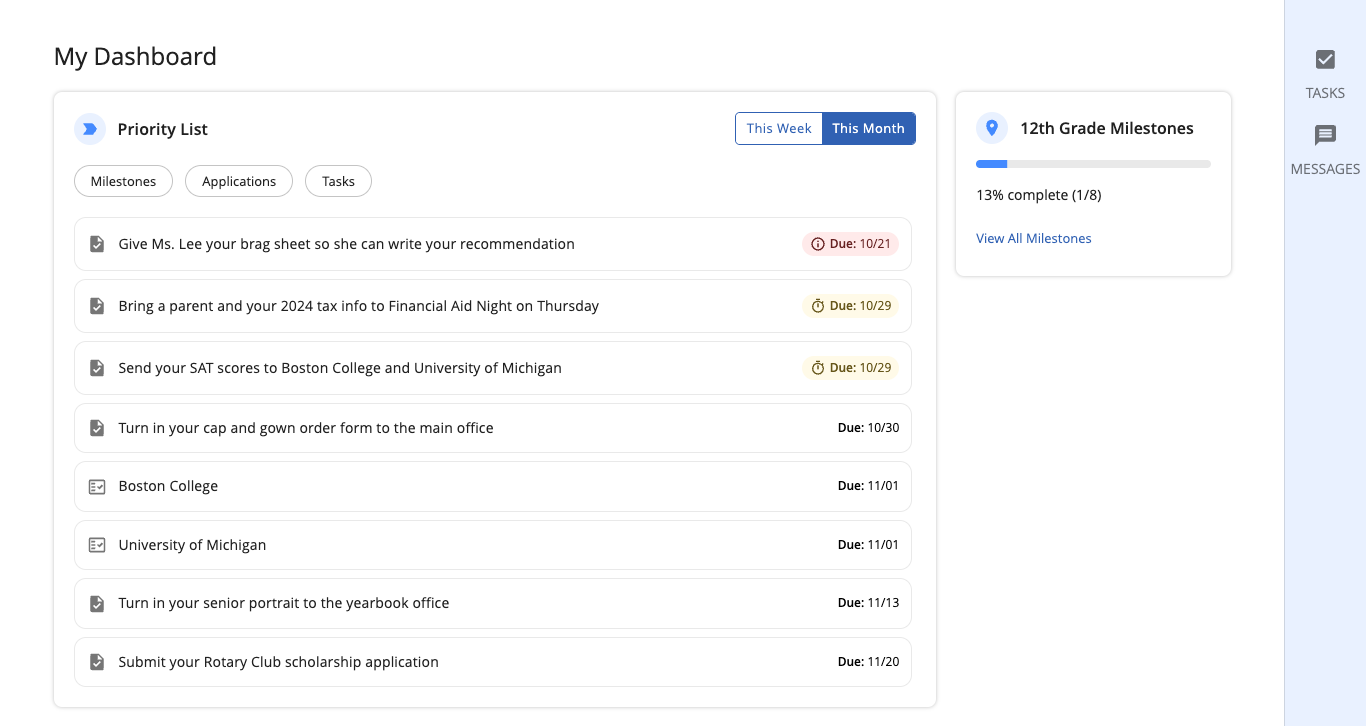
Here's the same Priority List on This Month. Tasks (with the checklist icon) sit right alongside application deadlines, like the November 1 deadlines for Boston College and University of Michigan.
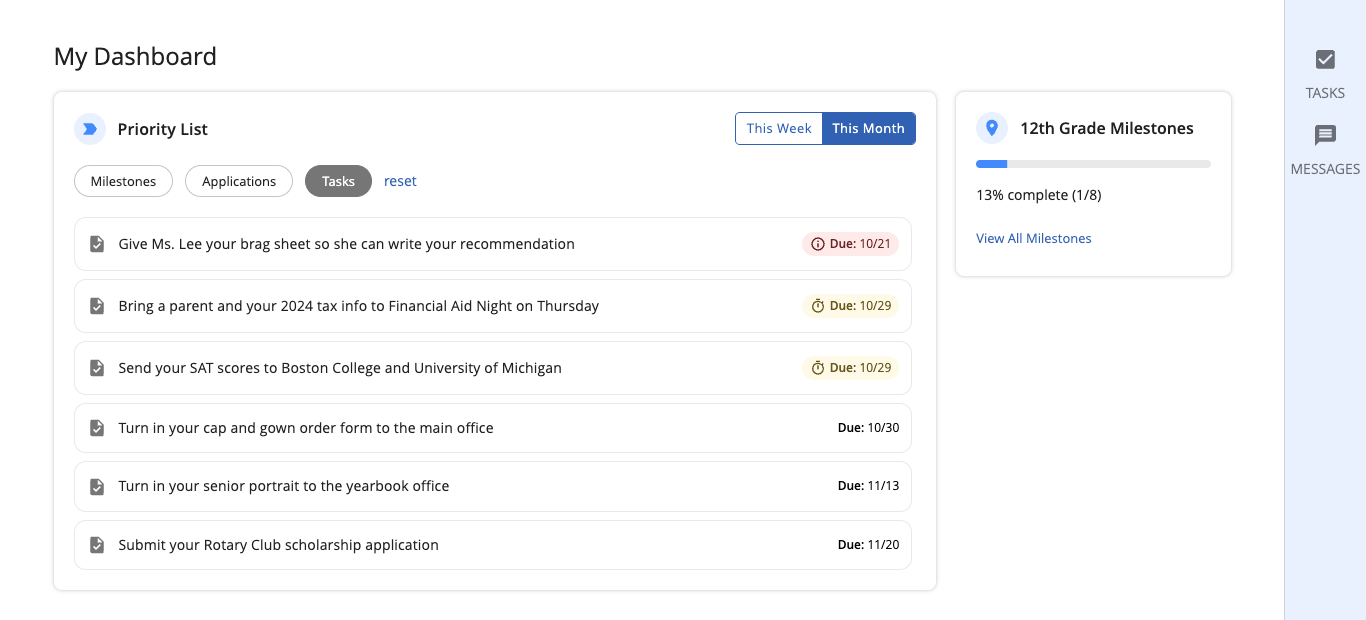
Students can click Tasks, Applications, or Milestones to show only that type of item, then click reset to see everything again.
Completing a task
Students click a task in the Priority List to see who assigned it and when it's due, then click Mark complete.
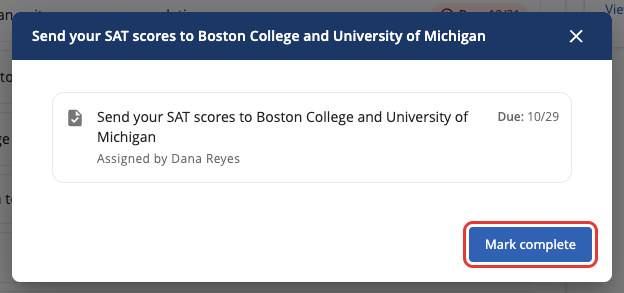
The task disappears from the Priority List, and you'll see it as complete in the student's Tasks panel.
The Tasks panel
Students can also click TASKS on the right side of any page to see all of their tasks, including ones without a due date, and check them off. Students can't create, edit, or delete tasks.
View and Export task completion reports
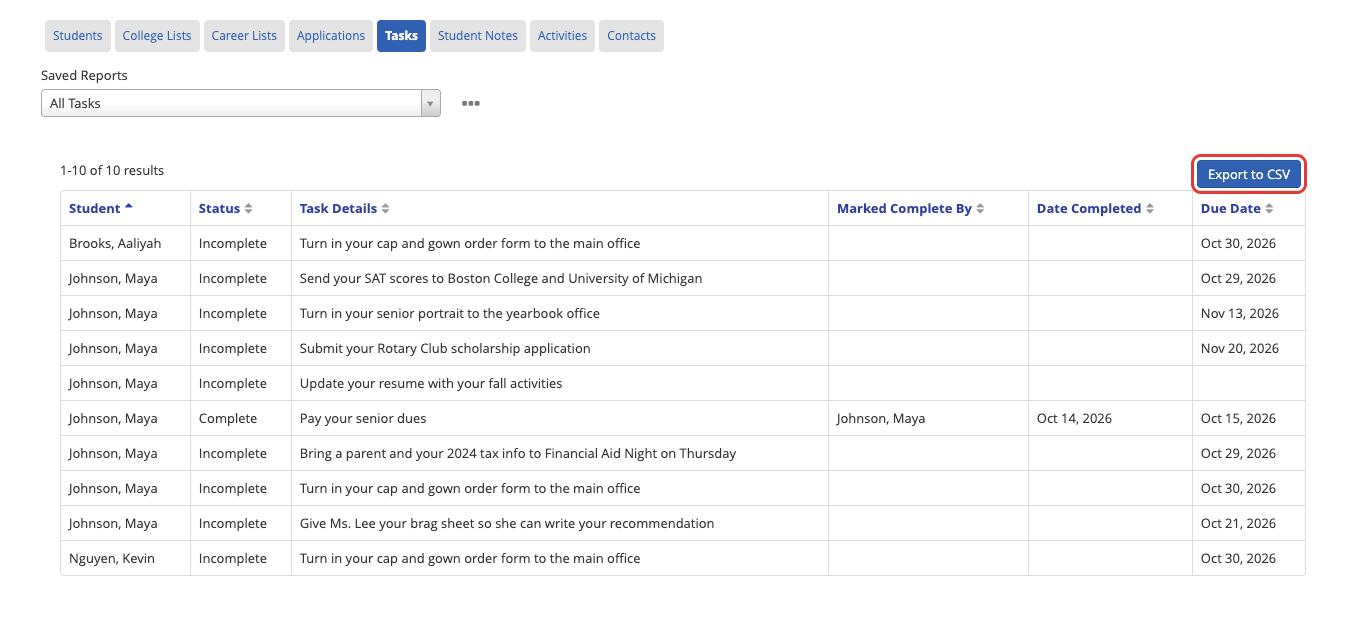
- Click Data & Reports in the top menu, then Custom Reports.
- Click the Tasks tab.

- The All Tasks report lists every task, with the student, Status (Complete or Incomplete), Task Details, Marked Complete By, Date Completed, and Due Date. Click Export to CSV to download it. Click the three dots to filter by task, completion status, etc.
Was this article helpful?
That’s Great!
Thank you for your feedback
Sorry! We couldn't be helpful
Thank you for your feedback
Feedback sent
We appreciate your effort and will try to fix the article