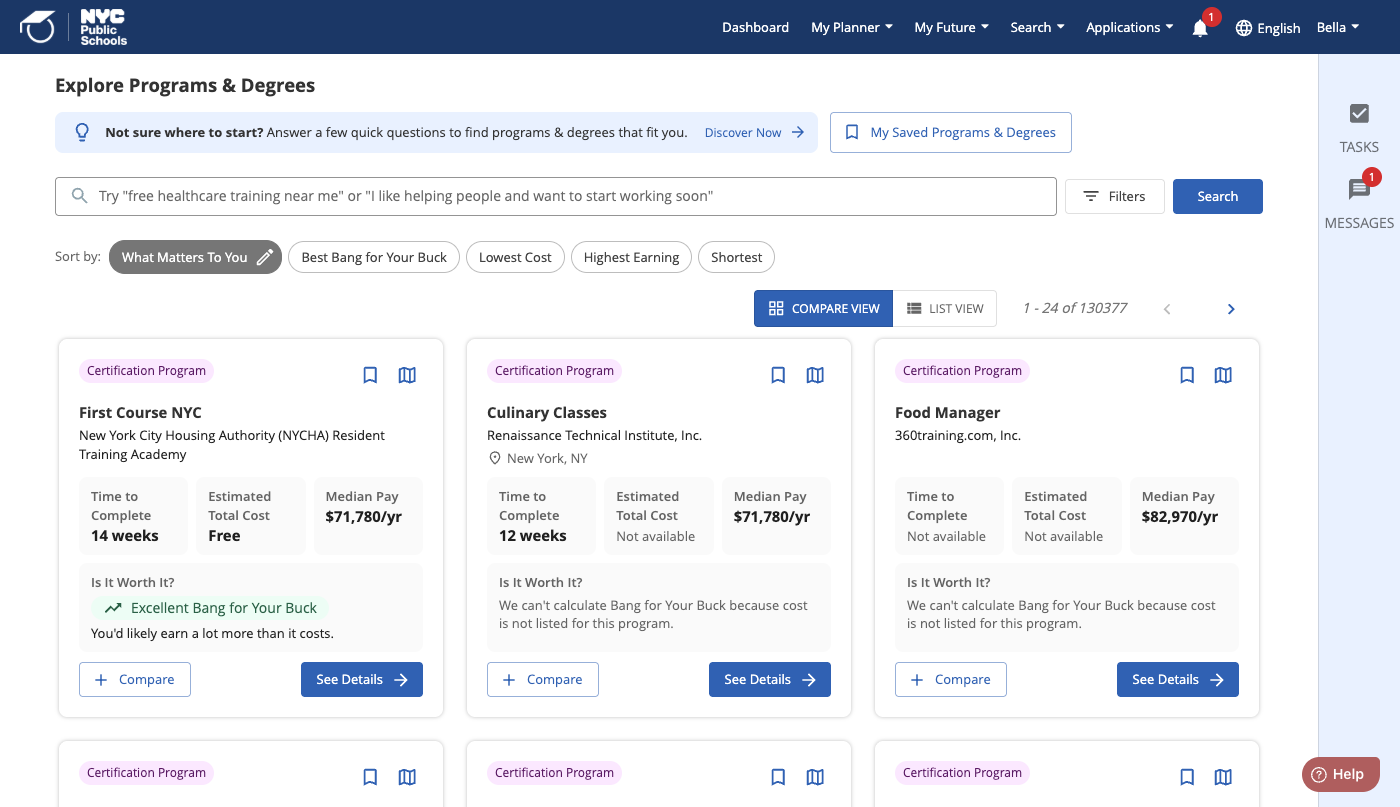
Explore Programs & Degrees is one place to search for what comes after high school: training programs, certificates, apprenticeships, and college degrees, all in the same results. For example, a student interested in electrical work can see a short training program, an associate degree, and a bachelor's degree side by side. Each result shows how long it takes, what it costs, what you could earn, and whether it's likely to be worth the money.
TABLE OF CONTENTS
- Start with Discover Now
- Search in your own words
- Read a result
- Sort and filter
- Follow programs you like
- Compare
- For educators
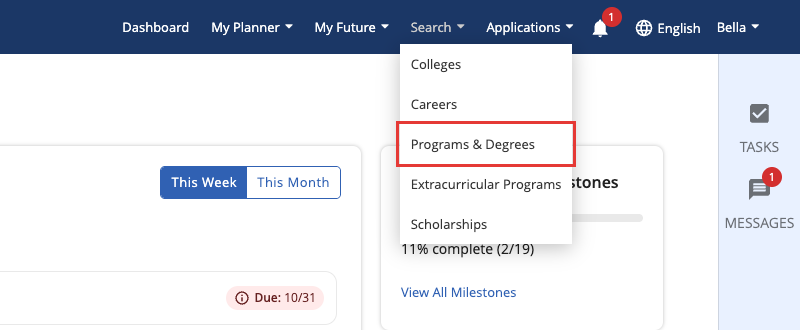
To open it, click Search in the menu at the top of Overgrad, then Programs & Degrees.
Start with Discover Now
There are a lot of programs and degrees to look through, so the easiest way to start is Discover Now. Answer a few quick questions, and Overgrad shows you the results that fit you best first.
- At the top of the page, next to Not sure where to start?, click Discover Now.

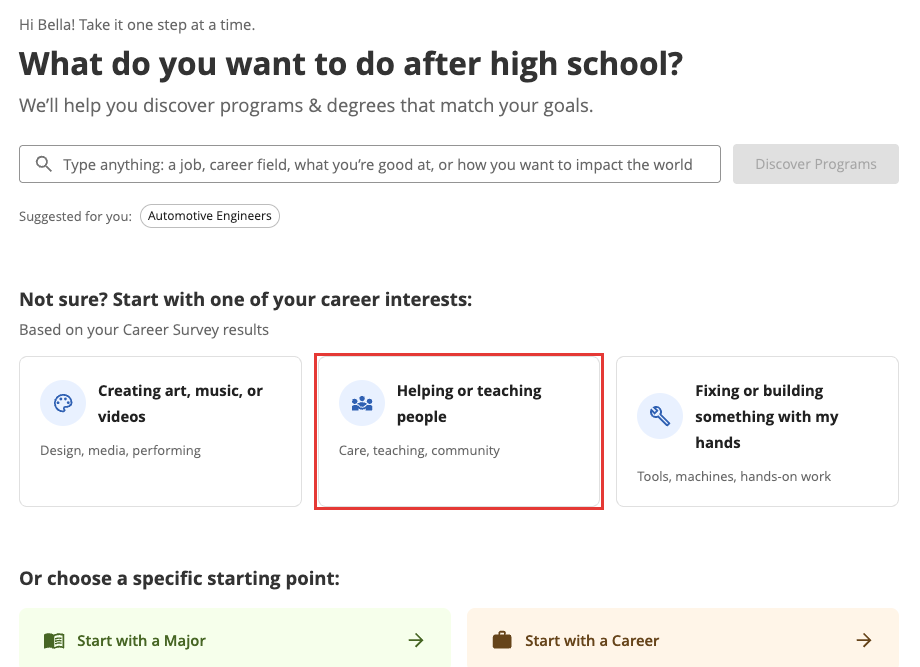
- Pick a starting point:
- Click one of your career interests under Not sure? Start with one of your career interests. These come from your Career Survey or Career Discovery results.
- Or type anything into the search box, like a job, a career field, or what you're good at, and click Discover Programs.
- Or click Start with a Major or Start with a Career and pick up to 3.
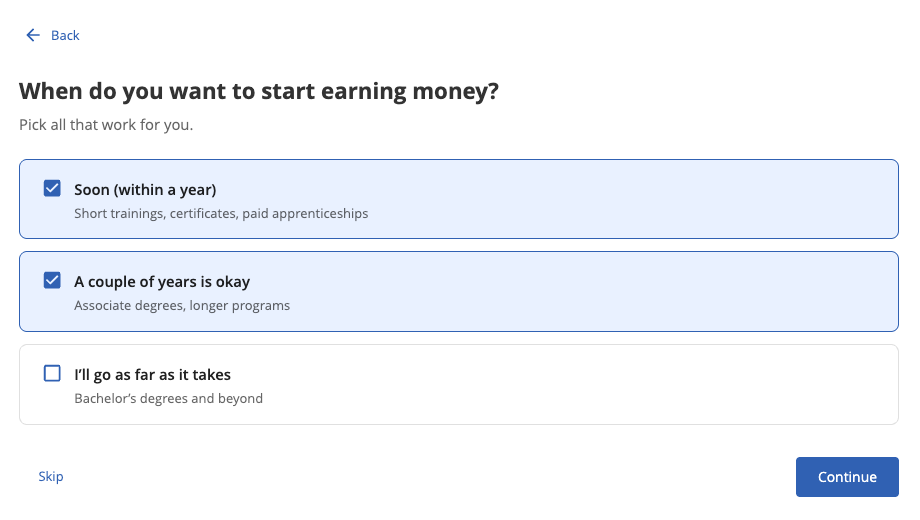
- Answer three quick questions, then click Continue. You can click Skipon any of them.
- When do you want to start earning money? Pick all that work for you.
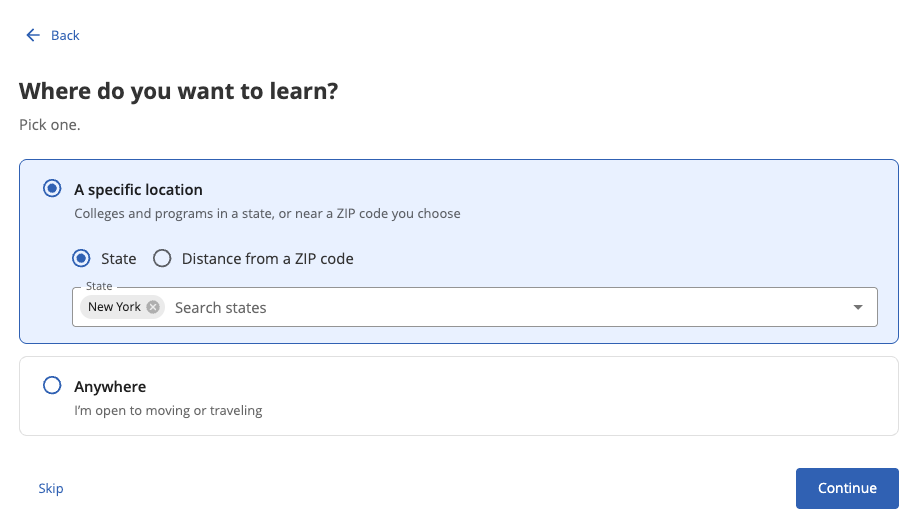
- Where do you want to learn? Choose Anywhere, or a specific state or distance from a ZIP code.
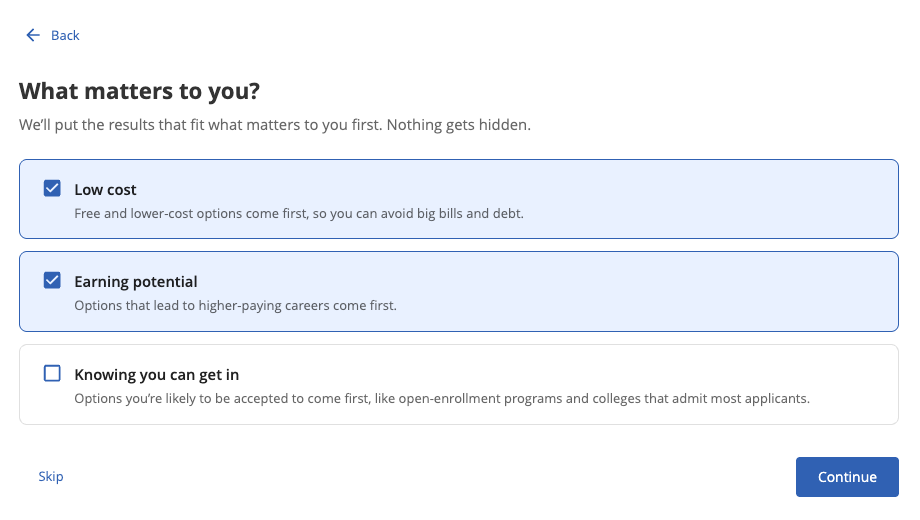
- What matters to you? Low cost, Earning potential, and/or Knowing you can get in.
- When do you want to start earning money? Pick all that work for you.
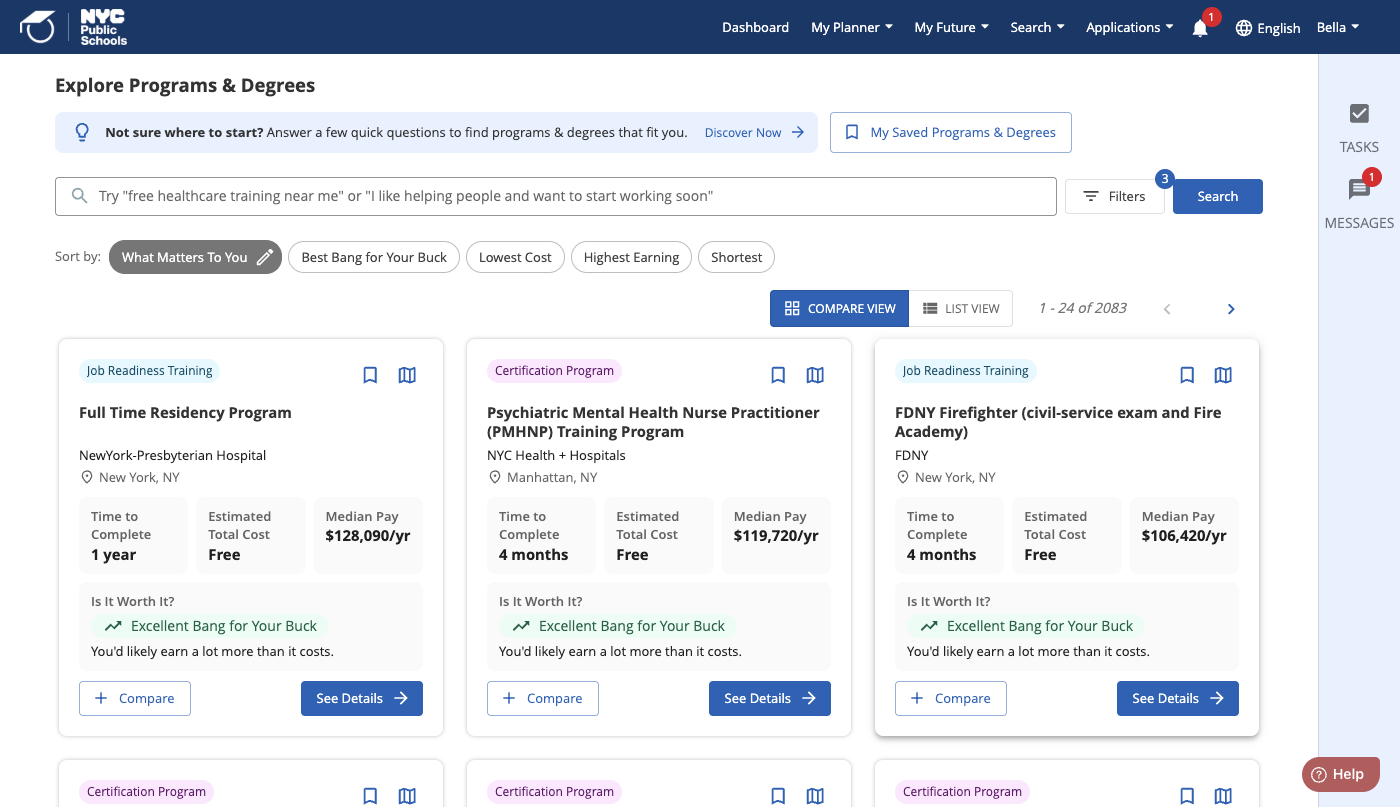
Your results are sorted by What Matters To You, so the best matches are at the top of the first page. Your answers are also turned into filters, which you can see by clicking Filters.
Tip: Want to skip the questions? Click Explore All Programs & Degrees at the top of the Discover page to see everything.
Search in your own words
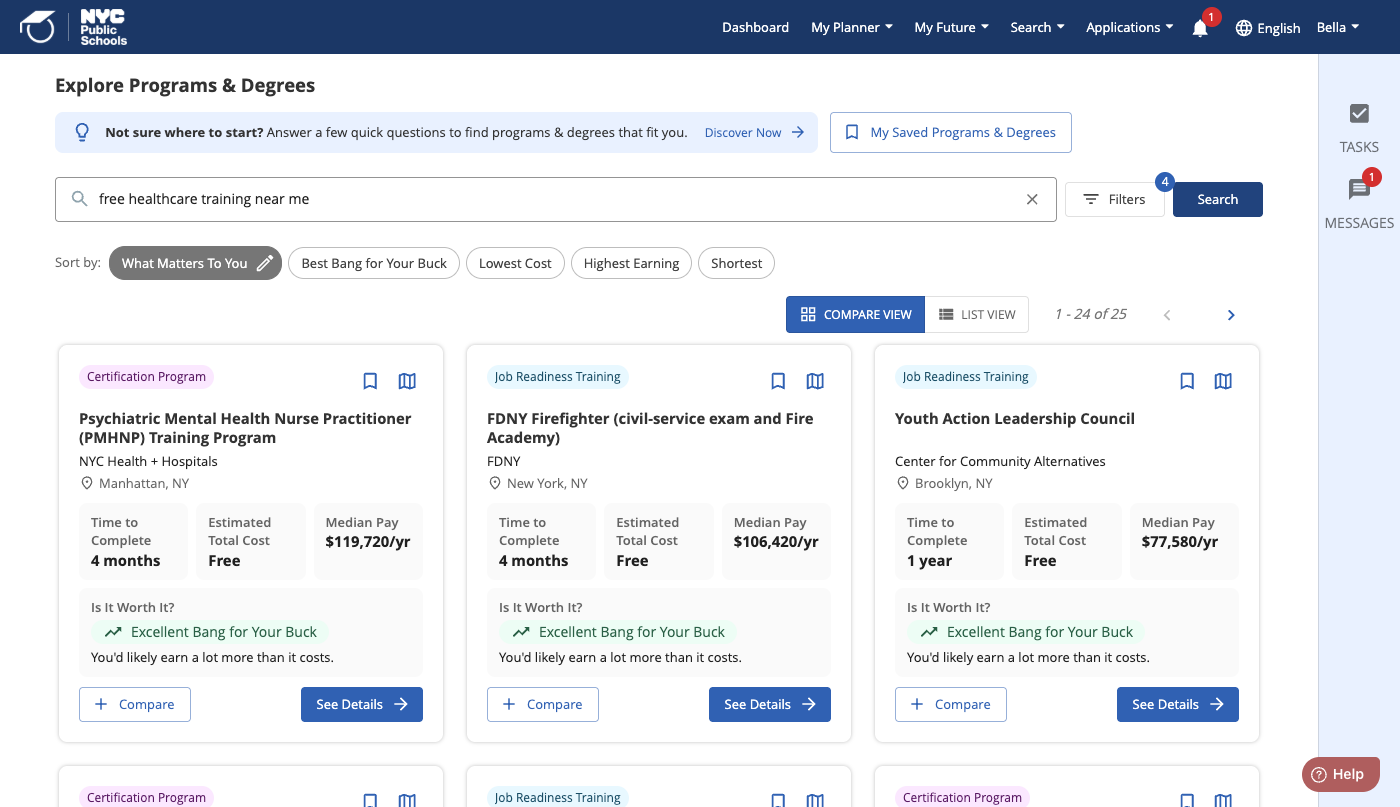
You can also type what you're looking for in your own words, like "free healthcare training near me" or "I like helping people and want to start working soon," and click Search. Overgrad turns what you type into filters for you. Click the X in the search box to clear it.
Read a result
Each card shows:
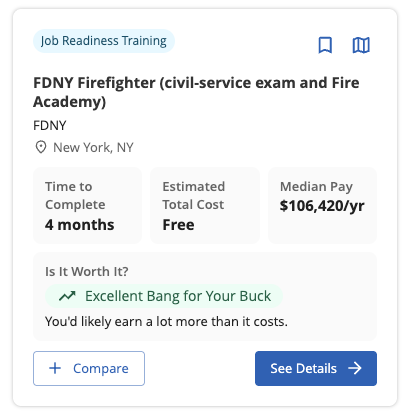
| On the card | What it means |
|---|---|
| Time to Complete | How long the program or degree takes. |
| Estimated Total Cost | About how much it costs in total. Free programs say Free. |
| Median Pay | Typical yearly pay for a career it can lead to. |
| Is It Worth It? | Whether the extra money you could earn over your career is likely to make up for what it costs. It's rated Excellent, Good, Low, or No Bang for Your Buck. |
If a card says Not available, the program didn't list that information.
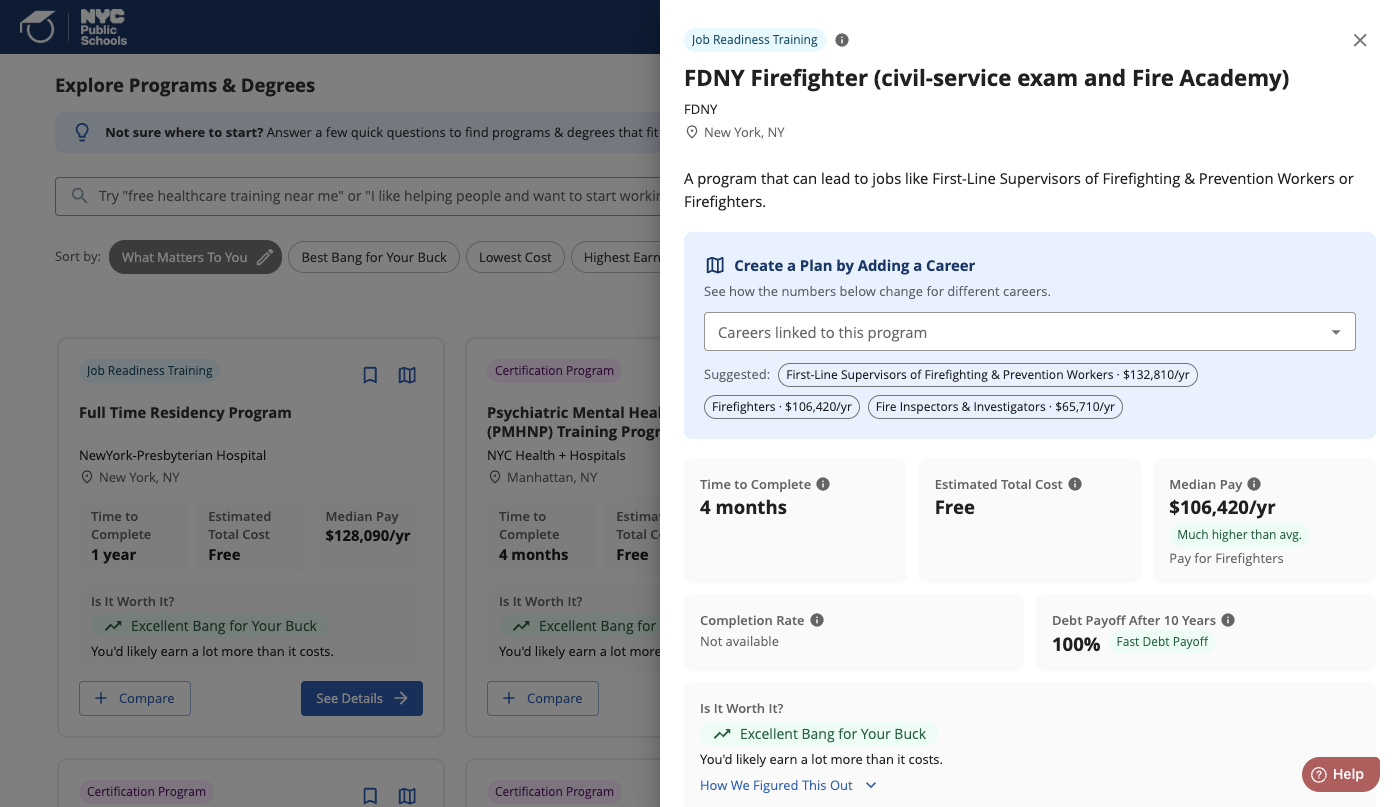
Click See Details on any card to learn more about the program and what the numbers mean. You can also pick a career to see how the numbers change. From there, click View Full Program Details for the full page.
Sort and filter
- Sort by: What Matters To You, Best Bang for Your Buck, Lowest Cost, Highest Earning, or Shortest. Click the pencil on What Matters To You to change your choices.

- Filters: narrow your results by things like program type, time to complete, location, cost, paid opportunities, and admission requirements. Click Reset Filters to start over.
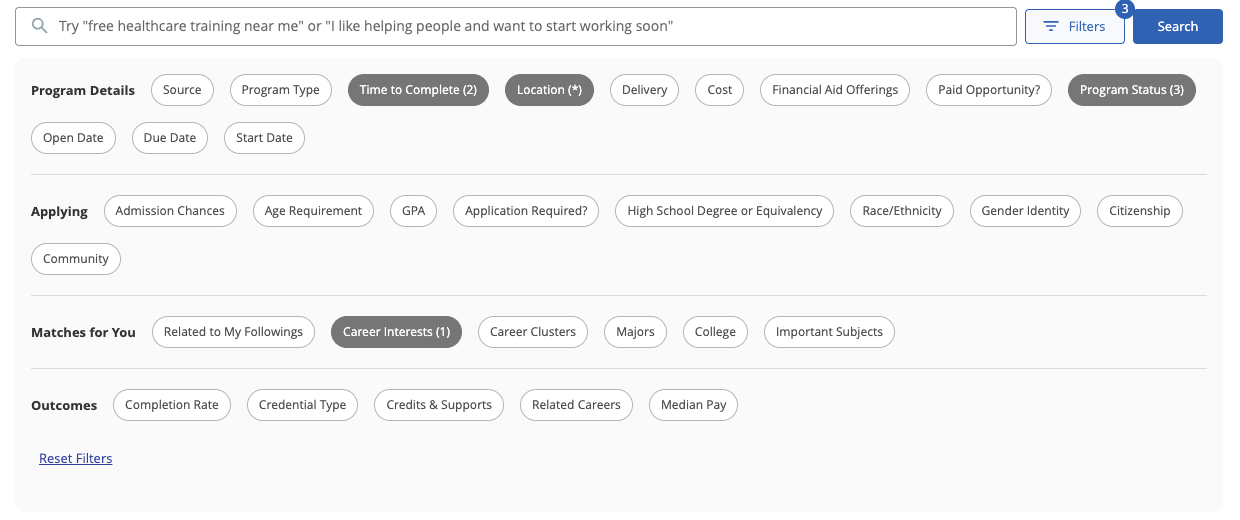
Tip: Start with Discover Now and the first page of results before adding filters. Too many filters at once can leave you with no results.
Follow programs you like
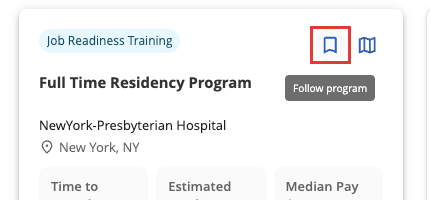
Click the bookmark icon on a card to follow a program or degree. When you follow a degree, Overgrad may also add that college to your colleges and that major to My Majors.
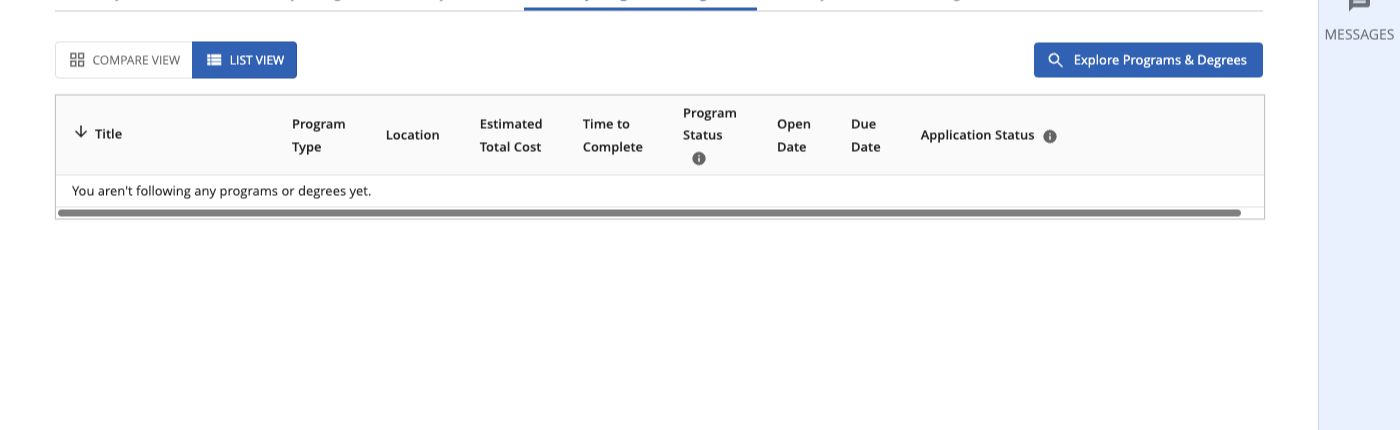
To see everything you've followed, click My Saved Programs & Degrees at the top of the page, or go to My Future > My Programs & Degrees. For training programs, you can track your application status there too.

Tip: The map icon next to the bookmark lets you create a Future Plan from a program by adding a career.
Compare
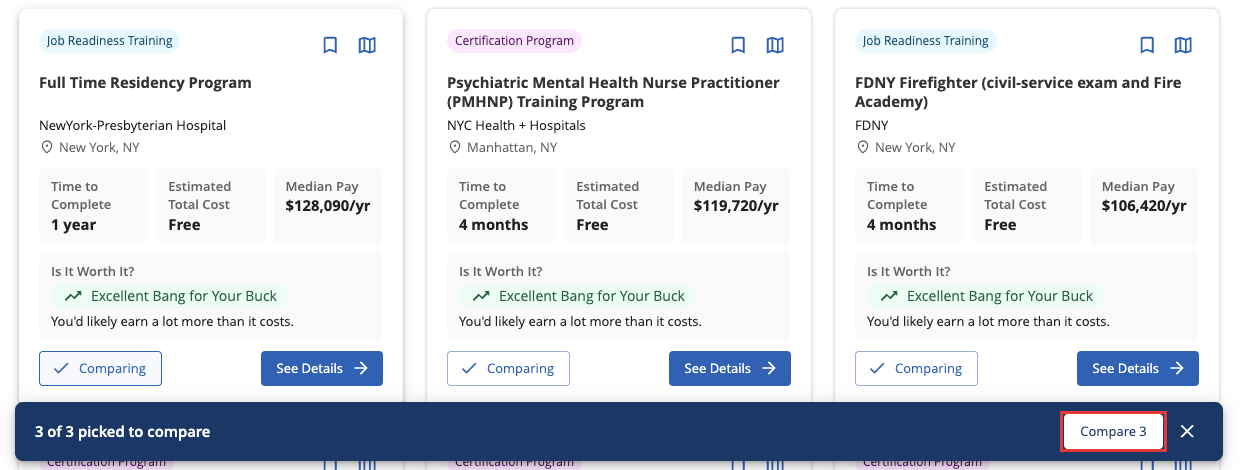
Click Compare on up to 3 cards, then click Compare in the bar at the bottom of the page to see them side by side.
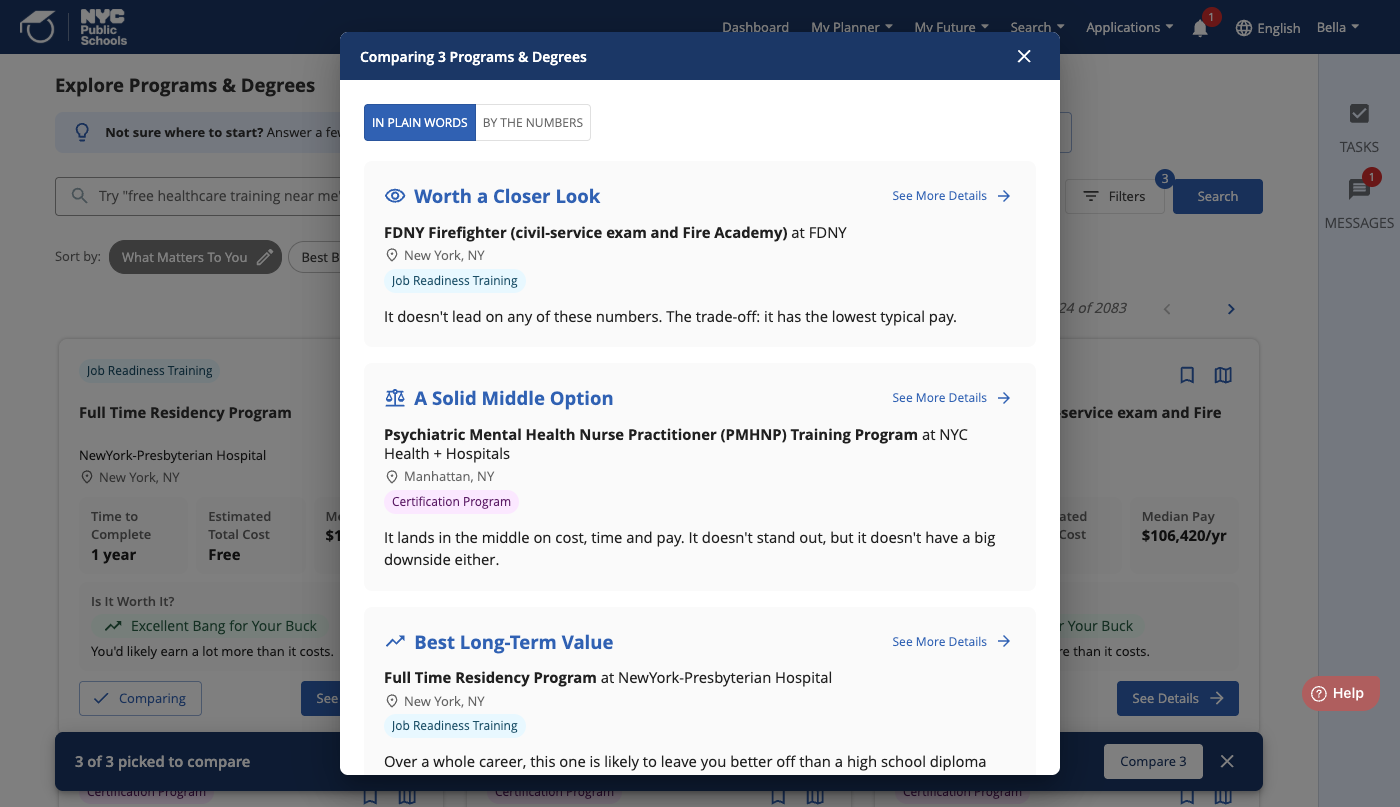
Switch between By the Numbers and In Plain Words to see how they stack up.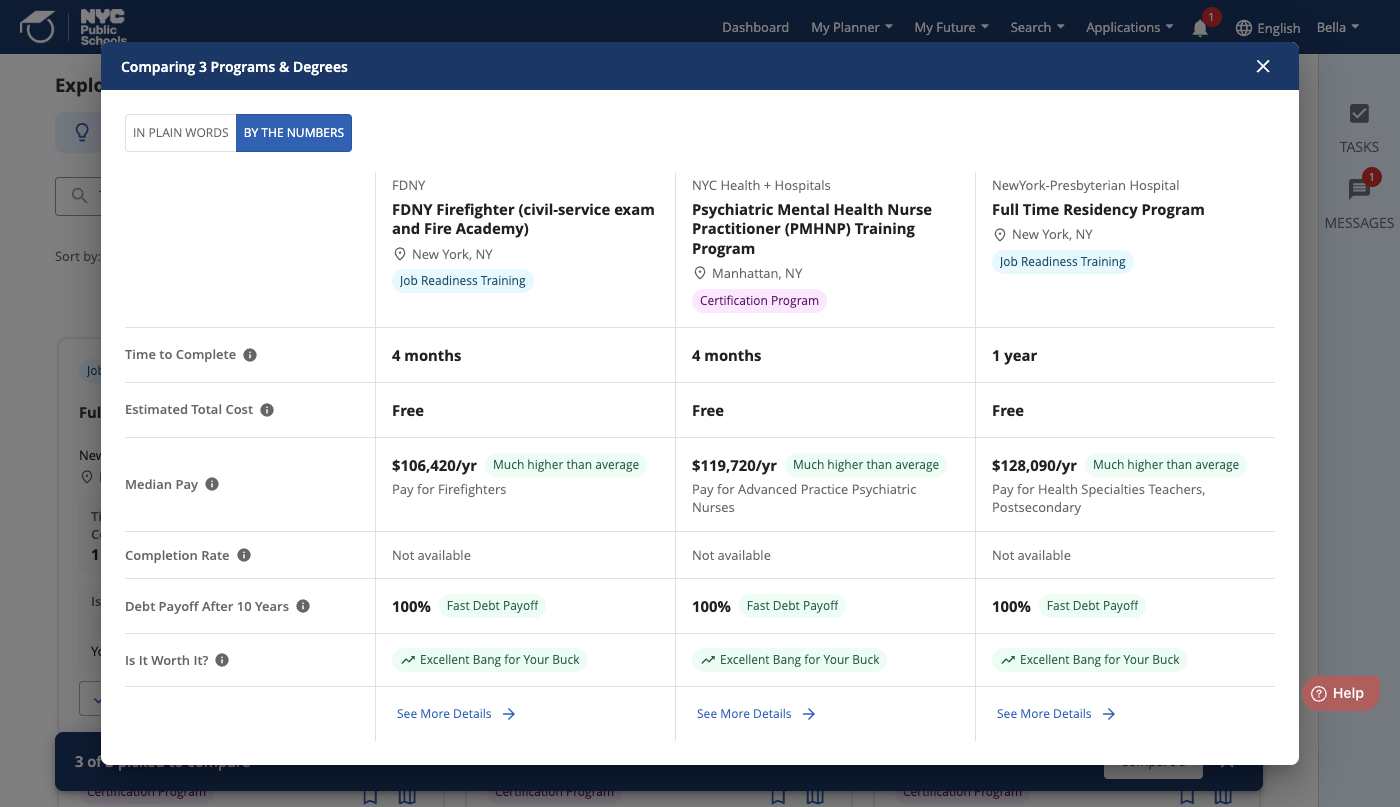
Tip: Try comparing options of different lengths, like a short certificate, a 2-year degree, and a 4-year degree.
For educators
- You can open Explore Programs & Degrees from the same Search menu to see what your students see.
- To see what a student has followed, open the student's postsecondary future page (where you see their colleges and careers) and click the My Programs & Degrees tab.
Questions? Reach out to support@overgrad.com.
Was this article helpful?
That’s Great!
Thank you for your feedback
Sorry! We couldn't be helpful
Thank you for your feedback
Feedback sent
We appreciate your effort and will try to fix the article