What is the Activities Section?
The Activities section is where you build and manage your personal list of extracurricular activities, jobs, volunteer work, and other involvement. Keeping this up to date helps you stay organized and makes it easier to fill out college applications, especially Common App, which asks you to list your activities and describe your role.
How to Add an Activity
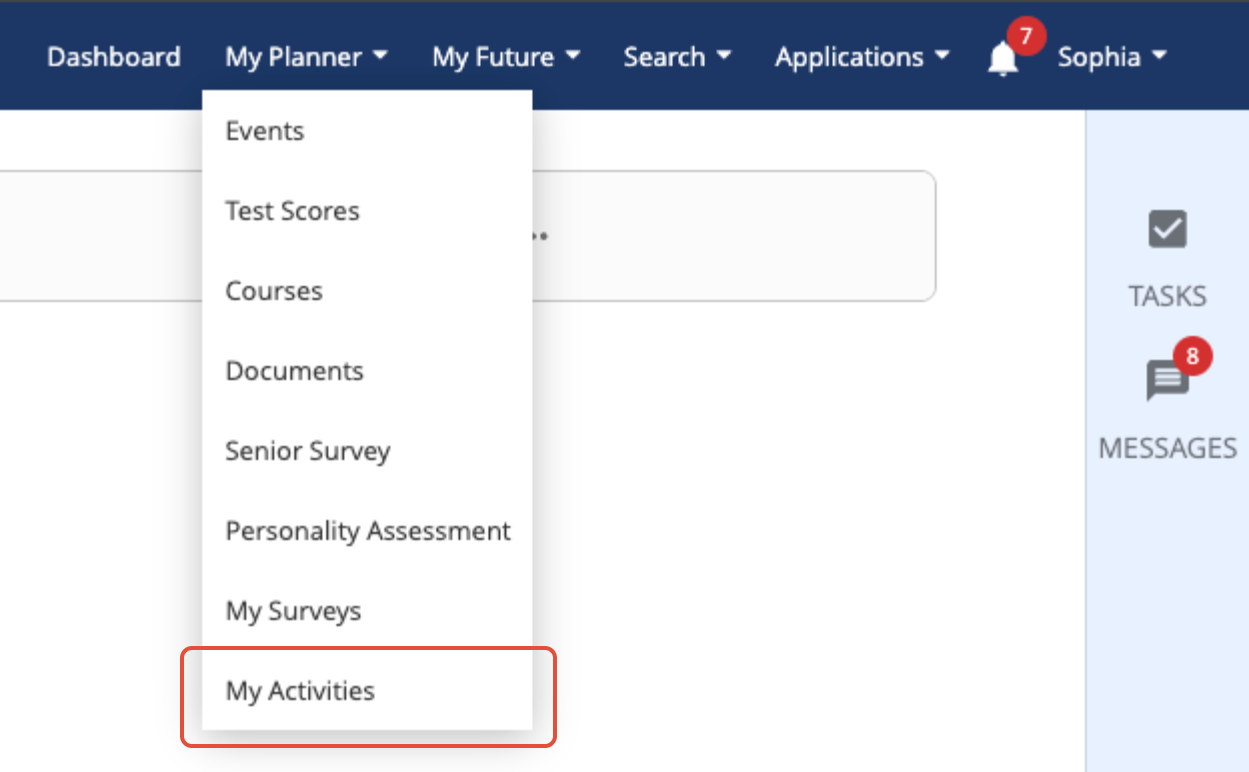
- From your student dashboard, navigate to the My Planner > My Activities link.
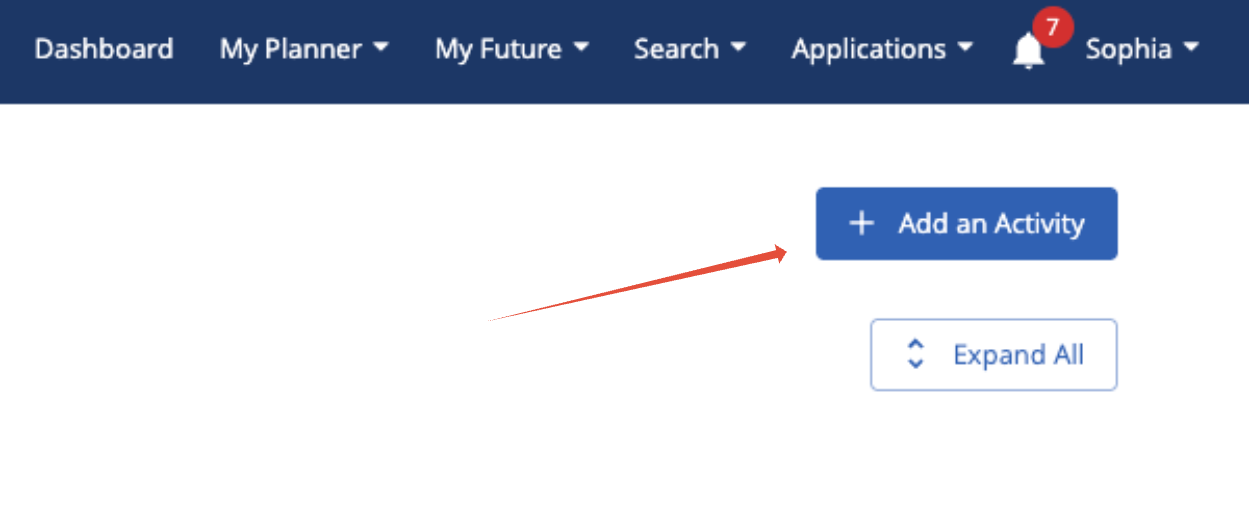
- Click the + Add Activity button.
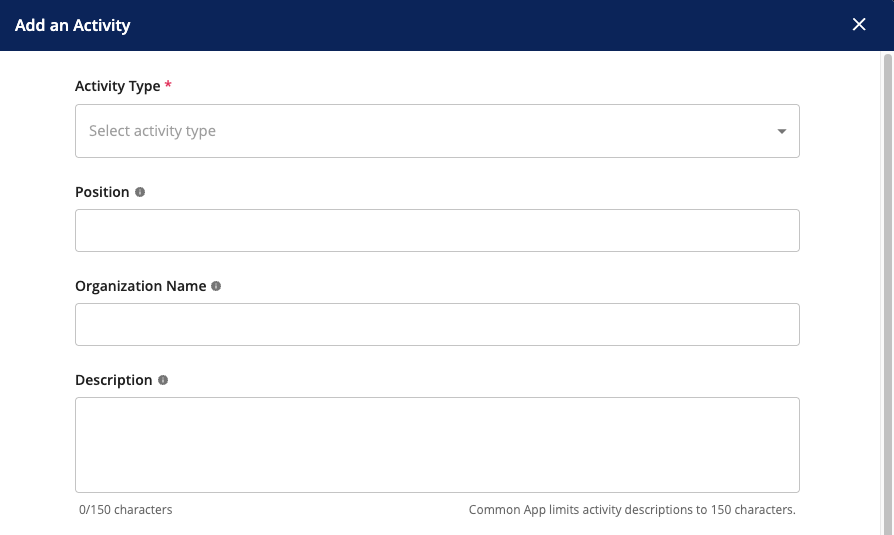
- A form will appear. Fill in the details for your activity (see below for a breakdown of each field).
- Click Add an Activity at the bottom of the window when you're done.

You can add as many activities as you'd like.
Activity Fields Explained
- Activity Type (required) Choose the category that best fits your activity. Options include Athletics, Academic, Volunteer, Internship, Work (Paid), Leadership, Music, Art, Religious, and more.
- Position/Title Enter your role or title (e.g., Team Captain, Club President, Sales Associate).
- Organization Name The name of the club, team, employer, or organization.
- Description Describe what you did, any accomplishments, and recognition you received. Common App limits activity descriptions to 150 characters, so keep it concise and impactful. A character counter will help you track your length.
- Start & End Dates Enter when you started and stopped. If you're still participating, check the Still participating box and leave the end date blank.
- Time Commitment Enter either:
- Hours per week and weeks per year: Overgrad will calculate your total hours automatically, or
- Total hours: enter the number directly if that's easier.
- Grade Levels of Participation Check the grades during which you participated.
- Timing of Participation Select when the activity took place: School year, During school break, or All year. You can select more than one.
- Intend to participate in college? Indicate whether you plan to continue this activity in college.
How to Edit an Activity
- Find the activity on your list and click ... to find the Edit option.
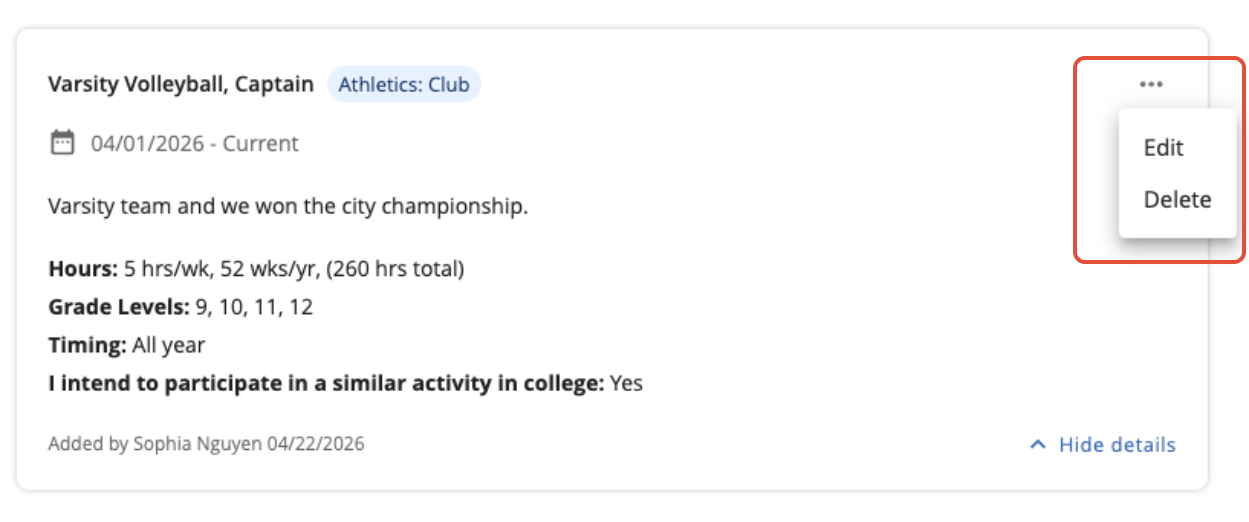
- Click the Edit button.
- Update any fields as needed.
- Click Save Changes at the bottom.
How to Delete an Activity
- Find the activity on your list and click ... to find the Delete option.
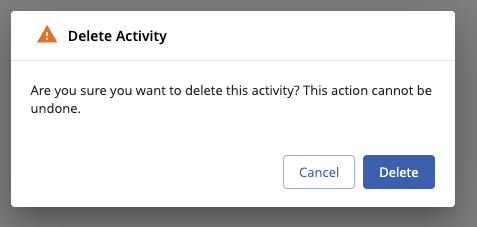
- A confirmation dialog will appear. Click Delete to permanently remove it.
Ranking Your Activities
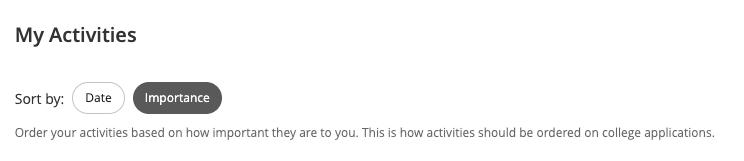
Applications like Common App ask you to list activities in order of importance to you. You can drag and drop your activities to arrange them in that order.
- Make sure you're in Importance sort mode (you'll see this option near the top of the Activities list).
- Click and drag an activity card by clicking on the number to move it up or down.
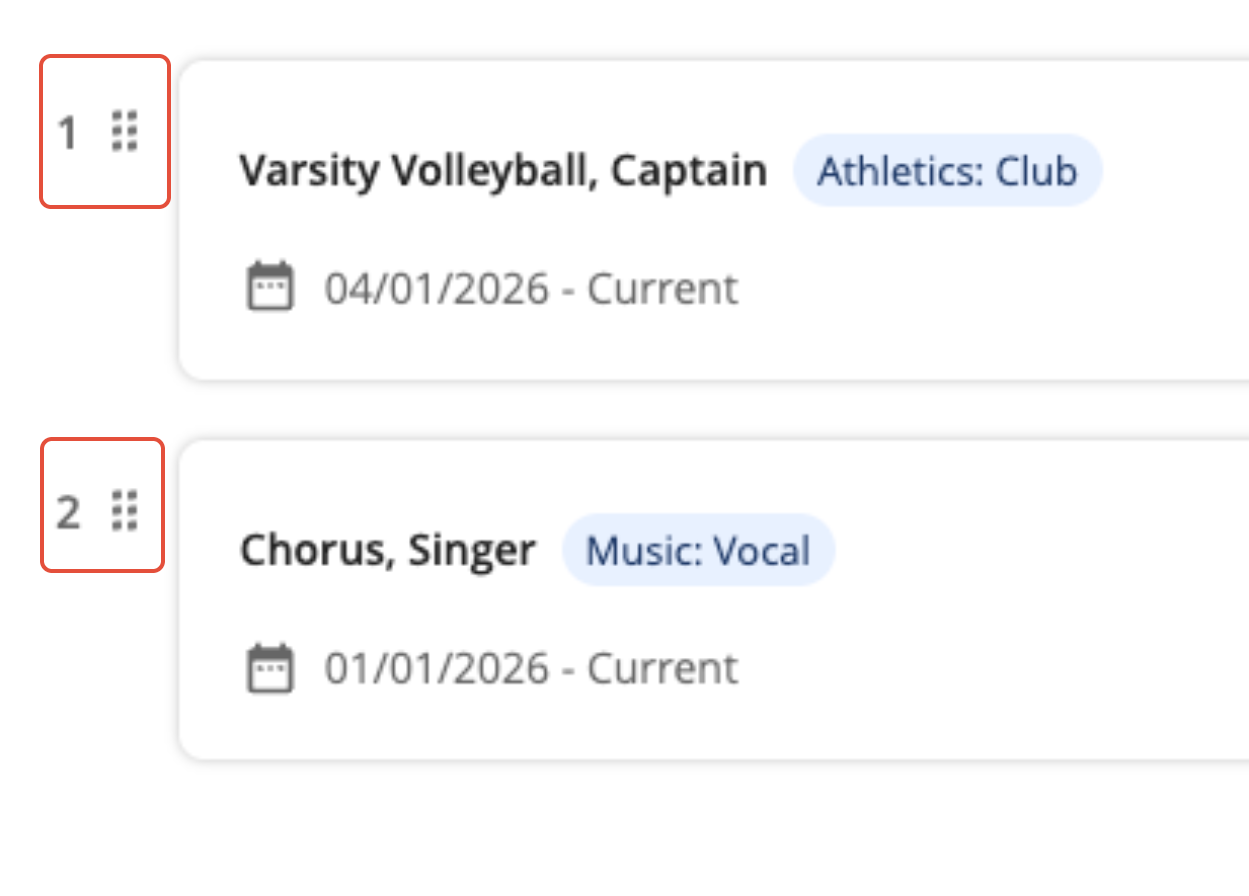
- Your order is saved automatically.
To sort by date instead, switch to Date sort mode. This will organize your activities by most recent first. Your sorted order will be saved when you return to the Importance view.
Tips
- Be specific in your descriptions. Since you're limited to 150 characters, focus on your biggest accomplishments or responsibilities.
- Rank by importance. Think about which activities have meant the most to you. Those should go to the top.
- Keep it current. Update your activities regularly so you're not scrambling before application deadlines.
Was this article helpful?
That’s Great!
Thank you for your feedback
Sorry! We couldn't be helpful
Thank you for your feedback
Feedback sent
We appreciate your effort and will try to fix the article