The Essays page is your workspace for drafting personal statements and supplemental essays as you prepare your program and/or college applications. From a single page, you can add essay prompts, draft your essay, request feedback, and track your progress.
Where To Find Essays
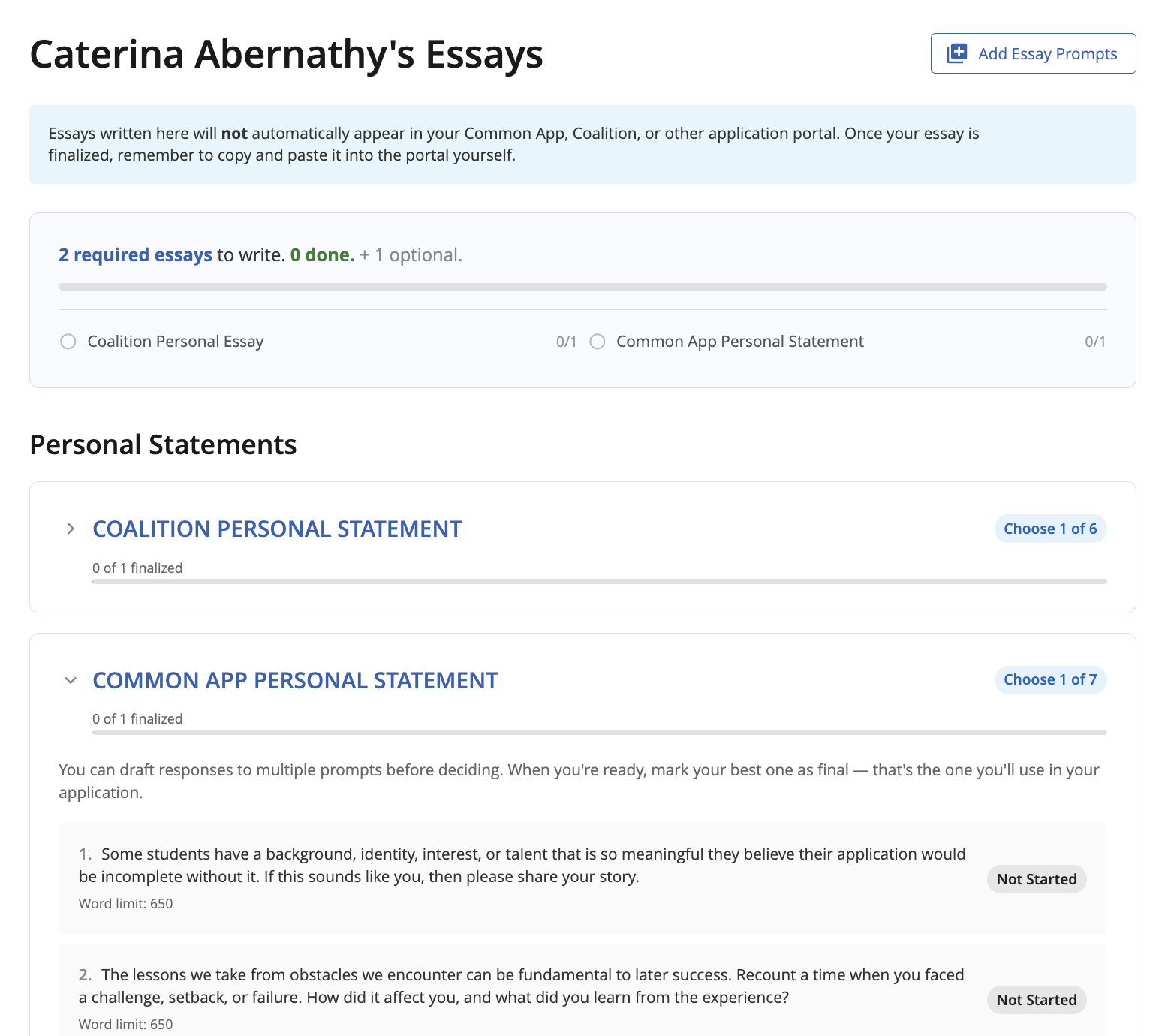
Students can access their Essays page from the main navigation in Overgrad, My Planner > My Essays. Once you open it, you'll see your name at the top and a summary of the essays you've added to your workspace.
Understanding the Essays Page
The Essays page is organized to give you a quick sense of what still needs to be written and what's already in progress. Below is a breakdown of the information you'll find.
- Add Essay Prompts (button, top right): opens the prompt library so you can pull personal statement prompts and school supplementals into your workspace.
- Progress Tracker: shows how many required essays you still have left to write, how many are done, and how many optional prompts you've added. Each prompt group appears below the overall bar with its own progress.
- Personal Statements: the main section where your prompt groups live (for example, Coalition Personal Statement or Common App Personal Statement). Click any group to expand it and see the individual prompts.
- Prompt Cards: each prompt within a group shows the question, the word limit, and a status badge (such as Not Started) so you can see at a glance where you are.
Important: Essays written in Overgrad will not automatically appear in your Common App, Coalition, or other application portal. Once your essay is finalized, remember to copy and paste it into the application portal yourself.
Adding Essay Prompts
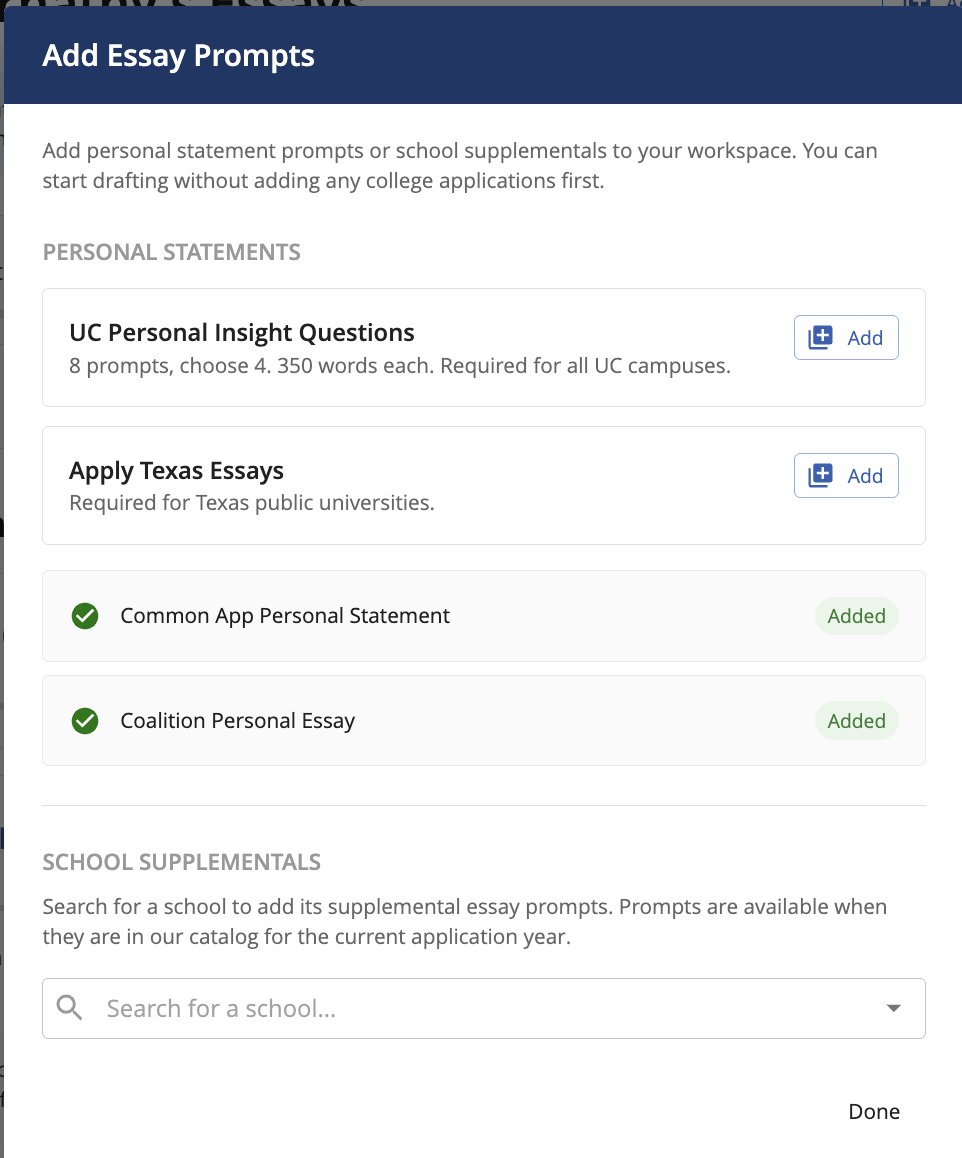
Before you can start drafting, you'll need to add the prompts you plan to work on. Click Add Essay Prompts in the top right of your Essays page. A window will open with two sections.
Personal Statements
This section includes the most common personal statement prompt sets used across U.S. colleges, such as the Common App Personal Statement, the Coalition Personal Essay, the UC Personal Insight Questions, and the Apply Texas Essays. Each option shows a short description so you know what you're adding.
Click Add next to any prompt set to add it to your workspace. Once added, the button will change to Added.
School Supplementals
Many colleges require school-specific supplemental essays in addition to your personal statement. To add these, use the Search for a school... field under School Supplementals to find the college you're applying to. Prompts are available when the school is in our catalog for the current application year.
Tip: You can start drafting without adding any college applications first. The prompts stay in your workspace even if you're still building your college list.
When you're finished adding prompts, click Done to return to your Essays page.
Drafting Your Essays
To start writing, expand a prompt group (for example, Common App Personal Statement) and click Start Drafting next to the specific prompt you want to respond to. You'll see the prompt text, the word limit, and space to draft your response.
A few things to keep in mind while you write:
- You can draft responses to multiple prompts before deciding. For prompt groups where you only need to submit one answer (such as "Choose 1 of 7"), feel free to try out more than one prompt before picking your favorite.
- Your work saves as you go. You can come back to any draft as often as you'd like before finalizing.
Requesting Essay Feedback
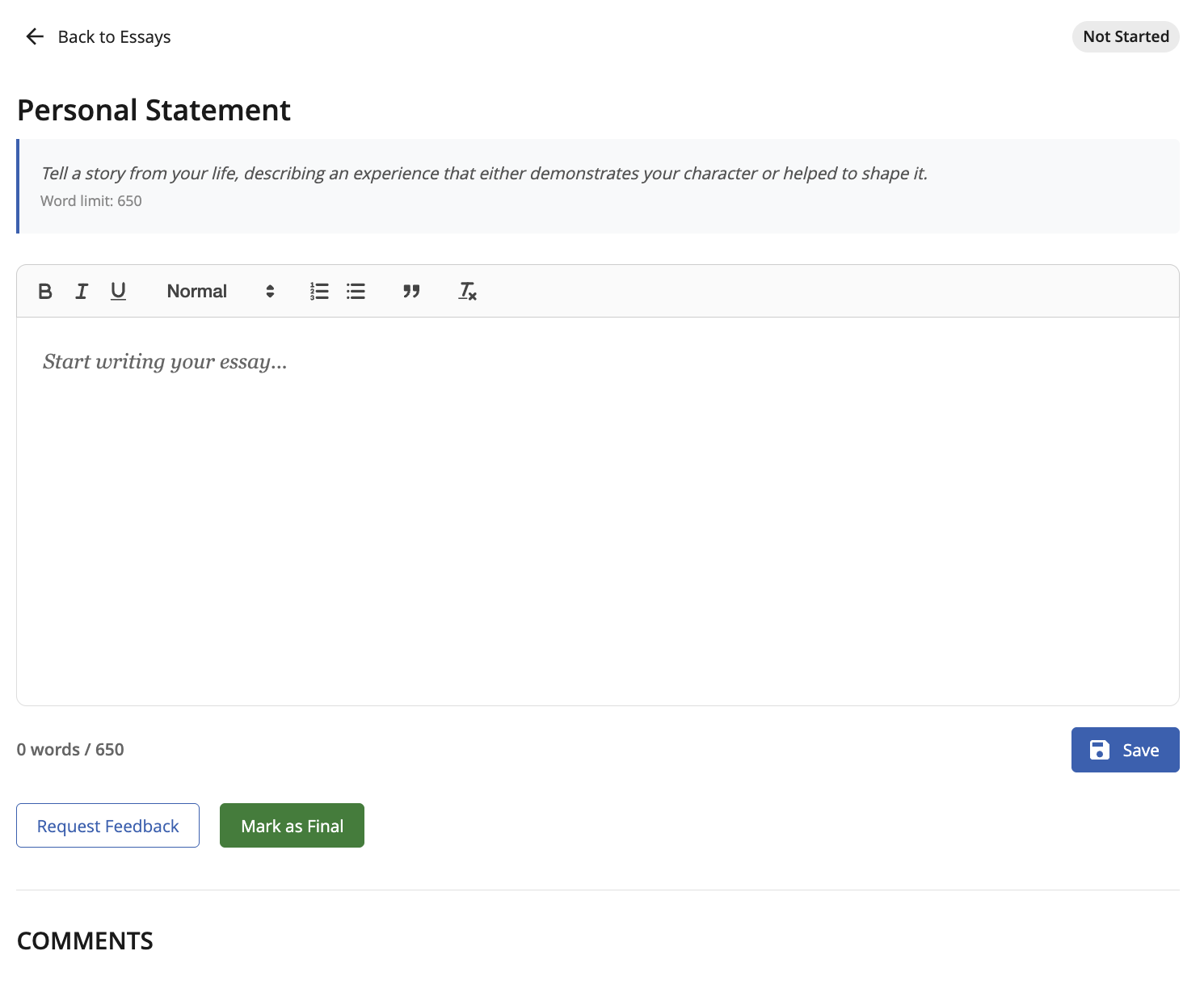
After drafting your essay, you can request educator feedback from someone at your school or an external reviewer. Any one requested will receive an email with the link to the specific draft.
Finalizing Your Essay
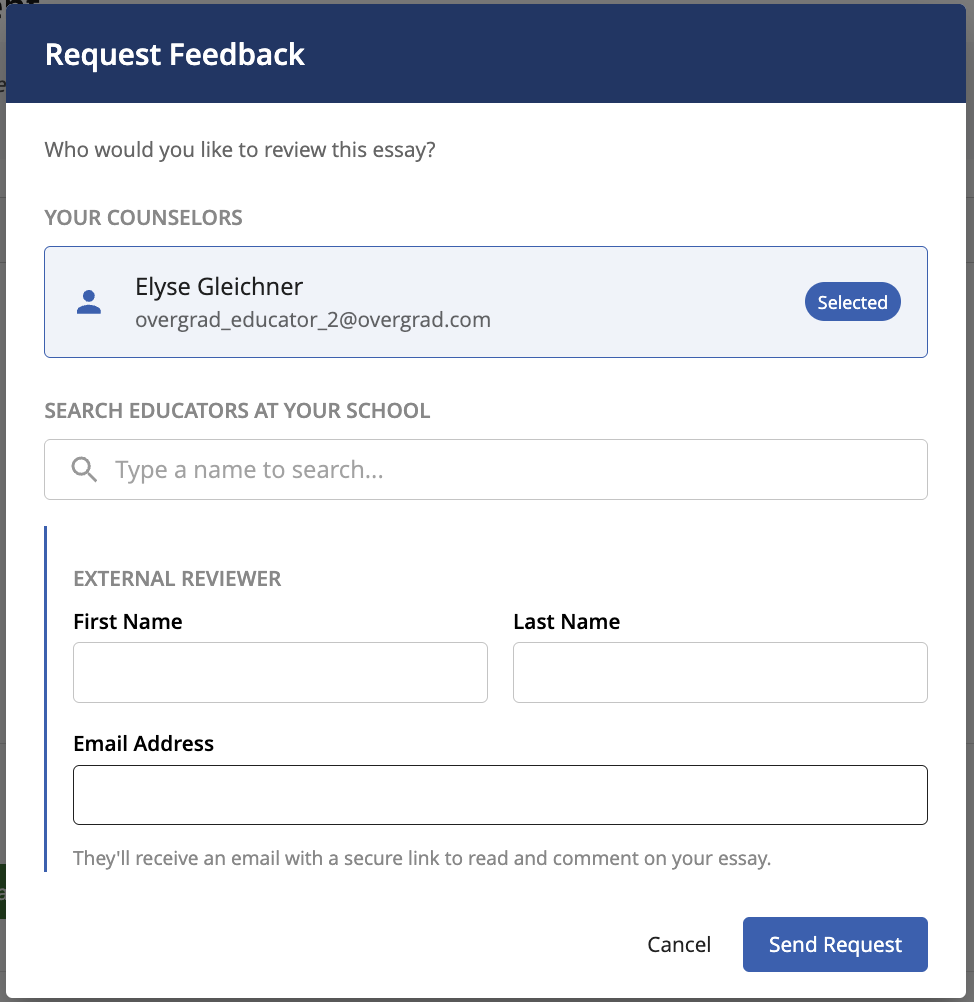
When you're ready, mark your best final draft as final by clicking the Mark as Final button. Each prompt group tracks how many essays you've finalized (for example, 0 of 1 finalized) so you can confirm you've chosen a response for every required prompt.
Don't forget: Finalizing an essay in Overgrad marks it as done in your workspace, but it does not submit it to any application portal. Be sure to copy your finalized essay into your Common App, Coalition, or school portal when you're ready to submit.
Was this article helpful?
That’s Great!
Thank you for your feedback
Sorry! We couldn't be helpful
Thank you for your feedback
Feedback sent
We appreciate your effort and will try to fix the article