Overgrad provides a streamlined way to fund your education by giving you direct access to thousands of external funding opportunities. Our platform features an extensive, integrated list of scholarships sourced from the Peterson’s database, ensuring you have access to one of the most comprehensive and up-to-date collections of financial aid available.
With this feature, you can:
- Search & Filter: Find specific awards based on your unique interests, academic background, and eligibility criteria.
- Follow & Track: Save scholarships to your profile to keep an organized list of upcoming deadlines.
- Manage Applications: Track your progress from "Will Apply" to "Awarded" and manage your total award amounts all in one place.
Navigating to the Scholarship Search Page
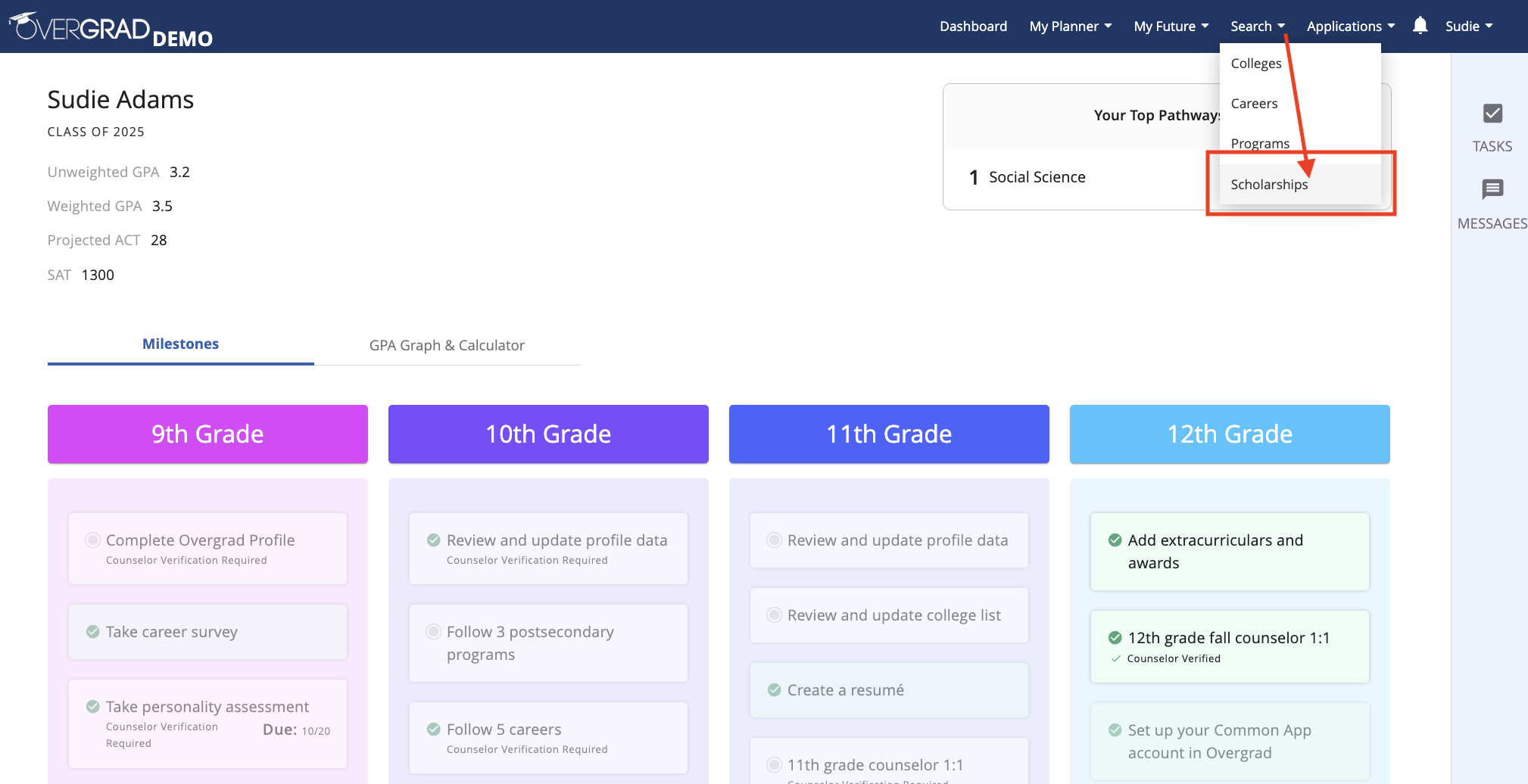
Click on "Search" then "Scholarships"
Searching for Scholarships
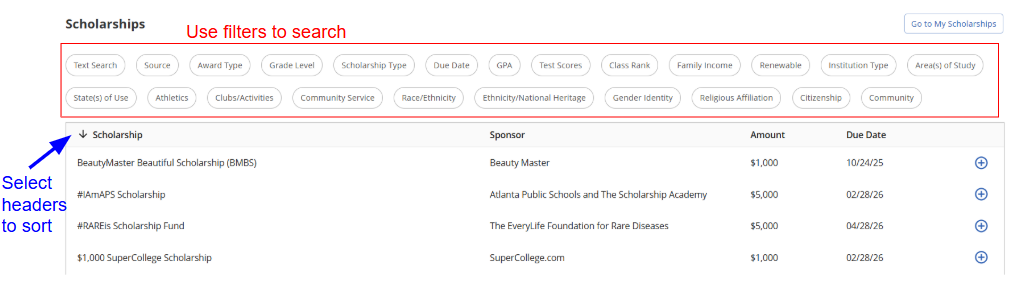
Use filters to find scholarships tailored to your interests and eligibility. To find a specific award by name, use the Text Search filter. To see high-priority or local opportunities curated by your school, set the Source filter to "School Created."
You can further narrow your search by criteria like GPA, income, community service, etc. Use the column headers to sort your results by Name, Sponsor, Amount, or Due Date.
Following Scholarships
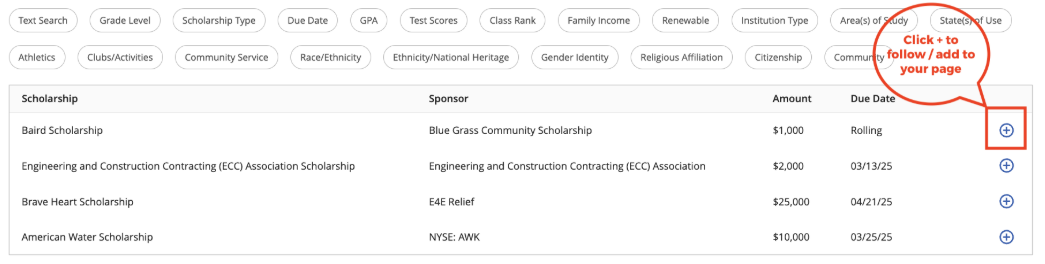
To add scholarships to your profile from the search page, click on the blue +.
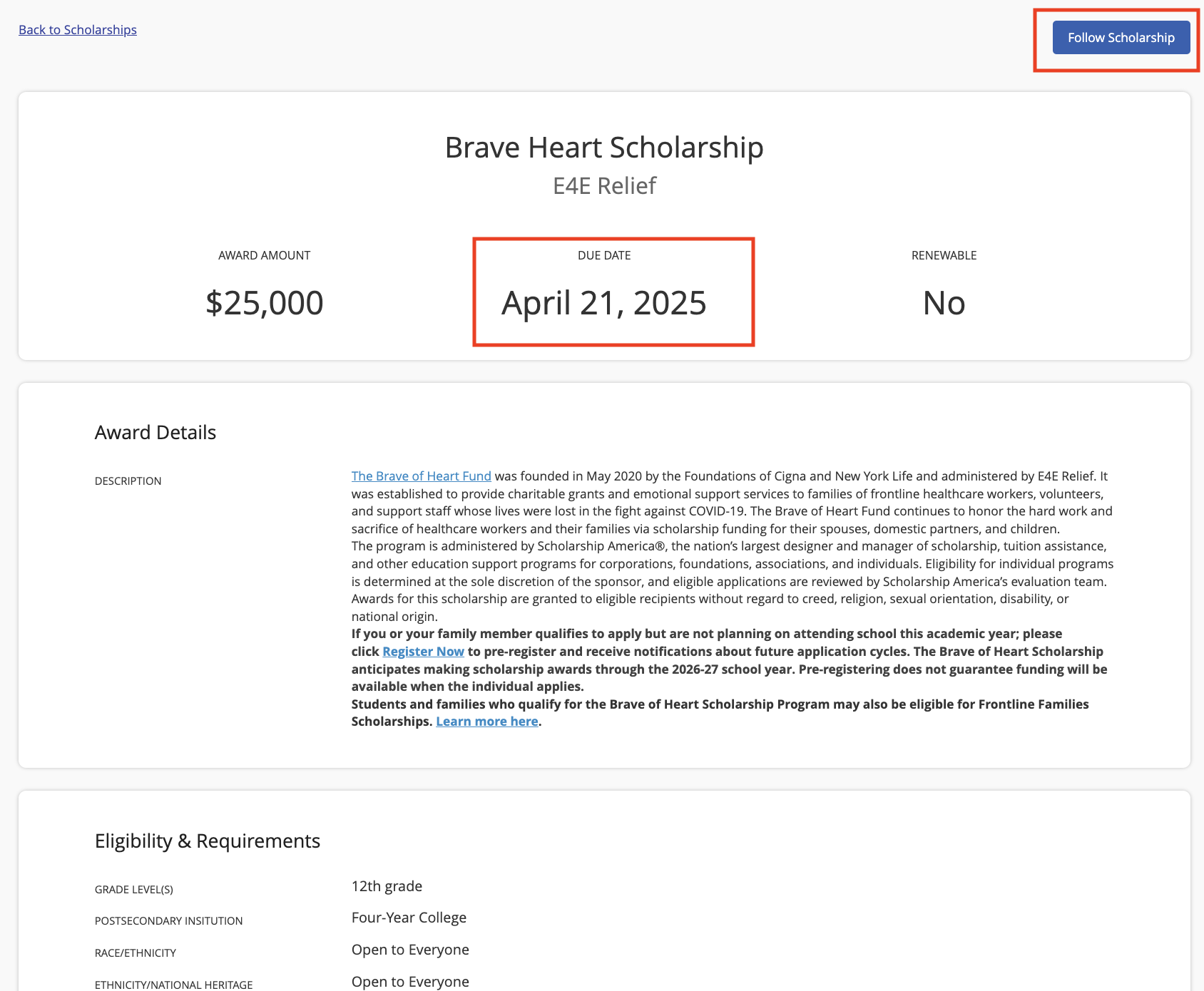
When you click into a specific scholarship page, you can view more details like due dates, award eligibility, application requirements, links, and much more! You can also click on "Follow Scholarships" at the top of the page to add this scholarship to your profile.
Managing Scholarship Applications
From the scholarship search page, click on "Go To My Scholarships" to go to your followed scholarship list. Students can also view their scholarships followed page by going to Applications > My Scholarships.
To update the scholarship status, click on the . . . menu for the specific scholarship, then select "Manage application info"
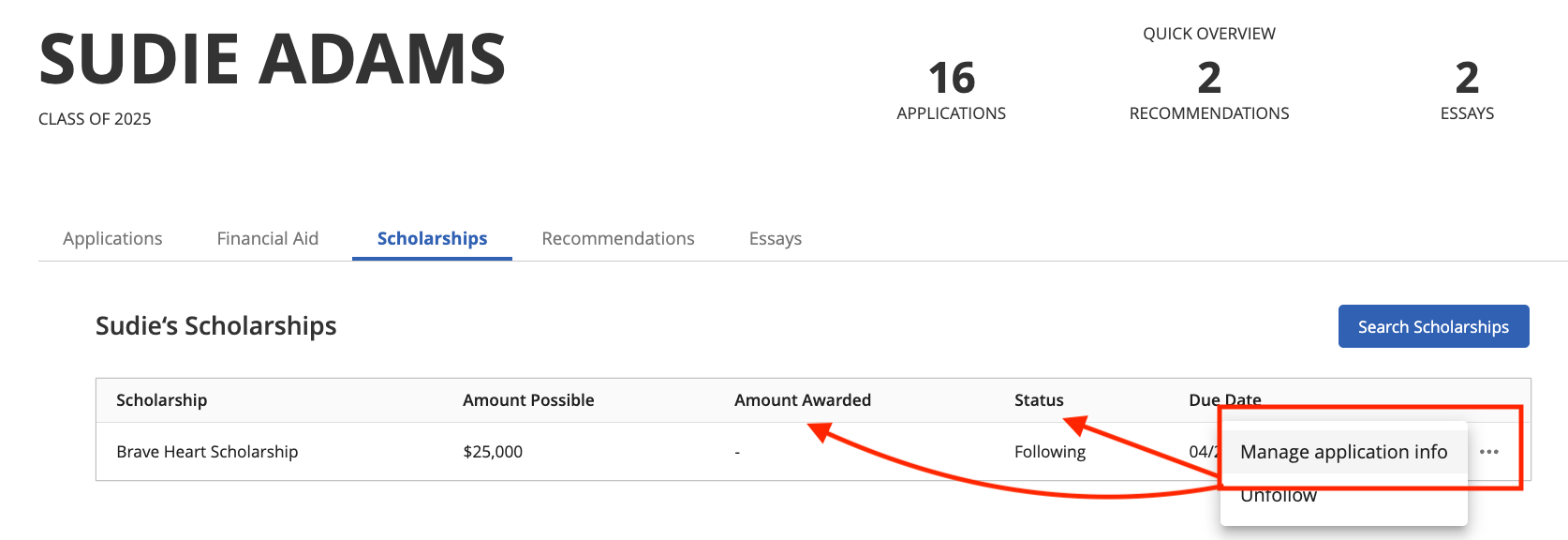
Update the award letter status from following to: Will Apply, Applied, Awarded, Not Awarded.
When the status is updated to "Awarded," the Amount Awarded can be added to that specific scholarship. Be sure to hit 'Save' to update any application changes.

Was this article helpful?
That’s Great!
Thank you for your feedback
Sorry! We couldn't be helpful
Thank you for your feedback
Feedback sent
We appreciate your effort and will try to fix the article