Overview
Before students can use Overgrad, they need to activate their account from the Welcome Email. The email has an Activate Account and Set Password button that lets them create their password and log in. You can send it for the first time, or resend it as a reminder, to a whole graduating class at once or to one student at a time. To see what the email looks like, read What do student welcome emails look like?
Welcome emails only go to students who haven't activated their account yet. Students who have already activated won't get another one. If they can't remember their login, they should reset their password instead.
Note: If your school/organization uses Google Single Sign-on, your students can bypass this step and Sign in with Google instead.
TABLE OF CONTENTS
- Overview
- Send to a whole graduating class
- Send to one student
- Sending welcome emails when you upload students
- Students didn't get the email?
Send to a whole graduating class
- In the top-right corner of Overgrad, click your name, then click School Account.
- Under Account Setup, click Send/Resend student welcome emails.
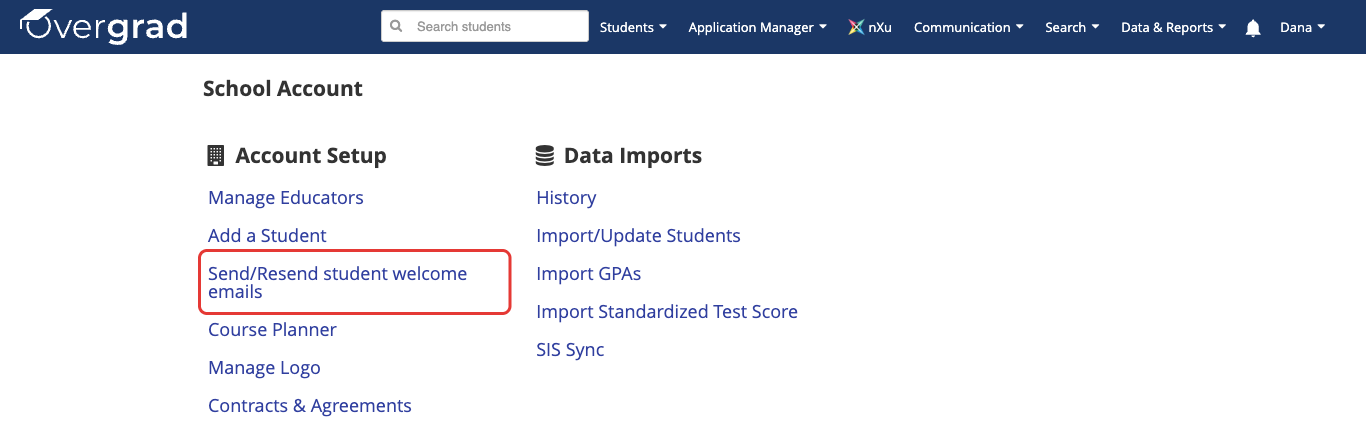
- In the Resend Welcome Emails window, check the class year(s) you want to send to.
- Check the box below the list to confirm that you understand the email will go to every student in those classes who hasn't activated their account. Then click Resend welcome emails.
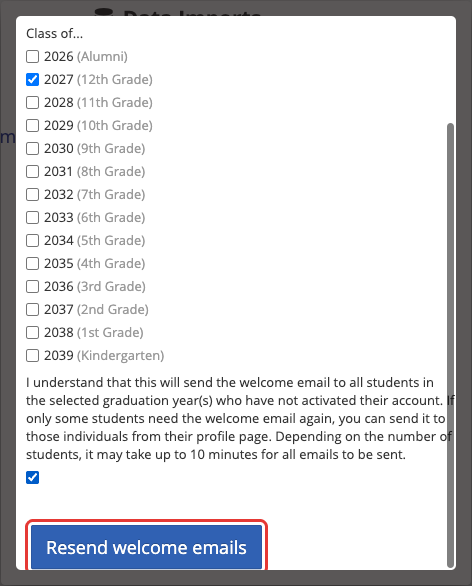
- You'll see a confirmation listing the classes you chose. Depending on how many students there are, it can take up to 10 minutes for all the emails to go out.
Send to one student
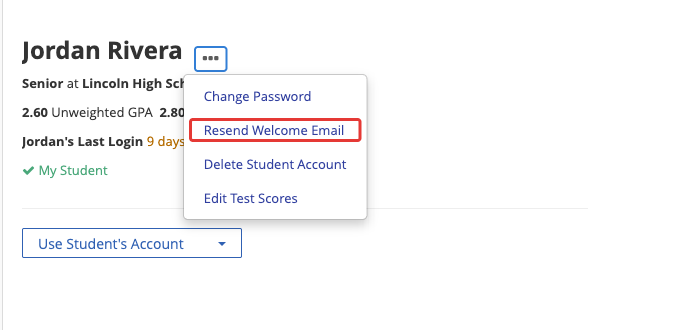
- Open the student's profile. You can type their name in the Search students bar at the top of the page, or find them in your student list and click their name.
- Click the three dots (...) next to the student's name, then click Resend Welcome Email.
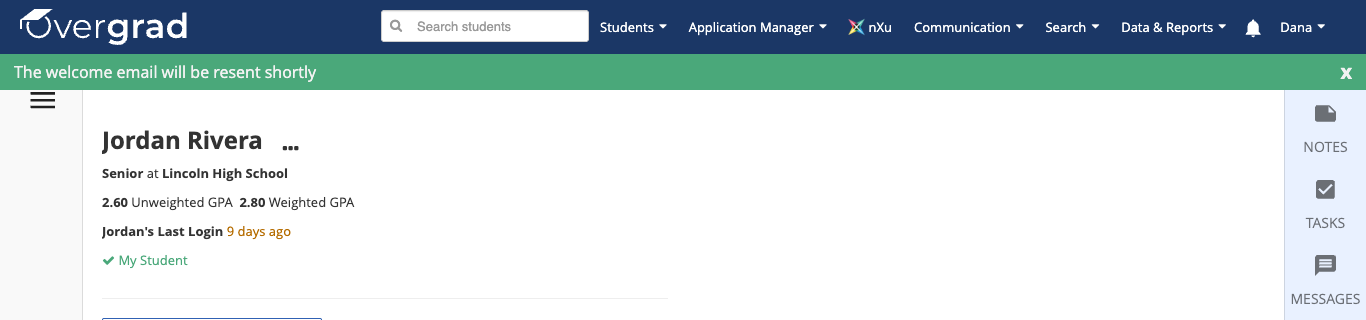
- A green banner confirms that The welcome email will be resent shortly.
Don't see Resend Welcome Email in the menu? The student has probably already activated their account. If they can't log in, they should reset their password.
Sending welcome emails when you upload students
When you import students with a file, Overgrad asks "Do you want to send your students Overgrad welcome emails now?" Choose Yes to send them as soon as the file finishes processing, or No to send them later using the steps above.
Students didn't get the email?
- Ask them to check their spam or junk folder.
- Make sure the email address in Overgrad is correct and up to date.
- Check that your school's email system accepts emails from overgrad.com.
If too many of the email addresses in a class look invalid, Overgrad won't send the batch, and you'll get an email titled "We could not send your student welcome emails" explaining what to check.
Was this article helpful?
That’s Great!
Thank you for your feedback
Sorry! We couldn't be helpful
Thank you for your feedback
Feedback sent
We appreciate your effort and will try to fix the article