This feature is only available to Overgrad Pro customers. Please connect with an Overgrad rep if you are interested in learning more.
This article is for account managers who maintain Milestone Plans that are already set up. It covers finding a plan, reviewing and updating the students on it, changing which Milestones it includes, and reporting on, renaming, or deleting a plan.
To learn how plans work or set up a new one, see Developing Milestone Plans. To build or edit individual Milestones, see Customizing and Navigating Milestones for Educators. To track progress across your district, see Milestones: Dashboard and Reporting.
TABLE OF CONTENTS
- Finding and Opening a Plan
- Reviewing Students on a Plan
- Taking Action on Students in a Plan
- Updating a Plan's Milestones
- Viewing a Plan's Report
- Renaming a Plan
- Deleting a Plan
Finding and Opening a Plan
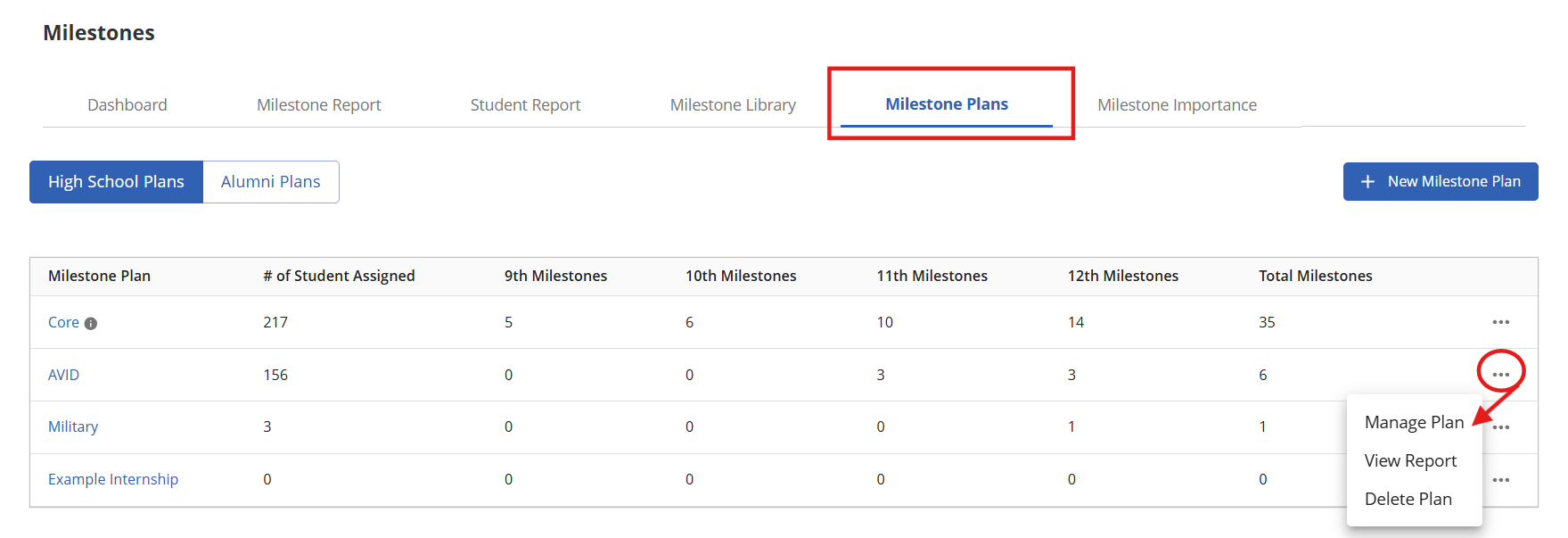
Navigate to Communication → Milestones, then select the Milestone Plans tab.
Select High School Plans or Alumni Plans to see plans of that type.
Click a plan name, or click ⋯ on its row and select Manage Plan.
Each row in the table shows the plan's student count and number of Milestones by grade. The Manage Plan page has two tabs: Manage Students and Manage Milestones.
Note: Every student is on the Core plan automatically, so you can't add or remove Core students or delete Core. You can still customize Core's Milestones. For alumni plans, see Alumni Milestones (for Overgrad Success).
Reviewing Students on a Plan
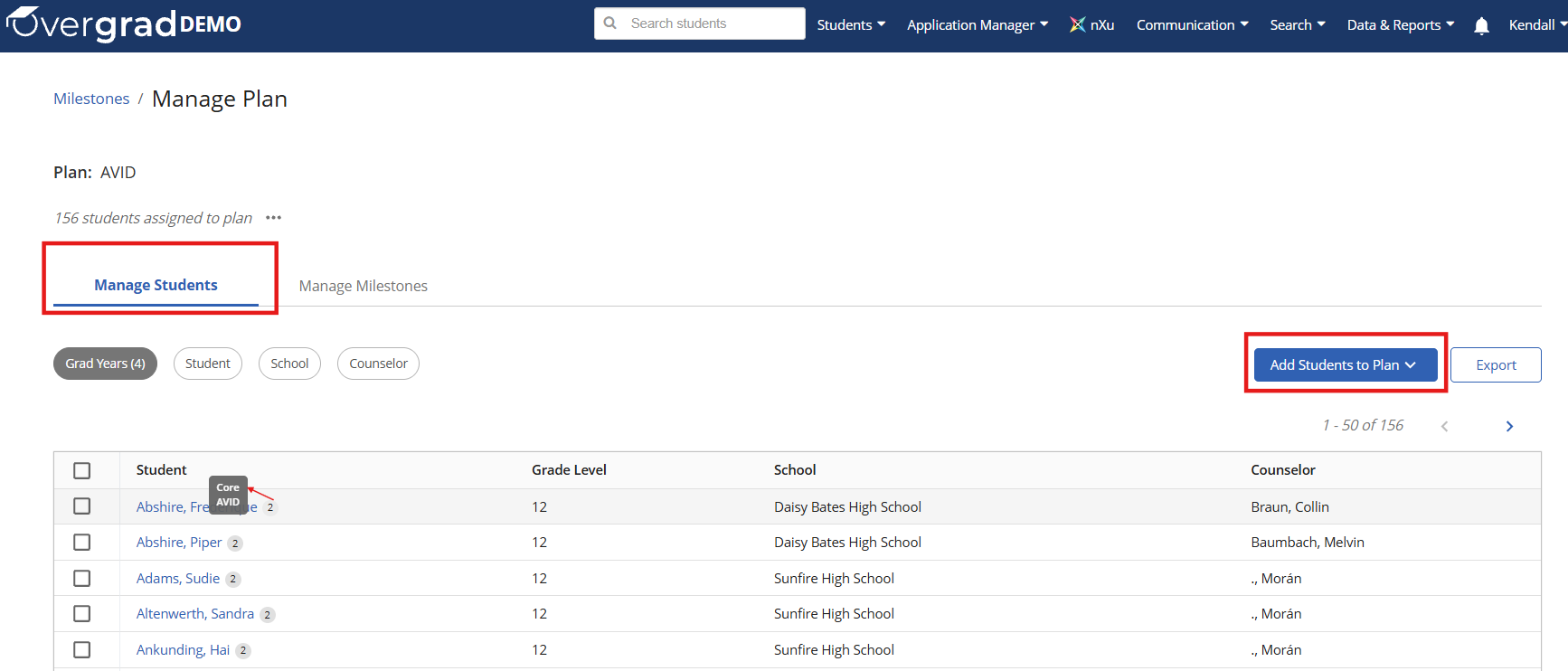
Click into a plan to see what students are assigned to the plan. The Manage Students tab lists only the students on this plan.
Use the Grad Years, Student, School, and Counselor filters to narrow the list.
Click Export to download the list.
Check the number next to a student's name to see how many plans they're on. Hover over it to see the plan names.
To add more students, click Add Students to Plan. For each option, see Developing Milestone Plans.
Taking Action on Students in a Plan
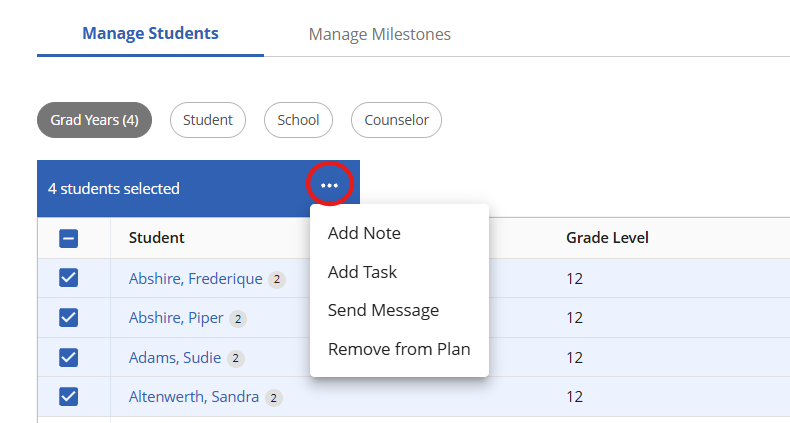
On the Manage Students tab, check the box next to each student.
Click ⋯ in the blue bar at the top of the table.
Select an action:
Remove from Plan - take the students off this plan.
Add Note - add a note to each student's record.
Add Task - assign a task to the selected students.
Send Message - message the selected students.
Removed students stay on Core and keep their Core Milestones. They no longer see this plan's Milestones unless those Milestones are also on another plan they're on.
Updating a Plan's Milestones
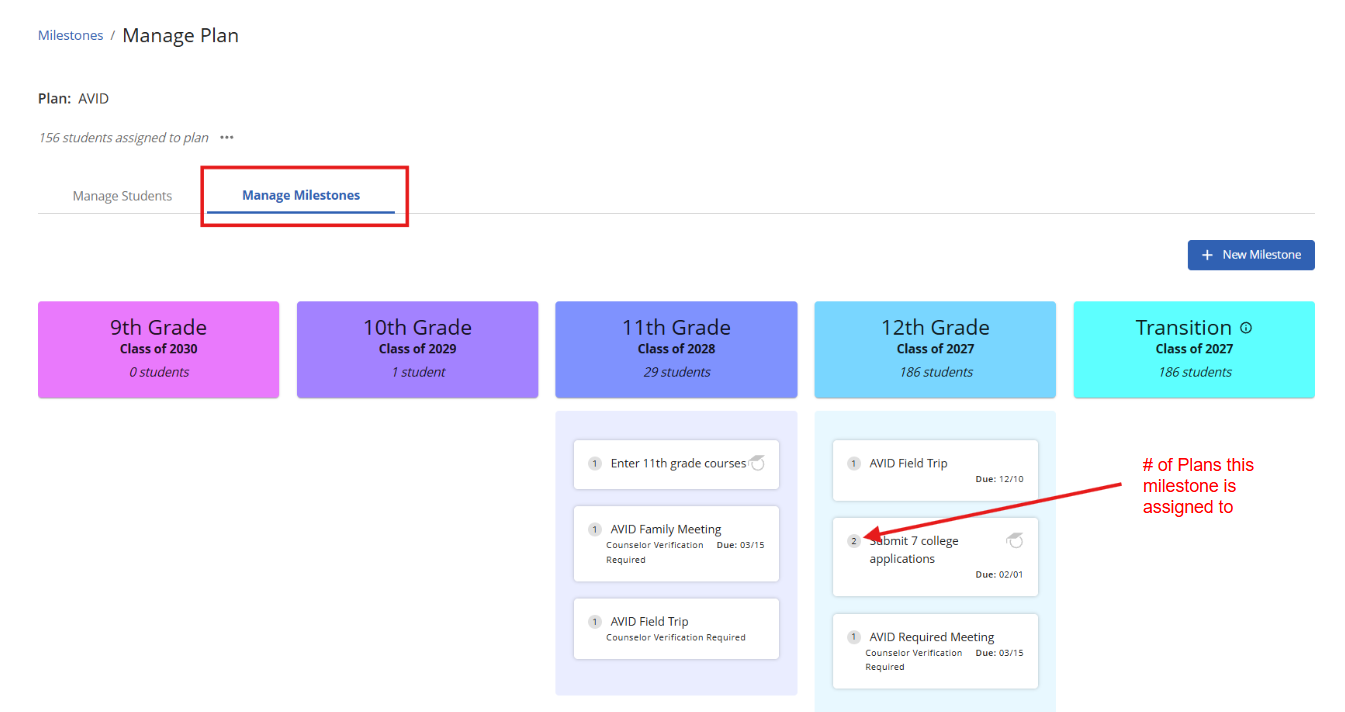
On the Manage Plan page, open the Manage Milestones tab. Milestones are grouped by grade, with each column showing the class year and number of students. The number on each Milestone card shows how many plans that Milestone is on.
To remove a Milestone from this plan:
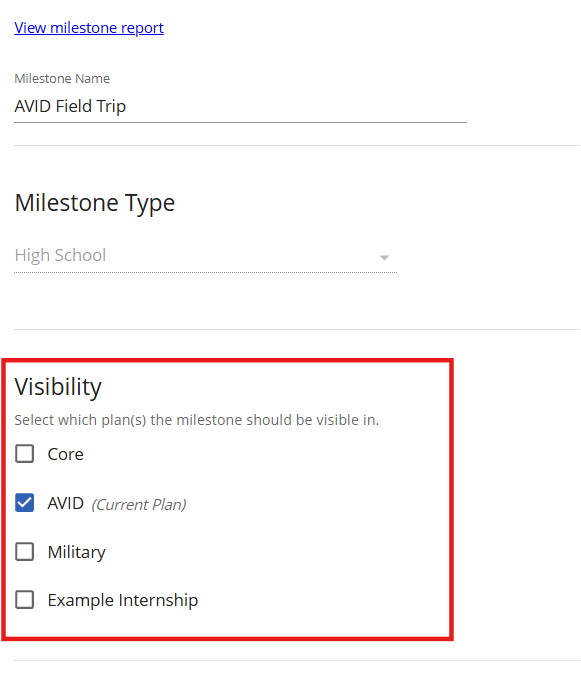
Click the Milestone to open its settings.
Under Visibility, uncheck this plan.
Click Save.
To add Milestones, see Developing Milestone Plans.
Note: Milestone edits apply to all plans. Changing a Milestone's name, dates, or instructions updates it everywhere it appears. Before editing, check the card's plan count. To change a Milestone for one group only, create a new Milestone for that plan instead.
Viewing a Plan's Report
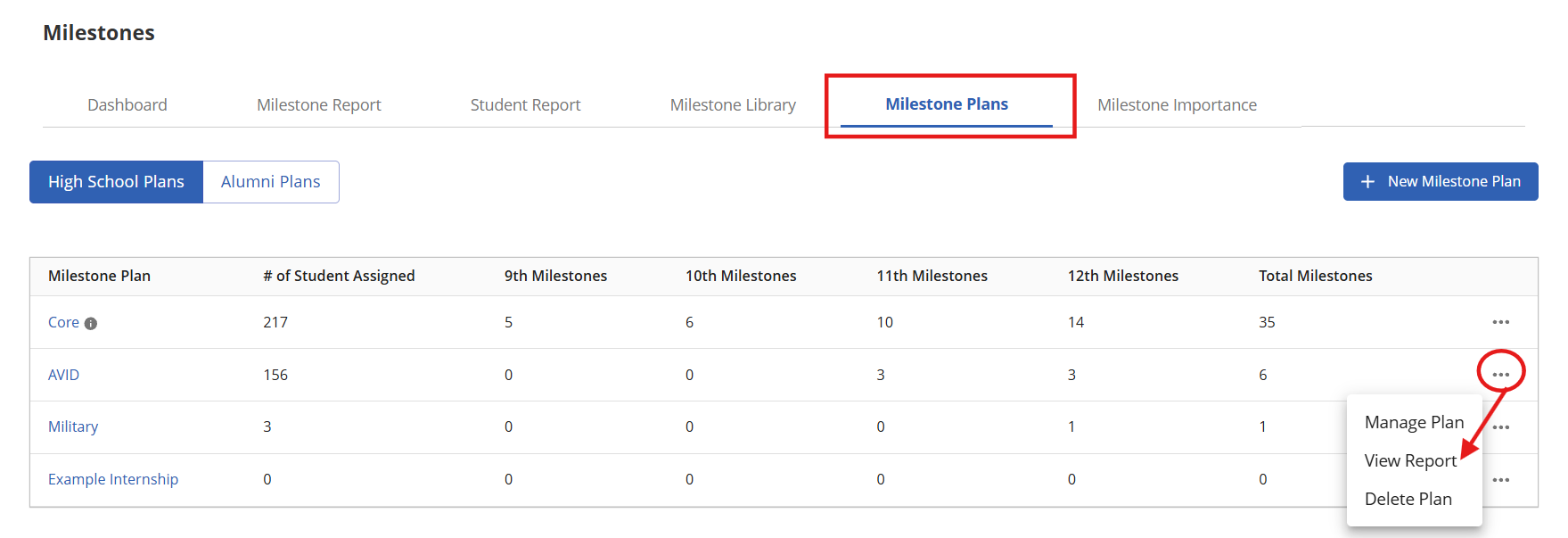
In the Milestone Plans table, click ⋯ on a plan's row and select View Report to see Milestone progress for students on that plan. For district-wide reporting, see Milestones: Dashboard and Reporting.
Renaming a Plan
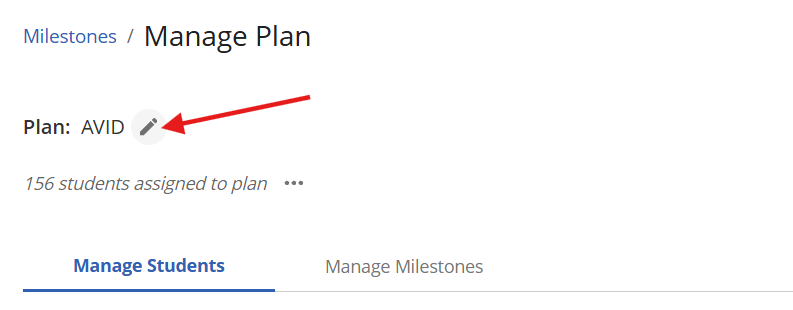
Open the plan.
Hover over the plan name and click the pencil icon.
Enter the new name.
Deleting a Plan
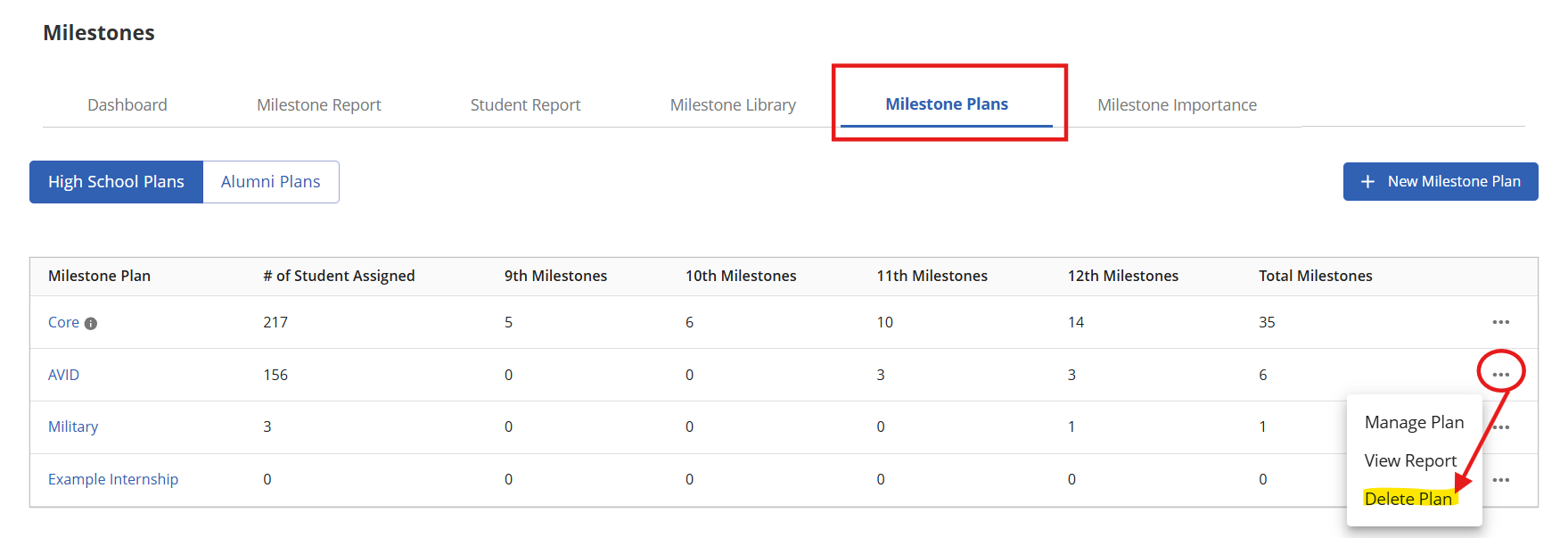
In the Milestone Plans table, click ⋯ on the plan's row.
Select Delete Plan.
Still need help?
Contact the Overgrad support team at support@overgrad.com.
Was this article helpful?
That’s Great!
Thank you for your feedback
Sorry! We couldn't be helpful
Thank you for your feedback
Feedback sent
We appreciate your effort and will try to fix the article