Overview
This article is for educators who need to view or update which students are tagged as FRNYC in Overgrad. It covers how FRNYC status works in Overgrad, how to view your current FRNYC student list, and how to add or remove students individually or in bulk.
TABLE OF CONTENTS
- Overview
- How FRNYC Students are Identified in Overgrad
- Viewing your FRNYC Student List
- Updating FRNYC Status
How FRNYC Students are Identified in Overgrad
FRNYC students are identified in Overgrad at the school level. Overgrad may import an initial list at the start of the school year, but does not automatically stay in sync with STARS — schools are responsible for keeping their FRNYC roster accurate over time. This means adding students who join a pathway, removing students who leave, and reviewing the list periodically to make sure it reflects your current enrollment.
Keeping this list accurate ensures that KIMs tracking, completion data, and reporting reflect the correct group of students.
Viewing your FRNYC Student List
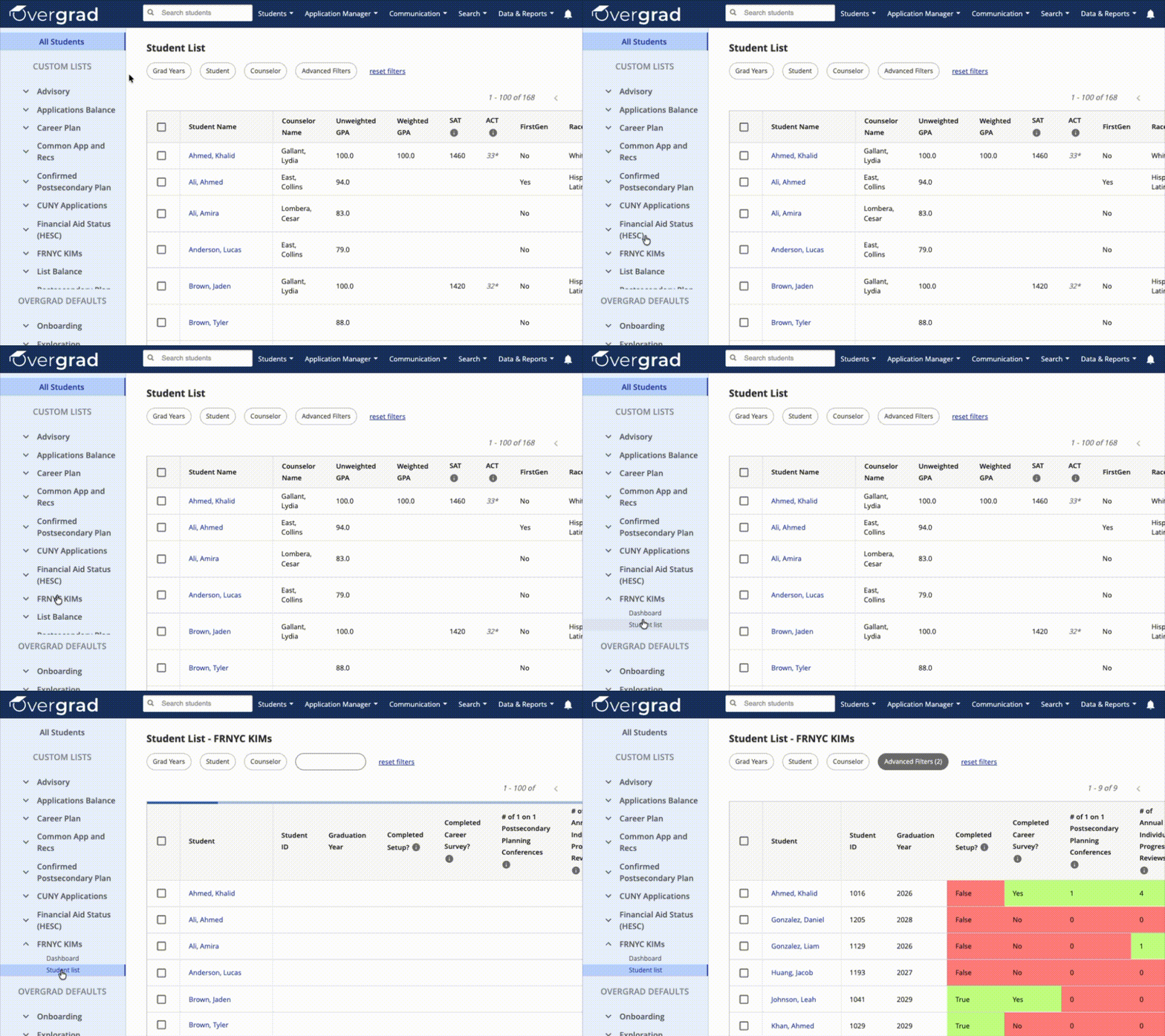
To see all students currently tagged as FRNYC, go to your Overgrad homepage and find Custom Lists on the left side. Select FRNYC KIMs, then click Student List.
Updating FRNYC Status
FRNYC status can be updated at the student level by editing an individual student’s profile, or in bulk using a file upload when multiple students need to be added or removed at once.
Individual Updates
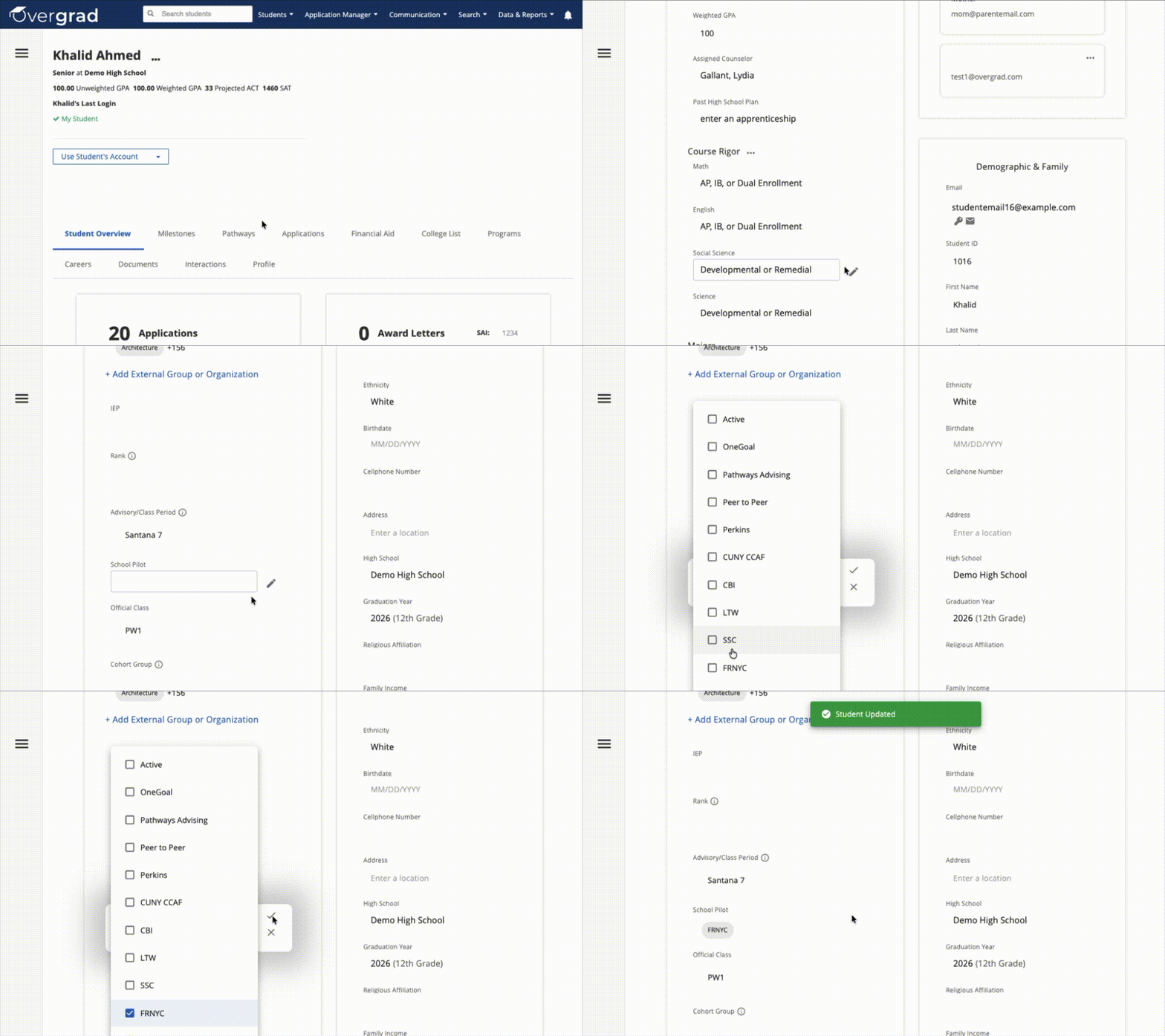
- Search for a student using the Search Students bar.
- Open the student's page and navigate to the Profile tab.
- In the Academics section, scroll down to School Pilot. Click the pencil to edit and the checkmark to save changes.
Bulk Updates
If you would like guidance with screenshots, review this article.
1. Prepare your CSV file.
- Your file must include either Student ID or Email to identify each student, and a column titled School Pilot indicating each student's FRNYC status. You can build this file by:
- Exporting class lists (Report 3.07) from STARS Admin and manually entering FRNYC status.
- Building the CSV manually in Excel or Google Sheets using an existing FRNYC list. A template is available here.
2. Upload the file.
- Go to Your Name → School Account → Data Imports → Import/Update Students.
- Click Choose File and select your CSV.
3. Set headers.
- Match School Pilot to the column in your CSV containing FRNYC status.
- Select how students should be identified (Student ID and/or Email).
4. Map values.
- If your CSV uses coded values (e.g., "Yes" for FRNYC), map them to the correct Overgrad values in the School Pilot field.
5. Process the file.
- Choose whether to send welcome emails (typically No for updates).
- Review and submit.
Was this article helpful?
That’s Great!
Thank you for your feedback
Sorry! We couldn't be helpful
Thank you for your feedback
Feedback sent
We appreciate your effort and will try to fix the article