Overview
Student Access Grants allow district administrators to give educators controlled access to student data across schools in their district. Instead of giving an educator full access to an entire school, grants let you precisely define which students they can see, which schools they cover, and for how long.
To get access: Contact Overgrad support to request the Student Access Grants feature for your district. Support will enable the feature and assign the Manage Grants permission to the appropriate district-level educators.
For more detailed information about using Student Access Grants to give CBO partners access, see this article.
TABLE OF CONTENTS
- Overview
- Who Can Manage Grants?
- Grant Scope Types
- School Assignment
- Time-Based Access
- Creating a Grant
- Editing a Grant
- Revoking Access
- Viewing Grants
- How Grants Interact with Existing Access
- Common Use Cases
Who Can Manage Grants?
Only district-level educators with the Manage Grants permission can create, edit, or revoke student access grants. This feature must also be enabled for your district.
School-level educators can be recipients of grants but cannot create them.
Grant Scope Types
When creating a grant, you choose how broad the access should be:
Full School Access
The educator can see all students at the assigned school(s). No additional filtering applies.
Filtered Subset
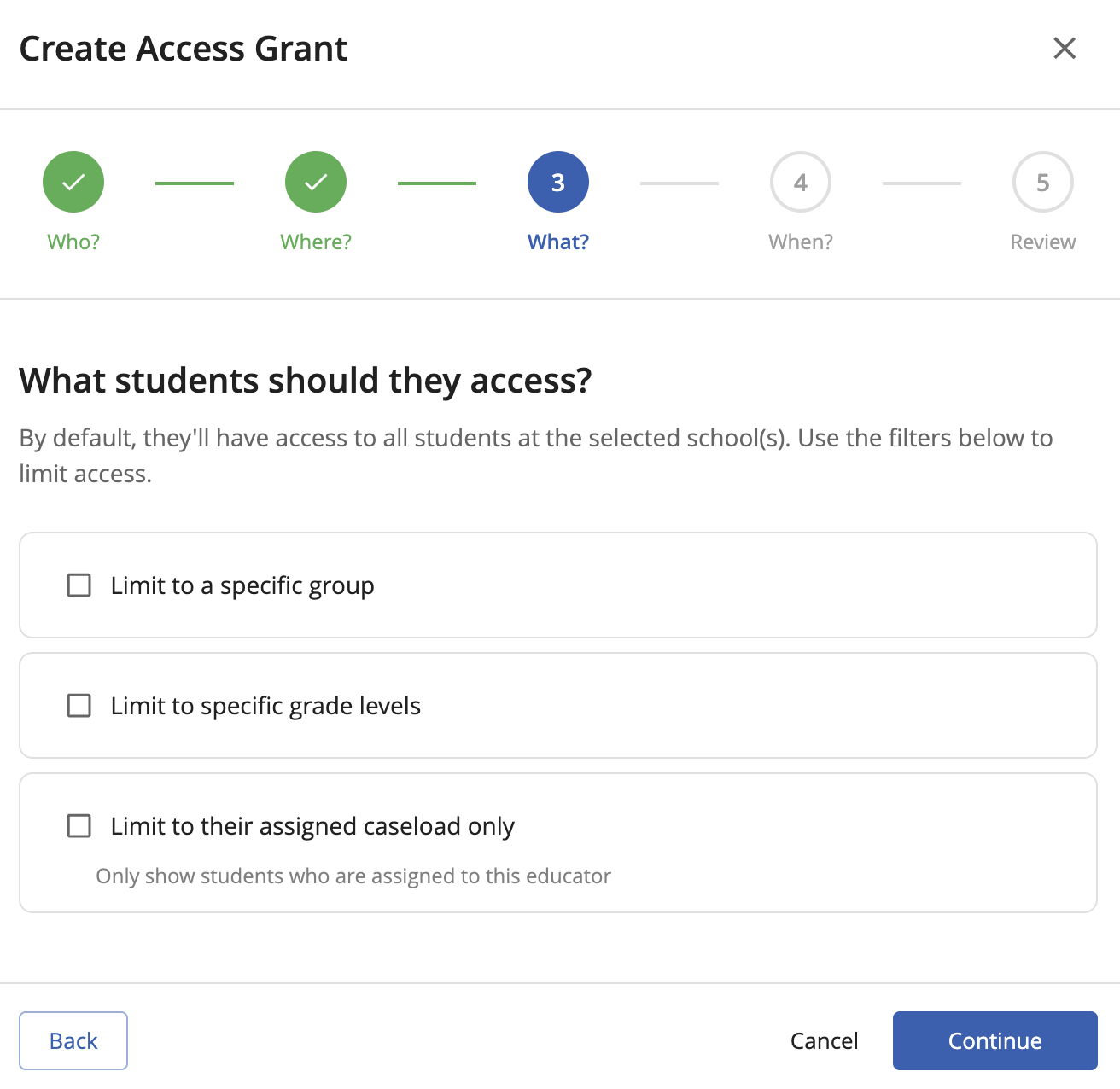
Access is limited to a specific group of students. You can filter by:
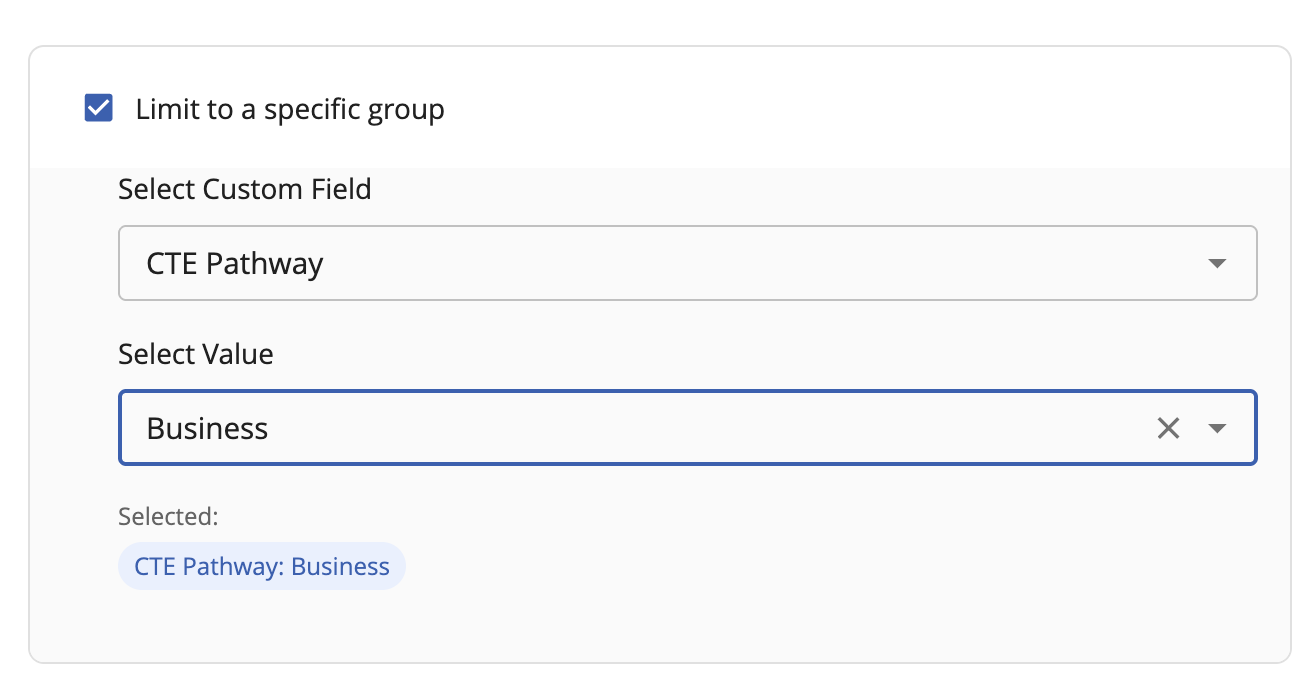
- Custom field value — For example, only students in a particular program or cohort (e.g., "STEM Track" or "Honors")
- Grade level(s) — Limit access to specific grades (K–12, or alumni)
- Own students only — The educator only sees students directly assigned to them
Filters can be combined. For example: 11th and 12th grade students in the Dual Enrollment program.
School Assignment
A single grant can cover one or multiple schools in your district. You can also enable All District Schools, which automatically includes any new schools added to the district in the future — useful for district-wide roles like a regional counselor or superintendent.
All schools assigned to a grant must belong to the same district.
Time-Based Access
Grants support start and end dates:
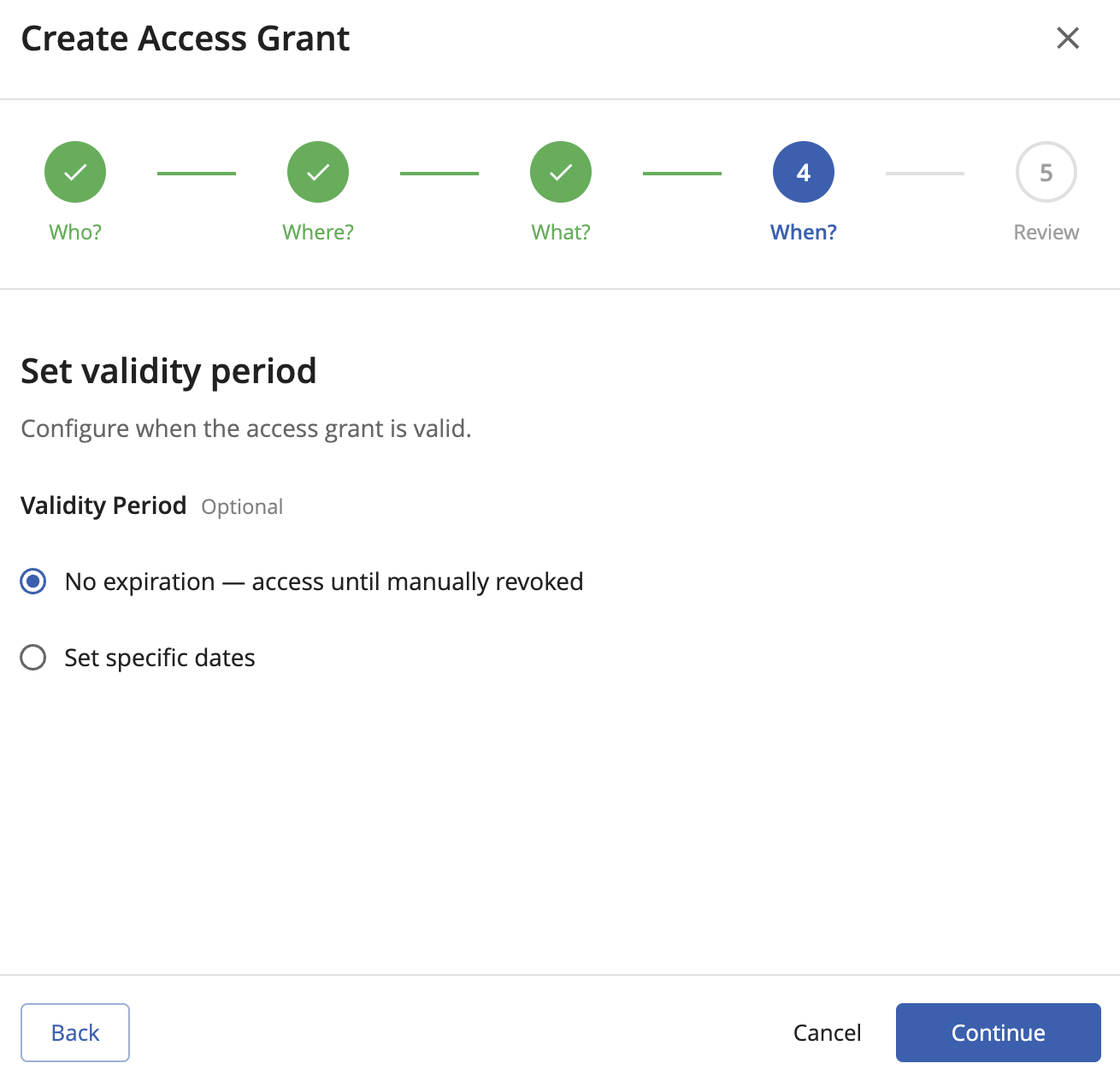
- Valid From — The date the grant becomes active. Useful for scheduling access ahead of time.
- Expires At — The date access ends automatically. Ideal for temporary positions, contractors, or semester-based access.
Grants without an expiration date remain active until manually revoked.
Creating a Grant
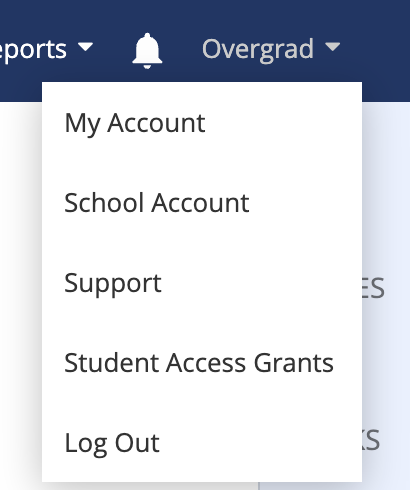
- Go to your Profile Name → Student Access Grants.
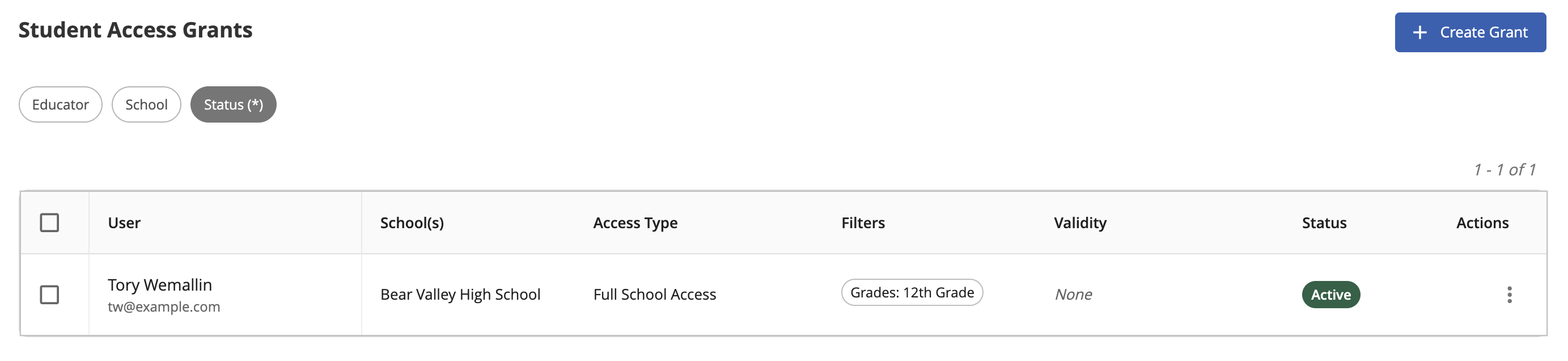
- Click + Create Grant.
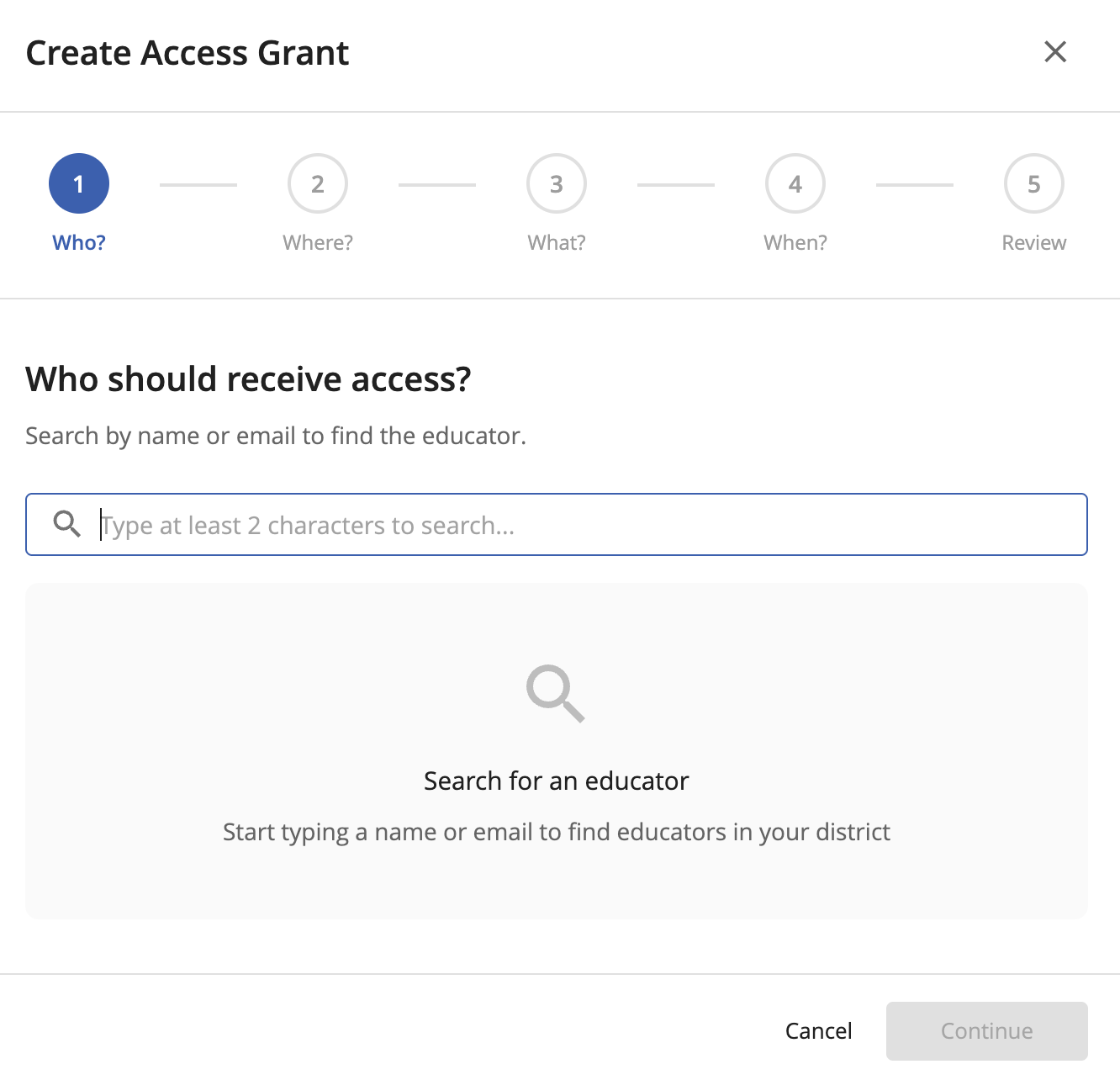
- Search for and select the educator.
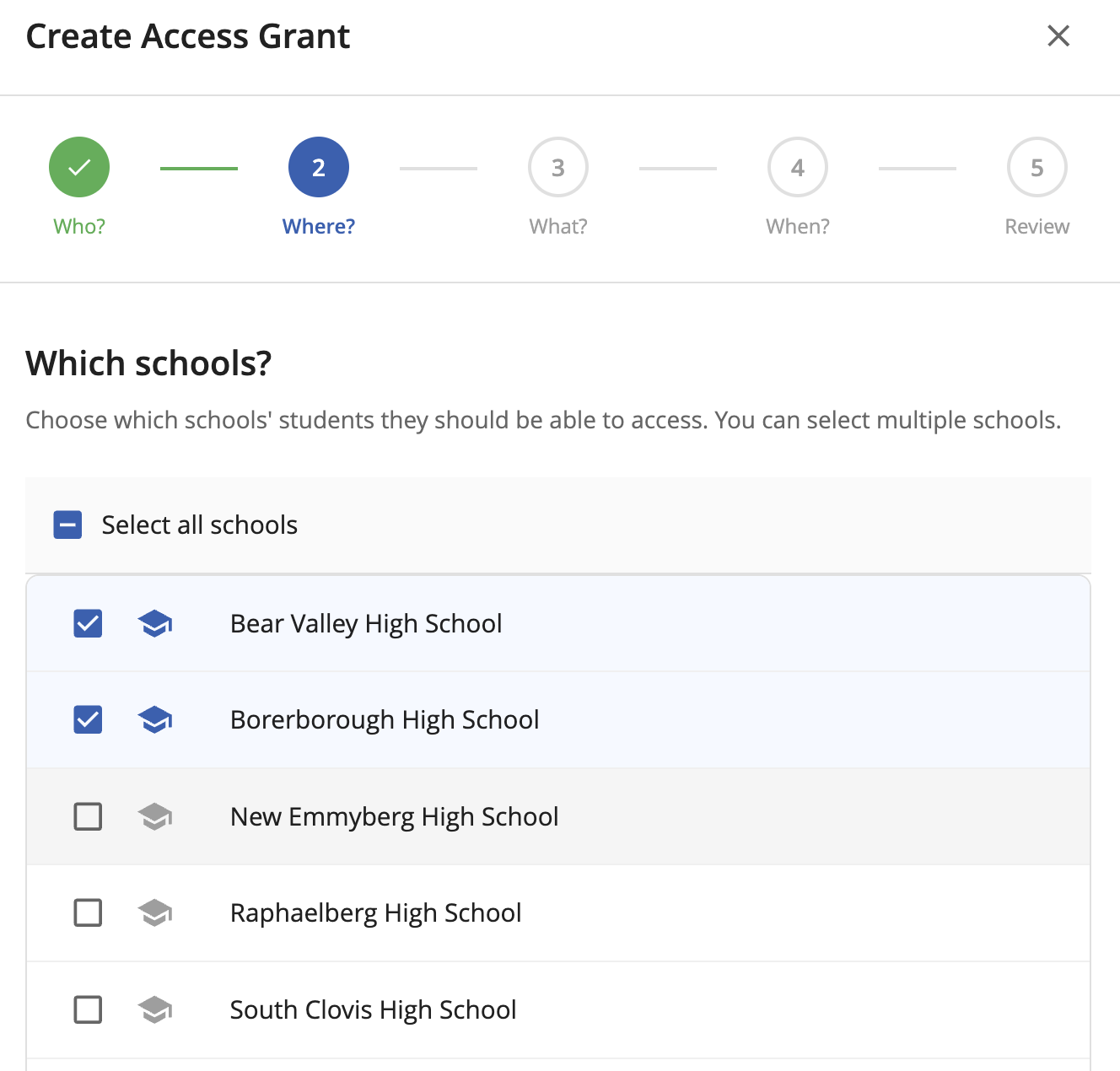
- Choose the school(s) to include.
- Select the scope type (Full School or Filtered Subset). Leave unchecked and click continue if full access to schools. .
- Optionally add grade level filters or a custom field filter.
- Optionally set a start date and/or expiration date.
- Save the grant by clicking Create Grant.
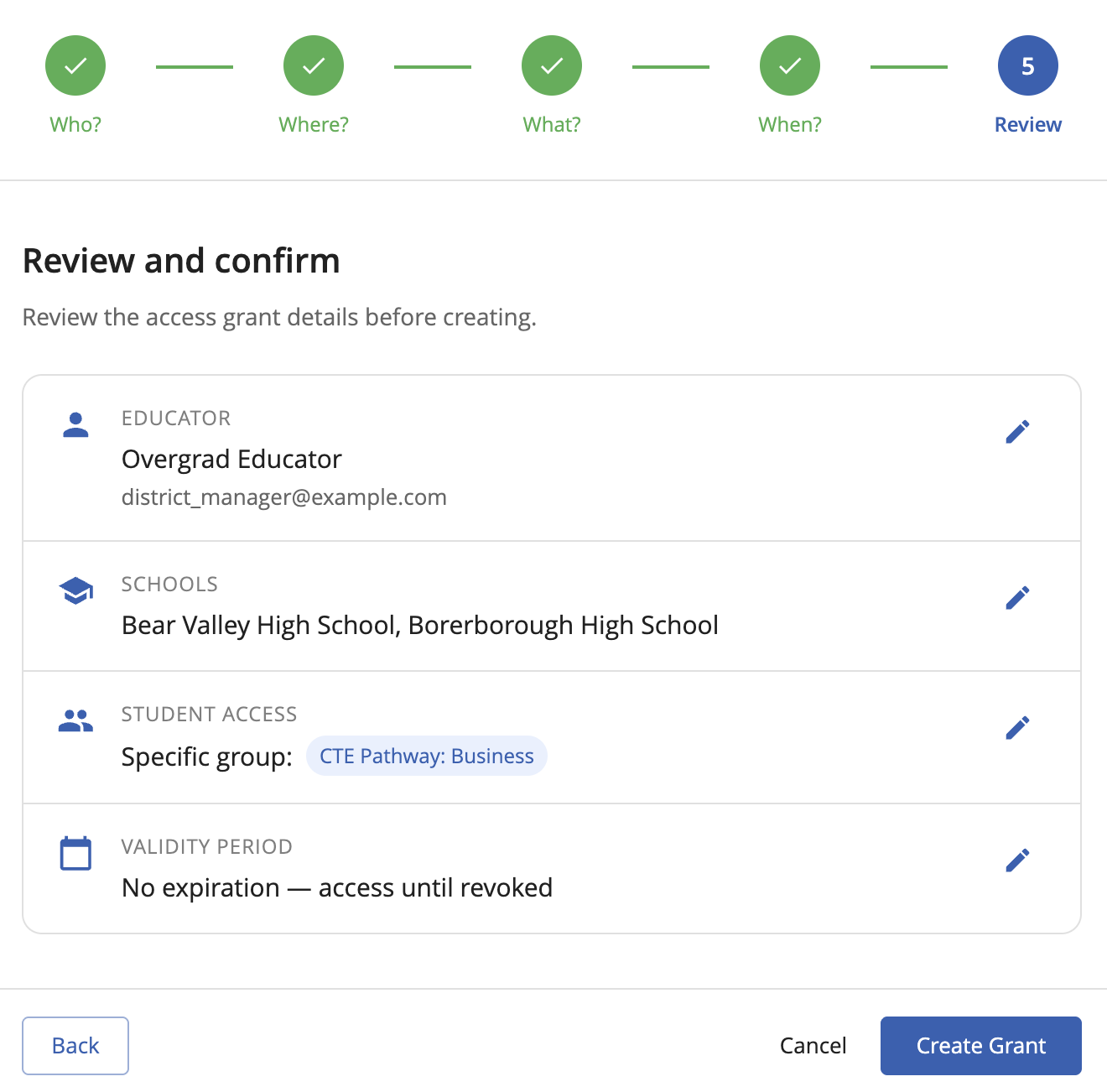
The educator's access takes effect immediately (or on the Valid From date, if set).
Editing a Grant
Existing grants can be updated to change the school assignment, scope, filters, or dates. Changes take effect immediately after saving.
Revoking Access
Standard Revocation
Revoking a grant removes the educator's access. The grant record is retained for audit purposes but is no longer active. You can revoke individual grants or multiple grants at once using Bulk Revoke.
Restoring a Revoked Grant
Revoked grants can be restored if access needs to be reinstated. Navigate to the revoked grants list and use the Restore option.
Viewing Grants
The Student Access Grants page shows all grants in your district. You can filter the list by:
- Status: Active, Expired, Upcoming (future start date), Revoked, or All
- School
- Educator
How Grants Interact with Existing Access
Educators who have direct school assignments (legacy school-based access) are not affected by the grants system — their access is governed by their school membership, not grants.
Grants are specifically for educators who need cross-school or restricted access outside of their primary school assignment.
Common Use Cases
| Scenario | Recommended Setup |
|---|---|
| Regional counselor covering multiple schools | Full School grant with All District Schools enabled |
| Contractor working with seniors only | Filtered Subset grant, grade 12, with an expiration date |
| Program coordinator for a specific cohort | Filtered Subset grant filtered by custom field (e.g., program name) |
| Temporary employee | Any grant type with an expiration date matching their last day |
Was this article helpful?
That’s Great!
Thank you for your feedback
Sorry! We couldn't be helpful
Thank you for your feedback
Feedback sent
We appreciate your effort and will try to fix the article