This feature is only available to Overgrad Pro customers. Please connect with an Overgrad rep if you are interested in learning more.
Cohorts allow district educators to group students based on specific criteria, which then impacts the criteria applied for building a college list with AI. Learn more about creating and editing list criteria here.
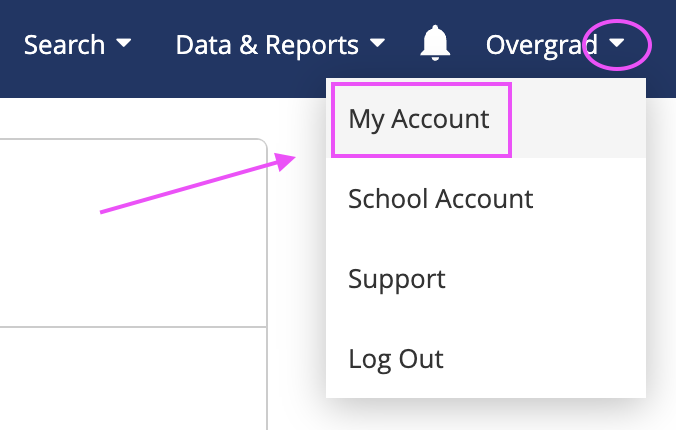
District Level Account Managers can create and edit cohorts from the My Account section of the profile dropdown menu
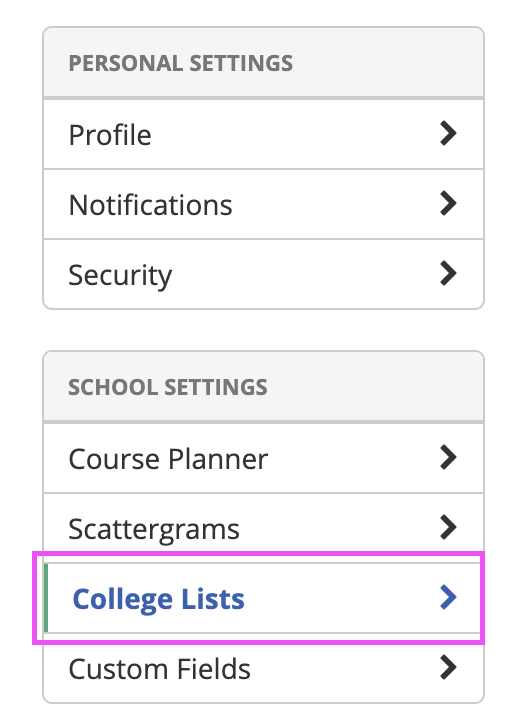
Select the College List section from the left menu
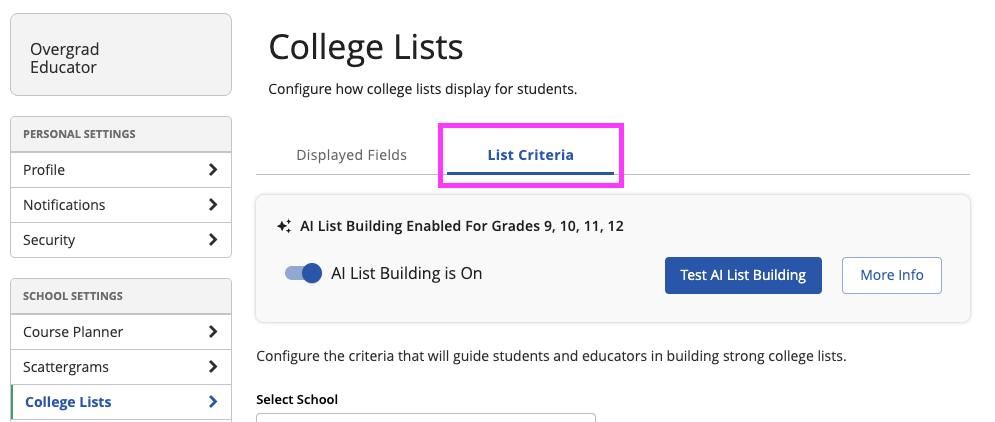
Navigate to the List Criteria section and ensure that you've enabled AI Listbuilding
Creating Cohorts
Select Configure Cohorts

Start with selecting grade levels and choosing how to differentiate cohorts:
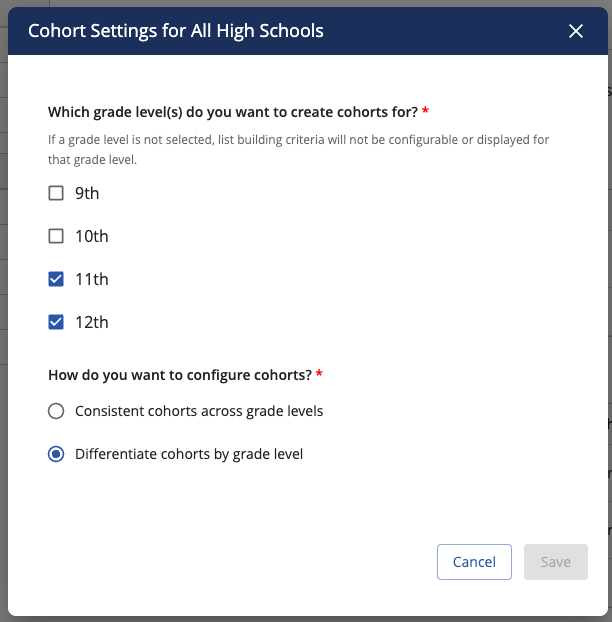
This selection allows you to set different cohorts for grades 11 and 12
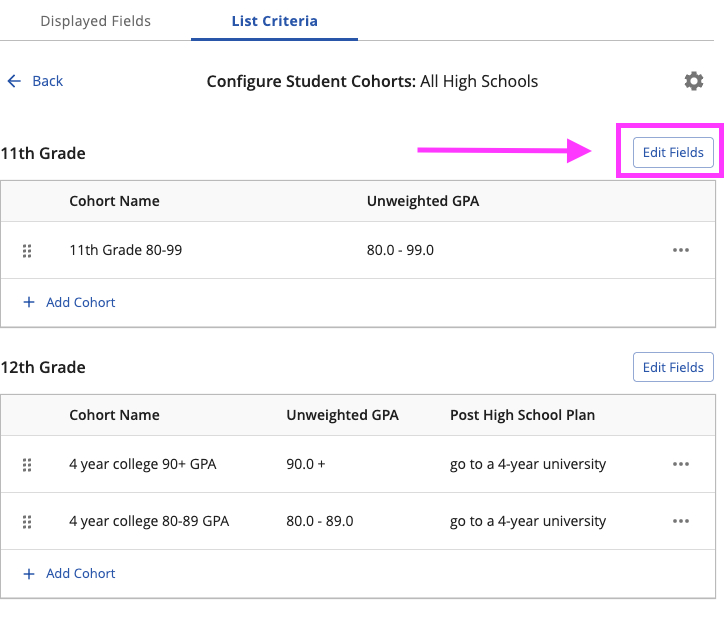
Once you've selected the grade levels, select the fields using the Edit Fields button:
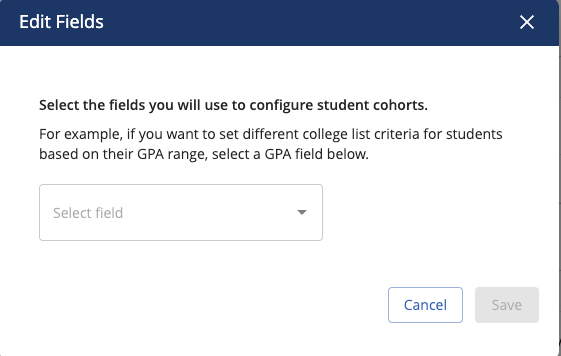
Select the field or fields that you want to use:
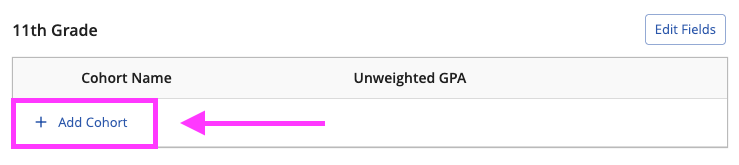
Click the "+Add Cohort" button to create a cohort
Use the popup window to name the cohort and set the criteria for grouping students into the cohort
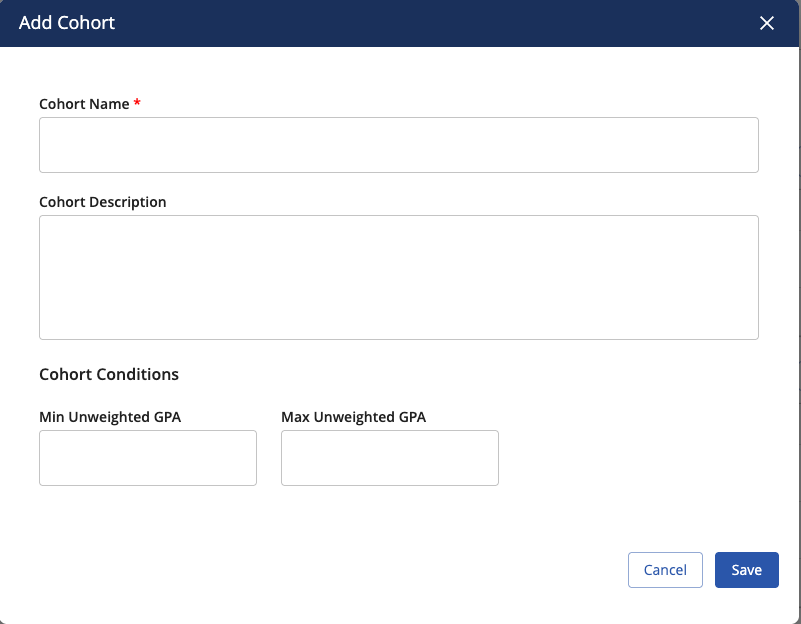
The conditions are based on the fields that you selected to use during the cohort creation process
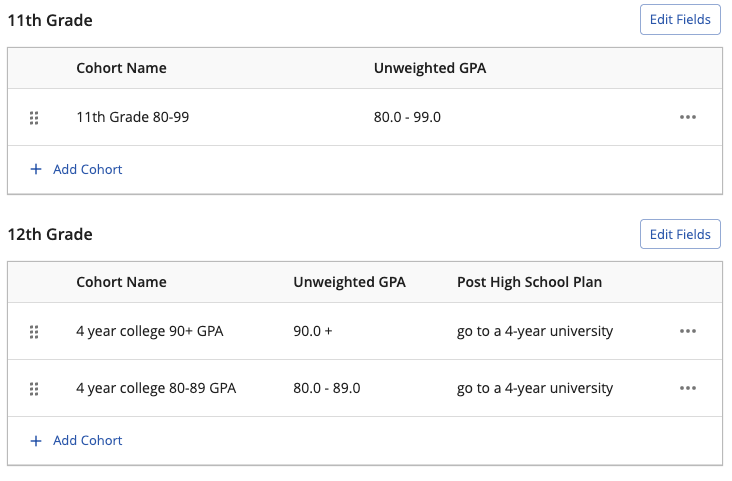
Once you save your fields, the cohorts will then display in the relevant tables for the grade level:
Editing Cohorts
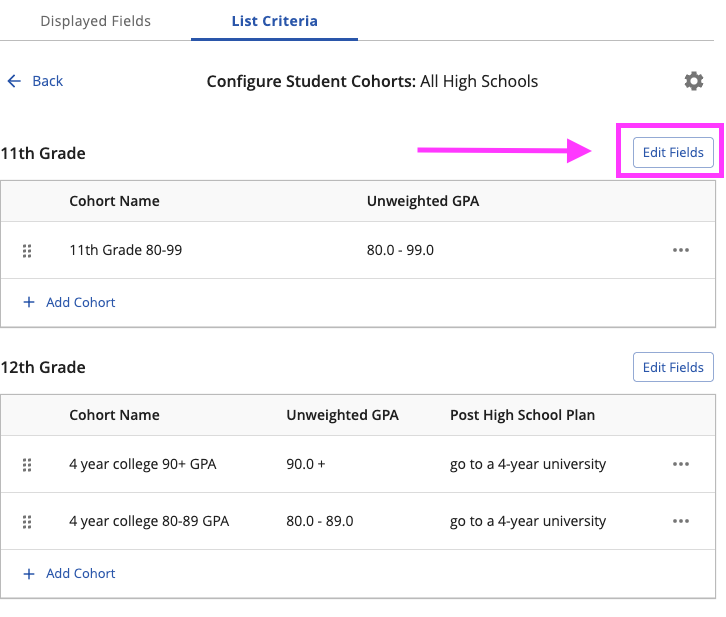
Change or add the fields used for the cohorts using the Edit Fields button
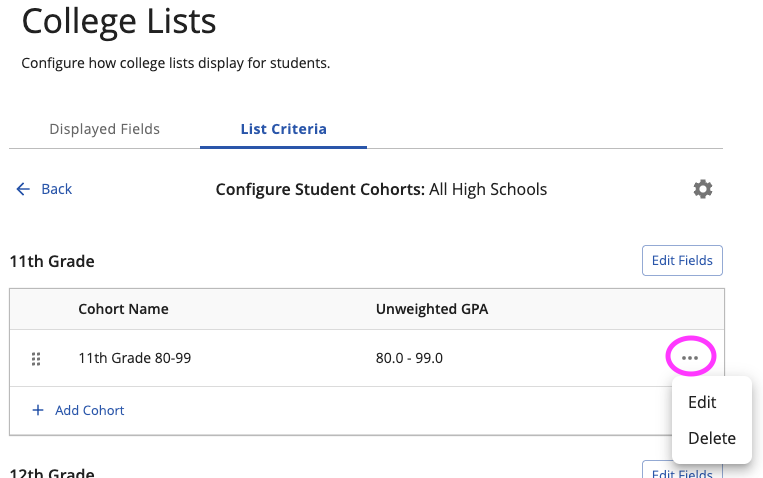
Use the ... menu to edit or delete a cohort
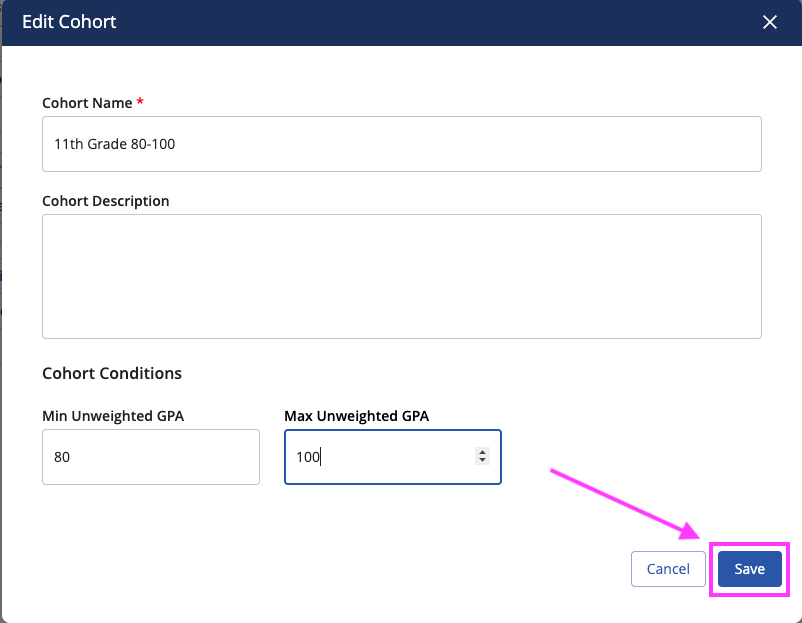
When editing the cohort, use the Save button to save changes
Was this article helpful?
That’s Great!
Thank you for your feedback
Sorry! We couldn't be helpful
Thank you for your feedback
Feedback sent
We appreciate your effort and will try to fix the article