This report type aims to answer the questions:
- Are students graduating from college?
- At which schools are students graduating at higher or lower than average rates?
- Are there trends about when students tend to stop out?
This report would be helpful to providing stakeholders with high level details about college completion and alumni counselors with student-level data to inform strategy and support.
Creating the report
- Select the menu option Data & Reports > Custom Reports
- Select the "Alumni Data" tile
- Click on the . . . menu then Create a New Report
- Title your report, then begin adding the desired fields (see suggestions below)
- Add a Condition if you want to filter your data by specific criteria
- Select field options (columns) to include in your report ; we recommend the following fields, listed alphabetically:
- Alumni Data - Completed a 2-Year Degree?
- Alumni Data - Completed a 4-Year Degree?
- Alumni Data - Current Status
- Alumni Data - Date of First Enrollment
- Alumni Data - Date of Last Known Enrollment
- Alumni Data - Graduated?
- Alumni Data - First Transition
- Alumni Data - Immediate First Fall Enrollment Type
- Alumni Data - Second Transition
- Alumni Data - Semester of First Transition
- College Data - College Name
- College Data - Graduation Rate
- College Data - University Type
- Students - Graduation Year
- Save Report
- Run Report
Here's what that report looks after it is created:

Using this report
To help summarize the data, click on the . . . menu to Add a data summary
In the Data Summary tab, you can customize your subgroups and data summary roll ups
- Click on the . . . menu in the Data Summary tab
- Customize Data Summary (this allows you to order & customize metrics being summarized)
- Add a summary column > select the field to roll up > display as desired
- Suggested summaries: Current Status = Graduated, Completed 2-Year Degree, Completed 4-Year Degree, etc
- Configure subgroups can be used to update the list of subgroup view types
- You can add any of your custom fields as a subgroup type
- Suggested subgroup views: Graduation Year, College Name, Alumni Counselor (if using)
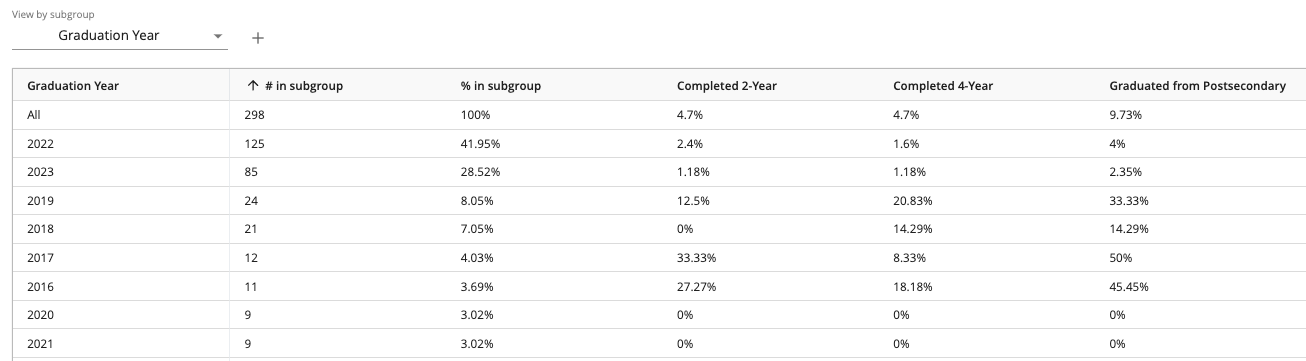
To make the data actionable for alumni counselors, click on the ... menu to add to student lists
- To access the student list, click on the Overgrad icon at the top left corner of the page, then find the list in your custom lists section
- Custom lists will be sorted alphabetically based on the title of your report
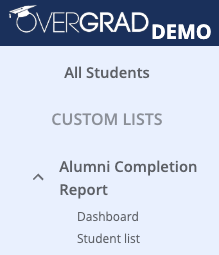
- Custom lists will be sorted alphabetically based on the title of your report
- Use the Student list to view one line per student
- Use the Dashboard to visually display data using donut charts
- Suggested dashboards: Current Status, Graduated?, First Transition etc
Was this article helpful?
That’s Great!
Thank you for your feedback
Sorry! We couldn't be helpful
Thank you for your feedback
Feedback sent
We appreciate your effort and will try to fix the article